Twitch
The Twitch integration is the heart of CroStream. Once you log in, it listens to your channel in real time (chat, channel points, follows, subs, cheers, raids and stream changes) so your triggers can react, and it lets your macros act on Twitch: post in chat, create clips, moderate, run polls and much more. Come to this page to log in, to see which permissions your login has, and to log in again when it is about to expire.
Before you start
- You need the Twitch account of the channel you stream on. CroStream logs in as the broadcaster, because most of what it does (channel points, polls, ads, raids, moderation) only the channel owner may do.
- You don't need a Twitch developer account, an app registration or any keys. CroStream uses its own registered Twitch application.
- CroStream must be running while you log in, because Twitch sends you back to it at the end.
Log in
- Open Integrations → Twitch (or click Twitch in the status bar).
- Click Login.
- Your web browser opens a Twitch page that lists what CroStream asks for. If you aren't signed in to Twitch in that browser, sign in first, with your streaming account.
- Click Authorize.
- The browser shows "Logged in as yourname. You can close this tab." Close it and go back to CroStream.
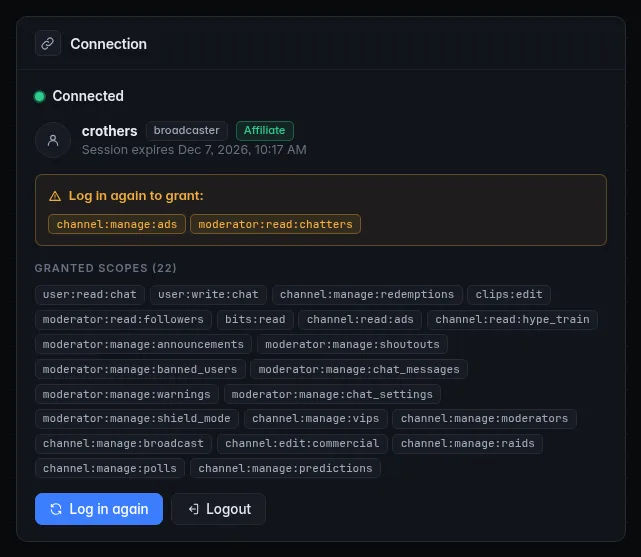
The Twitch page now shows your channel name, your role (broadcaster), when the login expires and the permissions it grants. The status turns Connected once CroStream has joined your channel's live feed, usually within a few seconds.
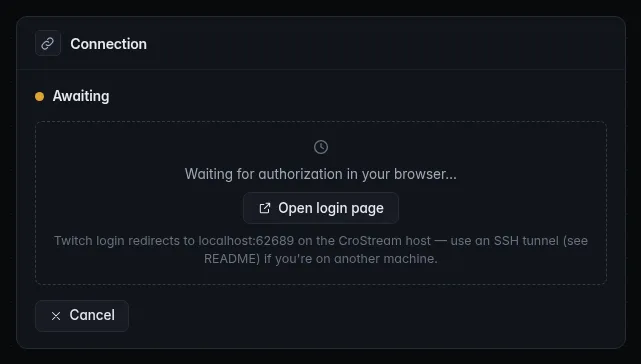
While CroStream waits for you to finish in the browser, the page says "Waiting for authorization in your browser…". If the browser didn't open, or you closed it by mistake, click Open login page. To give up, click Cancel.
How the login works, and why it's safe
CroStream runs a small web server that only this computer can reach,
on localhost port 62689. Login opens a one-time link on it
(http://localhost:62689/twitch/login?k=…), which sends you on to
Twitch. After you approve, Twitch sends you back to that local server
with your login, and CroStream checks it with Twitch and saves it.
- The link works once. Opening it again says "This login link is invalid or was already used. Start the login again from CroStream."
- Other programs on your computer can't start a login, because they don't know the one-time key.
- Your login is saved on your computer only, in CroStream's private
secretsfolder (see Where files are kept). No password is ever stored: Twitch hands CroStream a token, not your password.
Logging in on a computer without a screen
If CroStream runs on another computer in browser mode,
the Twitch login still has to come back to localhost:62689 on the
computer running CroStream. From your own computer, forward that port over
SSH first:
Then click Login and Open login page in the browser UI as usual. The page reminds you of this, with a link to this guide:
If you're at a terminal on the CroStream computer (over SSH, with the same
tunnel), crostreamctl login works too, even while CroStream is running:
it hands the login to the running app and prints the link to open. See
Command line, and
Headless setup for the whole setup.
What CroStream asks permission for
Twitch calls permissions scopes. CroStream asks for every scope its events and actions need, all at once, so you only log in one time. Your login card on the Twitch page lists the scopes your login grants under Granted scopes.
| Scope | Why CroStream needs it |
|---|---|
user:read:chat |
Read your chat: chat commands, subs and gifted subs, and the chat feed. |
user:write:chat |
Send chat messages and replies. |
channel:manage:redemptions |
React to channel point redemptions (and built-in rewards), mark them done or refund them, and create and change rewards. |
clips:edit |
Create Twitch clips (the Clip action, and Moments when it creates clips). |
moderator:read:followers |
React to follows, look up a viewer's follow date, and fill the viewer database with your followers. |
bits:read |
React to cheers and power-ups. |
channel:read:ads |
React when an ad break starts. |
channel:read:hype_train |
React to hype trains. |
moderator:manage:announcements |
Send announcements. |
moderator:manage:shoutouts |
Shout out other channels. |
moderator:manage:banned_users |
Time out, ban and unban. |
moderator:manage:chat_messages |
Delete a chat message and clear chat. |
moderator:manage:warnings |
Warn a user. |
moderator:manage:chat_settings |
Turn chat modes on and off (slow, followers-only, subscribers-only, emote-only, unique chat). |
moderator:manage:shield_mode |
Turn Shield Mode on and off. |
channel:manage:vips |
Add and remove VIPs. |
channel:manage:moderators |
Add and remove moderators. |
channel:manage:broadcast |
Change your title, category and tags, and place stream markers (the Marker action and Moments). |
channel:edit:commercial |
Run an ad. |
channel:manage:ads |
Snooze your next ad. |
channel:manage:raids |
Start and cancel raids. |
channel:manage:polls |
Start and end polls, and react when one ends. |
channel:manage:predictions |
Start, lock, resolve and cancel predictions, and react when one ends. |
moderator:read:chatters |
See who is in your chat, lurkers included, for watch time in the viewer database. |
user:read:email |
Read your account's email address. Optional: used only to tell the developer who sent a crash report, and only if you turn crash reporting on. |
CroStream only uses these to do what your triggers and macros tell it to, and what the pages you open show. It never acts on Twitch by itself.
A login from before user:read:email was added
An older login lacks that scope. Nothing is flagged as missing, no trigger or action is affected, and you are not asked to log in again. The email is simply left out of crash reports until your next login.
Missing permissions
A login made with an older version of CroStream may lack scopes that newer features need. It keeps working, minus what those scopes allow, and CroStream tells you exactly what's missing:
- The Twitch page shows Log in again to grant: followed by the missing scopes, and Log in again becomes the highlighted button.
- The Activity feed says which events are off, for example "log in to Twitch again to enable: follows, ad breaks".
- The Triggers page flags each trigger that can't fire, with the scope it needs.
- On the Actions page, affected actions carry a re-login tag; hover it to see the scope.
To fix all of it at once, click Log in again on the Twitch page and approve. Nothing else changes: your triggers, macros and settings stay as they are.
How long a login lasts
A Twitch login from CroStream lasts a limited time, set by Twitch (usually about two months). The Twitch page shows the exact moment under your name: "Session expires …", in amber once less than a day is left.
CroStream cannot renew the login by itself. It logs in the way Twitch recommends for apps on your own computer, which keeps no long-term secret on your machine, but which Twitch doesn't let an app extend in the background. So once in a while you log in again by hand:
- Well before the date, CroStream starts warning you with banners, then pop-ups as it gets close. See Login warnings.
- Log in again early whenever it suits you, for example before you go live. Your current login keeps working until the new one is complete, so doing this mid-stream never takes Twitch offline. Clicking Cancel halfway leaves the old login in place.
- When a login runs out, CroStream stops listening to your channel, the status goes to Off, and everything that needs Twitch stops until you click Login again.
CroStream also checks the login with Twitch every hour. If you revoke CroStream's access on Twitch (under Settings → Connections on twitch.tv), CroStream notices within the hour and asks you to log in again.
Log out
Click Logout on the Twitch page. CroStream stops listening, forgets the login on this computer and tells Twitch to cancel it. Because you logged out on purpose, CroStream doesn't warn you about a lost login afterwards.
What works when
| Situation | What works |
|---|---|
| Logged in, Connected | Everything below that your channel type allows. |
| Logged in, Connecting | Events (chat commands, follows, …) start arriving once it's connected. CroStream keeps retrying on its own if your network or Twitch has a hiccup. |
| Off (logged out or expired) | No Twitch events fire and no Twitch actions run. The Clip action still saves the OBS replay buffer if OBS is connected. |
| Not live | Everything reacts as usual, but some actions only work while you are live: Shout out a channel, Run ad and Marker. |
Your triggers' Test button works whatever the status, because it uses a made-up sample event. The macro's Twitch steps still need a login to do anything.
Affiliate and Partner features
Some Twitch features only exist on channels that are a Twitch Affiliate or Partner. CroStream reads your channel type when you log in and shows it on the Twitch page as an Affiliate or Partner badge.
If your channel is neither, the page says so, and these are turned off:
- the Channel point redemption and Built-in channel point reward events;
- the Create reward and Update reward actions;
- the Poll ended and Prediction ended events.
Twitch also only allows polls and predictions on Affiliate and Partner channels, so their actions fail on other channels. Everything else, such as chat commands, follows, raids and moderation, works on every channel. Once your channel becomes an Affiliate, click Log in again so CroStream picks up the change.
Rewards CroStream can manage
Twitch only lets an app change, fulfill or refund channel point rewards that the same app created. CroStream can create rewards for you with the Create reward action; rewards you made on the Twitch website still fire triggers, but CroStream can't mark their redemptions done or refund them. See Triggers.
Events and actions
The Twitch page lists everything Twitch provides. In short:
Events: Chat command, Channel point redemption, Follow, Subscription, Gifted subs, Cheer or power-up, Raid, Stream online/offline, Title or category change, Ad break, Hype train, Poll ended, Prediction ended and Built-in channel point reward.
Actions: chat (send, reply, announce, shout out), moderation (time out, ban, unban, warn, delete messages, clear chat, chat modes, Shield Mode, VIPs and moderators), your stream (title, category, tags, markers, clips, ads, raids), engagement (polls, predictions, channel point rewards) and lookups (a viewer, your stream info).
See Events and Actions
for every option and variable. Moments uses your
stream markers to bookmark highlights automatically; it needs
channel:manage:broadcast.
Shared Chat
In a Twitch Shared Chat session, Twitch also sends CroStream the messages from your partner channels. CroStream ignores them: they don't run your chat commands, and the people who wrote them aren't counted as your viewers. Only messages sent in your own channel count.
If your PC's clock is more than 2 minutes off Twitch's, CroStream logs a warning once per connection. Events are still handled; set your system clock to update automatically.
Troubleshooting
- The browser didn't open when I clicked Login.
- Click Open login page. If nothing opens at all, copy the address from a browser on the same computer: it must be the computer running CroStream.
- The page says "This login link is invalid or was already used".
- Each login link works once. Go back to CroStream and click Login again (or Cancel, then Login).
- The page says "Login failed: could not reach CroStream".
- CroStream closed or restarted while you were on Twitch, or the browser is on another computer. Make sure CroStream is running on this computer and start the login again. In browser mode, set up the SSH tunnel first (above).
- "You declined the authorization on Twitch."
- You clicked Cancel on Twitch's page. Start the login again and click Authorize.
- I logged in with the wrong account.
- Click Logout, sign out of Twitch in your browser (or switch accounts there), then click Login.
- It keeps asking me to log in.
- See Twitch login loop.
- Channel point triggers never fire.
- Check the Twitch page for the Affiliate/Partner note and for missing scopes. Then check the reward's name in the trigger matches the reward on Twitch exactly.
Related
- Logging in to Twitch: the first-time walkthrough
- Login warnings
- Integrations: status meanings
- Triggers and Events
- Your first chat command