Thank Ko-fi donors in chat
When someone sends you a donation on Ko-fi, you'd like chat to know, with their name and the amount, without you reading an email. Ko-fi can call a web address whenever something happens on your page. In this tutorial that address is an incoming webhook in CroStream, which turns the donation into variables and runs a macro.
What you'll build
flowchart LR
    K[Ko-fi donation] -- "web request" --> W[Incoming webhook: Ko-fi]
    W --> T[Trigger: A webhook is received]
T --> M[Macro: thank in chat]- An incoming webhook,
ko-fi, that reads Ko-fi's donation and sets{donor},{amount},{currency}and{message}. - A trigger and a macro that post a thank-you in chat.
- An address Ko-fi can reach from the internet.
CroStream Thank you VelvetFox for the 5.00 USD on Ko-fi! Love the stream! Keep it up
Time: about 25 minutes. Level: intermediate.
Before you start
- CroStream is logged in to Twitch. See Logging in to Twitch.
- You know triggers and macros, from Your first chat command.
- A Ko-fi page, where you can set a webhook (in Ko-fi's API settings).
- A way to reach this PC from the internet: a tunnel that gives you
an
https://address (Cloudflare Tunnel, Tailscale Funnel, ngrok), or a router you can forward a port on. Step 4 explains both. If you only want to try it out, you can skip step 4 and use the Send test button.
Why the internet?
Ko-fi's servers make the call, not your browser, so the address has to work from outside your home. That is the one part of this tutorial that needs care, because it opens a door to your PC. Read Putting a webhook on the internet first if you haven't.
Step 1: Create the webhook
- In the sidebar, under Automate, click Webhooks, then New incoming webhook.
- Set Name to
Ko-fi. The Address fills in asko-fi. - Set Body format to Form. Ko-fi posts a web form with one field,
data, that holds the donation as JSON. CroStream reads the JSON inside. - Leave Methods at POST, and Check at Token.
- In the Variables panel, open Start from an example… and pick Ko-fi donation. It fills in a sample body like the one Ko-fi sends, and four variables.
- Click Create.
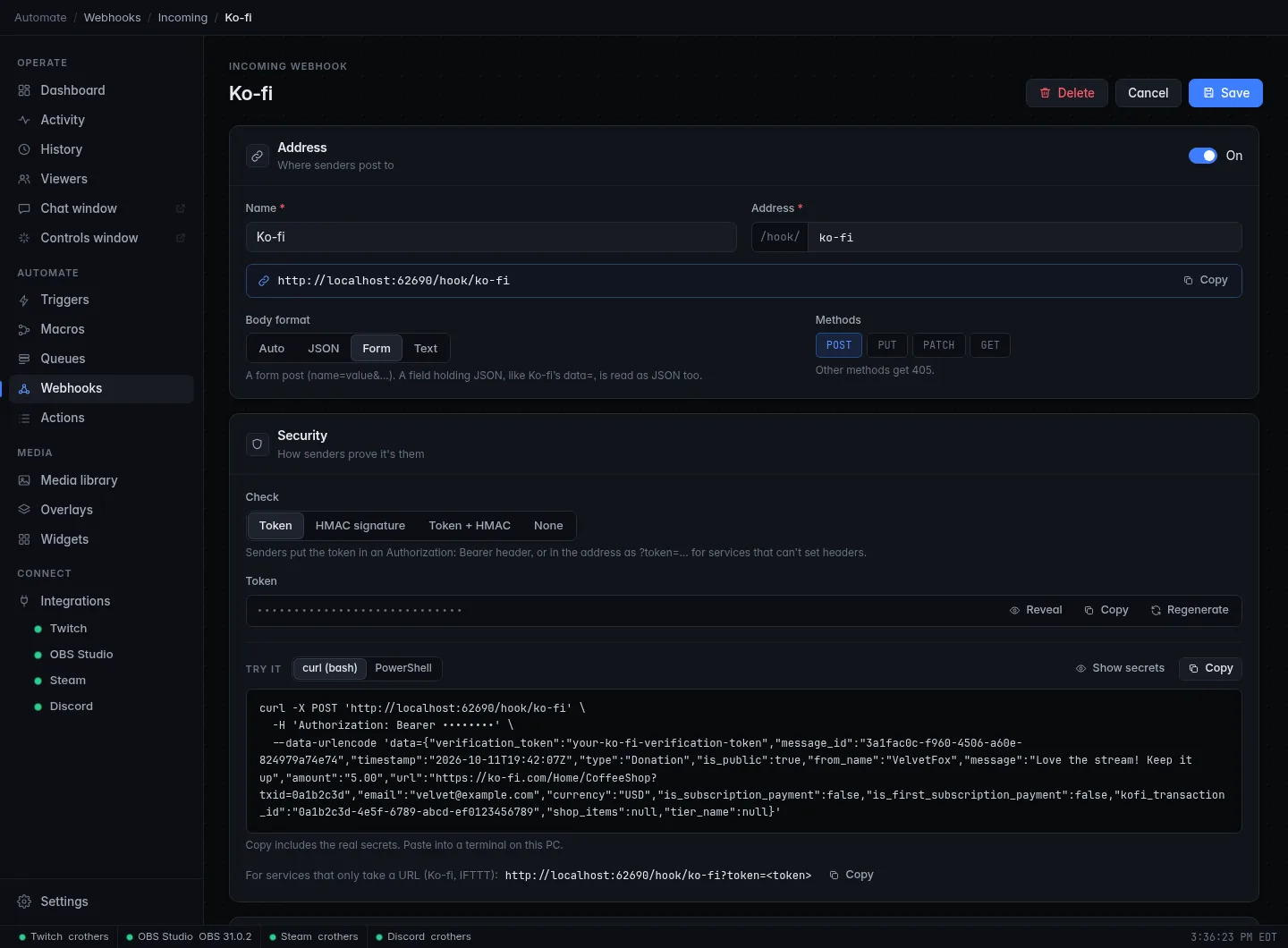
The token is made when you save. It stays hidden; you'll copy it in step 5.
Step 2: Check the variables
Under Variables, the sample shows as a tree, with four variables already mapped:
| Variable | Read from | As |
|---|---|---|
{donor} |
data.from_name |
Text |
{amount} |
data.amount |
Number |
{currency} |
data.currency |
Text |
{message} |
data.message |
Text, empty if there is none |
The paths start with data, the name of the form field. Value in
sample shows what each one gives for the sample: VelvetFox, 5.00, USD
and Love the stream! Keep it up.
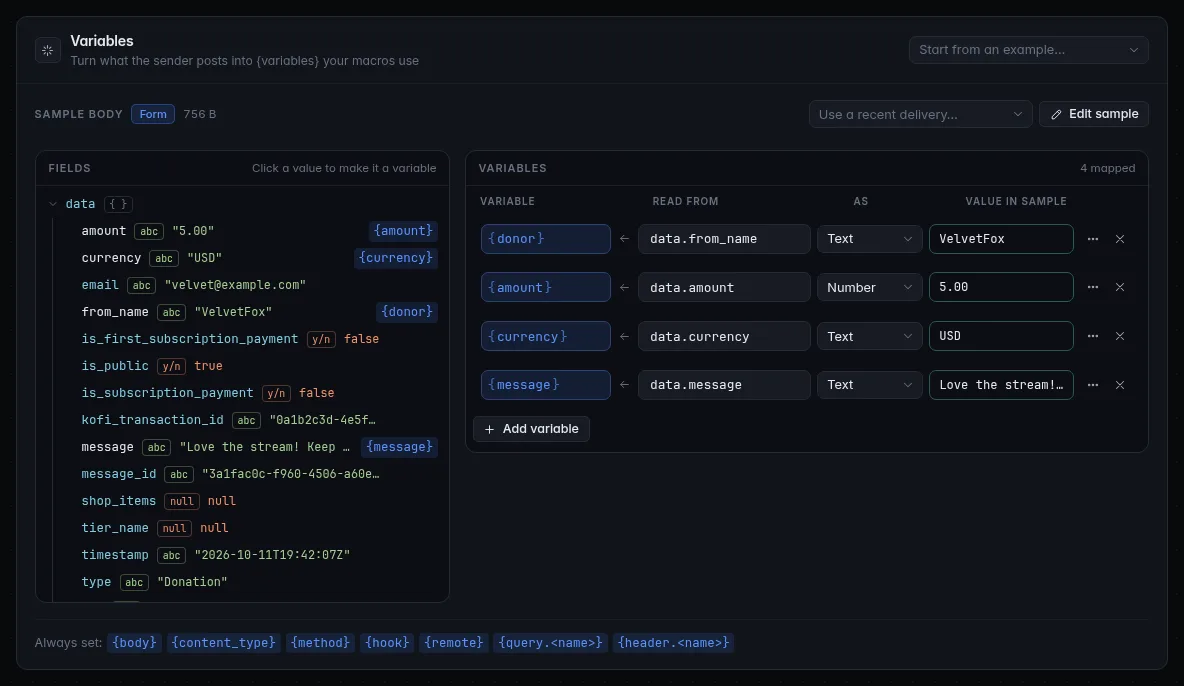
To use more of Ko-fi's fields, click them in the tree. data.type says
what happened (Donation, Subscription, Shop Order or Commission); you
could branch on it with an If step, as in
Add logic to a macro. data.is_public is false when the
donor asked for the donation to be private: map it as Yes / no and skip
their name in chat when it is.
Click Save.
Step 3: Say thanks
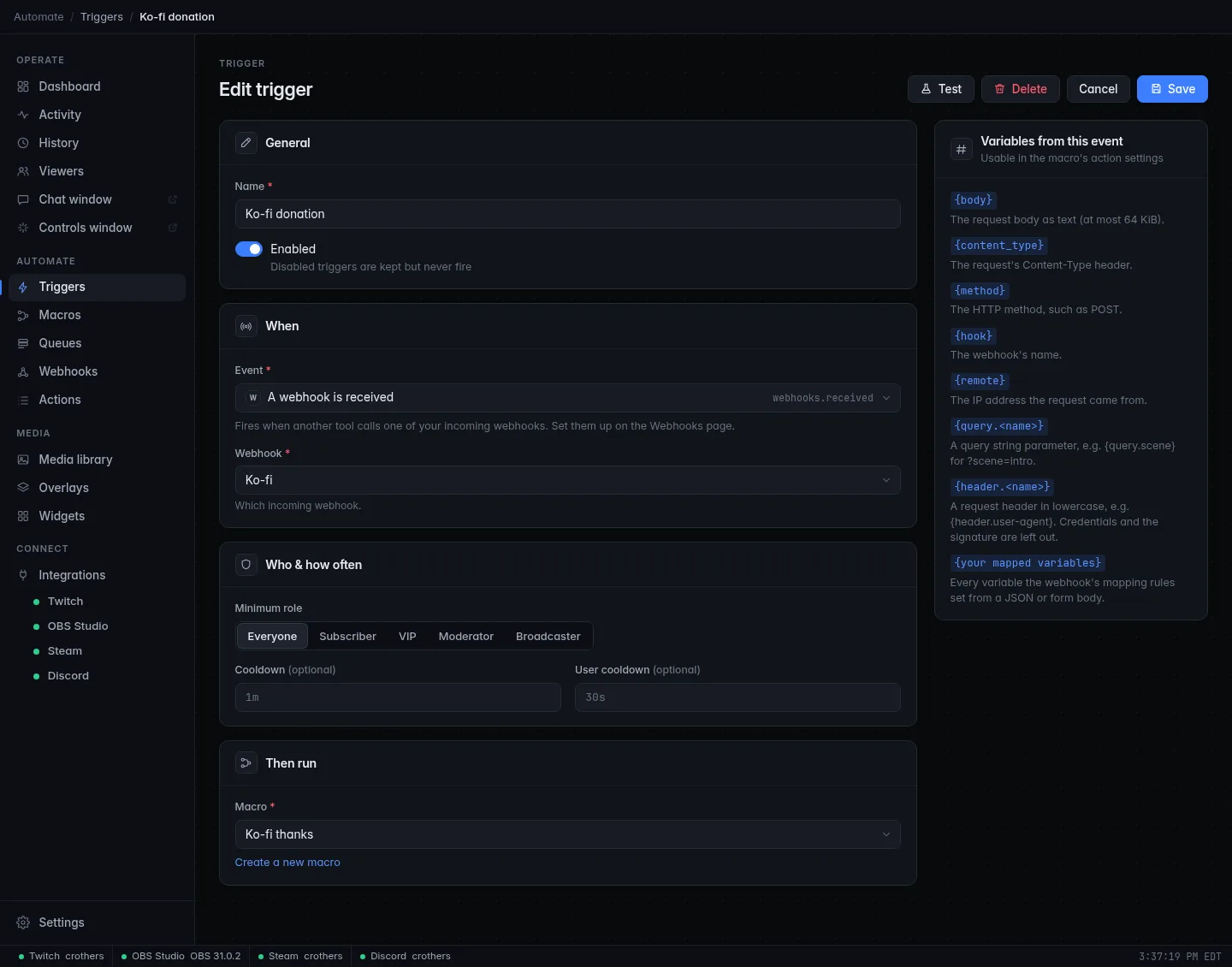
- Click Use in a trigger at the bottom of the webhook's page. CroStream creates a trigger, Ko-fi webhook, and a macro, When Ko-fi is called, and opens the macro.
-
Remove the placeholder Stop step. Filter the palette for
chatand click Send chat message. Set Message to: -
Click Save.
The trigger's event is A webhook is received, set to your Ko-fi webhook. Every call that is accepted fires it.
Step 4: Let Ko-fi reach you
Pick one way.
A tunnel program on this PC gives you a public https:// address that
forwards to your PC. Ko-fi never sees your home network, and the token is
encrypted on the way.
- Install a tunnel tool of your choice and point it at
http://localhost:62690. It gives you an address likehttps://something.example.com. - Your webhook's address becomes
https://something.example.com/hook/ko-fi. - You can leave the listener on Localhost only. The tunnel program runs on this PC, so its calls come from this PC.
Behind a tunnel, the token is all there is
Every call looks local to CroStream, so the exposure setting can't keep anyone out. Don't turn the token off, and don't share the address.
- On the Webhooks page, in Listener, choose Open to all and click Apply. Read the red warning.
- In your router, forward a port to this PC's port
62690. - Your address is
http://<your public address>:<the port>/hook/ko-fi. It is plainhttp://, so the token can be read by anyone between Ko-fi and you. Many services refuse such addresses; a tunnel avoids that. - Turn Open to all back to Local networks only when you're not using it.
Step 5: Tell Ko-fi
Ko-fi can only call an address, so the token goes in the address.
- Open the Ko-fi webhook in CroStream. Under Security, below the command, find For services that only take a URL (Ko-fi, IFTTT). Click Show secrets so it shows your real token, then click its Copy.
- It looks like
http://localhost:62690/hook/ko-fi?token=…. Replacehttp://localhost:62690with your public address from step 4, keeping/hook/ko-fi?token=…exactly. - In Ko-fi's settings, paste the result as the Webhook URL, and save.
Ko-fi's own verification token
Ko-fi also puts a verification_token inside every donation. CroStream's
token in the address already keeps strangers out, so you don't need it. If
you want a second check, map data.verification_token to a variable,
and in the macro add an If step that stops the run when it isn't
your Ko-fi token. Note that this puts the token in your macro, and in
exports.
Check it works
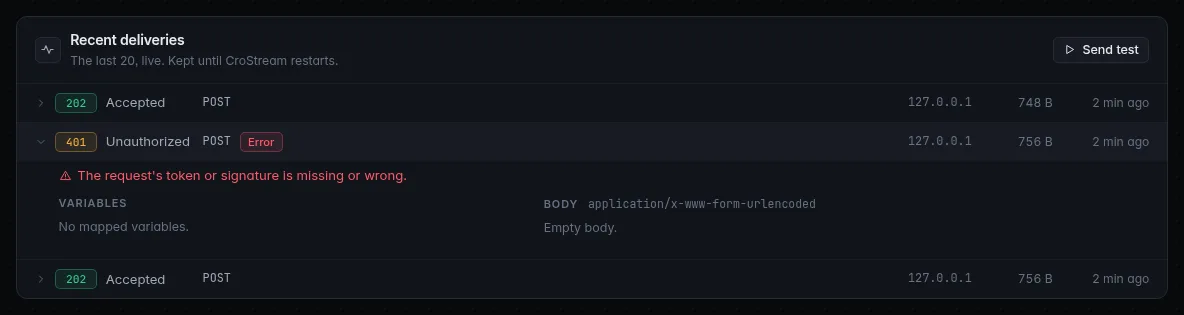
- In the webhook's page, click Send test under Recent deliveries. A
row appears with a green 202, tagged Test. Open it: Variables
shows
{donor}VelvetFox,{amount}5.00, and so on. - Chat shows the thank-you with the sample's name and amount. Send test goes through the real pipeline with your saved sample, so the macro runs for real and the message is posted in your chat.
- In the Triggers list, click Test on Ko-fi webhook: the same macro runs with the sample.
- For the real thing, send a small donation to yourself, or use a test feature on Ko-fi if it has one. The call shows in Recent deliveries with Ko-fi's address as the sender (or this PC, behind a tunnel).
Troubleshooting
| What you see | What to do |
|---|---|
| Nothing appears under Recent deliveries | The call never reached CroStream. Check the address in Ko-fi, the tunnel or the forwarded port, and that the webhook is On. Open the address in a browser: method not allowed (405) means the address works. |
| A red 401 | The token in Ko-fi's address doesn't match. Copy it again with Show secrets, or Regenerate it and paste the new address into Ko-fi. |
| 202, but chat is quiet | A webhook alone does nothing: check the Ko-fi webhook trigger is Enabled, and look at the Activity page for the macro's run. |
{donor} shows as written in chat |
The name isn't set. Open the delivery: Problems says why. Ko-fi's JSON is in data, so the paths start with data.. |
| 400 The body is not valid JSON | Body format is JSON; Ko-fi sends a form. Set Form (or Auto). |
| Works with Send test, not from Ko-fi | The test comes from this PC; Ko-fi has to get in. Check step 4, and with port forwarding that Accept requests from is Open to all. |
Next steps
- Show the donor on stream too: play an alert from the same macro.
- Every detail of webhooks: Webhooks.
- The paths you can use to read other services' bodies: JSON paths and mapping.
- The other direction: Flash your lights on a raid.