Screen flash
Flash an image on screen is a macro action that pops an image up over your own monitor for a moment, right over your game. Viewers love to trigger it with channel points or bits: a jump scare, a "GET GOOD" banner, a face filling your screen. It can play a sound too.
The flash never takes the keyboard focus, and every click goes straight through to the game, so your game keeps running underneath. When the time is up it fades away on its own. And if you ever need it gone at once, there is a panic button.
Flashing images can trigger seizures
Bright, flashing or flickering images can cause seizures in people with photosensitive epilepsy, including you. Read Safety before you set one up, keep flashes short and gentle, and put a cooldown on any trigger that fires one.
How it differs from an alert
| Screen flash | Overlay alert | |
|---|---|---|
| Where it shows | On your monitor, over your game | In OBS, in the overlay's browser source |
| Who sees it | You. Viewers only if OBS captures that monitor (see below) | Your viewers, on stream |
| Good for | Scaring or surprising you | Celebrating events for everyone |
Will viewers see it?
The flash is a window on your desktop, not part of an overlay. Display Capture in OBS records the whole monitor, so viewers see the flash too. Game Capture and Window Capture record only the game, so they don't. If you want viewers to see the scare as well, run an overlay alert or Show an overlay element in the same macro.
Set one up
You'll need an image in your media library: PNG, JPEG, GIF (animated GIFs play) or WebP. A sound is optional.
- Add the image (and sound) to the media library.
- Make a macro. In the action palette on the right, type flash in Filter actions and click Flash an image on screen.
- Pick the Image. The defaults are a good start: 1.5 seconds, on your main monitor, fitted inside the screen.
- Save the macro.
- Make a trigger that runs it, for example a channel point redemption called Jump scare. Set a cooldown on the trigger.
- Click Test on the trigger (or Run in the macro editor) to see the flash for real.
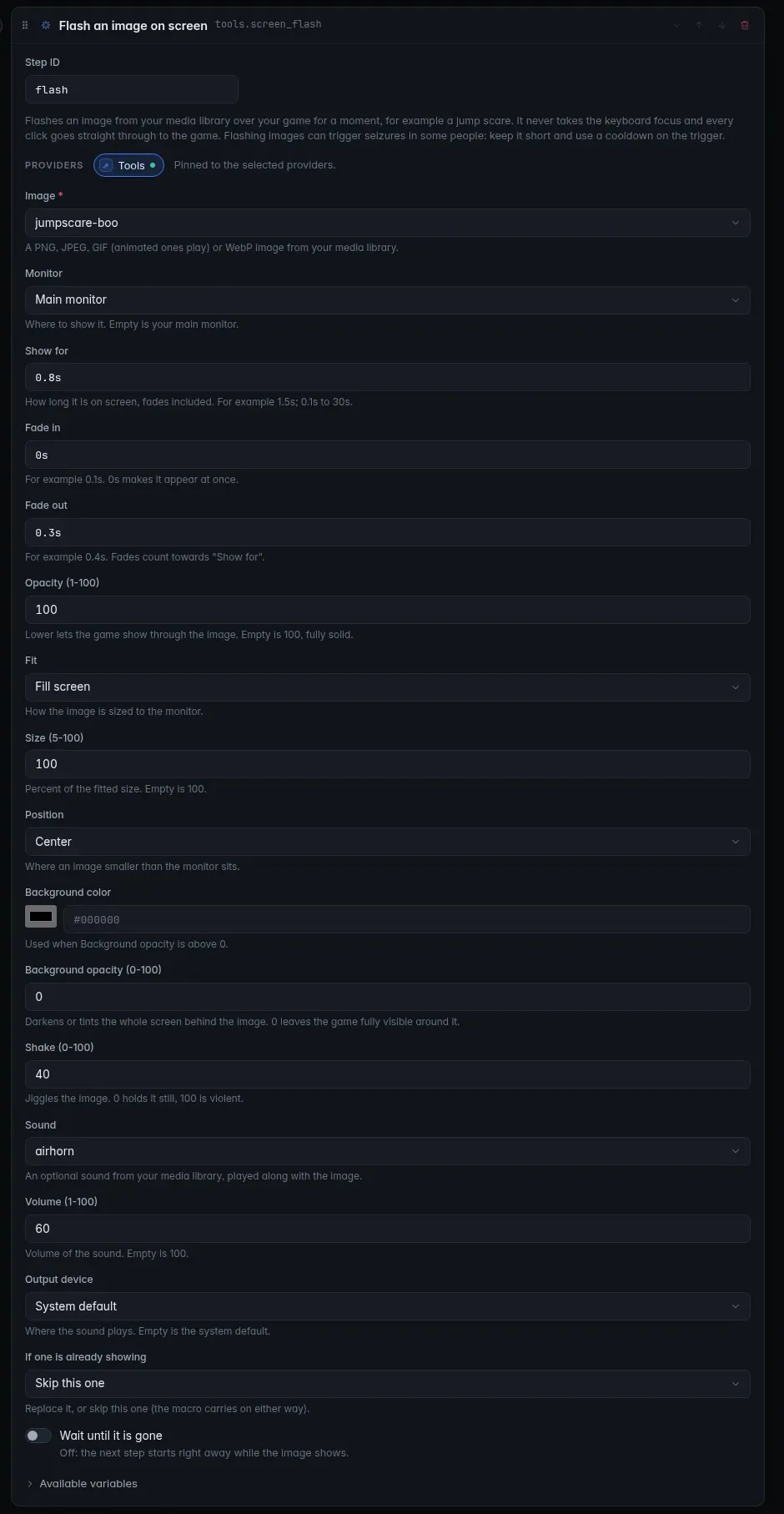
You can also try the action straight away from the Actions page: open Flash an image on screen, fill in Try it and click Run now.
The tutorial Jump scare on channel points walks through the whole thing.
Every option
| Option | What it does | Default |
|---|---|---|
| Image | The image to show, from your media library: PNG, JPEG, GIF (animated GIFs play) or WebP. Required. | |
| Monitor | Main monitor, All monitors, or one monitor by name, such as Display 2: Left (1920×1080). | Main monitor |
| Show for | How long the flash is on screen, fades included. From 0.1s to 30s. |
1.5s |
| Fade in | How long it takes to appear. 0s makes it appear at once. Up to 5s. |
0.1s |
| Fade out | How long it takes to disappear. Up to 5s. Fades count towards Show for. |
0.4s |
| Opacity (1-100) | 100 is fully solid; lower lets the game show through the image. | 100 |
| Fit | How the image is sized to the monitor: Fit inside (whole image visible), Fill screen (covers the screen, edges may be cut off), Stretch (fills the screen, may distort), Actual size (pixel for pixel). | Fit inside |
| Size (5-100) | Percent of the fitted size. 50 makes it half as big. | 100 |
| Position | Where an image smaller than the monitor sits: Center, Top, Bottom, Left, Right, Top left, Top right, Bottom left, Bottom right. | Center |
| Background color | The color for the background tint. | #000000 (black) |
| Background opacity (0-100) | Darkens or tints the whole screen behind the image. 0 leaves the game fully visible around the image. | 0 |
| Shake (0-100) | Jiggles the image. 0 holds it still, 100 is violent. | 0 |
| Sound | An optional sound from your media library, played with the image. | none |
| Volume (1-100) | The sound's volume. | 100 |
| Output device | Where the sound plays, for example your headphones. Empty is the system default. | System default |
| If one is already showing | Replace it: the new flash takes over. Skip this one: the new one doesn't show (the macro carries on as if it had, so a skip isn't an error). | Replace it |
| Wait until it is gone | On: the macro's next step waits until the flash has faded. Off: the next step starts right away while the image shows. | Off |
Good to know:
- Times are written like
1.5s,400msor2s. If you leave both fades empty and Show for is very short, the fades shrink to fit. - The two fades together can't be longer than Show for.
- Images can be up to 64 MB and 16384 × 16384 pixels; an animated GIF up to 1,000 frames.
- A sound that fails to play shows a warning in Activity; the image still flashes.
- Only one flash shows at a time.
- Monitors are numbered with the main one first (Display 1). A step set to one monitor remembers its number, so after you plug in, unplug or rearrange displays, open the step and check it still names the right one.
Recipes
| Effect | Settings |
|---|---|
| Classic jump scare | A scary face, Fit Fill screen, Show for 0.8s, Fade in 0s, Fade out 0.3s, Shake 40, a scream at Volume 60. |
| Small "GG" sticker in a corner | Size 30, Position Bottom right, Show for 3s, Shake 0. |
| Dim the game and show a message | Background opacity 70, Background color black, Fit Fit inside, Size 60. |
| See-through ghost | Opacity 40, Fade in 1s, Fade out 1.5s, Show for 4s. |
Clear the screen flash
Clear the screen flash takes the image down at once. Set it up as your panic button in one or more of these places:
-
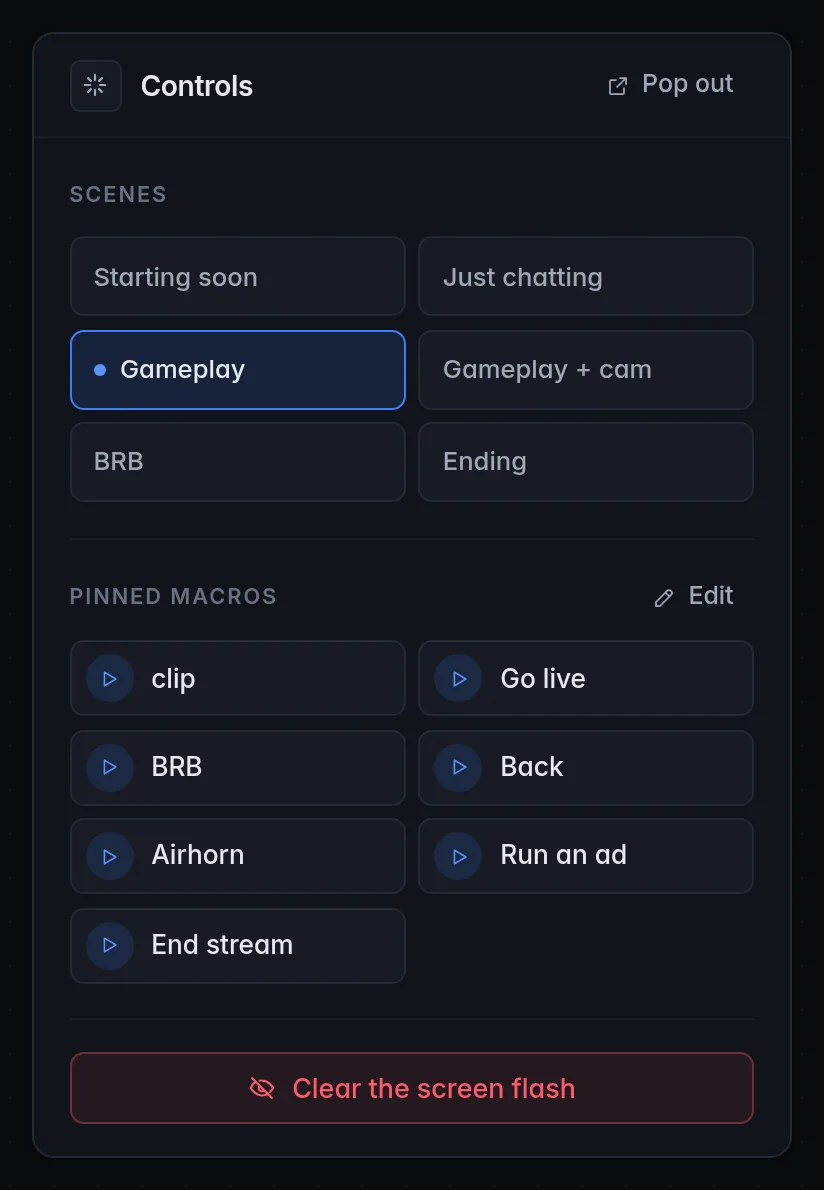
Dashboard: the Controls panel has a Clear the screen flash button (it says Screen cleared after you click it). The pop-out Controls window has it too. See Dashboard.
-
Tray: right-click the CroStream icon in the system tray and choose Clear screen flash. See Tray and desktop.
- Hotkey: make a macro with the Clear the screen flash action and a hotkey trigger for it, so one key press works even while you're in a game.
- Any macro: add the action wherever you need it.
Set the hotkey up before you go live
A hotkey reaches CroStream even when your game has the focus, so it's the fastest way out. Test it once with a long flash.
Platforms
Fully supported. CroStream draws the flash with its own see-through window on top of everything.
- It shows over games in windowed and borderless (fullscreen windowed) mode.
- A game in exclusive fullscreen hides it. Switch the game to borderless if you want flashes.
- All monitors flashes every monitor.
Partly supported.
- It shows over games in windowed and borderless mode; a game in exclusive fullscreen hides it.
- All monitors flashes every monitor, and you can pick one by name. The helper opens one flash window per monitor.
- The flash is drawn by a small helper that CroStream starts for each flash. It has no Dock icon and never takes the focus.
- In browser mode CroStream can't see your monitors, so All monitors flashes only the main one.
Partly supported, and only in builds made with screen flash support.
- It needs a CroStream build that includes screen flash support (built with the X11 and OpenGL development packages). Other builds report that flashing the screen isn't available on this computer.
- It works on X11 and most desktops, but GNOME on Wayland doesn't allow it.
- All monitors flashes every monitor, and you can pick one by name. The helper opens one flash window per monitor. On Wayland the desktop decides where each monitor's flash goes, so it may not land exactly where you expect.
- In browser mode CroStream can't see your monitors, so All monitors flashes only the main one.
Safety and photosensitivity
A screen flash is fun when everyone is in on the joke. Some care keeps it that way:
- Keep it short and gentle. About a second is plenty for a scare. Avoid strobing GIFs, rapid light/dark changes and large areas of saturated red. Shake above 50 is intense; use it sparingly.
- Use a cooldown. Put a cooldown on every trigger that fires a flash, so chat can't chain them. With If one is already showing set to Skip this one, flashes that pile up are dropped instead of replacing each other.
- Mind the sound. A sudden loud sound in headphones can hurt. Start at a modest Volume and test with your headphones on.
- Know your panic button. Set up a hotkey before you stream.
- Think about your viewers. If OBS captures your whole monitor, viewers see the flash too. Warn them in your stream title or panels if you use flashing effects.
- Never in competitive moments. The flash covers your game. Turn the trigger off for ranked matches or anything you can't afford to lose.
If you or anyone watching has photosensitive epilepsy, don't use flashing images at all.
Troubleshooting
| Problem | What to do |
|---|---|
| Flashing the screen isn't available on this computer. | On Linux, your build doesn't include screen flash support, or you're on GNOME with Wayland (log in with an X11 session). |
| Nothing shows over my game. | The game is in exclusive fullscreen. Switch it to borderless or windowed. |
| It shows on the wrong monitor. | Pick the monitor by name in Monitor. Main monitor is the one your system calls main (on Windows, "Make this my main display"). |
| The flash is cut short or replaced. | Another flash started with Replace it. Use Skip this one, or a cooldown on the trigger. |
| The macro step says skipped: a flash is already showing. | If one is already showing is Skip this one and one was on screen. That's working as intended. |
| An error says the fades are longer than the flash. | Shorten Fade in / Fade out, or lengthen Show for. |
| The image fails to load. | Check it's PNG, JPEG, GIF or WebP, under 64 MB, and not in the media library's Trash. |
| No sound. | Check Output device and Volume, and that the sound isn't in the Trash. The image still flashes when the sound fails; look in Activity for the warning. |
| Viewers don't see it. | OBS only records it with Display Capture. See Will viewers see it? |