Props and anchors
A prop is an image pinned to your model: a clown nose on your nose, a crown on your head, a viewer's emote on your cheek. It moves, turns and bobs with you, stays in front of your hair, and comes off by itself after a while. Props are CroStream's headline VTube Studio feature, and they take two things:
- Anchors: named spots on your model, such as
noseorhead. You set them up once per model, on CroStream's VTube Studio page. - The Put on a prop action in a macro, which says what image goes on which anchor, and for how long.
Anchors
An anchor gives a part of your model a name you choose. Behind the scenes it's a VTube Studio ArtMesh, one of the pieces your model is drawn from (the nose, the left eye white, a strand of hair). You never need to know ArtMesh names: you pick the part in VTube Studio, or click on it.
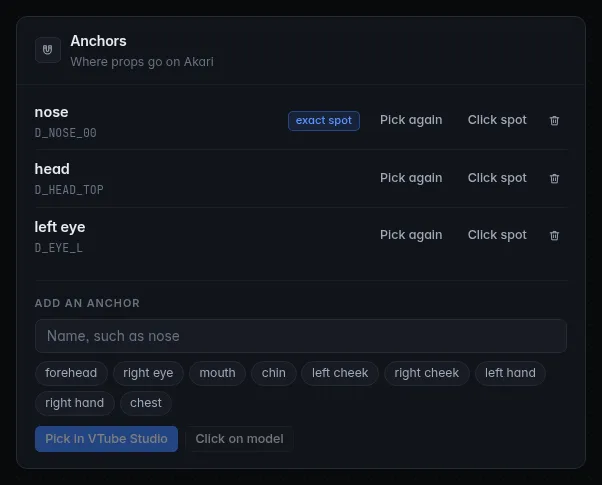
Add an anchor
- Connect to VTube Studio and load your model. Open Integrations → VTube Studio in CroStream; the Anchors card is on the right.
- Under Add an anchor, type a name, or click a suggestion:
nose,head,forehead,left eye,right eye,mouth,chin,left cheek,right cheek,left hand,right hand,chest. - Choose how to point at the part:
When it's set, CroStream says Anchor "nose" set on … with the part's name, and the anchor appears in the list.
Names are 1 to 32 characters. Capital letters don't matter (Nose and
nose are the same anchor), and each name can be used once per model.
Pick in VTube Studio
VTube Studio opens its part picker, with a note from CroStream asking you to select the part for the anchor. Select one part on your model and confirm.
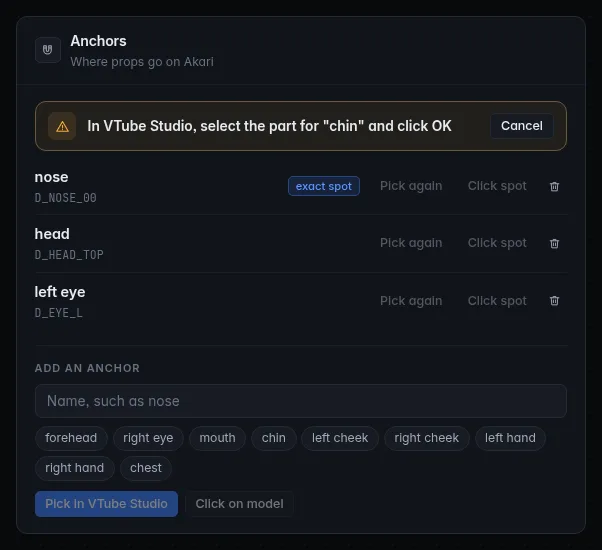
- While it waits, CroStream's Anchors card shows a banner with a Cancel button.
- The picker waits up to 5 minutes. Cancelling in VTube Studio cancels the pick.
- If CroStream says Close VTube Studio's open windows, then try again, a settings window is open in VTube Studio; close it and click again.
Props on a picked anchor sit on the middle of the part, or anywhere on
it when the action's Position is random.
Click on the model
Click on model remembers the exact spot you click, not just the part. After you click the button, switch to VTube Studio and click your model where the prop should go, the tip of your nose, say, within 2 minutes. CroStream takes the topmost part under the click.
Anchors set this way get an exact spot tag, and props on them sit right where you clicked. This is the best choice for big parts, such as a head or a face, where "the middle" isn't where you want a hat.
Which one to use
Use Click on model for most anchors: it's quicker and more precise. Use Pick in VTube Studio for a part that's hard to click because something lies over it, such as a cheek under your hair.
Change, rename and delete anchors
Each anchor in the list has:
- Pick again and Click spot, to point it somewhere else. The name stays the same, so your macros keep working.
- Click the name to rename it. Remember to update macros that use the old name.
- The bin, to delete it after you confirm. Props can't go on it until you set it again.
One set of anchors per model
Anchors are remembered per model. Load another model and the card shows that model's anchors; the others are kept under Other models, where you can see and delete them. Load a model again and its anchors are back.
Use the same names on every model
A macro asks for an anchor by name on whichever model is loaded. If
each of your models has a nose anchor, one Clown nose macro works on
all of them. A model without that anchor makes the step fail with No
"nose" anchor for model ….
Put on a prop
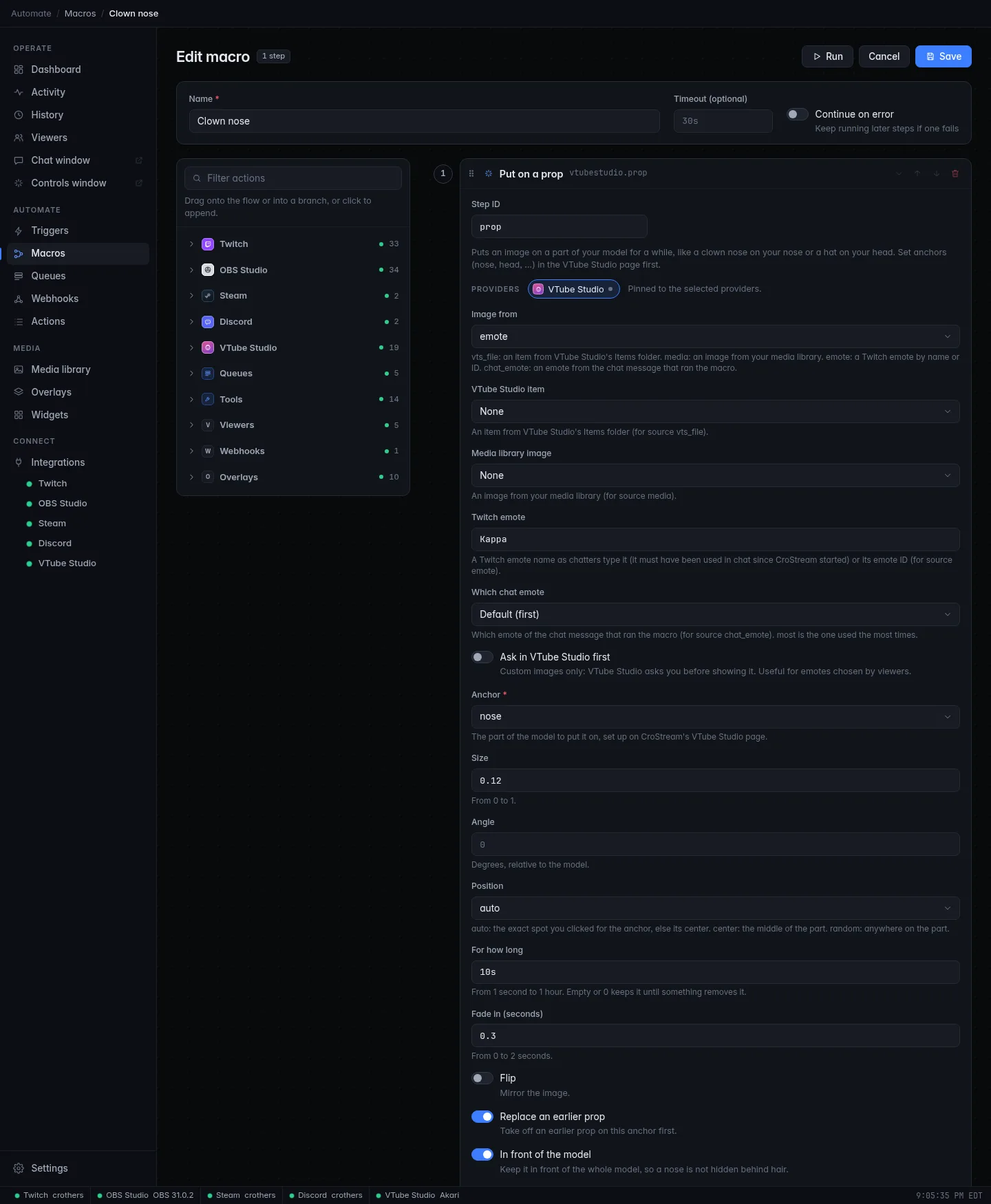
Put on a prop is a macro action in the VTube Studio section of the macro editor's palette, under Props. Its main settings:
| Setting | Default | What it does |
|---|---|---|
| Image from | chat_emote |
Where the image comes from. See Image sources. |
| Anchor | (required) | The anchor to put it on, chosen from the loaded model's anchors. You can also type a name, or a variable such as {arg1}. |
| Size | 0.12 |
From 0 to 1. 0.12 suits a nose; try 0.3 for a hat. |
| Angle | 0 |
Degrees, relative to the model. |
| Position | auto |
auto: the exact spot you clicked for the anchor, or the middle of the part if it has none. center: the middle of the part. random: anywhere on the part. |
| For how long | 10s |
From 1 second to 1 hour. Empty or 0 keeps it on until something removes it. |
| Fade in (seconds) | 0.3 |
From 0 to 2. |
| Flip | Off | Mirror the image. |
| Replace an earlier prop | On | Take off the prop already on this anchor first. Turn it off to let props pile up. |
| In front of the model | On | Keep it in front of the whole model, so a nose isn't hidden behind your hair. |
| Ask in VTube Studio first | Off | Custom images only: VTube Studio shows you the image and asks before putting it on. See below. |
The step reports {item_id} (the prop in VTube Studio), {item_file} and
{anchor_art_mesh} for later steps. Every setting is listed in
Actions.
Props come off when CroStream disconnects
A prop belongs to CroStream's connection. If CroStream disconnects or quits, VTube Studio takes its props off. To clear them by hand, click Remove CroStream's items in the Model card.
Image sources
Image from picks one of four sources, and the setting below it that matches:
| Image from | Setting | The image is | Needs the custom image permission |
|---|---|---|---|
vts_file |
VTube Studio item | An item from VTube Studio's own Items folder, chosen from a list. | No |
media |
Media library image | An image from CroStream's media library. | Yes |
emote |
Twitch emote | A Twitch emote, typed as chatters type it (Kappa, yourchanHype) or as its emote ID. |
Yes |
chat_emote |
Which chat emote | An emote from the chat message that ran the macro: the first, last, a random one, or the one used most. |
Yes |
Some details worth knowing:
- Twitch emote by name works for any Twitch emote that has been used in your chat since CroStream started. Names are case-sensitive, as on Twitch. For an emote nobody has typed yet, give its emote ID instead.
- Chat emotes come from the message of a Chat command trigger, so
!bonk Kappagives you Kappa. If the message has no emotes, the step fails with The chat message that ran this macro has no emotes. When you click Test, a sample message with Kappa is used. - VTube Studio items are whatever you've added to VTube Studio's Items folder. They need no permission, because VTube Studio already has them.
The custom image permission
Every source except vts_file sends VTube Studio an image it doesn't have,
which VTube Studio only accepts from plugins you've given the Load custom
images as items permission. Grant it once on the VTube Studio page's
Permissions card (how).
Ask in VTube Studio first
When viewers choose the image (their emote, for example), turn on Ask in VTube Studio first. VTube Studio then shows you a small popup with the image and asks before showing it, with a countdown of up to 30 seconds (less when the macro's timeout is close); if you don't answer, it's declined. Once you've allowed an image, VTube Studio doesn't ask about that same image again.
- If you decline, the step fails with The image was declined in VTube Studio.
- VTube Studio shows at most 6 of these questions at once; more fail with VTube Studio already shows 6 image questions. Answer them first.
Image limits
CroStream prepares every custom image so VTube Studio accepts it:
| Formats | PNG, JPG and GIF are used as they are. WebP and BMP are converted to PNG, as still images: for an animated prop, use a GIF. Anything else fails with This image type isn't supported; use PNG, JPG, GIF or WebP. |
| Size on screen | VTube Studio wants each side between 64 and 2048 pixels. Smaller images are scaled up and bigger ones scaled down, keeping their shape. A very long, thin image that can't fit fails with This image is too thin to show. |
| File size | VTube Studio takes images under 5 MB. Bigger ones are shrunk (and turned into JPG when they have no transparency) until they fit, or fail with This image is too large for VTube Studio (5 MB max). CroStream reads files of up to 20 MB. |
| GIFs | Stay animated. Up to 1024 frames are used. A GIF that's still over 5 MB after resizing fails with This GIF is too large for VTube Studio (5 MB max). |
| Huge images | Images over 16384 pixels on a side, or with an enormous pixel count, fail with This image has too many pixels to read. |
For the best look, use a PNG with a transparent background, around 256 to 512 pixels across.
Try it without a macro
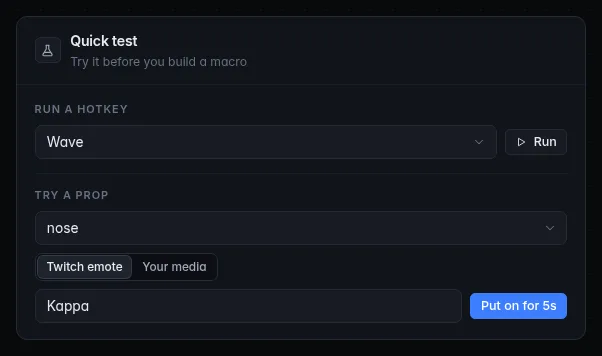
The Quick test card on the VTube Studio page puts a prop on for 5
seconds without building anything: choose an Anchor, choose Twitch
emote (type a name, such as Kappa) or Your media (choose an image),
and click Put on for 5s. If something's wrong, the card shows the same
message a macro would.
Related
- Recipes: a clown nose reward, emotes on your model, a sub hat
- Actions: every VTube Studio action, including dropping, moving and pinning other items
- Setup: granting the custom image permission
- Troubleshooting: when a prop doesn't show
- Media library: adding images