Steam
The Steam integration notices what you play on Steam. When you start a
game, stop one or press the screenshot key, it can fire a trigger, for
example to change your Twitch category to the game you just launched. Your
macros can also launch Steam games and look up your playtime for a chat
command like !playtime. There is nothing to log in to: CroStream reads the
files the Steam app keeps on your computer.
How it works
CroStream reads Steam's own files on this computer: which account is signed in, which game is running, your installed games and their playtime, library artwork and your screenshots. It checks every couple of seconds whether Steam runs and what you're playing, and rescans your games every minute and whenever you start or stop one.
- No login, no API key, no internet. CroStream never contacts Steam's servers or reads your Steam password. Everything comes from your own disk.
- Steam must be installed on the computer running CroStream, and the game must be played there.
- Steam is a companion app: when it's closed, CroStream just waits for it, without warnings.
Set it up
Usually there is nothing to do. CroStream finds Steam where it's normally installed:
The folder Steam records in the Windows registry, or
C:\Program Files (x86)\Steam.
~/Library/Application Support/Steam
~/.steam/steam, ~/.local/share/Steam, or the Flatpak's
~/.var/app/com.valvesoftware.Steam/.local/share/Steam.
If Steam lives somewhere else:
- Open Integrations → Steam.
- Under Settings, enter the full path of the Steam folder in Steam
folder, for example
D:\Steam. It's the folder that has asteamappsfolder inside. - Click Save.
Leave Steam folder empty to use the usual places. If the folder you enter isn't a Steam folder, CroStream falls back to the usual places.
The Steam panel
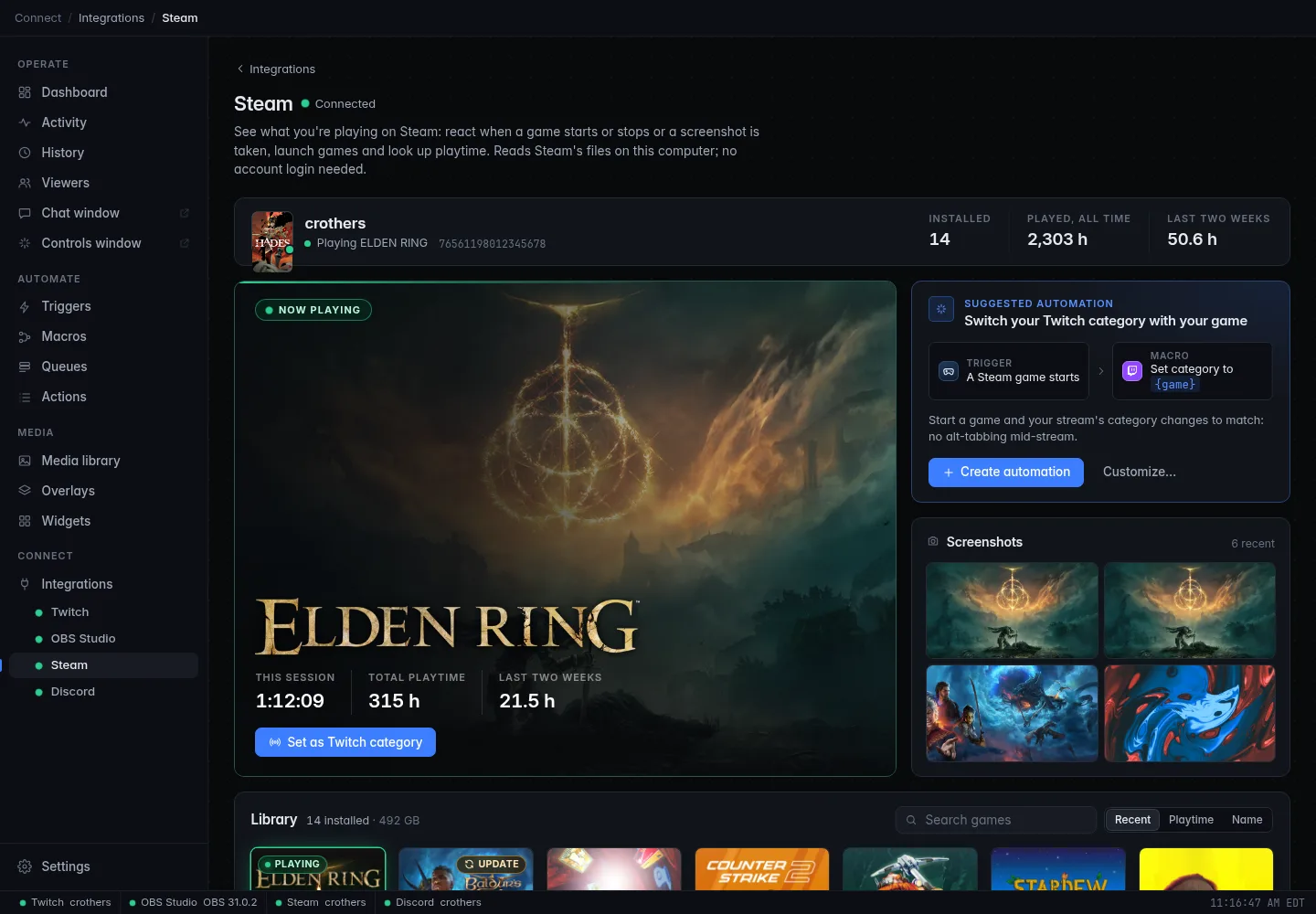
The Steam page opens with a panel that shows what CroStream sees:
- Your account: your Steam name and picture, whether Steam is running ("Online", "Playing …", "Not signed in" or "Steam isn't running"), how many games are installed, and your playtime all time and over the last two weeks.
- Now playing: the game you're playing, with its artwork, a timer for this session, and its total and two-week playtime. When nothing is running, it shows the last game you played.
- Set as Twitch category changes your stream's category to that game right away (Twitch must be connected).
- Play launches the last-played game.
- Screenshots: your 12 newest Steam screenshots. Click one to see it large.
- Library: your installed games with artwork, playtime and when you last played. Search them, sort by Recent, Playtime or Name, and hover a game for Play and Set as Twitch category. A game with a Steam update waiting has an Update badge.
At the bottom, the panel shows which Steam folder it reads.
Suggested automation
If you have no trigger yet that changes your category when a game starts, the panel offers one: Switch your Twitch category with your game. Click Create automation and CroStream makes:
- a macro, "Set Twitch category to the Steam game", with one Set
category step set to
{game}; - a trigger, "Steam game starts: set Twitch category", on A Steam game starts for any game.
It works once Twitch is connected. Click Customize… to build your own trigger instead. The card disappears once such a trigger exists. See the tutorial Change your category when you start a game.
What works on each system
Steam works on Windows, macOS and Linux, including the Linux Flatpak. The events, actions and conditions are the same everywhere.
Game names on Twitch
Set category looks for the game's Steam name on Twitch and uses a close match when there is no exact one. A few games are named differently on the two, so the category might not be the one you want. Use a Switch step to map those names by hand.
Events
| Event | Fires when | Variables |
|---|---|---|
| A Steam game starts | You start playing a game. | {game}, {appid}, {playtime_hours} |
| A Steam game stops | You stop playing it. | {game}, {appid}, {playtime_hours}, {session_minutes} |
| A screenshot is taken | You take a screenshot with Steam's screenshot key (F12 by default) in a game. | {game}, {appid}, {screenshot_path} |
Each event has a Game option: pick a game to fire only for it, or leave
it empty for any game. {playtime_hours} is your total hours in the game
with one decimal; {session_minutes} is how long you played this time.
Actions
| Action | What it does |
|---|---|
| Launch a Steam game | Starts a game the way Steam's Play button does. Steam starts first if it isn't running. Pick the game from your installed games. |
| Look up a Steam game | Reads an installed game's playtime into variables. Game can be an app ID, a game's name, or a variable such as {args} (what the viewer typed after the chat command). Leave it empty for the game being played. |
Look up a Steam game gives later steps {game}, {appid},
{playtime_hours}, {playtime_2wks_hours} (the last two weeks) and
{last_played} (as YYYY-MM-DD). Playtime is what Steam last recorded, plus
the current session for the game you're playing.
For example, a !playtime chat command can run Look up a Steam game
with Game empty, then Send chat message with
{game}: {playtime_hours} hours so far.
Conditions
Macro conditions can check:
| Condition | Value |
|---|---|
| Playing a Steam game | Yes or no. |
| Steam game | The name of the game being played; empty when none. |
| Steam game's app ID | Its app ID; empty when none. |
| Hours in the Steam game | Your total hours in it, this session included; 0 when none. |
Privacy
- CroStream never opens Steam's credential files and never keeps your account's login name. It only uses your public Steam name and Steam ID.
- Your artwork, avatar and screenshots stay on your computer. CroStream shows them in its own window. In browser mode, anyone who can open the browser UI can see them too, as with everything else there.
- Nothing about your games is sent anywhere unless a macro you made does so (for example by posting your playtime in chat).
Troubleshooting
- The panel says "Steam isn't installed on this computer".
- CroStream didn't find a Steam folder. Set Steam folder under
Settings to the folder that has
steamappsinside, and click Save. - It says "Steam isn't running" while Steam is open.
- Make sure Steam is fully started and signed in. If Steam runs from a different folder than the one in Steam folder, fix the setting.
- "Not signed in".
- Sign in to Steam.
- A game I'm playing doesn't show up.
- CroStream sees the game Steam reports as running, so start it from Steam. Games from other launchers aren't seen.
- The screenshot event doesn't fire.
- Take the screenshot with Steam's screenshot key (F12 by default; you can change it in Steam's settings), inside a game. Screenshots from other tools, and from games Steam didn't start, aren't seen.
- Artwork is missing for some games.
- CroStream shows only the artwork Steam has saved on your computer. Games without it get a colored placeholder.
Related
- Integrations: status meanings and companion apps
- Change your category when you start a game
- Events, Actions, Variables
- Twitch