Add logic to a macro
Most macros do the same thing every time. Sometimes you want them to decide: thank a tier 3 sub louder than a tier 1, skip the chat message when you are offline, add a line for a one-year anniversary. In this tutorial you build one macro that does all three, and meet every logic step along the way: If, Switch, Stop and Set a value.
What you'll build
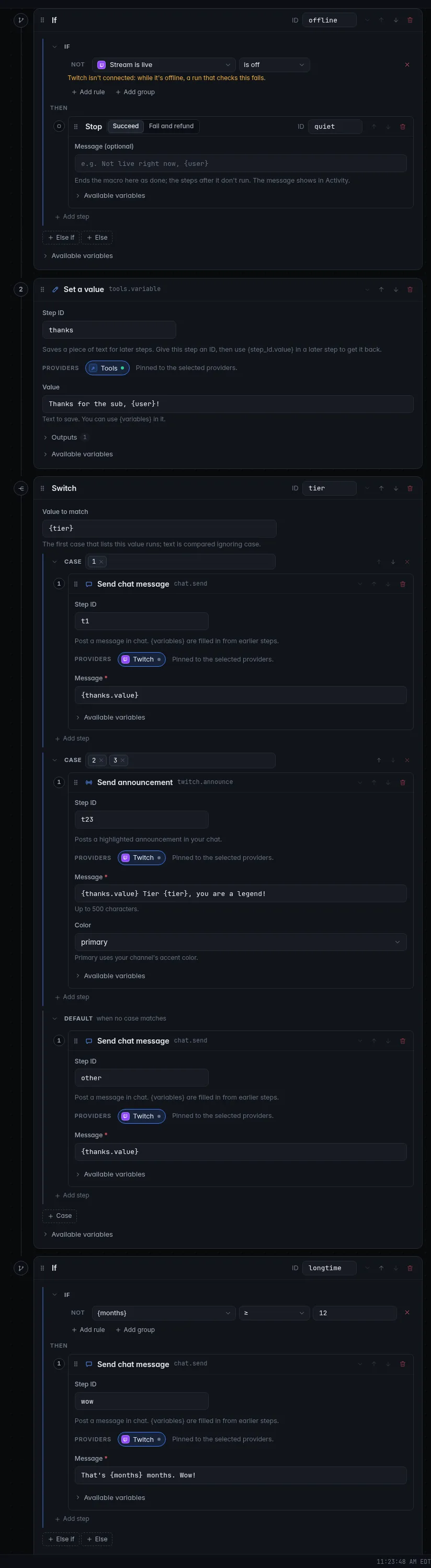
A Sub thanks by tier macro, run by every new sub and resub, that:
- stops quietly when you are not live;
- thanks tier 1 subs with a chat message, and tier 2 and 3 subs with a highlighted announcement;
- adds an extra line for anyone subscribed 12 months or more.
flowchart TD
    A[Subscription] --> B{Stream is live?}
    B -- no --> S[Stop]
    B -- yes --> C[Set a value: thanks]
    C --> D{Switch on tier}
    D -- 1 --> E[Chat message]
    D -- 2 or 3 --> F[Announcement]
    D -- anything else --> G[Chat message]
    E --> H{12 months or more?}
    F --> H
    G --> H
    H -- yes --> I[Extra chat message]
Time: about 20 minutes. Level: intermediate.
Before you start
- You have built a trigger and a macro before. If not, start with Your first chat command.
- CroStream is logged in to Twitch.
- Optional reading: Macros and Conditions.
Adding steps inside a branch
Logic steps have their own step lists, such as Then inside an If or each Case of a Switch. To fill one, click Add step under it: the palette now says Clicks add to …, and every palette item you click lands in that list. Click the ✕ in that notice to go back to adding at the end of the macro. You can also drag palette items straight into a branch.
Step 1: Stop when you are offline
- In the sidebar, click Macros, then New macro. Set Name to
Sub thanks by tier. - Type
ifinto Filter actions and click If (in the Tools section, under Logic). - In its rule, open What to check and pick Stream is live, under Live · Twitch. Live values are facts CroStream looks up at the moment the step runs. Set the comparison to is off.
- Under Then, click Add step, then filter for
stopand click Stop in the palette. - On the Stop step, leave How the macro ends on Succeed.
When you are offline the macro now ends right here, as a success. Rules can
also compare variables such as {months}, or a viewer's role.
Step 2: Save a value for later
- Click the ✕ in the palette's Clicks add to notice, so new steps go to the end of the macro again.
- Filter for
valueand click Set a value. -
Set its Step ID to
thanksand its Value to:
Any later step can now use {thanks.value}, so you write the thank-you
once and reuse it. Step IDs use lowercase letters, digits and underscores,
and must be unique in the macro.
Step 3: Switch on the tier
- Filter for
switchand click Switch. Set Value to match to{tier}. - In the first Case, type
1and press Enter. Click Add step under it, then Send chat message, with the message{thanks.value}. -
Click + Case. In the new case type
2, press Enter, type3and press Enter. Add a Send announcement step with the message: -
Under Default, add a Send chat message step with
{thanks.value}. Default runs when no case lists the value.
The first case that lists the value runs. Text is compared ignoring capital letters.
Step 4: An extra line for long-time subscribers
- Go back to adding at the end of the macro, filter for
ifand click If again. -
In What to check, pick Type a value… and type
{months}. Set the comparison to ≥ and type12as the value.Once a trigger runs this macro, its variables are listed under Variables in What to check, so next time you can just pick
{months}. Until then the list only shows the common ones. 3. Under Then, add a Send chat message step:That's {months} months. Wow!4. Click Save.
Step 5: Add the trigger
- Click Triggers, then New trigger. Set Name to
Sub thanks by tier. - Pick Subscription as the Event. Leave Tier on any.
- Under Then run, pick Sub thanks by tier, then click Save.
Check it works
Test sends a sample sub that follows the trigger's own settings, so you can steer it by changing the trigger.
- While offline, click Test. Open History: the run shows the If matched and the Stop ended the macro. The guard works.
- Go live (or turn off the first If by setting is off to is on for a moment) and click Test again. Chat gets the tier 1 thank-you, because the sample is a tier 1 sub.
- Set the trigger's Tier to
2, click Save, then Test. The announcement goes out. - Set Minimum months to
12, save and test once more to see the extra line. - Put Tier back to any and clear Minimum months, then save.
Troubleshooting
| What you see | What to do |
|---|---|
| Save says a step ID is invalid or taken | IDs use lowercase letters, digits and underscores only, and each must be unique in the macro. |
Chat shows {thanks.value} as written |
The Set a value step's ID is not thanks, or the step comes after the one using it. |
| Every sub gets the default message | Value to match must be {tier}, with the curly brackets. |
| The macro always stops | The first rule must be Stream is live is off, not is on. |
| Steps landed in the wrong place | Drag them by the grip on the left of the step, or use the up and down arrows. |
Next steps
- Gate a command to moderators with a rule on
{user_role}and is at least. See Conditions. - Check a viewer's points before they spend them: Run a points system.
- Refund a channel point redemption on purpose: set a Stop step to Fail and refund. See Switch scenes with a channel point reward.
- All the variables each event provides: Events.