The window
CroStream's window has the same frame on every page: a breadcrumb bar along the top that says where you are, a sidebar on the left with every page, the page itself in the middle, and a status bar along the bottom showing your connections and the time. This page walks through each part, then the tray icon, the menus and the keyboard shortcuts.
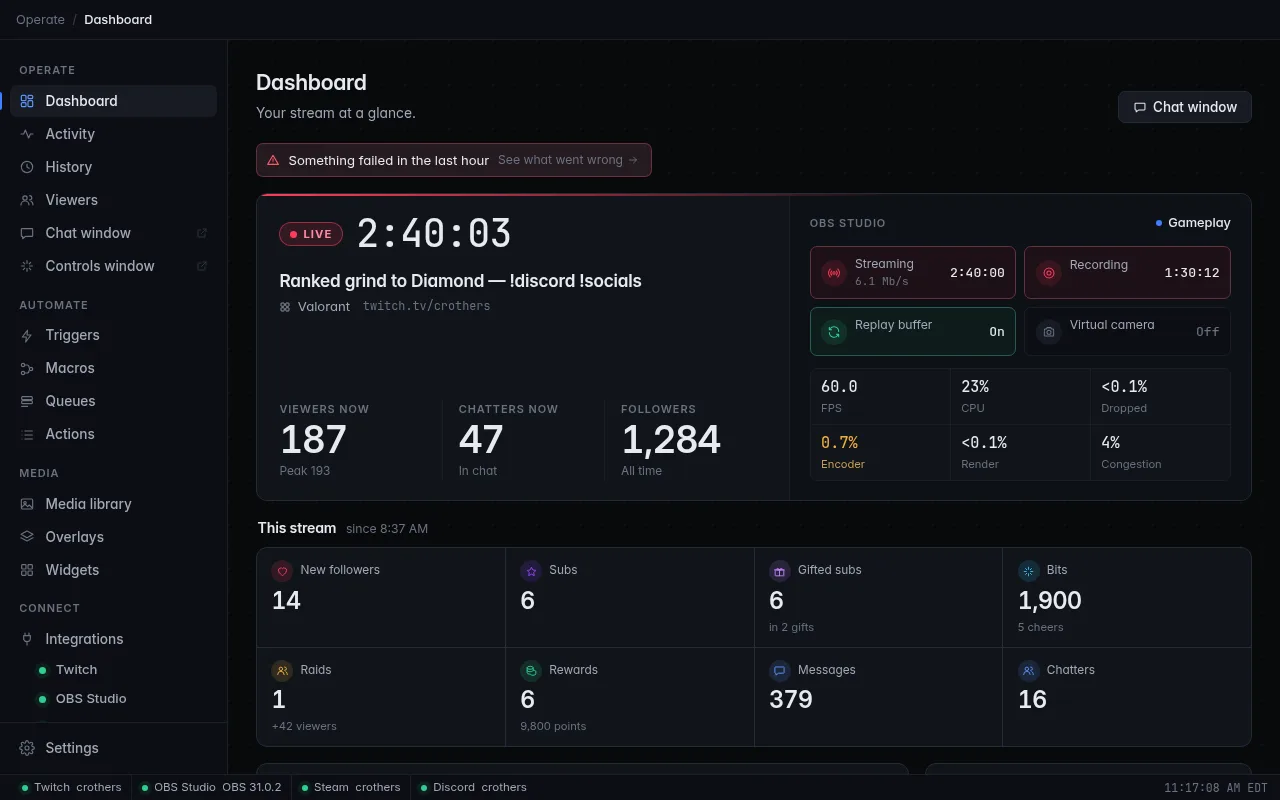
Title bar
The very top of the window is your operating system's own title bar, reading CroStream. Drag it to move the window; its buttons minimize, maximize and close it as usual. What closing does depends on Close to the tray in Settings: see Desktop behaviour.
When a login warning needs you to click through it, the title flashes ⚠ Action needed, so you notice it in the taskbar.
You can make the window as small as 720 × 480 pixels.
Breadcrumb bar
Under the title bar, the breadcrumb bar shows where you are, from the sidebar section down to what you have open. For example:
- Operate / Dashboard
- Automate / Triggers / clip while you edit the trigger named
clip - Automate / Macros / New macro while you build a new macro
- Media / Media library / Sounds inside a library folder you named Sounds
- Connect / Integrations / Twitch on the Twitch page
- Settings
Every part except the last is a link: click Triggers in Automate / Triggers / clip to go back to the list.
Login warnings appear as full-width banners right under the breadcrumb bar, above the page.
Sidebar
The sidebar lists every page, grouped by what you're doing. The page you're on is highlighted with a bar on its left. Editors belong to their list: while you edit a trigger, Triggers stays highlighted.
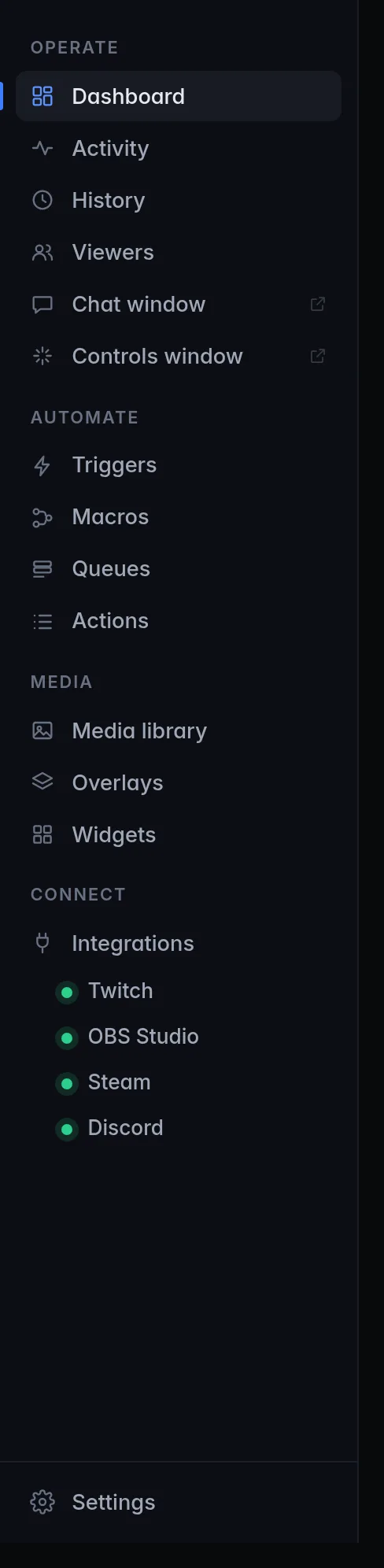
Operate
Running your stream, live.
| Item | What it's for |
|---|---|
| Dashboard | Your stream at a glance: live status and numbers, things that need attention, the live feed, and one-click controls. See Dashboard. |
| Activity | Everything that happened, line by line: events, macro runs and each step, with errors explained. See Activity. |
| History | Totals, top supporters, and a searchable log of events and chat, kept across restarts. See History. |
| Viewers | Everyone who has chatted or watched: watch time, history and points. See Viewers. |
| Chat window | Opens your Twitch chat in its own small window. See Chat and Controls windows. |
| Controls window | Opens scene buttons and pinned macros in their own small window. See Chat and Controls windows. |
Automate
Making things happen by themselves.
| Item | What it's for |
|---|---|
| Triggers | What starts a macro: a chat command, a redemption, a follow, a hotkey and so on, with who may use it and how often. See Triggers. |
| Macros | What happens: a list of steps, edited with drag and drop. See Macros. |
| Queues | Lines that release things one at a time at a steady pace, so ten redemptions at once don't play ten sounds at once. See Queues. |
| Actions | The catalog of everything a macro step can do, and a form to run any action once by hand. See Actions. |
Media
What viewers see and hear.
| Item | What it's for |
|---|---|
| Media library | Your images, sounds, videos and fonts. See Media library. |
| Overlays | Scenes of alerts, text and widgets that OBS shows as a browser source. See Overlays. |
| Widgets | The building blocks you place on overlays, including your own. See Widgets. |
Connect
Integrations lists everything CroStream can connect to. Under it, each connection (Twitch, OBS Studio, Steam, Discord) has its own link with a status dot, and a word when it isn't simply connected (for example connecting or disabled). Click one to open its settings, login and status. See Integrations.
Bottom of the sidebar
- Settings opens all of CroStream's own settings. See Settings.
- When a new version is ready, a highlighted Update available link appears just above Settings (Update required in red when your version is too old to keep, Restart to update once it's downloaded). It takes you to the update in Settings. See Updates.
In a narrow window
When the window is narrower than about 760 pixels, the sidebar turns into a row of page links across the top. The section titles, the Chat window and Controls window buttons and Settings are hidden there; make the window wider to get them back. The tray icon's menu also opens Settings… and both windows.
Status bar
The thin bar along the bottom shows each connection on the left and the clock on the right.

Each connection shows a dot, its name and a word or two:
| It says | Meaning |
|---|---|
| your channel name, account or app version, with a green dot | Connected and working. Twitch shows your channel, OBS Studio shows the OBS version. |
| Connecting… | Connecting or reconnecting. CroStream keeps trying by itself. |
| Log in | Waiting for you to finish logging in in your browser. |
| Disconnected | Not connected. Open its page and connect. |
| Off | Turned off, or (for Twitch) not logged in. |
| Error in red | Something went wrong. Hover to read the error, click to fix it. |
- Hover over a connection to see its full status or error.
- Click it to open its page under Connect.
- Steam and Discord connect to apps that may simply not be open, so they're drawn dimmed while they aren't connected. That's normal, not a problem.
The clock shows your local time and time zone. Hover over it for the full date and the time zone's name. Whether it's 12- or 24-hour follows your computer's own time format setting.
Tray icon
CroStream puts an icon in the system tray (Windows and Linux) or the menu bar (macOS). Its tooltip and menu show whether you're live, how many are watching and whether OBS is connected, and it can show the window, open the Chat and Controls windows, open Settings or quit. On Windows and Linux, clicking the icon shows or hides the window. Desktop behaviour describes it in full.
Menus
CroStream has no menu bar. Everything is in the sidebar, and the tray icon's menu (right-click the icon) has Show CroStream, Chat window, Controls window, Settings… and Quit CroStream.
The menu bar at the top of the screen has CroStream's menus while it's the active app:
| Menu | Items |
|---|---|
| CroStream | About CroStream, Hide CroStream, Hide Others, Show All, Quit CroStream |
| Edit | Undo, Redo, Cut, Copy, Paste, Paste and Match Style, Delete, Select All |
| View | Actual Size, Zoom In, Zoom Out |
| Window | Minimize, Zoom, Close, Chat window, Controls window, Bring All to Front |
The Edit menu is what makes the usual shortcuts (⌘C, ⌘V, ⌘Z…) work in every CroStream window, the Chat and Controls windows included.
Keyboard shortcuts
These work everywhere in CroStream. On macOS, use ⌘ where it says Ctrl.
| Keys | What it does |
|---|---|
| Ctrl + + / Ctrl + − | Make everything in the window bigger or smaller. Ctrl + mouse wheel does the same. |
| Ctrl + C, Ctrl + V, Ctrl + X, Ctrl + Z | Copy, paste, cut and undo in text fields. |
| Esc | Close the open dialog without doing anything. (A login warning can't be closed this way: it needs a click.) |
| Tab / Shift+Tab | Move between buttons and fields. |
On macOS the standard app shortcuts work too: ⌘Q quits CroStream, ⌘H hides it, ⌘M minimizes the window you're in, ⌘0 resets the zoom, and ⌘W closes the window you're in (for the main window, that follows Close to the menu bar).
Some pages have shortcuts of their own:
- Chat window: Enter sends, Up in an empty box brings back your last message. See Chat and Controls windows.
- Activity and History logs, the Media library and the overlay editor have their own; each page's guide lists them.
Hotkeys that run macros while you're in a game are something else: you set those up yourself. See Hotkeys.
Leaving an editor with unsaved changes
If you click away from a trigger, macro, queue or widget you've changed but not saved, CroStream asks Discard unsaved changes? Click Keep editing to go back and save, or Discard to leave without saving.
Related
- Desktop behaviour: tray, closing, starting and notifications
- Chat and Controls windows
- Settings
- Glossary