Add an alerts overlay to OBS
Alerts tell your viewers that someone just followed, subbed or raided, and thank that person in front of everyone. In this tutorial you make an overlay (a layer that CroStream draws and OBS shows on top of your stream), put it into OBS with one click, and add a follow alert with the alert wizard, which builds the trigger and macro for you.
What you'll build
Every time someone follows, a card pops up on stream with a picture, "NightOwl_TV just followed!" and a sound, then slides away after a few seconds. If several people follow at once, the alerts play one after another.
Time: about 15 minutes. Level: beginner.
Before you start
- CroStream is logged in to Twitch and connected to OBS. See Getting started.
- A picture for the alert (an image, GIF or short video) and, if you want, a sound. Add them under Media library with Add files; Play a sound from the media library shows how.
Step 1: Create the overlay
- In the sidebar, under Media, click Overlays, then New overlay.
- Set Name to
Alerts. Under Start from, pick a blank overlay or one of the templates. Pick an Orientation and a Resolution: when OBS is connected, the list offers OBS's own canvas size, which is the best choice. - Click Create. The overlay editor opens.
Match OBS's size
Every position and size on an overlay is in pixels. When the overlay is the same size as your OBS canvas, what you see in the editor is exactly what appears on stream. See Overlays.
Step 2: Add it to OBS
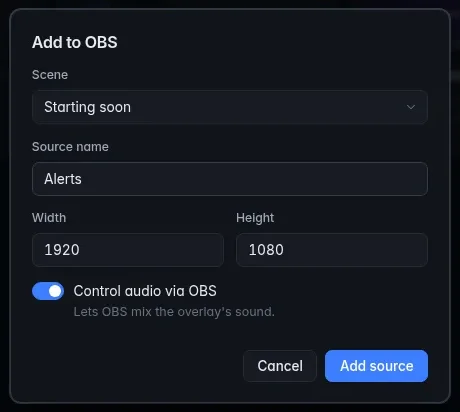
- Go back to Overlays. Open the menu on the Alerts card (or right-click the card) and choose Add to OBS.
- Pick the Scene that should show alerts. Source name, Width and Height are filled in for you.
- Switch on Control audio via OBS so alert sounds go through OBS's mixer and your viewers hear them.
- Click Add source. The overlay is now a browser source in that scene.
Doing it by hand
The editor's Copy OBS URL button copies the overlay's address. Paste it into a new OBS Browser source with the same width and height.
Step 3: Set up the alert
- Open the Alerts overlay. In the toolbar click Alerts, then Add alert. (Add → Set up an alert… opens the same wizard.)
- Event. Under When someone…, pick Follow, then click Next. For events with options, such as a cheer, an Only when section lets you set a minimum.
-
Look. Pick Quick alert: one ready-made element with a picture, headline, message and sound.
- Choose a Picture from your library.
- Choose a Sound if you want one.
- Keep the Headline
{user} just followed!or write your own.{user}becomes the follower's name; the buttons under the box insert the other values the event offers.
(Custom instead makes a group of plain elements you can move and resize one by one.) Click Next.
-
Behavior. Set Show for (seconds), the Comes in and Goes out animations and the Animation length. Under Sound plays, pick In OBS so viewers hear it. (On this PC plays it only on your speakers; Both does both.)
- Give it a Name, such as
Follow alert, and click Add alert.
The wizard just made three things: an alert element on the overlay (hidden until an alert plays), a macro with a Show an alert step, and a trigger on the Follow event. The last page links to them with Edit trigger and Edit macro.
Check it works
- On the wizard's last page, click Test. Later, click Alerts in the editor's toolbar: the Alerts on this overlay list has a Test button next to each alert. The alert plays on stream with sample values, so look at OBS.
- Switch on Live in the editor toolbar to see alerts play on the editor's canvas too.
- For the real thing, follow your channel from a second account.
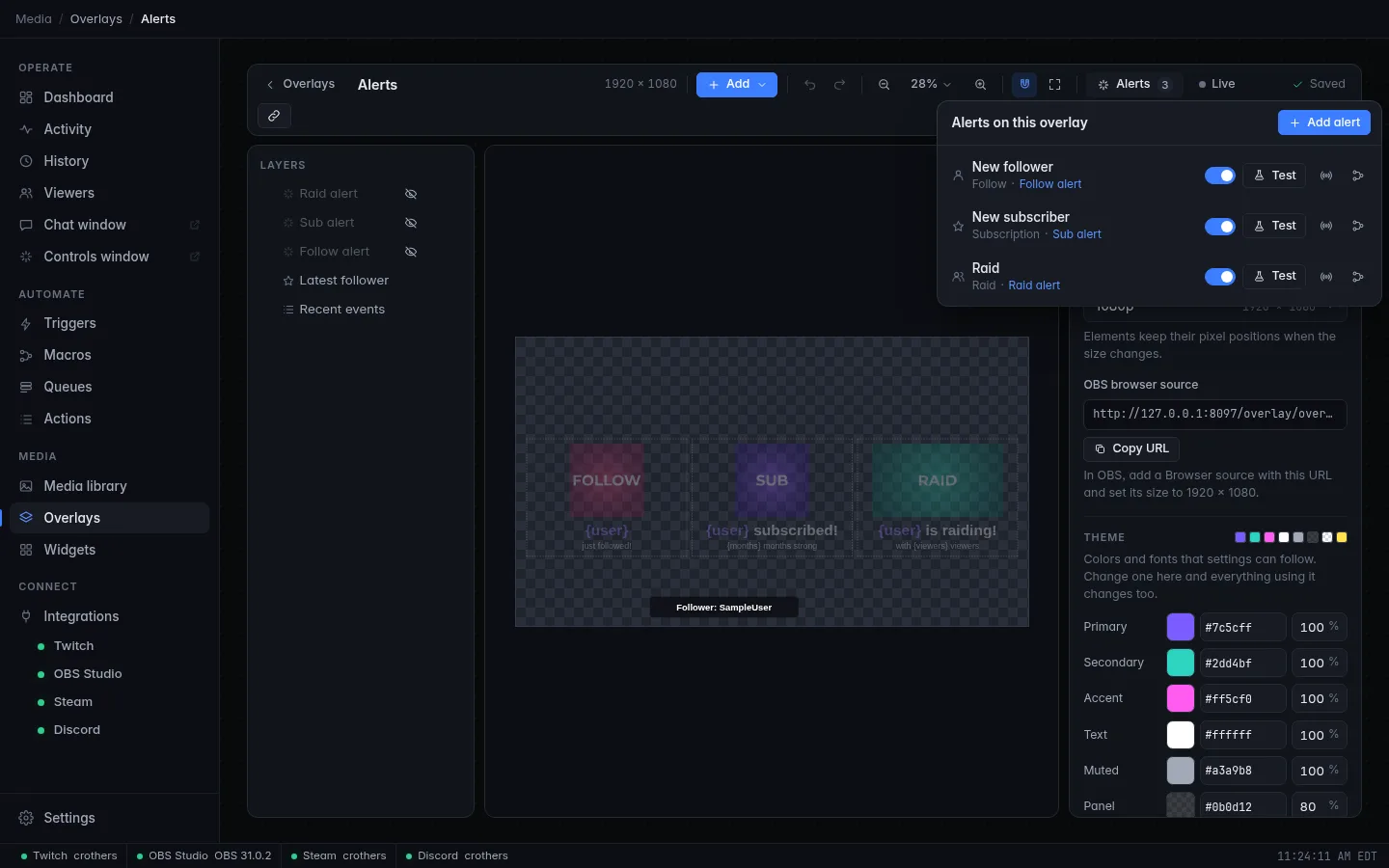
The switch next to each alert turns its trigger on or off, and the two buttons beside Test open the alert's trigger and macro.
Troubleshooting
| What you see | What to do |
|---|---|
| Nothing shows in OBS | Make sure the source is in the scene you are looking at, that OBS shows as connected in CroStream's status bar, and that the alert's trigger is enabled. |
| The alert element is invisible in the editor | That is on purpose. It is hidden in the design and only appears while an alert plays. Use Live to watch it. |
| No sound on stream | Add the source again with Control audio via OBS on, and set Sound plays to In OBS. |
| The alert test button is greyed out | The alert's trigger is turned off. Turn it on to test. |
| The alert is cut off at the edge | The overlay is a different size from your OBS canvas. Make the browser source the overlay's size. |
Next steps
- Add alerts for cheers, subs, gifted subs, raids and redemptions by running the wizard again: Alerts.
- Restyle the alert with fonts, text effects and frames in the inspector. See Overlays. For your own CSS, see Custom CSS.
- Show a running count or a goal bar with the Counter and Goal bar elements: Widgets.
- Show a points leaderboard on the same overlay: Run a points system.