Actions
An action is one thing CroStream can do: send a chat message, switch an OBS scene, time out a viewer, play a sound, show an overlay alert. A macro is a list of steps, and most steps run one action. The Actions page lists all of them, and lets you try any one on the spot, which is the quickest way to learn what each does before you build a macro around it.
CroStream has close to a hundred actions. This page explains how they're organised and covers the ones that need some setup. The Actions reference lists every action with every setting.
The Actions page
Open Actions in the sidebar, under Automate. Actions are grouped by
integration (Twitch, OBS Studio, Steam, Discord, Queues, Tools, Viewers,
Overlays), then into groups such as Chat, Moderation or Audio. Type
in the search box to find one by name, description or group: mute,
timeout, poll.
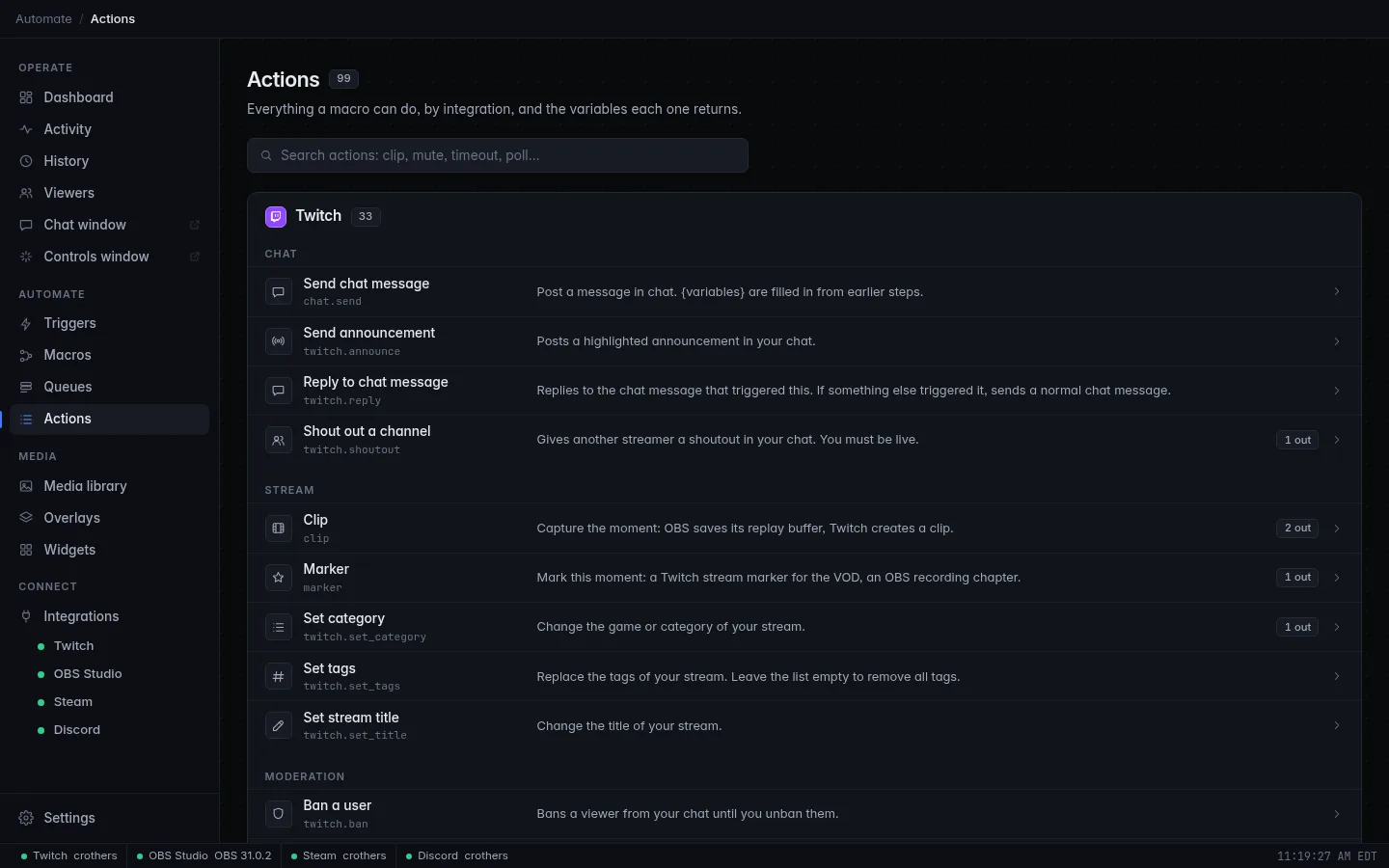
Each row shows the action's name, its ID, what it does, and tags:
| Tag | Meaning |
|---|---|
| re-login | Twitch needs a permission your login doesn't have yet. Log in again to grant it. Hover for details. |
| limited here | The action works only partly on this computer's operating system. Open the row to see why. |
| 2 out, 3 out, … | How many values it reports back for later steps. |
Try an action
Click a row to open it. You'll see:
- what the action does, and any differences between Windows, macOS and Linux;
- Returns: the variables it reports back, such as
{clip_url}; - Try it: the same form a macro step shows. Fill it in and click Run now.
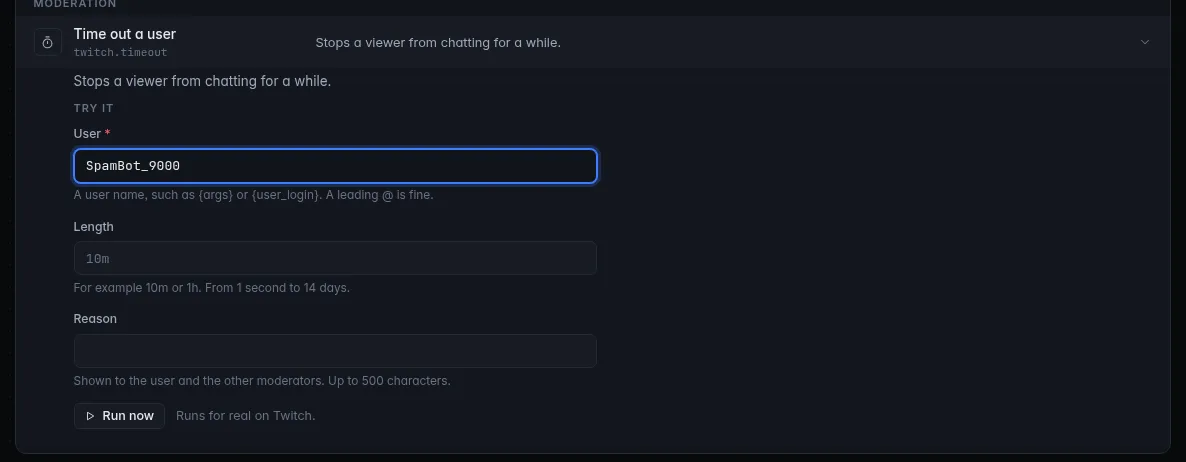
Run now runs the action for real, on the integration named next to the
button: it really times out the user, really changes your title. The result
appears next to the button (done, or what went wrong) and in
Activity under Quick actions. There's no event behind it,
so variables such as {user} stay as written.
Providers and shared actions
Every action runs on one or more providers, the integrations that can carry it out.
- Most actions belong to one provider: Time out a user is Twitch's, Mute or unmute an OBS audio source is OBS's.
- A few are shared: one job several integrations can do. Clip saves the OBS replay buffer and creates a Twitch clip; Marker adds a Twitch stream marker and an OBS recording chapter. Send chat message and Switch scene are shared actions too, though today only Twitch and OBS run them.
Shared actions appear under each integration that can run them. On the Actions page, Run now runs on that one integration only. In a macro, a step's Providers buttons choose (see Providers).
What's available
| Integration | Groups | Examples |
|---|---|---|
| Twitch | Chat, Stream, Moderation, Raids, Lookups, Chat modes, Roles, Polls & predictions, Channel points, Ads | announcement, reply, shoutout, timeout, ban, warn, delete a message, slow or emote-only mode, Shield Mode, VIPs and moderators, title, category and tags, raid, polls and predictions, create or update a reward, look up a viewer's follow age, run or snooze an ad |
| OBS Studio | Scenes, Sources, Filters, Audio, Text & media, Stream & recording, Capture, Advanced | switch or preview a scene, studio transitions, show/hide/move/lock sources, filters, mute and volume, change a text, image or browser source, play media, stream/record/replay buffer/virtual camera, screenshots, press an OBS hotkey, switch profile or scene collection, plugin requests |
| Steam | Steam | launch a game, look up your playtime |
| Discord | Discord | set or clear your Discord status |
| Queues | Queue | add to, pause, resume, clear or release a queue |
| Tools | Utilities, Sound & files, Web, Screen | pick at random, counters, set a value, play a sound, write a text file, web requests, post to Discord, flash an image on screen |
| Viewers | Viewers | change points, give points to everyone, let viewers give points, look up a viewer, leaderboards (Viewers) |
| Overlays | Overlays | show, hide or toggle elements, set text or media, play effects, show an alert, timers, spin a prize wheel (Overlays) |
Things that need a connection
Twitch actions need you logged in; OBS actions need OBS connected; Steam and Discord actions need those apps running. If a step's provider isn't connected, the step is skipped or fails (see Providers).
Channel point rewards
Twitch only lets an app change a channel point reward that the same app created. So:
- Use Create reward in CroStream for rewards you want macros to switch on and off, pause or reprice with Update reward. Update reward only offers rewards CroStream created.
- Only CroStream's own rewards can be completed or refunded automatically (Channel point refunds).
Rewards are always picked from your channel's list, never typed. The redemption trigger offers every reward (or Any reward).
Affiliate and Partner only
Channel points exist only on Affiliate and Partner channels. On other channels the redemption events and reward actions are marked unavailable with that reason.
Sounds
There are two ways to play a sound, and they go to different places.
| Action | Plays on | Heard on stream? |
|---|---|---|
| Play a sound (Tools) | This computer's speakers or headset | Only if OBS captures that output |
| Play sound in OBS (OBS Studio) | An OBS Media Source | Yes, and in OBS monitoring |
Both have Wait until it finishes, which holds the next step until the sound ends. To show a sound with an overlay alert instead, see Alerts.
Play a sound
Play a sound plays a WAV, MP3, OGG or FLAC file on the computer CroStream runs on.
- Sound file: the full path, such as
C:\Sounds\airhorn.mp3. - Output device: pick one by name. Empty is the system default.
- Volume (1-100): empty is 100.
If the chosen device is gone (an unplugged headset), the sound plays on the system default and the activity feed shows a warning. Up to 4 sounds can play at once without Wait until it finishes; a fifth fails. Stop all sounds ends every sound that's playing.
Play sound in OBS
Play sound in OBS points an OBS Media Source at a file and plays it, so the sound goes out on stream. Set it up once:
- In OBS, add a Media Source in a scene that is always shown (for example, a scene you nest in every other scene), and turn on Close file when inactive.
- In the step, pick that source as the Media source, and give the Sound file as a full path on the computer that runs OBS.
With Wait until it finishes, the next step starts when OBS reports the sound ended (it gives up after 10 minutes).
Screen flash
Flash an image on screen shows an image from your media library over your game for a moment, for example a jump scare, and Clear the screen flash takes it down at once. It has its own guide: Screen flash.
Handy tools
| Action | What it's for |
|---|---|
| Change a counter | A number that survives restarts, such as deaths or wins: add, subtract, set, reset or just read it. Capital letters in the name don't matter. Later steps get the value as {count}. |
| Pick at random | Picks one entry from your list, such as a winner or a random reply. Later steps get it as {choice}. Put one entry on each line. |
| Set a value | Saves some text under the step's ID, to reuse later as {stepid.value}. Handy for building a message once and using it twice. |
| Write to a text file | Writes or appends text to a file, for example a "latest follower" file an OBS text source reads. The folder must already exist. |
| Send a web request | Calls a web address, for other services and home automation. Write Headers one per line, as Name: Value; they are never written to the log. A redirect to another site is refused. Gives up after 10 seconds unless you change Give up after (at most 60 seconds). |
| Post to Discord | Posts a message to a Discord channel through a webhook. The webhook address works like a password: it's kept out of exports. |
Troubleshooting
Run now fails because the integration isn't connected
Connect it first: log in to Twitch, connect OBS, or start Steam or Discord. The dot next to each integration in the sidebar and status bar shows whether it's connected.
A list setting is empty or says to connect
Lists such as your scenes or rewards come from the integration. Connect it, then click Retry under the setting.
A Twitch action fails with a permission message
Your login is missing a permission that action needs (the row shows re-login). Log in again and approve everything Twitch asks for.
Related
- Actions reference: every action, setting and output.
- Macros: putting actions in order, with branches and variables.
- Overlays, Alerts and Viewers: the actions for those features in context.