Integrations
An integration is CroStream's connection to another program or service: Twitch, OBS Studio, Steam or Discord. Each one brings its own events (things that can fire a trigger, like a follow or a game starting) and its own actions (things a macro can do, like switching an OBS scene). Come here to log in to Twitch, connect OBS, or check why something isn't reacting.
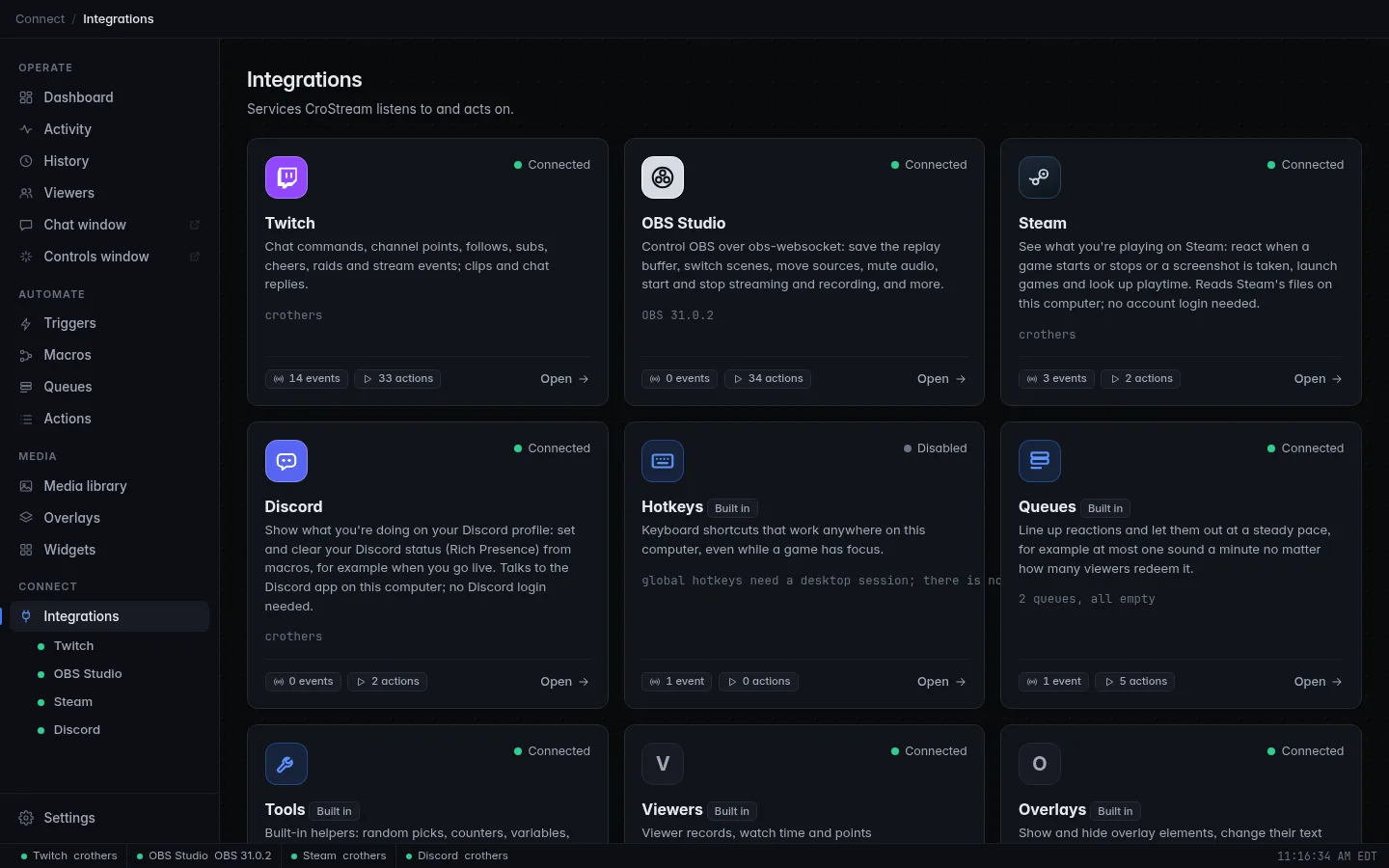
The Integrations page
Open Integrations in the sidebar, under Connect. Each card shows:
- the integration's logo, name and a one-line description;
- its status (a colored dot and a word, see What the status means);
- the account it is signed in with, or a short note such as "Steam isn't running";
- how many events it can react to and how many actions it offers.
Click a card (or Open) to go to that integration's page. Every page has the same parts:
- Connection: the status, any error, and buttons such as Login or Connect. Steam and Discord show a large panel of their own at the top instead.
- Settings: the integration's options, with a Save button. Twitch has none.
- Events: everything this integration can react to. These are the choices you get when you pick an event for a trigger.
- Actions: everything a macro step can do with it.
The connections also appear in the sidebar under Integrations, each with a status dot, and along the bottom of the window in the status bar. Click any of them to jump to its page.
The connections
| Integration | What it does | How it connects | Page |
|---|---|---|---|
| Twitch | Chat commands, channel points, follows, subs, cheers, raids and stream events; chat messages, clips, moderation, polls and more. | You log in once in your browser. | Twitch |
| OBS Studio | Switches scenes, shows and hides sources, saves the replay buffer, starts and stops streaming and recording, and more. Reads your scenes and stream health. | Over the obs-websocket server built into OBS 28 and newer. | OBS Studio |
| Steam | Reacts when a game starts or stops or a screenshot is taken; launches games and looks up playtime. | Reads Steam's files on this computer. No login. | Steam |
| Discord | Sets and clears your Discord status ("Watching CroStream"). | Talks to the Discord app on this computer. No login. | Discord |
Built-in parts
The list also has cards marked Built in. They are parts of CroStream itself, not connections, so they don't appear in the status bar and there is nothing to log in to:
- Hotkeys: keyboard shortcuts that work anywhere on this computer, even while a game has focus. See Hotkeys.
- Queues: line up reactions and let them out at a steady pace. See Queues.
- Tools: random picks, counters, variables, sounds, files and web requests. See Actions.
- Webhooks: let other apps start your macros over HTTP, and send requests to them from a macro. See Webhooks.
- Viewers: viewer records, watch time and points. See Viewers.
- Overlays: show and hide overlay elements, change their text and media, and play alerts. See Overlays.
Their pages work like the others: they list the events and actions each part provides.
What the status means
Every connection has one status at a time. The card, the integration's page and the sidebar show the status word; the status bar at the bottom of the window shows a shorter word.
| Status | Status bar | Dot | What it means |
|---|---|---|---|
| Connected | your account name, or a short note | green | Working. Its events fire and its actions run. |
| Connecting | Connecting… | amber | CroStream is trying to connect. OBS and Discord keep retrying on their own; the page shows the last error, if any. |
| Awaiting | Log in | amber | Twitch is waiting for you to finish logging in in your browser. |
| Disconnected | Disconnected | grey | Not connected right now: OBS isn't connected yet, or Steam or Discord isn't running. |
| Disabled | Off | grey | Turned off or not set up: you are not logged in to Twitch (or your login expired), or Steam isn't installed. |
| Error | Error | red | Something is wrong that won't fix itself, for example Discord refused the application ID. The page says what. |
What each status means for a particular integration:
| Off | Disconnected | Connecting | Connected | |
|---|---|---|---|---|
| Twitch | Not logged in, or the login expired | – | Logged in, joining your channel's live feed | Listening to your channel |
| OBS Studio | – | Not connected (click Connect) | Trying to reach OBS | Connected; shows the OBS version, such as "OBS 32.0.1" |
| Steam | Steam isn't installed (or isn't where CroStream looks) | Steam isn't running, or nobody is signed in | – | "Signed in as" your Steam name |
| Discord | No application ID | Discord isn't running, or the connection was lost | Connecting to Discord | "Signed in as" your Discord name |
Hover for details
Hover over a connection in the status bar to see its full status or error.
Companion apps: Steam and Discord
Steam and Discord are companion apps: programs on your computer that you may well not have open while you stream. For them, "not connected" is normal, not a problem:
- In the status bar they are dimmed while they aren't connected, instead of standing out.
- The Dashboard never lists them as something to fix. Twitch or OBS not being connected does show up there.
- They connect on their own as soon as you start them. Steam is checked every couple of seconds; Discord within about half a minute.
Nothing breaks while a companion app is closed: triggers that need it just don't fire, and its actions fail with a message saying it isn't running.
When an integration isn't connected
- Its events don't fire. A trigger on a Twitch follow can't fire while Twitch is off.
- Its actions fail. A macro step that switches an OBS scene fails while OBS is disconnected. The Activity page shows the step as failed, with the reason. The macro stops there, unless you turned on Continue on error for it (see Macros).
- Conditions that read it ("is OBS streaming?") can't be answered. See Conditions.
Some events and actions stay unavailable even while connected, for example when your Twitch login is missing a permission, or your channel isn't an Affiliate or Partner. The Actions page marks them, and the trigger editor warns about them. See Missing permissions.
Related
- Twitch, OBS Studio, Steam, Discord
- Login warnings: what happens before and after a login expires
- Troubleshooting
- Glossary