Backups, export and import
CroStream protects your setup in two ways. Backups are automatic copies of your settings, saved before every change, so you can undo a mistake, such as a deleted macro, in two clicks. Export and import turn chosen macros, triggers and queues into a file you can keep, share with another streamer, or bring into another computer. Both are under Settings.
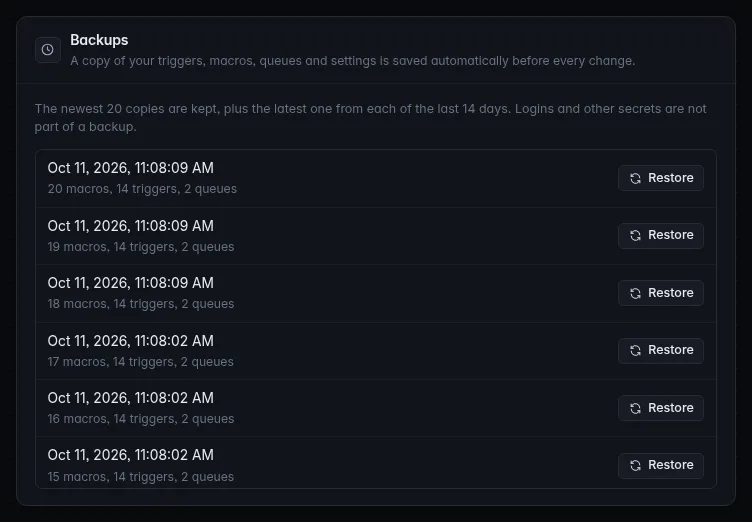
Backups
Before every change to your settings file (config.json), CroStream saves
a copy of it as it was, in the backups/ folder inside the
config folder. You don't have to do anything.
- A copy is made before every save: adding a trigger, editing a macro, changing an integration's settings, importing, restoring.
- If nothing changed since the newest copy, no new copy is made.
- CroStream keeps the 20 newest copies, plus the newest one from each of the last 14 days, and deletes older ones. So you can always go back a few edits, or to how things were on any day in the last two weeks.
What a backup holds
Everything in the settings file:
- your triggers, macros and queues;
- each integration's settings (OBS host and port, the Steam folder, the Discord application ID, …), but not passwords or logins;
- your webhooks: the incoming webhooks (address, format, mapping rules, reply and the last sample), the destinations, and who may reach the webhook listener, but not their tokens, signing keys or secrets;
- history and viewer options, the Dashboard's pinned macros, and your desktop and update preferences.
A backup does not hold:
| Not included | Where it is | How to keep it |
|---|---|---|
| Logins, the OBS password, and webhook tokens, signing keys and destination secrets | secrets/ |
Copy the config folder. |
| Overlays and widgets | overlays/, widgets/ |
Copy those folders. |
| The viewer database | viewers.db |
Copied daily on its own; see below. |
| The media library | library/ |
Copy the folder. |
| History | history.db |
Copy the file. |
See Where files are kept for a complete backup.
Restore a backup
- Open Settings and find Backups. Each copy shows when it was made and how many macros, triggers and queues it holds, for example "12 macros, 15 triggers, 2 queues".
- Click Restore on the copy you want.
-
Read the confirmation, Restore this backup?, and click Restore.
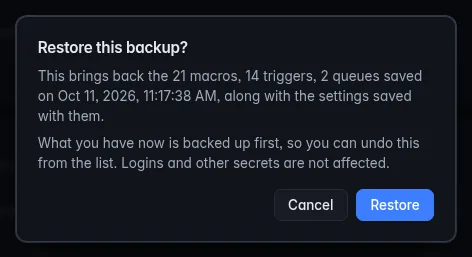
CroStream applies the restored settings at once; there is no need to restart. It says "Restored the backup from …".
- What you had just before is backed up first, so a restore can be undone the same way: restore the newest copy in the list.
- Logins and other secrets are not affected.
- Triggers come back exactly as they were in the copy, turned on or off.
- Webhooks come back with their settings. If a restored incoming webhook's token or signing key no longer exists (you deleted the webhook after the copy was made), CroStream makes a new one: copy it from the Webhooks page into the sender again.
Find the right copy
The counts help: if you deleted a macro by mistake, pick the newest copy that has one more macro than you have now.
The viewer database
The viewer database has its own backups: once a day
CroStream copies viewers.db to backups/viewers-YYYYMMDD.db in the
state folder and keeps the newest 7. To go back
to one:
- Quit CroStream.
- In the state folder, rename
viewers.dbto keep it (for example toviewers-broken.db). Renameviewers.db-walandviewers.db-shmthe same way if they are there. - Copy the backup you want next to it and name the copy
viewers.db. - Start CroStream.
For a portable copy of everyone's points, use Export on the Viewers page.
Export
Settings → Export & import writes the macros, triggers and queues you choose to a file.
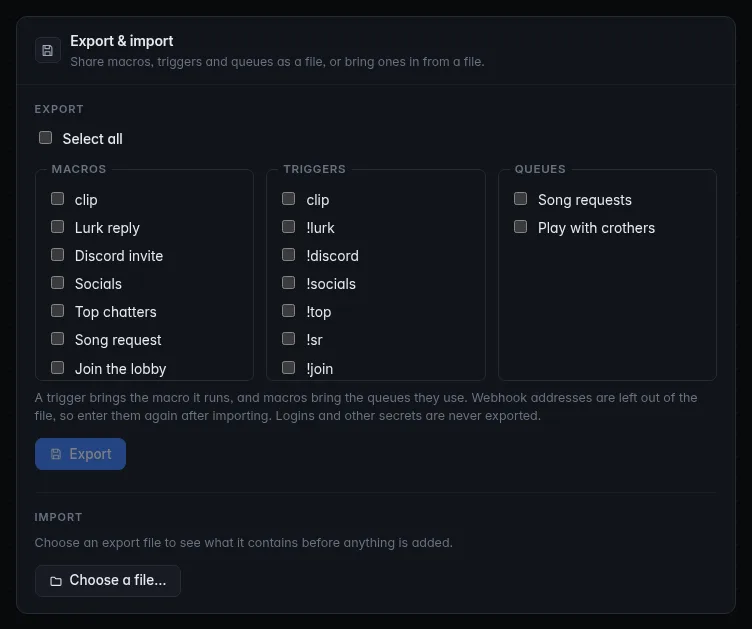
- Under Export, tick what you want, or tick Select all. Items are grouped under Macros, Triggers, Queues, Incoming webhooks and Webhook destinations. Tick Webhook listener settings to include who may reach incoming webhooks, and the port.
- Click Export N items.
- Choose where to save the file. It's named like
crostream-export-2026-10-11.json. (In browser mode, it downloads.)
What comes along:
- What they depend on. A trigger brings the macro it runs and the incoming webhook it listens to, and macros and triggers bring the queues and the webhook destinations they use, so the file always works on its own.
- No secrets. Integration settings, logins and passwords are never exported. Neither are webhook tokens, signing keys and destination secrets, nor the sample body saved on an incoming webhook (it can hold a sender's data).
- No Discord webhook addresses. Options that work like a password, such as the webhook address of Post to Discord, are left empty in the file. The import preview lists them, so you can fill them in again afterwards.
The file is plain text (JSON). Power users can read it: see The settings file.
Overlays aren't part of an export
Export covers macros, triggers and queues. Overlays and widgets are shared separately; see Overlays and Widgets.
Import
- Under Import, click Choose a file… and pick an export file.
- A preview, Import from file, shows everything in the file before
anything changes. Each item is marked:
- New: you don't have it yet;
- Added as a copy or Replaces yours: you already have the same item (it came from your setup, or you imported it before);
- Name in use, gets a number: something else already has its name.
- Read the warnings below the list, if any:
- an event or action this copy of CroStream doesn't have;
- a macro step or trigger whose queue isn't in the file or your setup;
- a trigger or macro that uses an incoming webhook or destination that isn't in the file or in your setup;
- an option that was left empty, such as a Discord webhook address ("Enter … again after importing").
- Under When something already exists, choose:
- Add as copies (the default, keeps what you have): everything comes in as new items, still linked to each other (an imported trigger runs the imported macro). Names already in use get " (2)", " (3)" and so on.
- Replace matching items: an item that is the same as one of yours overwrites yours.
- Click Import.
Imported triggers start off
Imported triggers always start turned off, so nothing fires until you have looked at them and turned them on in Triggers.
Webhooks are imported with extra care:
- Incoming webhooks start turned off too, with new tokens and signing keys made on your PC. A webhook that had no check gets a token if your listener isn't Localhost only.
- Destinations arrive without their secret: sending to one fails until you open it on the Webhooks page and enter it.
- An import never opens the listener wider. If the file's Webhook listener settings allow more than yours do now, yours stay and a note says so. It can narrow them, and set the port.
- When it's done, a Do this now box under the panel lists what is left to do: turn webhooks on, copy new tokens into the services that call them, enter destination secrets.
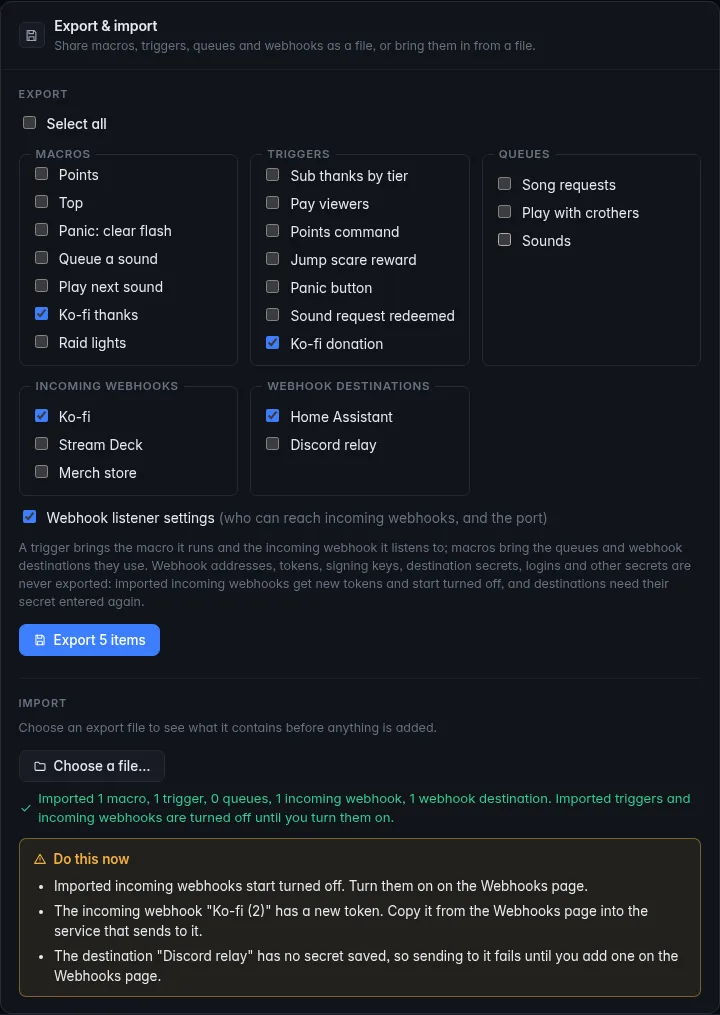
- Your current setup is backed up first, so an import can be undone by restoring the newest backup.
- The whole file is checked and saved at once: if anything in it is invalid, nothing is imported.
- Files over 5 MB are refused.
- Export files made by streamlink, CroStream's earlier name, still import.
Viewer points have their own import and export on the Viewers page.