Back up and move your setup
Your triggers, macros, overlays and viewer points take hours to build and some of them, like points, can't be rebuilt at all. This tutorial shows where CroStream keeps each part, how to carry the whole setup to a new PC, and how to share just a few macros and triggers with a friend.
What you'll build
- A complete copy of your CroStream setup (triggers, macros, queues, overlays, widgets, media library, viewer points and history) running on a new PC.
- Or, the light version: an export file with chosen macros, triggers and queues, ready to import anywhere.
- A simple backup habit so you never lose points or media.
Time: about 20 minutes. Level: beginner.
Before you start
- CroStream is installed on the new PC. See Getting started.
- A USB drive, network share or cloud folder to carry the files.
- Quit CroStream on the old PC before copying anything, so no file is half-written. If Close to the tray is on in Settings, closing the window is not enough: quit from the tray icon's menu (Quit CroStream).
Step 1: Know where everything lives
CroStream keeps its files in two folders: the config folder for things you make, and the state folder for things CroStream records. See Files and folders for the full list.
| Config folder | State folder | |
|---|---|---|
| Windows | %AppData%\CroStream |
%LocalAppData%\CroStream |
| macOS | ~/Library/Application Support/CroStream |
the same folder |
| Linux | ~/.config/crostream |
~/.local/state/crostream |
To open the config folder, go to Settings and click Open config folder in the Config folder panel. The panel also shows its full path.
What is worth keeping:
| What | Where | Notes |
|---|---|---|
| Triggers, macros, queues, settings | config.json in the config folder |
Backed up automatically before every change |
| Logins | secrets/ in the config folder |
Your Twitch login, OBS password, and webhook tokens, signing keys and destination secrets |
| Overlays | overlays/ in the config folder |
|
| Widgets | widgets/ in the config folder |
|
| Media library | library/ in the state folder |
Not part of the automatic backups |
| Viewer points and records | viewers.db in the state folder |
Can't be rebuilt; copied daily to backups/ |
| History | history.db in the state folder |
Nice to have, safe to lose |
Step 2: Move the setup
- On the old PC, quit CroStream.
- Copy the whole config folder. That brings
config.json, itsbackups/,secrets/,overlays/andwidgets/. - From the state folder, copy
viewers.dband thelibrary/folder, plushistory.dbif you want your history. - On the new PC, start CroStream once so it creates its folders, then quit it again.
- Paste your copies over the new PC's folders.
- Start CroStream.
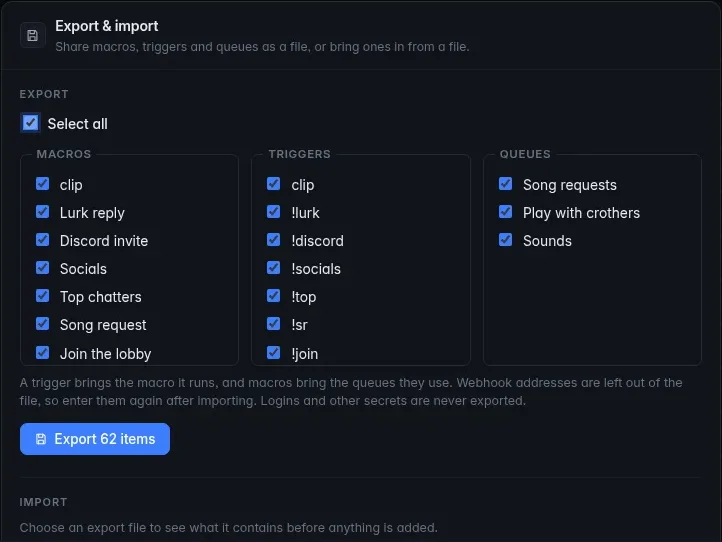
Use this to share part of a setup, or to start fresh on a new PC with your favorite automations.
- On the old PC, open Settings and find Export & import.
- Under Export, tick what to export (or Select all) and click Export. Whatever an item depends on comes along: a trigger brings its macro, and both bring their queues.
- On the new PC, open Settings → Export & import and click Choose a file…. The Import from file window shows what the file contains before anything changes.
- Under When something already exists, choose Add as copies (keeps what you have) or Replace matching items, then click Import.
- Turn the imported triggers on. They always arrive turned off, so nothing fires before you have checked it.
- Fill in anything left blank on purpose, such as a Discord webhook address: passwords and secret addresses are never exported.
- If you export webhooks, also: turn the imported incoming webhooks on, copy their new tokens from the Webhooks page into the services that call them, and enter each destination's secret again. The Do this now box under the panel lists them.
Overlays, widgets, media, logins and viewer points are not in the file. Points have their own More → Export as CSV and More → Export as JSON on the Viewers page, and More → Import… to bring them back.
Step 3: Fix up after the move
- Log in again if CroStream says you are logged out. See Logging in to Twitch.
- Check your webhooks if you use them. Moved with the whole config folder, they keep their tokens. Moved by export, they arrive turned off with new tokens (see above). Either way, if a service reaches this PC from the internet, update its address when the PC's address or tunnel changes, and check Accept requests from on the Webhooks page.
- Check the OBS connection under Integrations → OBS Studio: the port and password must be those of the OBS on the new PC.
- Add your overlays to OBS. On a fresh OBS, use Add to OBS from each overlay's card menu. If you also moved OBS's scene collection, open each scene and check its overlay sources load.
- Check file paths. Steps that point at a file on disk, such as Play a sound or Play sound in OBS, still hold the old PC's path. Items from the media library need no change.
- Installed fonts are per PC. An overlay that uses a font installed on the old PC shows a fallback until you install it here. Fonts downloaded from the overlay editor's font picker live in the library and come along.
Check it works
- On the new PC, open Triggers and Macros. They match the old PC, with no red error lines under them.
- Open Viewers and check a few balances.
- Open Media library and Overlays; play a sound and open an overlay.
- Click Test on your
!cliptrigger and look in History. - Open Settings → Backups. Your old backups are listed, and a new one appears the next time you change something.
Troubleshooting
| What you see | What to do |
|---|---|
| CroStream starts empty on the new PC | The copies went to the wrong folder. Use Settings → Open config folder to find the right one, quit, and copy again. |
| Points are missing | viewers.db lives in the state folder, not the config folder. Copy it there with CroStream closed. |
| Overlays are blank in OBS | Use Add to OBS again, or check the browser sources point at this PC's CroStream. |
| Imported triggers do nothing | Imported triggers start turned off and are tagged disabled in the list. Open each and switch Enabled on. |
Keep backing up
- Config. CroStream copies
config.jsonintobackups/before every change. Settings → Backups lists them, and Restore brings one back (after backing up the current one). See Backups. - Everything else. Copy the config folder,
library/andviewers.dbto another drive or cloud folder now and then. CroStream's daily copy ofviewers.dbsits on the same disk, so it does not protect you from a disk failure.
Next steps
- Run CroStream on a machine without a monitor: Headless setup.
- Coming from an older version called streamlink? See Upgrading.