Macros
A macro is a named list of steps that run in order: clip, wait two seconds, post in chat, switch scene. A trigger decides when a macro runs; the macro decides what happens. One macro can be run by several triggers, and you can also run it yourself with a click.
Most steps run an action, something CroStream does in Twitch, OBS, an overlay or on your computer. Four special steps shape the flow instead: Delay waits, If and Switch choose which steps run, and Stop ends the macro early. The glossary defines every term used here.
The Macros page
Open Macros in the sidebar, under Automate. Each macro shows its step count, how many triggers run it (or unused), and its steps as a row of chips, so you can tell at a glance what it does.
- Run runs the macro right now, as you. See Test and Run.
- The pencil opens the macro editor; the bin deletes it after Confirm delete. A macro that a trigger still runs can't be deleted: change or delete the trigger first.
- A red line under a macro says why it can't run, for example an action from an integration that's no longer available. Triggers that run it are switched off until you fix it.
The macro editor
Click New macro, or the pencil next to a macro. The editor has three parts.
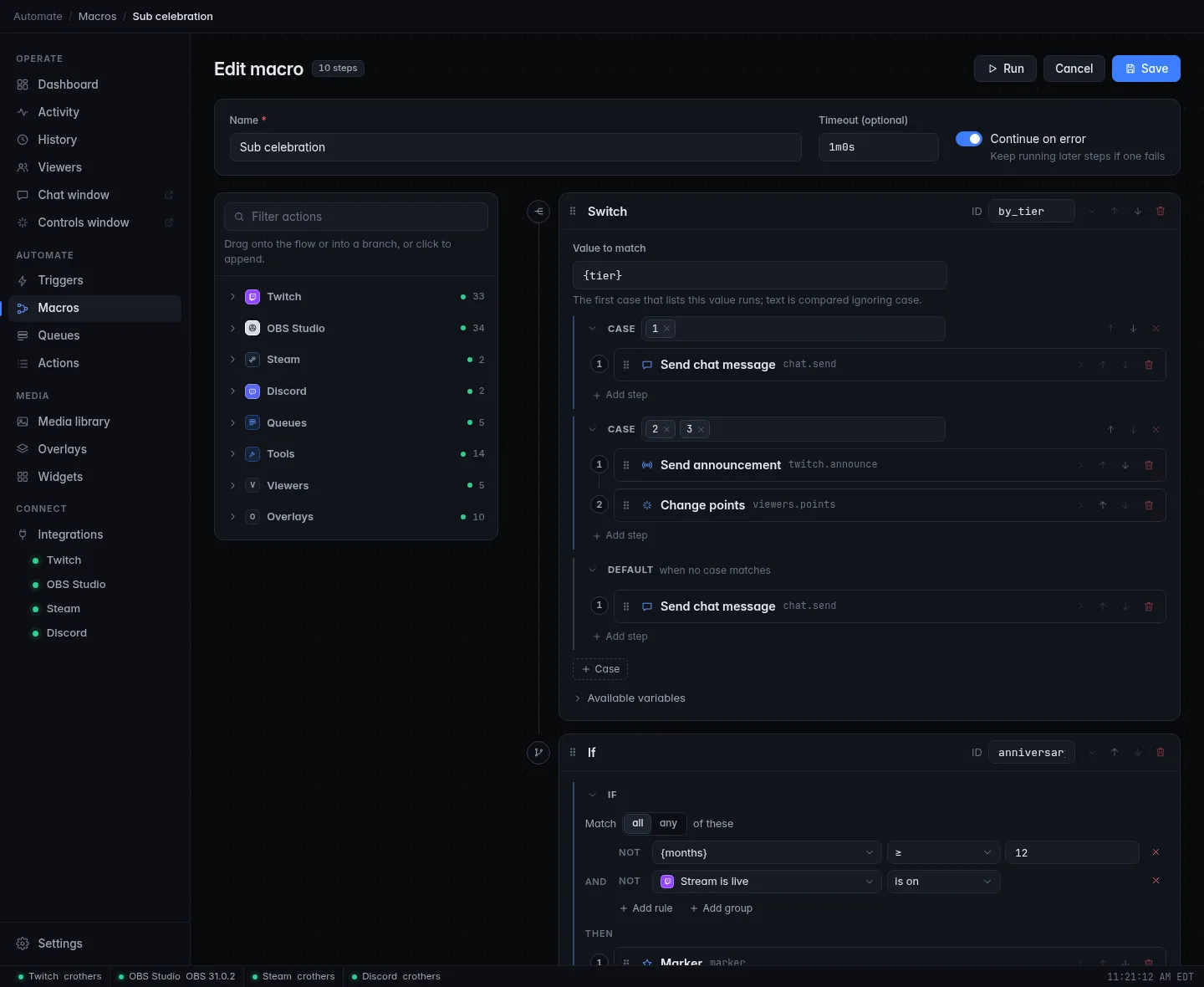
The settings bar at the top:
| Setting | What it does |
|---|---|
| Name | Required, and unique among your macros. It's what triggers and the activity feed show. |
| Timeout (optional) | The longest one run may take, such as 30s or 2m. Empty means 30 seconds; the most is 10 minutes. See Errors, timeouts and continue on error. |
| Continue on error | Keep running later steps when one fails. Off by default. |
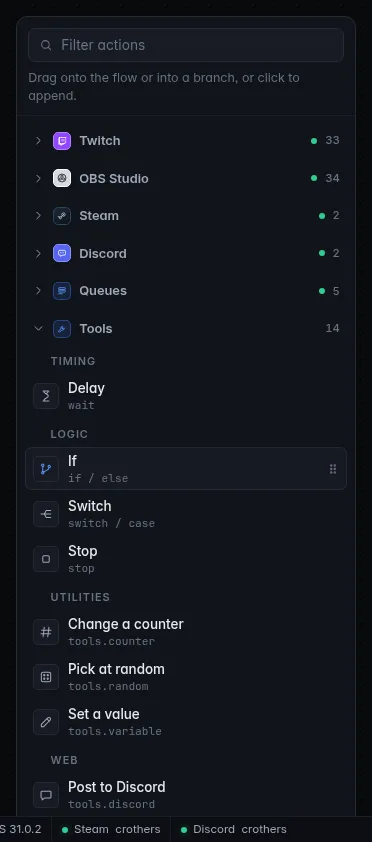
The palette on the left lists everything a step can do, grouped by
integration (Twitch, OBS Studio, Tools, and so on), each section folded
until you open it. Type in Filter actions to search all of them at once:
mute, poll, scene. The Tools section also holds the flow steps:
Delay, If, Switch and Stop. A dot on a folded section shows
whether that integration is connected; a warning sign on an action means
it can't be used right now (hover to see why).
The steps on the right, in the order they run. To add one:
- click a palette item to add it at the end, or
- drag it to exactly where you want it, including inside an If or Switch branch.
Every change is checked as you go. When you click Save, anything that still needs fixing is listed at the top; click a problem to jump to its step. The Unsaved tag shows there are changes; leaving asks whether to discard them.
Build your first macro
A macro that thanks a raider and shows their channel:
- On the Macros page, click New macro and name it Raid thanks.
- In the palette, open Twitch and click Shout out a channel. In
its Channel box, type
{user_login}. - Open Tools and click Delay. Set for to
3s. - Back in Twitch, click Send announcement and write
Thank you {user} for the raid with {viewers} viewers! - Click Save.
- Create a trigger with the event Raid that runs Raid thanks (Triggers).
{user_login}, {user} and {viewers} are variables from
the Raid event.
Steps
Each step is a card. An action card shows the action's name, its ID, a short description, and:
| Part | What it's for |
|---|---|
| Step ID | A short name for this step, such as clip or announce. Lowercase letters, digits and _, starting with a letter, and unique in the macro. It names the step's outputs: {clip.clip_url}. CroStream fills one in for you. |
| Providers | Which integrations run the step. See Providers. |
| The settings | The action's own options, such as the message, scene or volume. A * marks required ones. The Actions reference lists every setting. |
| Outputs | Values the step reports back for later steps, such as the link to a new clip. |
| Available variables | Every variable you can use in this step. Click one to insert it into the text box you last clicked. |
To rearrange steps, drag a card by its grip, or use the arrow buttons (or Alt+Up and Alt+Down on a focused card). The chevron folds a card; the bin removes it. Removing an If or Switch that holds steps asks you to click again to confirm.
Providers: which integration runs a step
Some actions can be done by more than one integration: Clip saves the OBS replay buffer and creates a Twitch clip; Marker adds a Twitch stream marker and an OBS recording chapter. These are shared actions, and the integrations that can run them are its providers.
On the step card, the Providers buttons pick which ones run it:
- None selected: it runs on every provider that is connected. One that isn't connected is skipped with a note in the activity feed. If none is connected, the step fails.
- Some selected: it runs on exactly those. If one of them isn't connected, the step fails, so you notice.
When you take a shared action from an integration's section of the palette, the step starts with that integration selected. The providers of one step run at the same time; the next step starts when all of them have finished.
Delay
A Delay step waits before the next step: type the time in its for
box, such as 500ms, 2s or 1m (it starts at 2s). It must be more
than zero and at most 10 minutes, and it counts towards the macro's
timeout.
Steps that decide
If, Else if and Else
An If step runs a set of steps only when a condition holds.
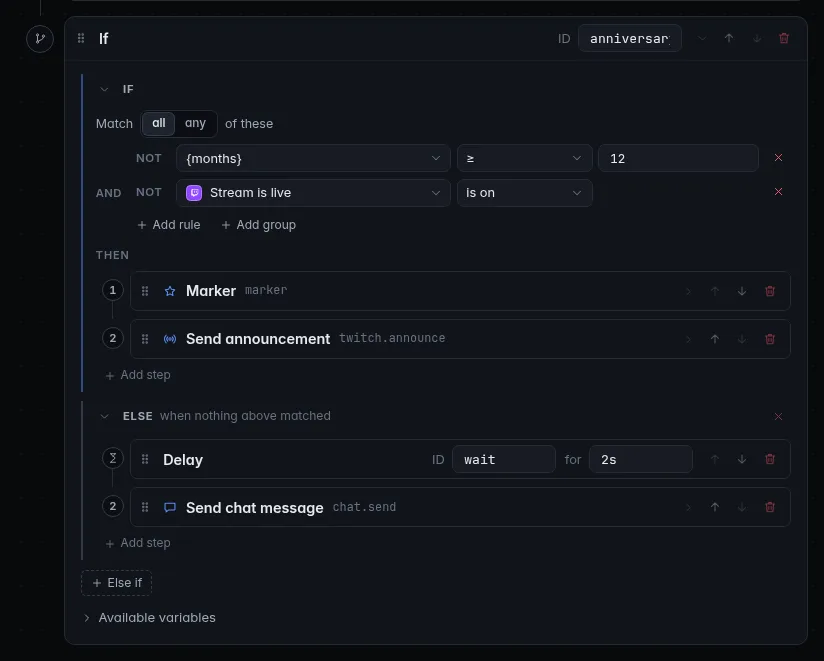
- Add an If step from the palette (Tools section).
- Build its condition: click Choose what to check… and pick a variable
such as
{bits}, a live value such as Current scene, or Type a value…. Then pick the comparison and what to compare with. - Add more rules with Add rule. With more than one, choose whether all or any of them must hold.
- Put the steps to run under Then: drag them in, or click Add step in the branch and then click palette items (they go into that branch until you click Adding here from the palette again).
- Optional: click Else if (below the branches) for another condition to try, and Else for steps that run when nothing matched.
CroStream tries the If, then each Else if, in order, and runs the steps of the first one that holds. If none holds, it runs the Else steps, or nothing. The activity feed says which way it went.
Some ideas:
| Condition | Use |
|---|---|
{bits} ≥ 1000 |
A bigger celebration for big cheers. |
| Stream is live is on | Only post to Discord while you're live. |
| Current scene is Gaming | Skip a camera effect while you're on another scene. |
{user_role} is at least Moderator |
Let moderators do more with the same command. |
{args} is empty |
Reply with usage help when someone types just !so. |
Viewer's points ≥ 500 |
A points shop item. |
Not turns a rule around. Add group adds rules with their own all/any, for conditions like live and (bits ≥ 500 or a subscriber). The Conditions reference lists every comparison and every live value.
Live values need their integration
A rule that reads a live value from an integration that isn't connected (say, Current scene while OBS is closed) can't be answered, so the If step fails. The rule shows a warning while that integration is offline.
Switch
A Switch picks one set of steps by a value, like a menu. It's tidier than a chain of Else ifs when you're comparing one thing against several answers.
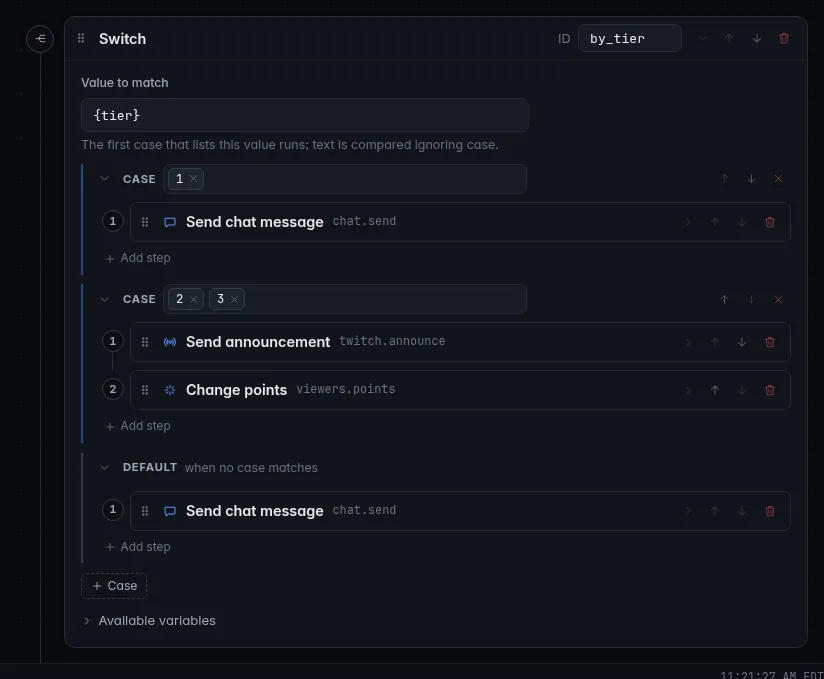
- Add a Switch step and fill in Value to match, usually one
variable:
{tier},{arg1},{reward}. - In the first Case, type the value it stands for and press Enter
(or a comma). A case can list several:
2, then3. Add steps under it. - Click Case (below the cases) for the next one.
- Steps under Default run when no case matches.
The first case that lists the value runs. Values are compared as text,
ignoring capital letters and spaces around them, so yes matches Yes.
Prime subs are tier 1
For a Prime sub, {tier} is 1. To react to Prime subs differently,
give them their own trigger with the Subscription event's Tier
set to prime.
Stop
A Stop step ends the macro on the spot; the steps after it don't run. Choose how it ends:
| Choice | Result |
|---|---|
| Succeed | The macro ends as done (or failed, if an earlier step already failed with Continue on error on). |
| Fail and refund | The macro ends as failed. If a channel point redemption started it, the viewer gets their points back (how refunds work). |
The Message (optional) appears in Activity, and can use variables:
Not live right now, {user}. Stop is most useful inside an If: "if the
stream isn't live, stop and refund".
Nesting
Branches can hold any steps, including more If and Switch steps, up to 8 levels deep. A macro holds at most 500 steps, counting those inside branches. Every step ID must be unique across the whole macro, branches included.
Variables
A variable is a {name} placeholder in a step's text. When the step
runs, CroStream replaces it with the real value: {user} becomes the
viewer's name, {bits} the number of bits. They work in any text box
(messages, titles, file names, web addresses) and in conditions.
There are three kinds:
- Event variables come from what started the run:
{user},{args}and{arg1}for a chat command,{input}and{reward}for a redemption,{viewers}for a raid. The trigger editor lists them, and the Events reference has them all. - Run variables every run has:
{rule}(the trigger's name),{user_role}and{detail}. - Outputs of earlier steps, such as
{clip_url}from a Clip step.
Open Available variables on any step to see exactly what you can use there, with a description of each. Click one to insert it into the text box you clicked last. The list includes the variables of every trigger that runs this macro; for a macro no trigger runs yet, it shows the common ones.
A variable the event doesn't have is left as written ({bits} stays
{bits} in a follow macro), and an empty one becomes nothing ({arg2}
when the viewer typed one word).
Outputs of earlier steps
A step that reports something back makes it available to every step after
it. Each output can be written three ways; for a Clip step with the
Step ID clip:
| Write | Meaning |
|---|---|
{clip_url} |
The short form. A later step with an output of the same name replaces it. |
{clip.clip_url} |
This step's output, whatever comes later. |
{clip.twitch.clip_url} |
This step's output from one provider. |
Use the longer forms when two steps report the same thing (two Look up viewer steps, say), or when a step runs on several providers: the short forms come from the first provider that succeeded, so they're filled as long as any provider that reports that output succeeded.
Event variables win
An output never replaces an event variable of the same name. In a
Gifted subs macro, {count} stays the number of subs after a
Change a counter step: write {deaths.count} (the step's ID, a dot,
then the output) to get the counter.
Outputs of steps inside an If or Switch branch can be used after it too, but only have a value when that branch ran. Available variables shows them with a dashed border.
Safe links with |url
Add |url inside the braces to make a value safe to put in a web address:
https://example.com/search?q={args|url}. Spaces and symbols are encoded,
so a viewer's text can't break the link.
Safety with viewer text
Variables like {args} and {input} hold whatever a viewer typed, so
CroStream treats them with care:
- In chat messages, a
!,/or.at the very start that came from a variable is defused, so a viewer can't make your account run another bot's command. A message that itself starts with!is sent as written. - File locations (sounds, text files, screenshots, images) refuse anything that would reach outside the intended folder or onto the network, even after the variables are filled in.
- Discord messages never ping
@everyone,@hereor roles.
Errors, timeouts and continue on error
A step fails when its action can't be done: Twitch refuses, OBS isn't connected, a file is missing, a live value can't be read. The activity feed shows which step failed and why.
- With Continue on error off (the default), the first failure stops the macro.
- With it on, the remaining steps still run. The run still counts as failed, which matters for refunds.
The Timeout caps how long one run may take, delays and "wait until it finishes" steps included. A run that hits it is stopped and counts as failed. Raise it for long macros: a sound that plays for a minute with Wait until it finishes needs more than the default 30 seconds.
When to turn on Continue on error
For macros whose steps don't depend on each other. The default !clip
macro has it on, so the chat message still goes out when the OBS replay
buffer isn't running.
Troubleshooting
Save does nothing and a list of problems appears
Each problem names its step. Click it to jump there. Common ones: an
empty required setting, a Step ID used twice, a Delay of 0, an If
rule with nothing chosen to check.
A variable shows up as {name} in chat
The event that ran the macro doesn't have that variable, or it's misspelled. Check Available variables on the step, and remember a macro run by several triggers gets each trigger's own variables.
The macro stops halfway
A step failed. Open Activity to see which and why. Turn on Continue on error if the later steps should run anyway.
A long macro is cut off
It hit the timeout (30 seconds unless you set one). Set Timeout to
something longer, up to 10m.
The If step fails instead of choosing a branch
A rule reads a live value from an integration that isn't connected. Connect it, or check a variable instead.
Related
- Triggers: when a macro runs.
- Actions and the Actions reference: what steps can do.
- Conditions and Variables: the full lists.
- Make a macro decide: a tutorial on If and Switch.