Connecting OBS
CroStream controls OBS Studio through OBS's built-in remote-control connection, the WebSocket server. Once connected, your macros can switch scenes, show and hide sources, mute audio, save the replay buffer, start and stop the stream or recording, and more. This page gets OBS and CroStream talking. It takes about two minutes.
You need OBS Studio 28 or newer. Older versions don't have the WebSocket server built in.
1. Turn on the WebSocket server in OBS
- In OBS, open Tools → WebSocket Server Settings.
- Tick Enable WebSocket server.
- Leave Server Port at
4455unless you have a reason to change it. - Keep Enable Authentication ticked. It means only programs that know the password can control your OBS.
- Click Show Connect Info and copy the Server Password. You'll paste it into CroStream in a moment.
- Click OK.
2. Turn on the replay buffer (for clips)
The replay buffer keeps the last few seconds or minutes of your stream in
memory, so a clip can save what just happened. CroStream's !clip
command saves it. Skip this step if you don't want replay clips.
- In OBS, open Settings → Output and find Replay Buffer.
- Tick Enable Replay Buffer and set Maximum Replay Time (for example 30 seconds).
- Click OK.
- Click Start Replay Buffer in OBS's Controls dock. It must be running for a clip to save.
Never forget to start it
OBS can start the replay buffer for you every time you go live. Look for Automatically start replay buffer when streaming under OBS Settings → Advanced. A CroStream macro can also start it, with the Control the OBS replay buffer action.
3. Connect CroStream to OBS
- In CroStream's sidebar, under Connect, click OBS Studio.
-
Under Settings, fill in:
Setting What to enter Host localhostwhen OBS runs on this computer (the default). For OBS on another computer, enter that computer's address on your network, such as192.168.1.20.Port 4455, or the Server Port you set in OBS.Password The Server Password you copied from OBS. Leave it empty if you turned authentication off. Connect automatically Turn it on so CroStream connects to OBS every time it starts. Recommended. -
Click Save.
- Click Connect.
Within a second or two the page shows the connection as connected, and the status bar at the bottom of the window shows OBS Studio with a green dot and your OBS version.
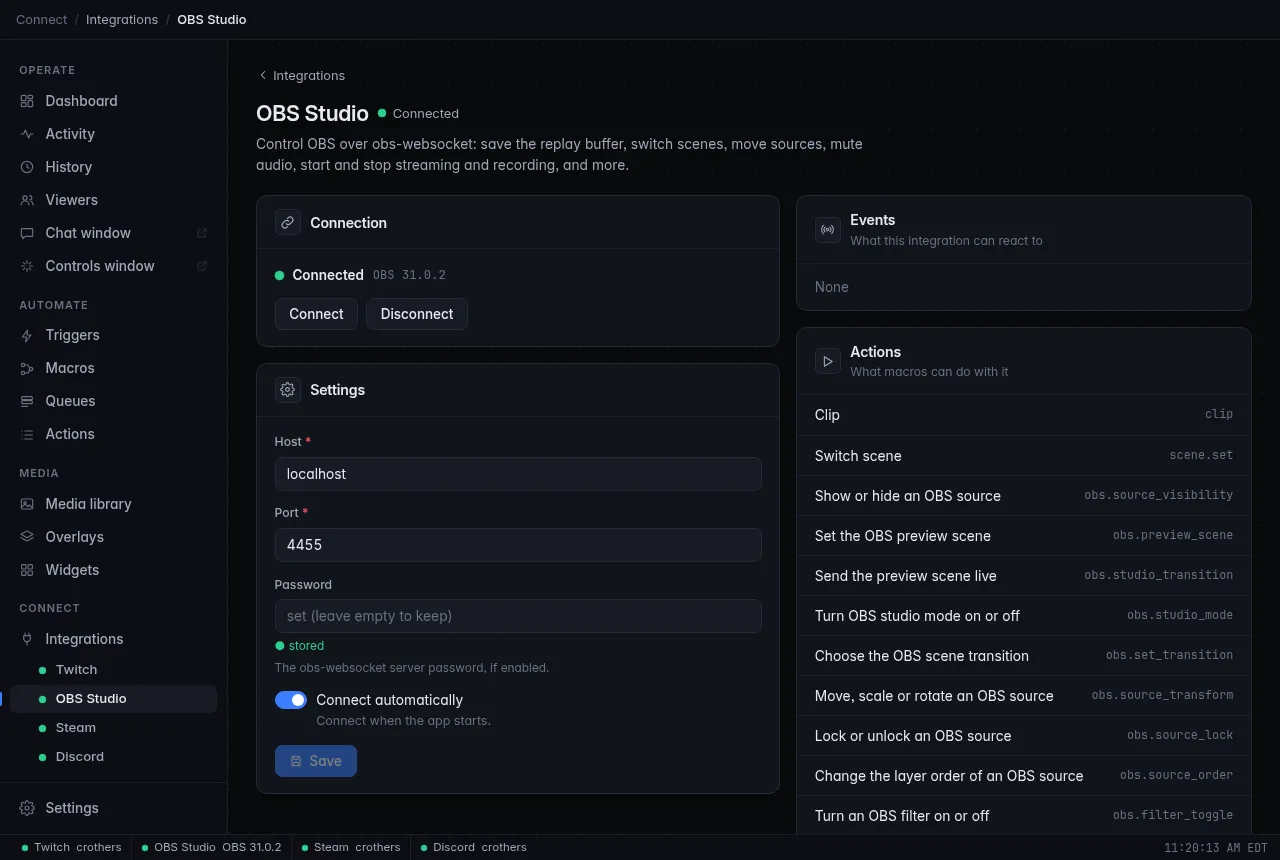
The password is stored privately on this computer, never in your settings file or in a backup. When you come back to this page, the Password field is empty, says set (leave empty to keep) and shows ● stored under it: that's normal. Leave it empty to keep the saved password, or type a new one to replace it.
Leaving OBS closed
You don't have to start OBS before CroStream. With Connect automatically on (or once you've clicked Connect), CroStream keeps trying to reach OBS in the background while OBS is closed, and the status bar shows OBS Studio Connecting…. As soon as you open OBS, it connects by itself. Disconnect stops it trying until you click Connect again.
Macro steps that need OBS fail while it isn't connected, and the Activity page says why. Steps for Twitch and everything else still run.
Troubleshooting
| Problem | What to do |
|---|---|
| Stuck on Connecting… | Check that OBS is open and Enable WebSocket server is ticked. Check that Port matches OBS's Server Port. |
| An error about authentication or the password | Copy the password again with Show Connect Info in OBS, paste it into Password, click Save, then Connect. |
| OBS is on a different computer and won't connect | Use that computer's network address as Host, not localhost. Allow OBS through that computer's firewall on the port. |
!clip posts a Twitch clip but saves no replay |
The replay buffer isn't running. Click Start Replay Buffer in OBS. |
| It worked yesterday, today it doesn't | OBS may have changed its password (it can generate a new one). Copy it again from Show Connect Info. |
Hover over OBS Studio in the status bar to see the full error.
Related
- First steps, the next step
- OBS integration: every OBS action and event
- Desktop behaviour: a notification when OBS disconnects