Browser mode
crostream serve runs CroStream without a window and serves the same UI
to web browsers. Everything works the same: triggers, macros, overlays,
widgets, the media library, viewers, history. Use it on a machine with no
screen (a home server, a second PC), to control CroStream from a laptop or
tablet while the stream PC stays busy, or on Linux to
preview custom widgets. Browser mode also serves the
HTTP API your own tools can use.
For a complete walkthrough on a machine with no screen, see Headless setup.
Start it
Open that address in a browser on the same computer. CroStream keeps
running until you press Ctrl+C (or the process gets SIGTERM), then
shuts down cleanly.
To reach it from other machines, listen on the computer's LAN address:
Then open http://192.168.1.50:8080/ on your laptop.
| Option | Default | Meaning |
|---|---|---|
-listen ADDR |
127.0.0.1:8080 |
The address and port to serve on. 127.0.0.1 (or localhost) is this computer only; a LAN address is that network; 0.0.0.0:8080 or :8080 is every network the computer is on. IPv6 works too: [::1]:8080. |
-host NAME:PORT |
none | An extra name browsers may use to reach it, such as streampc:8080. Repeat it for several names. See Allowed names. |
-h |
Prints the usage and exits. |
The address must be given with -listen: crostream serve 0.0.0.0:8080
is refused, so a typo can't quietly serve on the wrong address.
Same setup as the desktop app
crostream serve uses the same config and state folders as the desktop
app, so your triggers, macros, overlays and login are all there. That's
also why the two can't run at once on one computer: the second one
stops with "CroStream is already running on this computer. Close the
other copy first."
Windows: no terminal output
The Windows build of CroStream is a windowed program, so a terminal
may show nothing when you run crostream.exe serve. It's running
anyway: open the address in your browser.
Linux: using other folders
On Linux, the config and state folders follow XDG_CONFIG_HOME and
XDG_STATE_HOME. Setting both runs a completely separate setup, for
example a test copy beside your real one:
Safety: there is no login
Anyone who can reach the address controls CroStream
Browser mode has no password. Anyone who can open the address can do
everything the UI can: post to chat, ban viewers, run ads, start a
raid, switch OBS scenes, change or delete your setup. It's plain HTTP,
so anyone on the network can also read the traffic. When CroStream
listens on anything other than this computer it prints a reminder:
note: there is no login; only listen on a network you trust.
Keep it safe:
- Stay on
127.0.0.1unless another machine needs the UI. - Only listen on a network you trust, like your home LAN. Never forward the port on your router or listen on a public address.
- From outside your network, use a VPN or an SSH tunnel:
ssh -L 8080:127.0.0.1:8080 <host>, then openhttp://localhost:8080/. - On a laptop that changes networks, firewall the port.
- If you must expose it more widely, put an authenticating reverse proxy in front; see Reverse proxies.
What CroStream itself guards against is other web sites, not other people on your network:
- DNS rebinding. Requests must name an allowed host (below), so a web page can't point its own domain at your CroStream.
- Cross-site requests. The API only accepts
POSTs with noOriginor CroStream's own, in JSON, so pages you visit can't drive it from your browser. See HTTP API.
Allowed names
Every request's Host header (the name and port in the address bar) must
be on CroStream's allow-list, or it's refused with
421 Misdirected Request ("unexpected host"):
| You start it with | Browsers may use |
|---|---|
-listen 127.0.0.1:8080 (the default) |
127.0.0.1:8080, localhost:8080 |
-listen 192.168.1.50:8080 |
192.168.1.50:8080 |
-listen 0.0.0.0:8080 |
any IP address of the machine with :8080, and localhost:8080; no names |
any of these, plus -host streampc:8080 |
the listen address and streampc:8080 only |
So:
- To use a name (
streampc,streampc.lan, a name from your router or/etc/hosts), add it with-host, port included, exactly as you type it in the browser. Add-hostonce per name. - Giving any
-hostreplaces the defaults with exactly the listen address plus your names. On127.0.0.1:8080, add-host localhost:8080too if you uselocalhost. - When you listen on port 80, browsers leave the port out: use
-host streampc. - On a wildcard address (
0.0.0.0:8080), the printed addresshttp://0.0.0.0:8080/isn't one a browser can open; use the machine's real IP address.
Twitch login from another machine
Twitch sends you back after login to http://localhost:62689 on the
CroStream machine, so the login has to finish in a browser that can reach
that address there. From another machine, forward the port with SSH
first:
-
On your laptop, open a tunnel to the CroStream machine and leave it open:
-
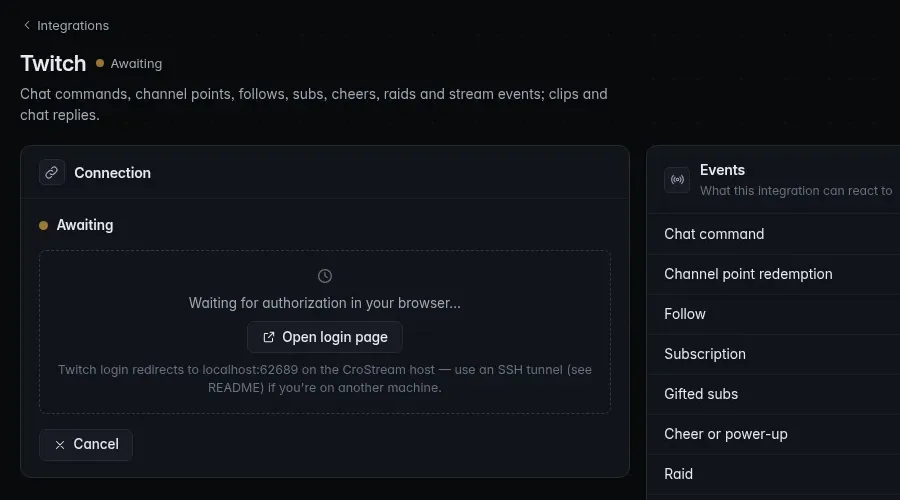
In the browser UI, open Integrations → Twitch and click Login. The card shows "Waiting for authorization in your browser…".
- Click Open login page. It opens the one-time login link in a new tab; approve CroStream on Twitch.
- Twitch redirects to
localhost:62689, which the tunnel carries to the CroStream machine. The Twitch card shows your account. Close the tunnel.
You can also log in from a terminal on the CroStream machine with
crostreamctl login, through the same tunnel.
It works whether or not CroStream is running: while crostream serve
runs, crostreamctl hands the login to it and prints the link.
Why the link has a key
The login link (http://localhost:62689/twitch/login?k=…) carries a
random single-use key, so other programs on the machine can't start a
login and sign CroStream into a different account. The login server
listens on both 127.0.0.1 and [::1], so nothing else can claim
localhost:62689 over IPv6 and receive the redirect.
For what the login grants and how long it lasts, see Logging in to Twitch.
Overlays in browser mode
In browser mode, Add to OBS and Copy OBS URL on an overlay give an
address on the host you opened the UI with, such as
http://192.168.1.50:8080/overlay/overlay-…. OBS must be able to reach
that address, so open the UI by the address OBS will use. If OBS runs on
the CroStream machine itself, the desktop app's overlay address
http://127.0.0.1:62689/overlay/<overlay id> works there too.
What's different from the desktop app
| Desktop app | Browser mode | |
|---|---|---|
| Media files | Drag in, or pick from the computer | Uploaded through the browser; importing from paths on the CroStream machine is desktop-only |
| Export and import files | Save and open dialogs | Downloads and the browser's file picker |
| Pop-out Chat and Controls windows | App windows | Browser pop-up windows (allow pop-ups for the address) |
| Tray icon, notifications, start at login, start minimized | Yes | No; the desktop settings are ignored |
| Automatic updates | Yes | No: replace the program yourself |
| Global hotkeys | Yes | Only when serve runs inside a desktop session on that machine |
| Custom widget code on Linux | Doesn't run | Runs |
| Clock format | The computer's | Your browser's |
| HTTP API | No | Yes, see HTTP API |
In browser mode, Settings → Config folder has no Open config folder button, because the folder is on the CroStream machine, not the one your browser runs on ("This folder is on the computer running CroStream. Open it there, or copy the path."). The folder's full path is shown as text you can select, with a Copy button. The usual places are listed in Where files are kept.
Ports
| Port | What | Reachable from |
|---|---|---|
The -listen address (8080) |
The UI, the HTTP API, overlay pages, media, emotes | Wherever you listen |
62689 |
The Twitch login callback, and overlay pages for OBS on this machine | This computer only (127.0.0.1 and [::1]) |
Troubleshooting
| Symptom | Fix |
|---|---|
421 Misdirected Request / "unexpected host" |
The name in the address bar isn't allowed. Add it with -host name:port, or use the listen address. See Allowed names. |
serve: … address already in use |
Another program uses the port. Pick another: -listen 192.168.1.50:8081. |
| "CroStream is already running on this computer" | The desktop app (or another serve) is running with the same setup. Close it. |
| Every button fails with "forbidden origin" | A proxy or extension changes the Origin header. See Reverse proxies. |
| The page loads but nothing updates live | Something between you and CroStream buffers the event stream (/api/events). Connect directly, or turn off buffering in the proxy. |
| OBS shows nothing for an overlay | OBS can't reach the overlay's address. Open the UI by an address OBS can reach and copy the URL again. |
| Twitch login never finishes | The browser can't reach localhost:62689 on the CroStream machine. Open the SSH tunnel first. |
| "login server unavailable … address already in use" in the activity feed | Another program, or a second CroStream with a different setup, holds port 62689. Twitch login and the 62689 overlay address need it. |
Related
- Headless setup: a streaming PC with no screen, from start to finish, kept running as a service.
- HTTP API: drive CroStream from scripts and Stream Deck.
- Command line:
crostream serveandcrostreamctl.