Chat and Controls windows
The main CroStream window is big. Mid-stream you usually want just two things from it: your chat, and a few buttons. The Chat window and the Controls window are small separate windows for exactly that. Put them on a second monitor, or beside your game, and keep them on top of other windows if you like.
Opening them
Any of these opens a window, or brings it to the front if it's already open:
- In the sidebar, under Operate: Chat window or Controls window.
- On the Dashboard: the Chat window button at the top, or Pop out on the Controls panel.
- The tray icon's menu: Chat window or Controls window.
- On macOS, the Window menu: Chat window or Controls window.
Each window opens where you last left it, at the size you last gave it. If that spot is no longer on any screen (you unplugged a monitor, say), it opens in the middle of the screen at its normal size instead. You can make them as small as 300 × 360 pixels.
Closing a Chat or Controls window just closes it; CroStream keeps running. Quitting CroStream closes them too. Opening CroStream next time doesn't reopen them: open them again when you need them.
Keep on top
Click the pin button at the top right of either window (Keep this window on top) to keep it above every other window, your game included. Click it again to stop. Each window remembers its choice for next time.
Over a full-screen game
A window kept on top shows over games running in windowed or borderless full-screen mode. Games in exclusive full-screen mode usually cover everything, so use borderless mode if you want chat over the game.
Login warnings
If a login is about to expire, both windows show a thin warning line under their header, such as Twitch login expires in 6d 4h, with a Log in button. Log in from there without opening the main window.
Chat window
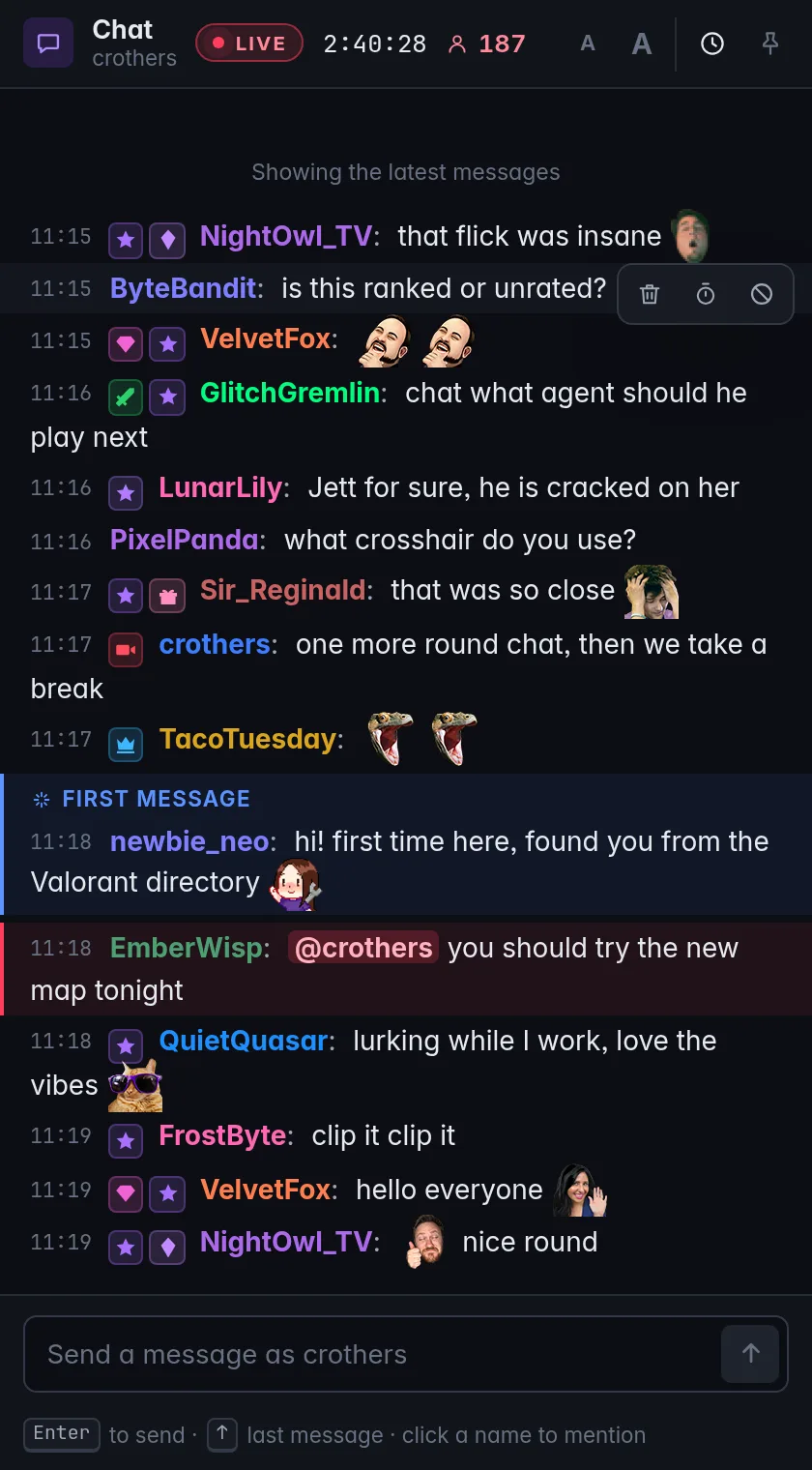
The Chat window is a small chat client for your stream: it shows your Twitch chat live, and you can talk and moderate from it.
Header
- Chat and your channel name.
- Live with how long you've been live and how many are watching, or Offline.
- A A (Smaller text and Larger text): change the size of the chat text, in seven steps.
- Clock button (Show timestamps / Hide timestamps): show or hide the time next to each message.
- Pin: keep on top.
The text size and timestamps are remembered on this computer.
Reading chat
When the window opens, it shows the most recent messages CroStream has seen since it started (up to 200), then follows new ones as they arrive.
- Badges show who's who: broadcaster, moderator, VIP, subscriber, founder and more. Hover a badge for its name.
- Names keep each chatter's own Twitch colour, brightened where needed so it's readable on the dark background. When a display name differs from the login, the login is shown after it in brackets.
- Emotes show as pictures, links are clickable and open in your browser.
- Messages that mention you (an @ followed by your name) are highlighted.
- A chatter's first message in your channel is marked First message, so you can say hello.
- A deleted message is struck through and marked deleted.
Scrolling up pauses the chat so you can read without it running away. New messages collect in a button at the bottom, 3 new messages; click it (or Back to the latest) to jump down and follow live again.
Chatting
Type in the box at the bottom (it says Send a message as your name) and press Enter to send. Messages go out from your own account.
- Click a chatter's name to mention them: @name is added to your message.
- Up in an empty box brings back the last message you sent.
- Twitch allows 500 characters per message. A countdown appears when you're close, and Send stays off while the message is too long.
When Twitch isn't connected, the box says Twitch isn't connected and you can't send; connect Twitch in the main window.
Moderating
Hover over a message to show its moderation buttons. (On a touch screen, press and hold the message.)
| Button | What it does |
|---|---|
| Delete this message | Removes that one message from chat. |
| Time out for 10 minutes | The chatter can't chat for 10 minutes, and their messages are cleared from chat. |
| Ban | Asks first, in a box titled Ban followed by the chatter's name, with an optional Reason (shown to them). They can't chat until you unban them, and their messages are cleared. |
A short confirmation, such as Timed out viewer for 10 minutes, appears at the bottom of the window. Your own messages have no moderation buttons.
Keyboard
| Keys | What it does |
|---|---|
| Enter | Send the message. |
| Up | In an empty box: bring back your last message. |
| Ctrl + + / Ctrl + − (⌘ on macOS) | Zoom the whole window. The A A buttons change only the chat text. |
Controls window
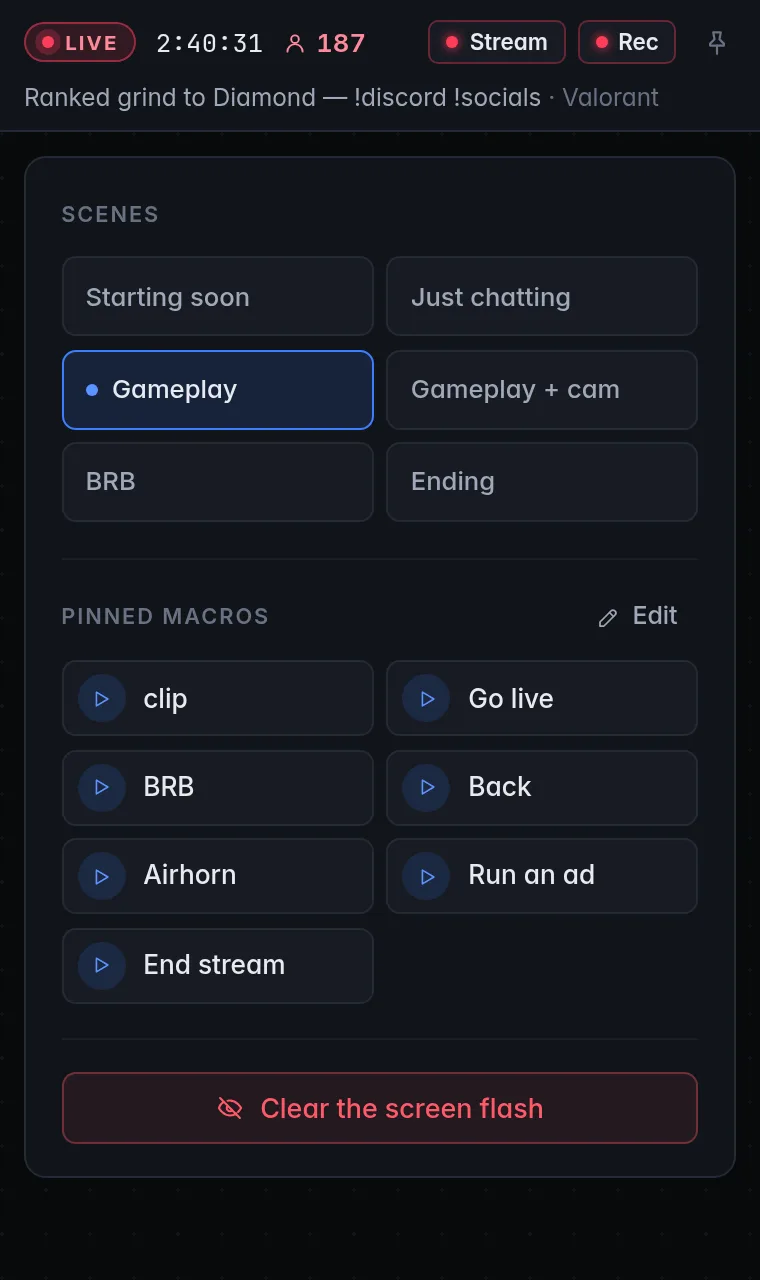
The Controls window is the Dashboard's Controls panel on its own, with a one-line stream status on top.
Header
- Live with how long you've been live (hover it for the start time) and how many are watching, or Offline.
- Stream and Rec: lit while OBS is streaming or recording (Rec becomes Paused while a recording is paused). Hover for how long. They read OBS offline while OBS isn't connected.
- While you're live, your stream title and category.
- Pin: keep on top.
Scenes
One button per OBS scene. The scene that's on air is highlighted; click another to switch to it. In OBS's studio mode, the scene in the preview is marked too. While OBS isn't connected, this says Connect OBS in the main window to switch scenes here.
Pinned macros
Your go-to macros as one-click buttons: a sound, an ad break, a "be right back" scene, anything you've built. Click one to run it; a tick shows when it has finished.
- With nothing pinned yet, click Pin your go-to macros to choose them.
- Click Edit to open Pinned macros: add macros, Unpin them, and put them in order with Move up and Move down.
These are the same pins as on the Dashboard: change them in either place.
Clear the screen flash
If you use screen flashes, a Clear the screen flash button removes one that's showing. It only appears on computers where screen flashes work.
In a web browser
In browser mode, the same buttons open the Chat and Controls windows as browser pop-ups. Browsers can't keep a pop-up on top, so there's no pin button there.
Troubleshooting
| Problem | What to do |
|---|---|
| A window opened off screen or somewhere odd | Close it and open it again: a spot that isn't on any screen is replaced by the middle of the screen. If it's on a screen you can't see, move it with your system's window controls (on Windows, Win+Shift+Left or Win+Shift+Right moves it between monitors). |
| Chat is empty | Twitch isn't connected, or nobody has chatted since CroStream started. The window says which. |
| Scene buttons are missing | OBS isn't connected. See Connecting OBS. |
| The moderation buttons don't appear | They're hidden while Twitch isn't connected, and on your own messages. |
| A moderation action failed | The message at the bottom of the window says why, for example when the chatter is a moderator. |