Switch your Twitch category when a Steam game starts
Forgetting to change the category is the classic streamer mistake: you start a new game and spend twenty minutes listed under the old one, where nobody looking for your game can find you. CroStream can see which Steam game you are playing and set your Twitch category to match the moment the game starts. No alt-tabbing, no forgetting.
What you'll build
When you launch a game from Steam, CroStream sets your Twitch category to that game. Start ELDEN RING, and your stream is listed under ELDEN RING a few seconds later.
You'll do it the quick way first, with one click on the Steam page, then learn how to build the same thing by hand so you can extend it (for example, to change your title too).
flowchart LR
    G[You start a Steam game] --> T["Trigger: A Steam game starts"]
    T --> M["Macro: Set category to {game}"]
    M --> C[Twitch category updated]
Time: about 5 minutes the quick way, 10 by hand. Level: beginner.
Before you start
- CroStream is logged in to Twitch. See Logging in to Twitch.
- Steam is installed on the same computer as CroStream, running, and signed in. CroStream reads Steam's own files on your computer; there is no Steam login or API key to set up.
Step 1: Check that CroStream sees Steam
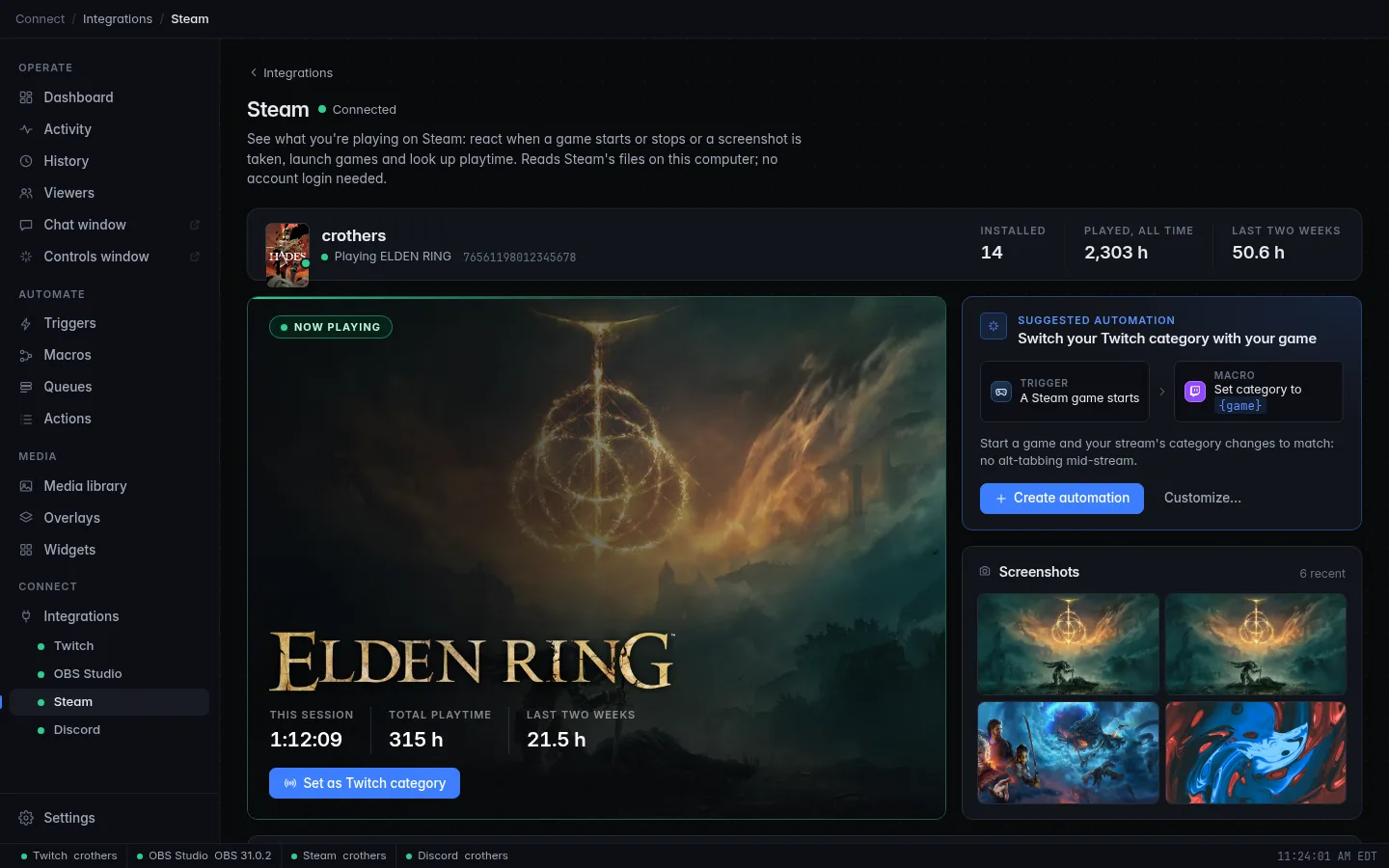
- In the sidebar, under Connect, click Steam.
- The bar at the top of the page shows your Steam name and what you are doing: Online, or Playing and a game's name. Below it you see your installed games.
If it says Steam isn't installed on this computer and Steam lives in an
unusual place (another drive, say), scroll down to Settings, type the
Steam folder's full path into Steam folder (for example D:\Steam) and
click Save. If it says Steam isn't running, start Steam.
Step 2 (the quick way): Use the suggested automation
- On the Steam page, find the card Switch your Twitch category with your game. It shows the plan: Trigger: A Steam game starts and Macro: Set category to {game}.
- Click Create automation.
- A message confirms Your Twitch category now follows your game. Click Open trigger in it if you want to look at what was made.
That's it. CroStream made a macro called Set Twitch category to the Steam game and a trigger called Steam game starts: set Twitch category, and the trigger is already on. The card disappears once the automation exists.
Step 2 (by hand): Build it yourself
Building it yourself shows how it works, and lets you add more steps. Skip this if you used the quick way.
- Click Macros, then New macro. Set Name to
Category from Steam. -
Filter the palette for
categoryand click Set category (in the Twitch section). In Category, type{game}.{game}becomes the name of the game you started. Twitch is asked for a category with that exact name first; if there is none, CroStream uses the closest match Twitch suggests. -
Click Save.
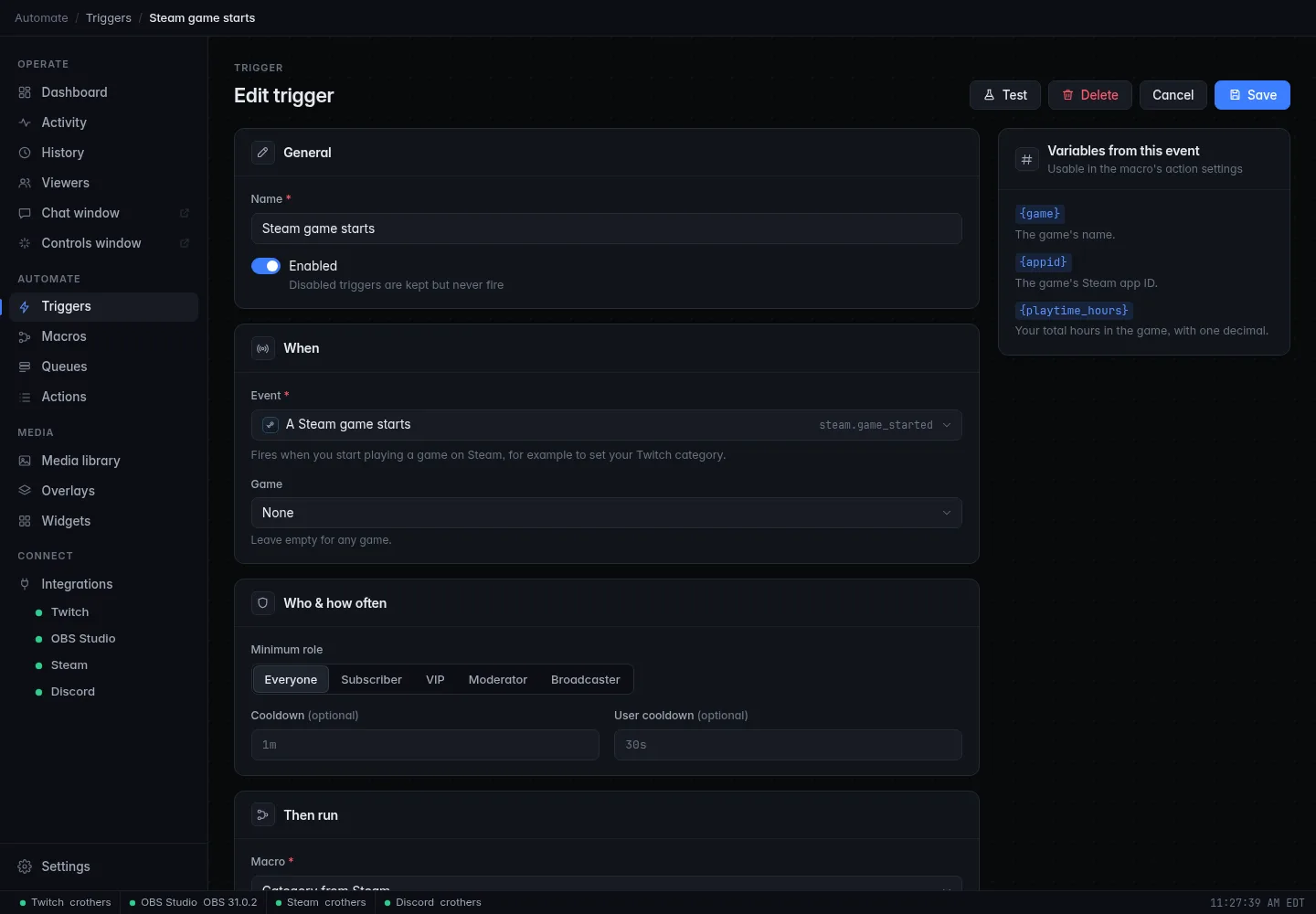
- Click Triggers, then New trigger. Set Name to
Steam game starts. - Under When, open Event and pick A Steam game starts (under Steam). Leave Game empty so it fires for any game.
- Under Then run, pick Category from Steam, then click Save.
Change your title as well
Add a Set stream title step to the same macro, for example
Blind first playthrough of {game}!. Titles can be up to 140
characters. The trigger's Variables from this event panel also
offers {playtime_hours}, your total hours in the game, for titles like
{game}: hour {playtime_hours}.
Check it works
- Open the trigger and click Test. CroStream pretends a game started: the game you are playing, or a sample game if you are not playing anything. Your Twitch category changes to it. Check it on your Twitch dashboard or in the Controls window, which shows the title and category while you are live.
- For the real test, close your game, then start it again from Steam. Within a few seconds the category changes.
- Open History to see the run and which category was set.
Start CroStream before your game
CroStream reacts to a game starting. If the game was already running when CroStream opened, nothing fires. Restart the game, or click Set as Twitch category on the Steam page's Now playing card to set it by hand.
Troubleshooting
| What you see | What to do |
|---|---|
| The category didn't change | Check the trigger is Enabled, Twitch is connected, and the game was started after CroStream. Look in History for the run and its message. |
| "Twitch has no category called …" | Twitch doesn't know that name. Some Steam names differ from Twitch's (extra symbols, editions). Make a trigger for that game only (pick it in Game) with a macro that sets the exact Twitch category name. |
| The wrong category was picked | The close-match search chose another game. Use a per-game trigger as above with the exact name. |
| A step asks you to log in again | Your Twitch login lacks permission to change your channel. Log in again; see Logging in to Twitch. |
| The Steam page says Not signed in | Sign in to Steam. Events need a signed-in Steam. |
Next steps
- Set a "Just Chatting" category when you close the game, with a trigger on A Steam game stops.
- React when you take a Steam screenshot (F12 by default) with the A screenshot is taken event, for example by dropping a stream marker.
- Show what you're playing on your Discord profile while live: Show "Live on Twitch" on Discord.
- Everything the Steam page can do: Steam.