Show "Live on Twitch" on your Discord profile
Your Discord friends and community are the people most likely to come and watch, if only they knew you were live. In this tutorial CroStream puts your stream on your Discord profile the moment you go live: your title, your category, a timer, and a Watch stream button that opens your channel. When the stream ends, the status clears itself.
What you'll build
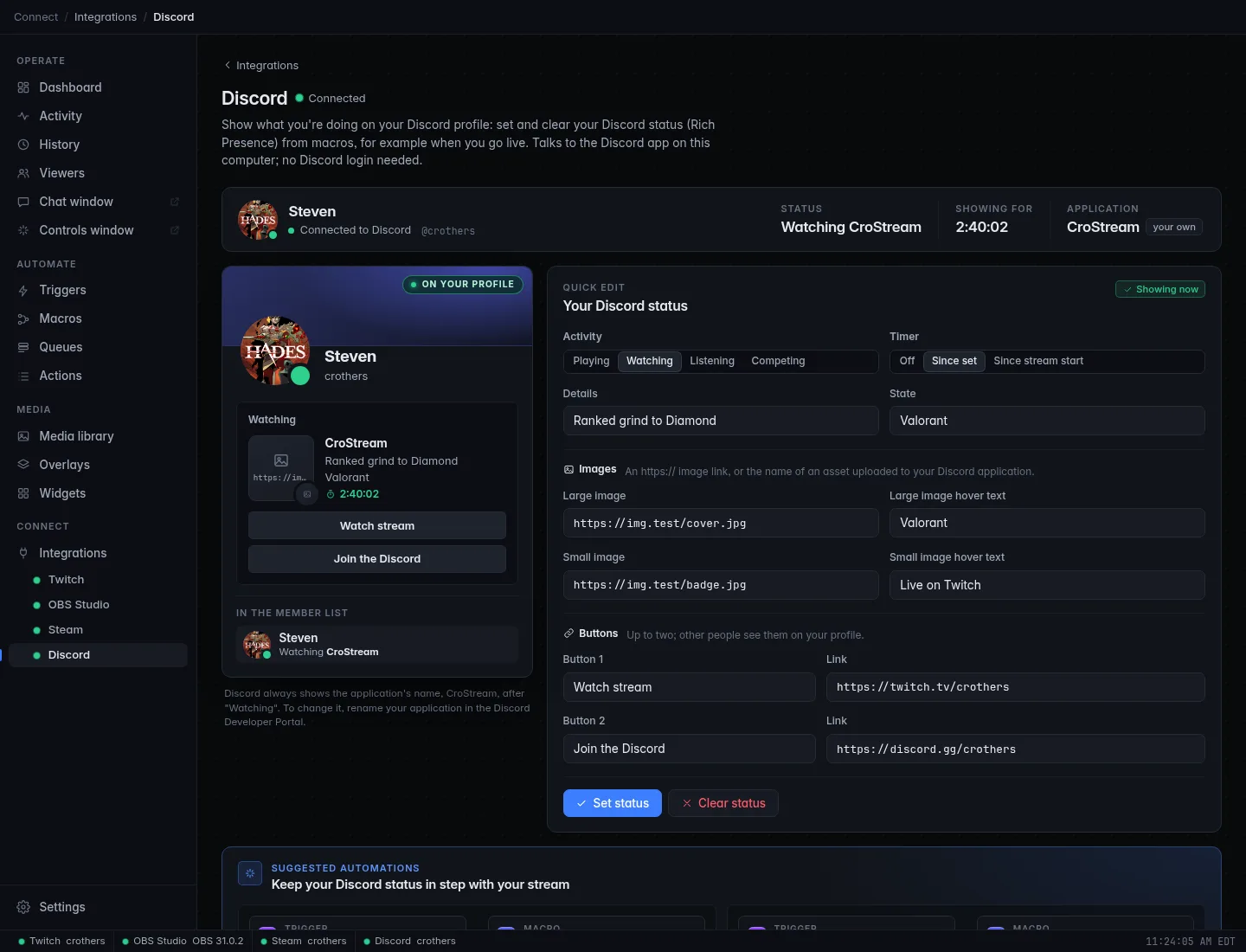
While you are live, everyone who looks at your Discord profile or the member list sees something like:
Watching CroStream Chill Sunday: first time in the Lands Between ELDEN RING 02:41:07 elapsed [ Watch stream ]
When you go offline, the status disappears.
Time: about 5 minutes the quick way, 15 by hand. Level: beginner.
Before you start
- CroStream is logged in to Twitch. See Logging in to Twitch.
- The Discord desktop app is installed and running on the same computer as CroStream, and you are signed in to it. CroStream talks to the Discord app directly; Discord in a web browser can't do this. There is no Discord login to give CroStream.
Step 1: Check that CroStream sees Discord
- In the sidebar, under Connect, click Discord.
- The bar at the top says Connected to Discord.
If it says Discord isn't running, start the Discord app. CroStream connects on its own within about half a minute; you don't need to click anything.
Step 2 (the quick way): Use the suggested automations
-
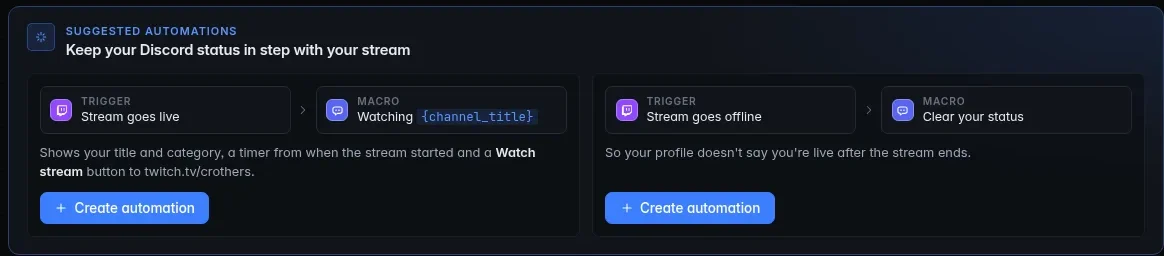
On the Discord page, find Suggested automations. There are two cards:
- Stream goes live → Watching {channel_title}: shows your title and category, a timer from when the stream started, and a Watch stream button to your channel.
- Stream goes offline → Clear your status: so your profile doesn't say you're live after the stream ends.
-
Click Create automation on the first card. A message confirms Your Discord status now follows your stream.
- Click Create automation on the second card. A message confirms Your Discord status clears when you go offline.
CroStream made two macros (Discord: live on Twitch and Discord: clear status) and two triggers (Going live: show it on Discord and Going offline: clear Discord status). Both triggers are already on. Each card disappears once its automation exists.
Step 2 (by hand): Build it yourself
Build it yourself to change the wording, add a second button, or pick a different activity. Skip this if you used the quick way.
The "going live" half
- Click Macros, then New macro. Set Name to
Discord: live. - Filter for
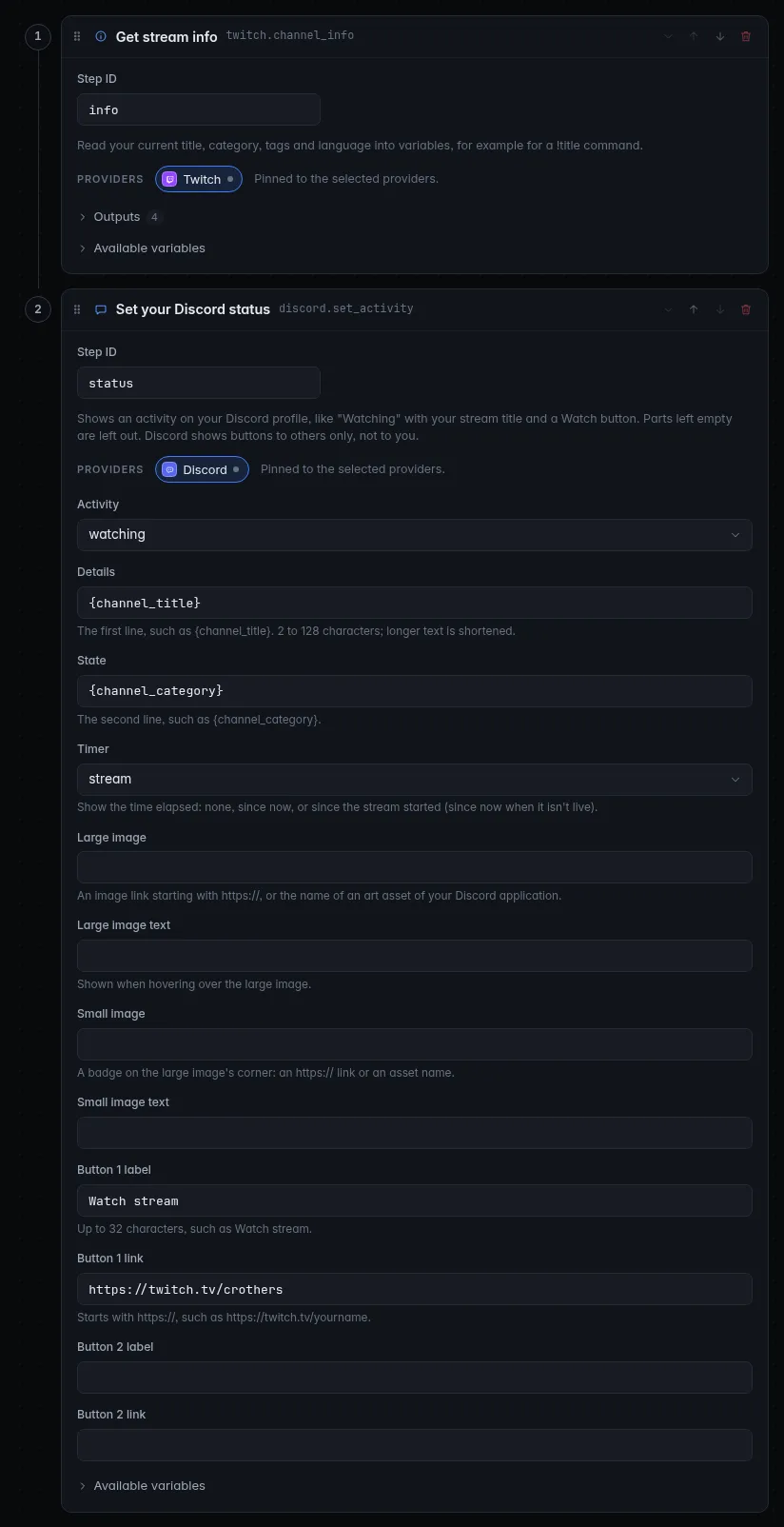
stream infoand click Get stream info. It reads your current title and category into{channel_title}and{channel_category}. (The going-live event itself doesn't carry them.) -
Filter for
discordand click Set your Discord status. Fill in:Field Value Activity watchingDetails {channel_title}State {channel_category}Timer stream(time since the stream started)Button 1 label Watch streamButton 1 link https://twitch.tv/yourname(your channel)Links must start with
https://. You can add a Button 2, for exampleJoin the Discordwith your server's invite link. -
Click Save.
- Click Triggers, then New trigger. Set Name to
Going live: Discord. Pick Stream online/offline as the Event, with When set to online, run Discord: live, and click Save.
The "going offline" half
- Make a macro called
Discord: clearwith one Clear your Discord status step. - Make a trigger called
Going offline: Discordon Stream online/offline with When set to offline, running Discord: clear.
Check it works
- On the going-live trigger, click Test. Your Discord status appears; the Discord page's preview card switches to On your profile.
- Ask a friend to look at your profile, or check the member list of a server you're in. You won't see the Watch stream button yourself: Discord only shows buttons to other people.
- On the going-offline trigger, click Test. The status clears.
- Go live for real and check again.
Set it by hand any time
The Your Discord status editor on the Discord page sets a status right now with Set status, and Clear status removes it. Handy for a one-off "Back at 8pm!".
Good to know
- Open Discord before you go live. If Discord isn't running at the moment you go live, the step fails and the status isn't set later, even when Discord opens. Click Test on the going-live trigger to set it then.
- The status lasts only while both apps run. If Discord restarts, CroStream puts the status back once it reconnects. When you quit CroStream, it clears the status.
- "Watching CroStream" is fixed. Discord always shows the name of the application after the verb. To show a different name, create your own Discord application and paste its Application ID into Discord application ID under the page's Settings. See Discord.
Troubleshooting
| What you see | What to do |
|---|---|
| Create automation is greyed out | Connect Twitch first: the Watch stream button needs your channel's address. |
| The page says Discord isn't running but it is | Use the Discord desktop app, not the browser version, on the same computer as CroStream. Wait half a minute. |
| The status didn't appear when you went live | Discord was closed at that moment, or Twitch was disconnected. Look in History for the run, then click Test on the trigger. |
| The status still shows after the stream | The going-offline trigger is missing or off. Create it, or click Clear status on the Discord page. |
| A step fails about a link | Button links must start with https:// and be at most 512 characters. Labels can be up to 32 characters. |
| Friends see the status but no button | Buttons need both a label and a link. You never see your own buttons. |
Next steps
- Change your category automatically when you start a Steam game: Switch your Twitch category when a Steam game starts.
- Post a "We're live!" message to your Discord server with the Post to Discord action and a webhook. See Actions.
- Everything the Discord page can do: Discord.