Alerts
An alert is the picture, message and sound that pops up on stream when someone follows, subscribes, gifts subs, cheers, raids or redeems a channel point reward. In CroStream an alert lives on an overlay, so it shows in OBS wherever that overlay's browser source is.
Behind every alert are three pieces you already know from the rest of CroStream:
- an element on the overlay, hidden until it's needed (an Alert widget, or a group of plain elements);
- a macro with a Show an alert step that shows that element, fills in the viewer's name and the other details, and hides it again;
- a trigger that runs the macro when the event happens.
You don't have to build these by hand: the Add alert wizard makes all three in one go.
Add an alert
- Open the overlay that should show the alert (Overlays → click it).
- Click Alerts in the toolbar, then Add alert. (Or Add → Set up an alert….)
- Work through the three steps below and click Add alert.
Step 1: Event
Under When someone…, pick the event:
| Event | Starts with the headline |
|---|---|
| Cheer | {user} cheered {bits} bits! |
| Subscription | {user} subscribed! |
| Gift subs | {user} gifted {count} subs! |
| Follow | {user} just followed! |
| Raid | {user} is raiding with {viewers} viewers! |
| Channel point redemption | {user} redeemed {reward} |
Under Only when, set the event's filters if you want some events to get their own alert, for example a minimum number of bits, or one particular channel point reward. These are the same settings as in the trigger editor. With none, every event of that kind shows the alert.
If an event can't fire on your channel right now (for example, channel points need Affiliate or Partner), it's greyed out and the reason is shown.
Step 2: Look
Choose the kind of alert:
- Quick alert: one ready-made Alert element with a picture, headline, message and sound. Restyle it afterwards in the inspector: fonts, colors, text effects, a box behind it, the layout.
- Custom: a group of plain elements (an image or video, a Headline text, a Message text and a Sound) that you can move, resize and add to freely.
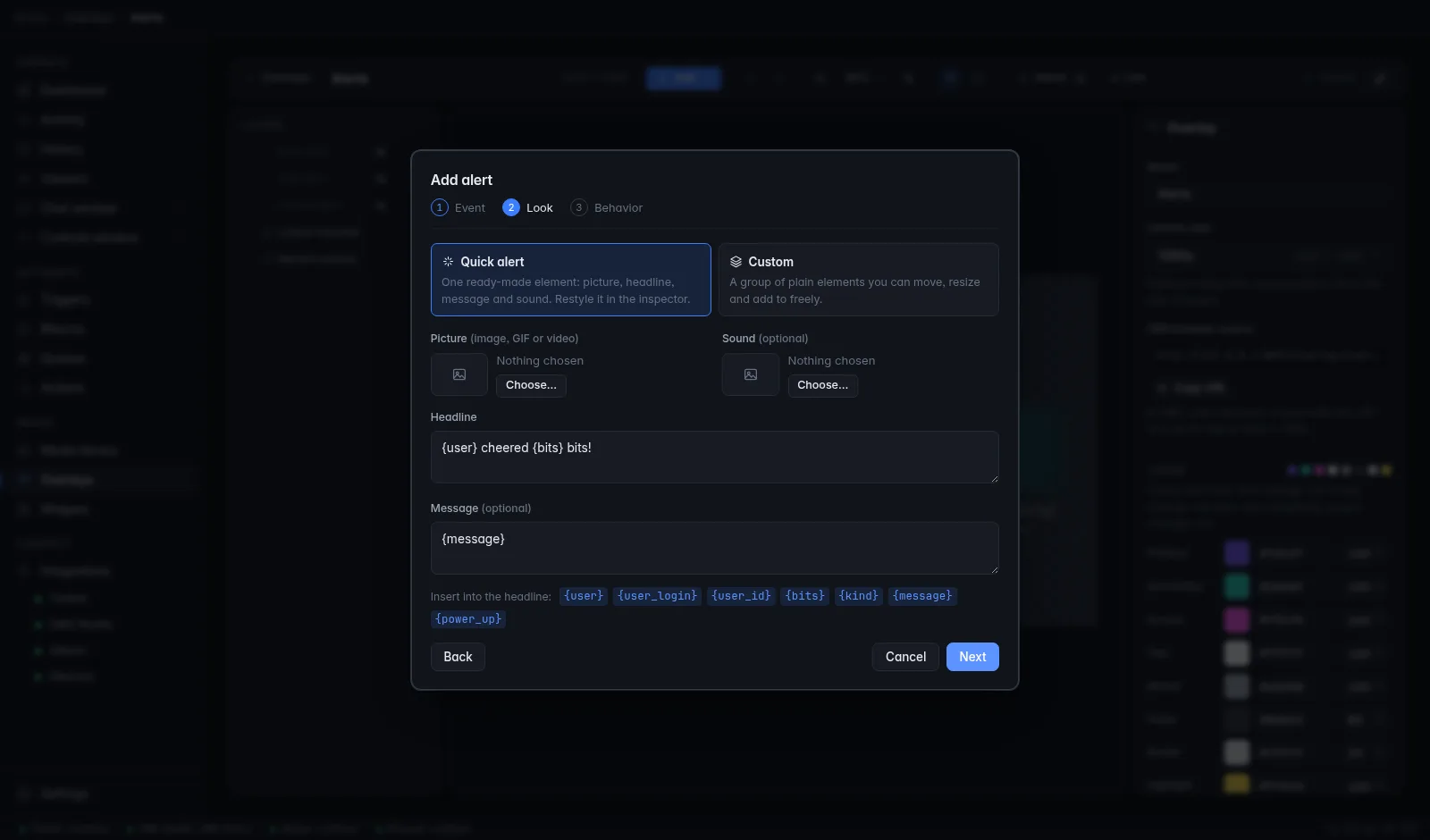
Then fill in:
- Picture (image, GIF or video) from your media library;
- Sound (optional) from your media library;
- Headline and Message (optional). Click a placeholder button under
them, such as
{user}, to insert it where the cursor is.
Step 3: Behavior
| Setting | What it does |
|---|---|
| Show for | How long the alert stays on screen, in seconds (0.5 to 600). Default 6. |
| Comes in / Goes out | The animation in and out: Pop, Fade, Zoom, Slide up, Slide down, Slide left, Slide right or None. |
| Animation length | How long each animation takes, in milliseconds. Default 500. |
| Sound plays | In OBS: the overlay plays it, so viewers hear it. On this PC: CroStream plays it on your computer, for example only in your headphones or on an output OBS captures. Both. |
| Volume | 1 to 100%. |
| Output device on this PC | Which speakers or headphones, when the sound plays on this PC. |
| Name | The name of the new trigger and macro, such as Cheer alert. |
Click Add alert. CroStream adds the element (hidden in the design), the macro and the trigger, and selects the new element on the canvas. Click Test to see it play, then Done.
Sound only in OBS?
In OBS needs the browser source's Control audio via OBS switch on (it is when you use Add to OBS); otherwise OBS plays the sound to your desktop speakers and it may not reach your stream.
The Alerts panel
Click Alerts in the overlay editor's toolbar to see every alert on that overlay. The number on the button is how many there are.
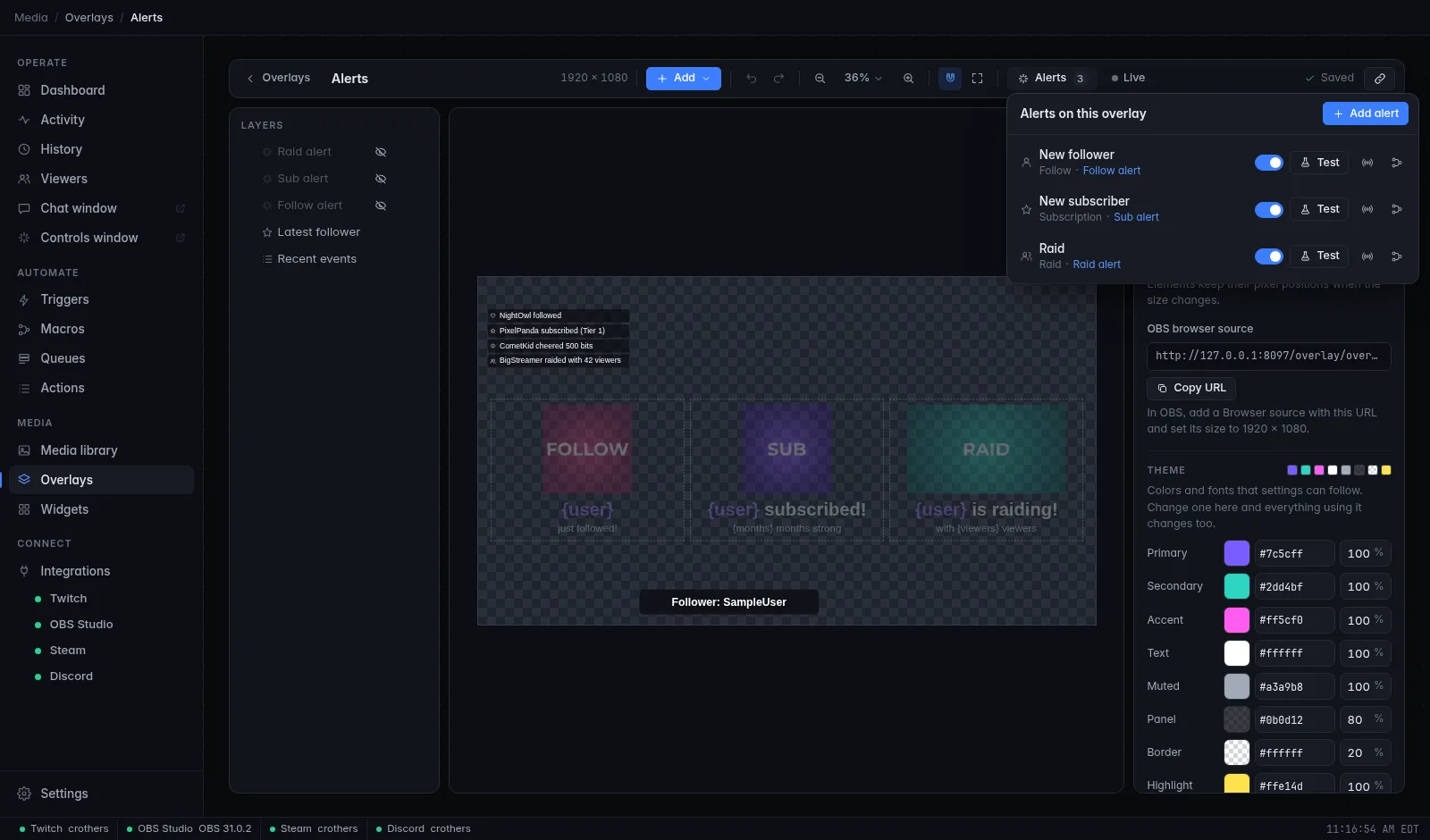
Each row shows:
- the alert's name and its event;
- the element it shows. Click the element's name to select it on the canvas. Element missing means the element was deleted;
- an on/off switch: off stops the trigger, so the alert doesn't play;
- Test: plays the alert with sample values;
- buttons to open its trigger and its macro.
An alert counts as being "on this overlay" when a trigger runs a macro with a Show an alert step pointing at an element of the overlay. So alerts you build by hand in the macro editor show up here too.
Test an alert
Click Test in the Alerts panel (or on the last step of the wizard, or
the trigger's Test button). The alert plays with sample values for
{user}, {bits} and the rest, and the editor turns on
Live so you see it on the canvas.
Tests are real
A test plays the alert in OBS exactly as a real event would. If you're live, your viewers see it. Test before you go live, or on a scene your viewers can't see.
How alerts queue
Alerts on one overlay never overlap. If a second alert arrives while one is showing, it waits for the first to finish, then plays, with a short pause in between. So a raid followed by ten follows plays one by one, in the order they came in.
- Each overlay has its own queue. Alerts on two different overlays can play at the same time.
- Up to 50 alerts can wait on one overlay. Beyond that, new ones are dropped and the macro step fails.
- In the macro, Wait until it has played holds the macro's next step until this alert has finished; off (the default), the macro carries on right away.
- Reset live state in the editor, or the Reset an overlay action, ends the alert on screen.
Change an alert
- The look (fonts, colors, picture, box): select the alert element on the canvas (click its name in the Alerts panel) and use the inspector. An alert is hidden in the design but drawn faded in the editor so you can edit it.
- The texts: edit Headline and Message on the element. For a custom alert, edit its Headline and Message text elements.
- How long it shows, animations, where the sound plays: open the macro and edit its Show an alert step.
- Which events trigger it: open the trigger, for example to set a minimum of bits or add a cooldown.
To remove an alert, delete its trigger (and the macro and element if you no longer need them).
More than one alert per event
You can give bigger events bigger alerts. For example, run the wizard twice for Cheer:
- a small alert with Only when → Maximum bits set to
999; - a big alert with Minimum bits set to
1000.
Make sure the ranges don't overlap: if two alerts' triggers both match an event, both alerts play, one after the other. See Triggers.
Placeholders
Headlines and messages can use the event's placeholders, written in braces. The wizard shows buttons for the ones each event has. The most common:
| Placeholder | Meaning |
|---|---|
{user} |
The viewer's display name. |
{bits} |
Bits cheered (Cheer). |
{message} |
The message they wrote with the cheer or sub, if any. |
{count} |
Number of subs gifted (Gift subs). |
{viewers} |
Raiders (Raid). |
{reward} |
The reward's name (Channel point redemption). |
{input} |
What the viewer typed, for rewards that ask for text. |
The full list per event is in the Events reference and Variables.
The Variables color on the Alert element's Headline section colors the filled-in placeholders, so the name stands out.
The Show an alert action
The wizard's macro has one step. You can also add it to any macro yourself (for example after a check, or alongside other actions):
| Setting | What it does |
|---|---|
| Element | The alert element or group to show. |
| Show for | For example 6s. Up to 10 minutes. |
| Animation in / Animation out | The animations. |
| Animation length (ms) | 0 uses 500 ms. |
| Play the sound | In OBS (overlay), on this PC (pc), or both. |
| Output device | For sounds on this PC. Empty is the default output. |
| Volume (1-100) | For sounds on this PC. |
| Wait until it has played | Holds the next step until the alert is done. |
When the alert shows, every text setting with placeholders in the element (or in every element of the group) is filled in from the event, and its videos and sounds start from the beginning.
No text-to-speech
CroStream doesn't read messages aloud. Alerts show text and play the sound you choose.
Troubleshooting
| Problem | What to do |
|---|---|
| The alert doesn't show on stream. | Is the trigger on (switch in the Alerts panel)? Is the overlay's browser source in the scene you're on? Click Test with Live on to check the alert itself works. Look in History for errors. |
| Test works but real events don't. | Check the trigger's Only when filters, and that Twitch is connected. See Twitch. |
| No sound on stream. | With In OBS, turn on Control audio via OBS in the browser source and check the source isn't muted in OBS's mixer. With On this PC, pick an output device OBS captures. |
| The sound plays twice. | Both plays it in OBS and on your PC. If OBS also captures your PC's audio, choose one. |
| Alerts come in late. | They're queued: each waits for the one before. Shorten Show for, or put some alerts on a second overlay. |
| Element missing in the Alerts panel. | The alert's element was deleted. Delete the trigger, or edit the macro's Show an alert step to point at another element. |
Related
- Overlays and the Alert widget
- Triggers and Macros
- Media library: add your alert pictures and sounds
- Tutorial: Build an alerts overlay