A clown nose for channel points
The goal
A viewer redeems Honk and a red clown nose pops onto your model's nose. It follows every turn of your head for a minute, then fades away, and chat gets a honk honk. If VTube Studio isn't connected, the viewer gets their points back.
Time: about 10 minutes. Level: beginner.
What you need
- CroStream connected to VTube Studio, with your model loaded.
- Your channel is Affiliate or Partner (for channel points), and CroStream is logged in to Twitch.
- A clown nose picture: a PNG with a transparent background, about
256 × 256 pixels, in your media
library. This recipe calls it
clown-nose.png. - The Load custom images as items permission, granted on the VTube Studio page's Permissions card (how).
No media library image?
If the nose is already one of VTube Studio's own items, use that
instead: in step 3, set Image from to vts_file and pick it under
VTube Studio item. That needs no permission.
Step 1: Set a nose anchor
- Open Integrations → VTube Studio.
- In the Anchors card, click the
nosesuggestion (or typenose). - Click Click on model, switch to VTube Studio, and click the tip of your model's nose.
The anchor appears with an exact spot tag. More on anchors in Props and anchors.
Step 2: Create the reward in CroStream
Create the reward from CroStream rather than the Twitch dashboard: Twitch only lets the app that made a reward refund it.
- In the sidebar, under Automate, click Actions. Search for
rewardand click Create reward. - Under Try it, fill in Title
Honk, Cost500, DescriptionClown nose for a minute, and Cooldown2m. - Click Run now. When it says done, the reward is on your channel.
Step 3: Build the macro
- Click Macros, then New macro. Set Name to
Clown nose. - Filter the palette for
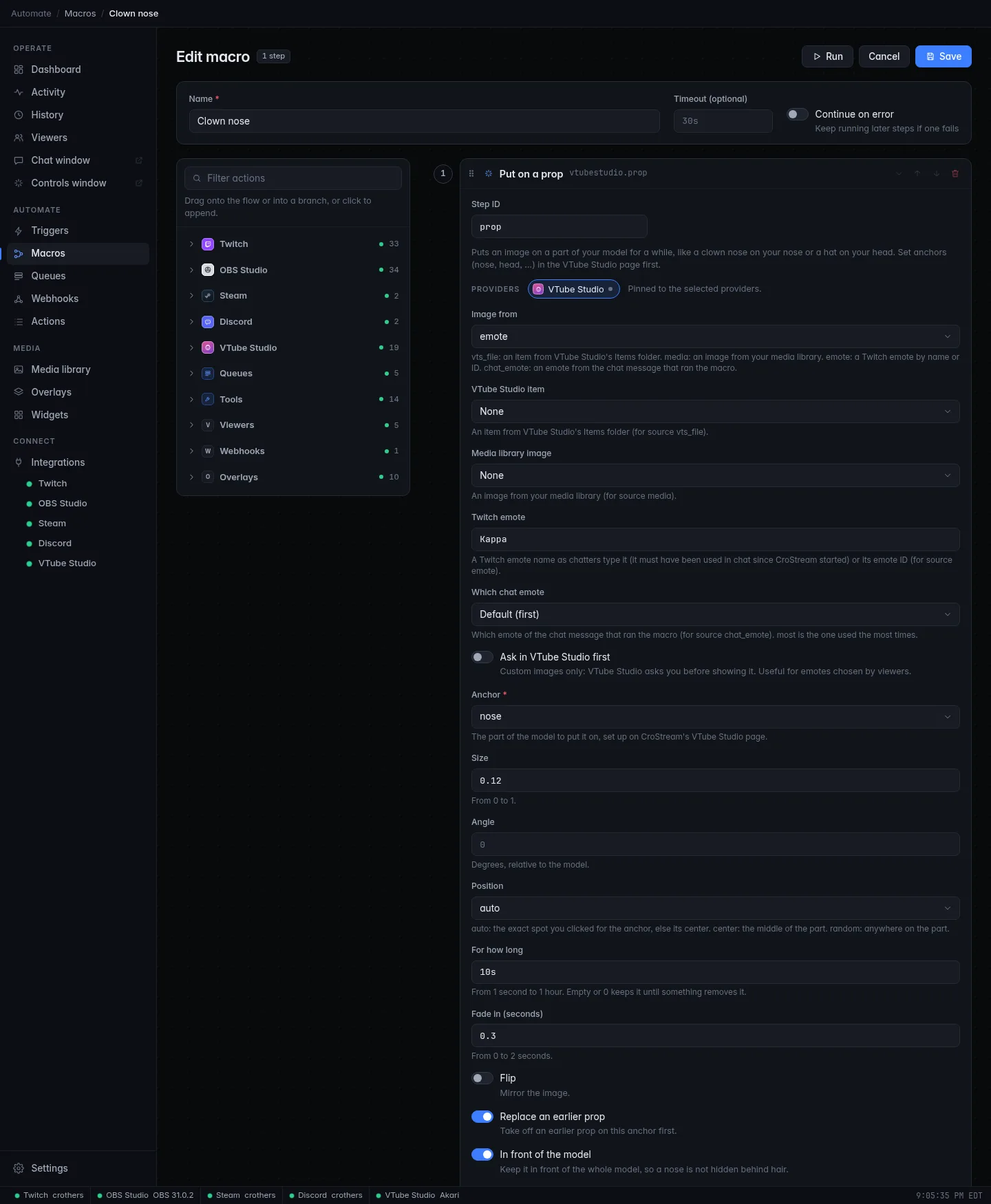
propand click Put on a prop (under VTube Studio). -
Fill in the step:
Setting Value Why Image from mediaThe picture is in your media library. Media library image clown-nose.pngAnchor noseThe anchor from step 1. Size 0.1Noses are small. Adjust after the first test. For how long 1mIt comes off by itself after a minute. Leave the rest: Replace an earlier prop stops a second redemption from stacking two noses, and In front of the model keeps it in front of your hair.
-
Filter the palette for
chatand click Send chat message (under Twitch). Set the message tohonk honk, thanks {user}! - Click Save.
Step 4: Add the trigger
- Click Triggers, then New trigger. Set Name to
Honk reward. - Under When, pick Channel point redemption and choose Honk · 500 points in Reward.
- Under Then run, pick Clown nose, then click Save.
Check it works
- Open the
Honk rewardtrigger and click Test. The nose appears on your model, and the message goes to chat. Test runs never spend or refund points. - Too big, too small, a bit off? Change Size in the macro, or click Click spot next to the anchor and click again. Test again.
- The run's detail names the image, the anchor and how long, ending in on nose for 1m0s.
Variables used
| Variable | Becomes |
|---|---|
{user} |
The viewer who redeemed the reward. |
{item_id} |
Output of the prop step: the nose's ID in VTube Studio, if a later step needs to move or remove it. |
Make it yours
- Let the viewer choose where. Create the reward with Viewer must
type a message turned on, then set Anchor to
{input}. Viewers typeheadorleft cheek. A name that isn't one of your anchors fails the step, so the viewer gets their points back. - Add a honk. Add a Play a sound step (under Tools) with a horn sound file.
- Wobble. Add a Physics gust step after the prop for a bit of bounce.
Troubleshooting
| What you see | What to do |
|---|---|
| No "nose" anchor for model … | The loaded model has no nose anchor. Set one (step 1). Anchors are kept per model. |
| VTube Studio hasn't allowed CroStream to load images | Grant Load custom images as items on the Permissions card. |
| CroStream isn't connected to VTube Studio | Start VTube Studio and click Connect on the VTube Studio page. A redemption that failed like this was refunded. |
| The nose hides behind the hair | Make sure In front of the model is on. |
| The nose sits in the middle of the face | The anchor was picked, not clicked. Click Click spot next to it and click the tip of the nose. |
Every setting of the step: Put on a prop. More fixes in Troubleshooting.