Headless setup
By the end of this page, CroStream runs without a window on one machine (a streaming PC, a mini PC under the desk, a home server), starts by itself, and you control it from a browser on your laptop. It's the same app in browser mode, set up step by step.
flowchart LR
    B[Browser on your laptop] -- "http :8080 (LAN)" --> C[crostream serve]
    C --> T[Twitch]
    C -- obs-websocket --> O[OBS]
    O -- "browser sources :8080/overlay/…" --> C
    L[Laptop SSH tunnel :62689] -. one-time Twitch login .-> C
What you need
- CroStream on the host machine, and a Twitch account.
- A laptop (or any computer or tablet) on the same trusted network, with a browser. For the Twitch login, the laptop also needs SSH access to the host (or do the login once at the host itself).
- OBS 28 or newer with its WebSocket server on, on the host or another machine. See OBS.
- Not the desktop app running at the same time on the host: the two share one setup and can't run together.
There is no login
Anyone who can reach the address you listen on can do everything the UI can, over plain HTTP. Only listen on a network you trust. See Safety.
1. Start it
- Find the host's LAN address, such as
192.168.1.50. A fixed address (a DHCP reservation on your router) saves you from changing it later. -
Start CroStream, listening on that address:
It prints
CroStream web UI: http://192.168.1.50:8080/and a reminder that there's no login. -
If you reach the host by a name, add it with
-host, port included: -
On your laptop, open
http://192.168.1.50:8080/(orhttp://streampc:8080/). The full CroStream UI appears.
If the page doesn't load, check the host's firewall allows TCP port 8080 from your network. If it loads but says "unexpected host", see Allowed names.
2. Log in to Twitch
Twitch returns to localhost:62689 on the host after you approve the
login, so tunnel that port from your laptop for the few seconds it takes:
-
On your laptop:
-
In the browser UI, open Integrations → Twitch, click Login, then Open login page, and approve CroStream on Twitch.
- When the Twitch card shows your account, stop the tunnel with Ctrl+C.
Details and the reasons are in Twitch login from another machine. You'll repeat this when the login expires; CroStream warns you ahead of time (see Login warnings).
3. Connect OBS
- In the browser UI, open Integrations → OBS Studio.
- Set Host to the machine running OBS (
localhostwhen it's the same machine), the Port (default4455) and the Password from OBS's WebSocket settings. - Switch on Connect automatically, so CroStream reconnects whenever it starts. Click Save, then Connect.
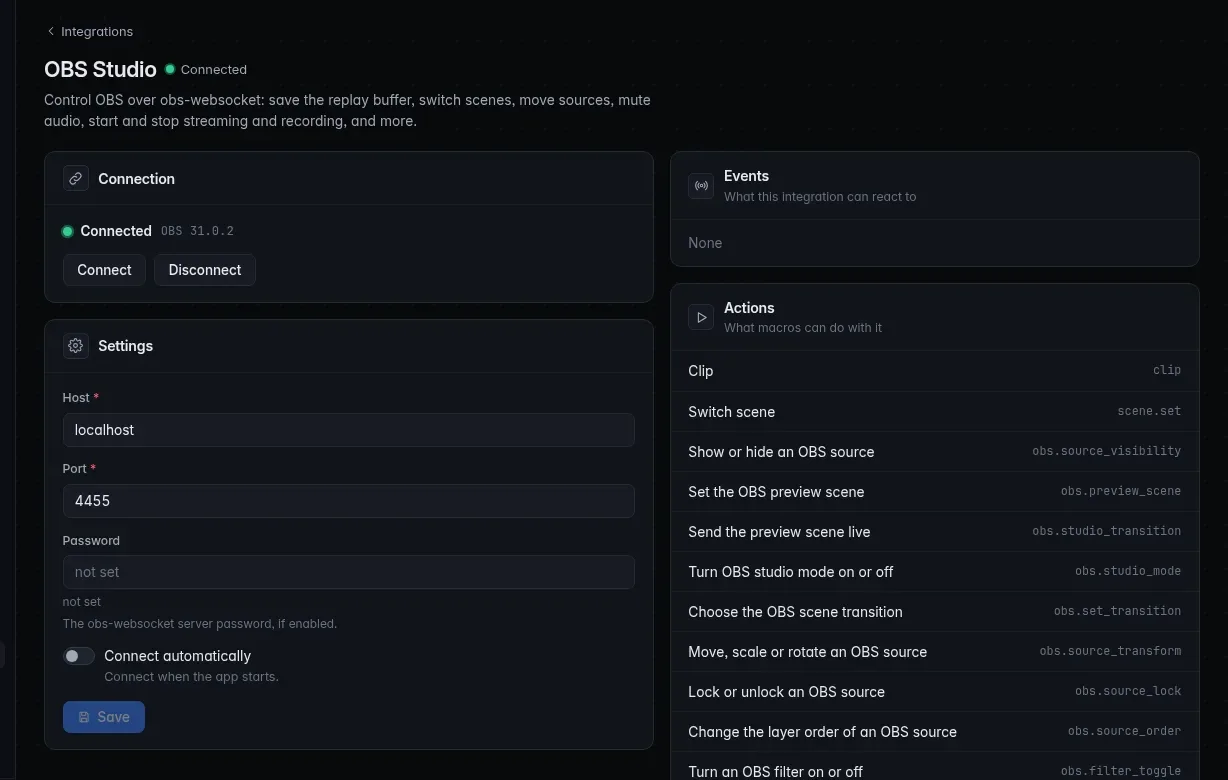
For overlays, add browser sources in OBS with the URLs from
Copy OBS URL. Open the UI by an address OBS can reach before copying:
if OBS runs on the host itself, http://127.0.0.1:62689/overlay/<id>
works there too. See Overlays in browser mode.
4. Keep it running
Run CroStream as a background service so it starts with the machine and restarts if it stops. It must run as the same user whose setup it uses.
-
Save this as
~/.config/systemd/user/crostream.service, with the path tocrostreamand your own address: -
Let your user's services run without a login session, then start it:
-
Check on it, and follow its log:
Stop it with systemctl --user stop crostream. After updating
CroStream, systemctl --user restart crostream. If the address isn't
up yet at boot, Restart=on-failure retries every 5 seconds.
For a quick trial without a unit file:
systemd-run --user --unit=crostream /usr/local/bin/crostream serve -listen 192.168.1.50:8080.
-
Save this as
~/Library/LaunchAgents/io.crostream.serve.plist, with your own address:<?xml version="1.0" encoding="UTF-8"?> <!DOCTYPE plist PUBLIC "-//Apple//DTD PLIST 1.0//EN" "http://www.apple.com/DTDs/PropertyList-1.0.dtd"> <plist version="1.0"> <dict> <key>Label</key> <string>io.crostream.serve</string> <key>ProgramArguments</key> <array> <string>/Applications/CroStream.app/Contents/MacOS/crostream</string> <string>serve</string> <string>-listen</string> <string>192.168.1.50:8080</string> </array> <key>RunAtLoad</key> <true/> <key>KeepAlive</key> <true/> </dict> </plist> -
Load it:
It starts when you log in to the Mac. Stop it with
launchctl bootout gui/$(id -u)/io.crostream.serve.
Windows services run as a different account, so use a scheduled task that starts CroStream when you log in:
- Open Task Scheduler and choose Create Task.
- General: name it
CroStream serve; keep Run only when user is logged on. - Triggers: New → At log on, for your user.
- Actions: New → Start a program. Program is the path to
crostream.exe; Add arguments isserve -listen 192.168.1.50:8080. - Settings: switch on If the task fails, restart every 1 minute, and switch off Stop the task if it runs longer than.
Or from a terminal:
schtasks /Create /TN "CroStream serve" /SC ONLOGON /TR "\"C:\path\to\crostream.exe\" serve -listen 192.168.1.50:8080"
The first time CroStream listens on a LAN address, Windows asks whether to allow it through the firewall: allow it on private networks.
5. Test it
- Open the Dashboard in the browser. Twitch and OBS show as connected in the status bar.
- Open Triggers, pick your
!cliptrigger and click Test. Activity shows the run. - Close the browser, wait a moment and open the address again: CroStream kept running. Reboot the host to check it starts by itself.
Reverse proxies
A reverse proxy (nginx, Caddy, Traefik) in front of CroStream can add HTTPS and, more importantly, a login, which CroStream doesn't have. Run the proxy on the CroStream machine and give CroStream two things:
- Host: pass the browser's
Hostheader through, and allow that name with-host(with the port the browser uses, or none for 443). - Scheme: send
X-Forwarded-Proto: https. From it CroStream knows the browser's real address (https://plus theHost) and uses it for two checks:- Origin. Browsers send
Origin: https://your.namewith every button press; CroStream accepts it as its own, so buttons work without rewriting anything. - Custom widgets. Their frame page carries a security policy that names the address the browser uses, so widgets show over HTTPS with no extra configuration.
- Origin. Browsers send
CroStream only believes X-Forwarded-Proto from a proxy that connects
over loopback (127.0.0.1 or ::1); from any other machine it's ignored,
so nobody else can choose which address CroStream trusts. A proxy on
another machine would have to rewrite Origin to http:// plus the
Host, and custom widgets wouldn't show through it.
Also turn off response buffering, so the live event stream
(/api/events) and the overlays' streams arrive at once.
This nginx configuration works with CroStream started as
crostream serve -listen 127.0.0.1:8080 -host crostream.example.com.
Replace crostream.example.com, the certificate paths and the
authentication with your own:
server {
    listen 443 ssl;
    server_name crostream.example.com;
    ssl_certificate     /etc/ssl/crostream.crt;
    ssl_certificate_key /etc/ssl/crostream.key;

    # Your login goes here, for example:
    auth_basic           "CroStream";
    auth_basic_user_file /etc/nginx/crostream.htpasswd;

    client_max_body_size 64m;  # media uploads

    location / {
        proxy_pass http://127.0.0.1:8080;
        proxy_set_header Host $http_host;
        proxy_set_header X-Forwarded-Proto $scheme;
        proxy_http_version 1.1;
        proxy_buffering off;
        proxy_read_timeout 1h;
    }
}
Logins and OBS
OBS browser sources can't type a password. If your proxy asks for one,
give OBS the overlay URLs on the LAN address, or on
http://127.0.0.1:62689 when OBS runs on the CroStream machine, rather
than through the proxy.
Keep CroStream itself on 127.0.0.1 behind a proxy on the same machine,
so the proxy is the only way in and CroStream trusts its
X-Forwarded-Proto.
Troubleshooting
| Symptom | Fix |
|---|---|
| The service stops at once | Run the same command in a terminal to see the error. "already running" means the desktop app is open; a port error means the address is taken or not on this machine. |
| It starts, but other machines can't connect | It's listening on 127.0.0.1, or a firewall blocks the port. Listen on the LAN address and allow the port. |
| Twitch shows "awaiting" forever | Finish the login through the SSH tunnel; see step 2. |
| OBS overlays are blank | OBS can't reach the overlay address. Copy the URL again after opening the UI by an address OBS can reach. |
| Through a proxy, every button says "forbidden origin" | The proxy doesn't send X-Forwarded-Proto: https, doesn't pass the browser's Host, or runs on another machine. |
| Through a proxy, custom widgets don't appear | The proxy doesn't pass the browser's Host or doesn't send X-Forwarded-Proto, or it runs on another machine (CroStream only trusts X-Forwarded-Proto over loopback). |
Related
- Browser mode: all the options and what differs from the desktop app.
- HTTP API: control the headless CroStream from scripts.
- Command line:
crostreamctlfor terminal logins and checks. - Where files are kept and Back up and move your setup.