Chat and controls on a second screen
While you play, the main CroStream window is too big to keep in view. The Chat window and the Controls window are two small windows you can pop out and park on a second monitor, or in a corner of your main one, pinned on top of your game. The chat window shows your Twitch chat and lets you reply and moderate. The controls window has your OBS scenes and your favorite macros as one-click buttons.
What you'll build
A streaming layout like this, ready every time you open CroStream:
- the Chat window on your second monitor, kept on top, with text big enough to read from your chair;
- the Controls window beside it, with buttons for your scenes and five pinned macros such as Be right back;
- quick moderation: delete a message, time someone out, or ban, with a hover and a click.
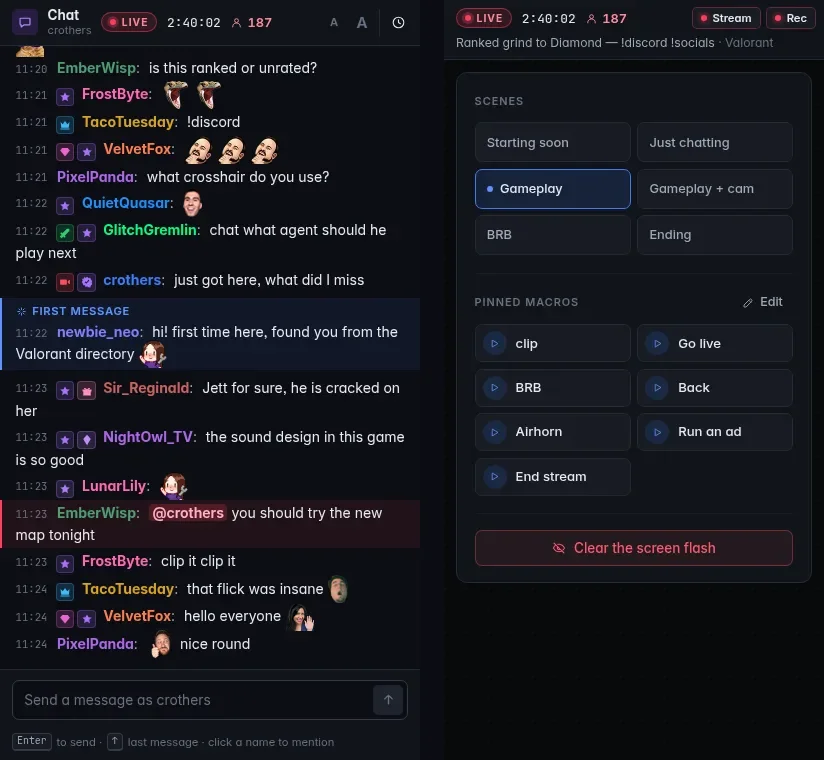
Time: about 10 minutes. Level: beginner.
Before you start
- CroStream is logged in to Twitch (for chat) and connected to OBS (for scenes). See Getting started.
- You use the CroStream desktop app. In browser mode the same buttons open browser pop-ups, which can't be pinned on top.
- A few macros you run during a stream, such as the ones from Run a macro from a hotkey.
Step 1: Pop out the chat
- In the sidebar, under Operate, click Chat window. (The Dashboard has a Chat window button too, and so does the menu of CroStream's tray icon.)
- A small window called Chat — CroStream opens. Drag it by its title bar onto your second monitor, then resize it to fit.
- Click the pushpin button in the window's header (Keep this window on top). The pin fills in, and the window now stays above every other window, including your game when it runs in windowed or borderless mode. Click it again to stop.
- Use the two A buttons (Smaller text, Larger text) to set a size you can read at a glance. The clock button hides or shows the time next to each message.
CroStream remembers where you put the window, its size, the pin and your text settings. Next time you open it, it comes back in the same place. If that monitor is unplugged, it opens in the middle of your main screen instead.
Step 2: Chat from the window
- Type in the box at the bottom (Send a message as your channel name) and press Enter to send. Shift+Enter starts a new line.
- Press Up in the empty box to bring back your last message, for example to fix a typo.
- Click someone's name to start a reply:
@nameis put in the box for you. - If you scroll up to read back, new messages stop pushing the list. A button shows how many new messages arrived; click it to jump back to the latest.
The window shows badges, emotes and links, marks someone's First message in your chat, and highlights messages that mention you.
Step 3: Moderate from the chat window
Hover over a message (or press and hold it on a touch screen). Three buttons appear on the right:
| Button | What it does |
|---|---|
| Delete this message (bin) | Removes that one message from chat at once. |
| Time out for 10 minutes (timer) | Stops the person chatting for 10 minutes at once, and hides their messages. |
| Ban (circle with a line) | Asks first: a Ban name? window explains what happens, quotes the message, and lets you add a Reason that the person sees. Click Ban name to confirm, or Cancel. |
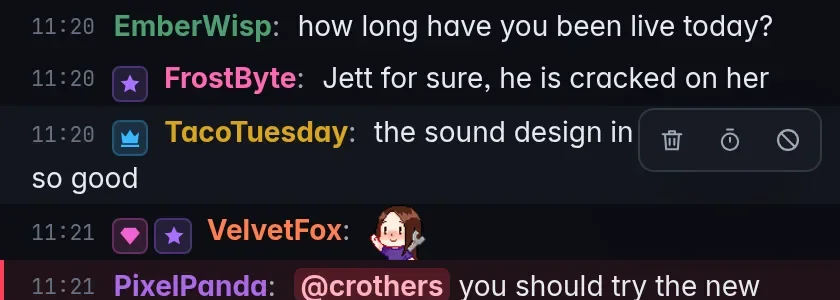
A short note at the bottom of the window confirms each action, such as "Timed out NightOwl_TV for 10 minutes". The buttons don't appear on your own messages.
Unban, other timeout lengths, clear chat
The chat window keeps moderation to three quick buttons. For anything else, such as Unban a user, a longer timeout or Clear chat, use the moderation actions in a macro, or run them once from the Actions page. See Actions.
Step 4: Pop out the controls
- In the sidebar, click Controls window (or Pop out on the Dashboard's Controls panel).
- Drag Controls — CroStream next to the chat and pin it with its pushpin button, just like the chat window.
The top of the window shows whether you are LIVE (with the uptime and viewer count) and whether OBS is streaming (Stream) and recording (Rec). When you are live, your title and category are underneath.
Below that:
- Scenes: one button per OBS scene. Click one to switch; the scene on air has a dot.
- Pinned macros: your go-to macros as one-click buttons.
- Clear the screen flash: a panic button that takes down a screen flash at once.
Step 5: Choose your pinned macros
- In the Controls window (or on the Dashboard's Controls panel), click Edit next to Pinned macros. If nothing is pinned yet, click the Pin your go-to macros card instead.
- The Pinned macros window opens. Under Your macros, click each macro you want as a button, such as Be right back, Welcome back and clip.
- Under On the dashboard, use the arrows to put them in order, and the ✕ to unpin one.
- Click Save.
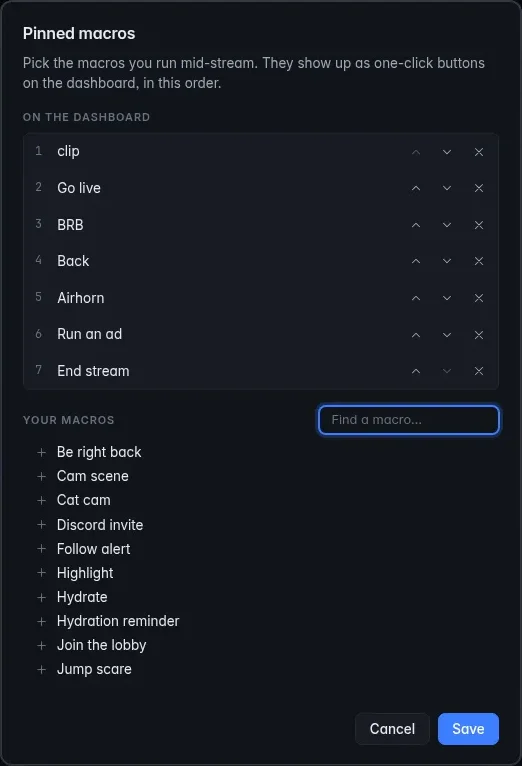
The same buttons appear on the Dashboard and in the Controls window. If the Controls window was already open, close it and open it again to see your changes.
Check it works
- Send a message from the chat window and see it appear on your Twitch channel page.
- Click a scene in the Controls window and watch OBS switch.
- Click a pinned macro. Its play icon turns into a check when it is done.
- Close both windows, then open them again from the sidebar. They come back where you left them, still pinned.
Troubleshooting
| What you see | What to do |
|---|---|
| The chat window says Twitch isn't connected | Log in to Twitch in the main window. Chat appears on its own once connected. |
| The window hides behind my game | Turn on Keep this window on top. A game in exclusive fullscreen still covers everything; switch the game to borderless or windowed. |
| No pushpin button | You are in browser mode, where pop-ups can't be pinned. |
| A moderation button fails | Twitch says why in the note, for example that the message is too old to delete or that the person is a moderator. If it asks you to log in again, do so to grant the moderation permission. |
| The Controls window shows "Connect OBS in the main window" | Connect OBS under Integrations → OBS Studio. |
| Pinned macros didn't update | Close the Controls window and open it again. |
Next steps
- Closing the main window quits CroStream, and the pop-outs with it. To keep CroStream running in the background instead, turn on Close to the tray in Settings. See Desktop app.
- Everything about the two windows: Pop-out windows.
- Add a panic button for screen flashes: A channel point jump scare.
- See the same scenes and pinned macros on the Dashboard.