Discord
The Discord integration puts a status on your Discord profile, the line your friends and community see under your name, such as Watching CroStream with your stream title, your category, a timer and a Watch stream button. Your macros set and clear it, so it can follow your stream by itself: shown when you go live, gone when you end. There is no Discord login: CroStream talks to the Discord app running on your computer.
How it works
Discord lets apps on your computer show a status (Discord calls it Rich Presence) through the Discord desktop app. CroStream connects to that app directly:
- No login, no password, no bot. CroStream only needs the ID of a Discord application, and it has one built in.
- The Discord desktop app must be running on the computer running CroStream, signed in to your account. Discord in a web browser can't do this.
- Discord is a companion app: when it's closed, CroStream waits for it quietly and connects on its own within about half a minute of Discord starting.
It works on Windows, macOS and Linux, including Discord's Flatpak and Snap packages, and with Discord Stable, PTB and Canary.
What your status looks like
On your profile, Discord shows:
- a first line: the activity type and the application's name, such as Playing CroStream or Watching CroStream;
- Details, a line of your own (for example your stream title);
- State, a second line of your own (for example your category);
- optionally a timer, a large image with a small badge in its corner, and up to two buttons.
The four activity types read Playing, Watching, Listening to and Competing in.
Why it says CroStream
Discord always shows the name of the application after the activity type, and an app can't change it. With the built-in application that name is CroStream. To show a different name, such as your channel's, use your own application.
Set your status by hand
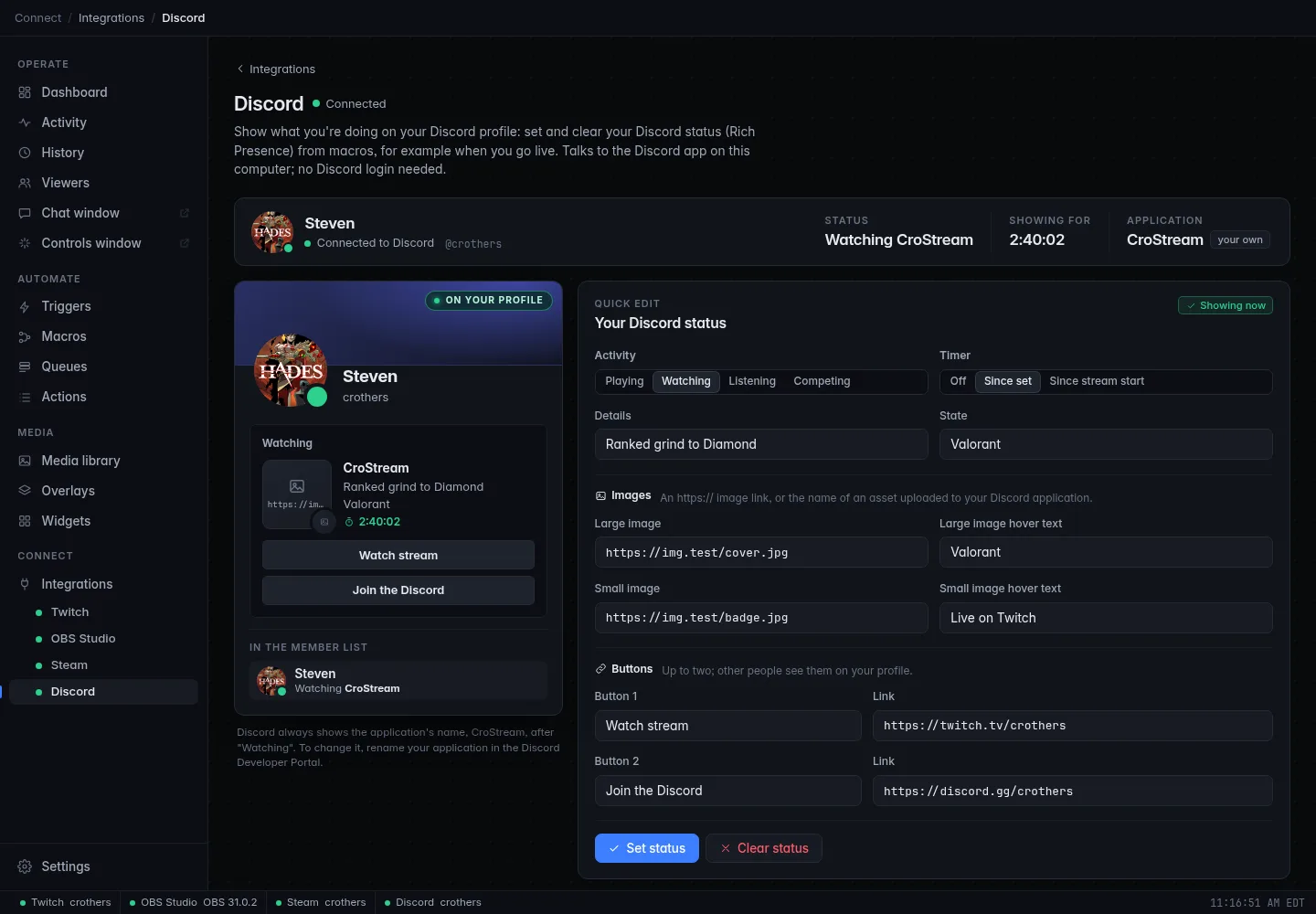
The Discord page shows your account, a preview of your profile and a quick editor, Your Discord status:
- Open Integrations → Discord. The top of the panel should say Connected to Discord.
- Choose an Activity (Playing, Watching, Listening or
Competing) and a Timer:
- Off: no timer;
- Since set: counts from when you set the status;
- Since stream start: counts from when your Twitch stream went live (from now if you aren't live).
- Fill in Details and State (each 2 to 128 characters).
- Optionally add Images: an
https://link to a picture, or the name of an art asset uploaded to your own Discord application, plus hover text for each. - Optionally add Buttons: a name (up to 32 characters) and a link for
each, such as Watch stream →
https://twitch.tv/yourname. - Watch the preview update as you type (it says Preview until you set it), then click Set status.
The preview then says On your profile, and the panel shows how long the status has been showing. Clear status removes it. Back to current throws away edits you haven't set yet.
You can't see your own buttons
Discord shows the buttons to other people only. Check from a second account, or ask a friend, if you want to see them.
Keep it in step with your stream
Usually you want the status to appear when you go live and disappear when you stop. The panel offers this under Suggested automations until you have such triggers:
| Suggestion | What it makes |
|---|---|
Stream goes live → Watching {channel_title} |
A macro "Discord: live on Twitch" that reads your stream info, then sets Watching with your title as Details, your category as State, a timer since the stream started, and a Watch stream button to your channel. A trigger "Going live: show it on Discord" on Stream online/offline (online) runs it. |
| Stream goes offline → Clear your status | A macro "Discord: clear status" and a trigger "Going offline: clear Discord status" on Stream online/offline (offline). |
Click Create automation on each. The live one needs Twitch connected, because the button links to your channel. Afterwards you can change both in Triggers and Macros like any other. See the tutorial Show your stream on Discord.
In your own macros
Two actions are available to every macro:
- Set your Discord status, with the same options as the quick editor:
Activity, Details, State, Timer, Large image, Large
image text, Small image, Small image text, and Button ½
label and link. Every text option takes variables, such as
{channel_title}. Parts left empty are left out. - Clear your Discord status removes the status CroStream set.
Macro conditions can check Discord is connected and Discord user (the display name of the signed-in account).
If Discord isn't running
Set your Discord status fails with a note that the status is set once Discord connects, and CroStream does exactly that: it remembers the status and shows it as soon as Discord starts. Clear your Discord status always succeeds.
The built-in application or your own
| Built-in | Your own | |
|---|---|---|
| Name on your profile | CroStream | Whatever you name your application |
| Setup | None | About a minute, once |
| Images | https:// links |
https:// links, or art you upload to the application |
The panel shows which one is in use next to Application: built-in or your own.
Use your own application
While Discord has no usable application ID (or refuses the one you entered), the Discord page shows these steps itself, next to an example of where your application's name appears:
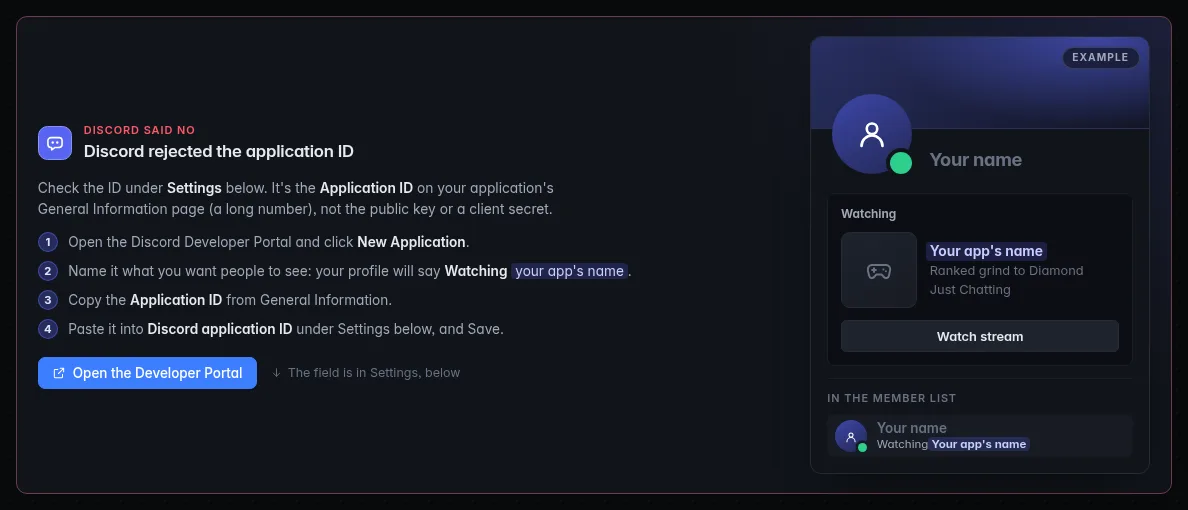
- Open the Discord Developer Portal (the panel's Open the Developer Portal button goes there) and click New Application.
- Name it what you want people to see. Your profile will say, for example, Watching your app's name.
- On the General Information page, copy the Application ID (a long number).
- In CroStream, open Integrations → Discord, paste it into Discord application ID under Settings, and click Save.
You don't need a client secret or the public key. To go back to the built-in application, empty the field and click Save.
To rename it later, rename the application in the Developer Portal.
What CroStream keeps doing
- If Discord closes or restarts, CroStream reconnects on its own and puts your status back.
- When you quit CroStream, it clears the status it set.
- Discord only lets apps connect a couple of times a minute, so CroStream waits at least 30 seconds between attempts (up to 4 minutes after repeated failures).
Limits
The Discord integration only sets and clears your status. It can't:
- react to anything that happens in Discord (it has no events);
- see or change voice channels, mute, deafen or notifications;
- read or send messages.
To post a message in a Discord channel, for example "I'm live!", use the Post to Discord action, which sends through a Discord webhook. See Actions.
Troubleshooting
- The panel says "Discord isn't running" or "Open Discord on this PC".
- Start the Discord desktop app on this computer and sign in. It connects within about half a minute. Discord in a browser doesn't count.
- "Discord rejected the application ID".
- The ID under Settings is wrong. Copy the Application ID from the application's General Information page again (not the public key or a secret), click Save, or empty the field to use the built-in one. CroStream doesn't retry a rejected ID until you change the setting.
- "Couldn't connect to Discord; trying again in …".
- Something went wrong talking to Discord. CroStream retries on its own. If it keeps happening, restart Discord.
- Discord is connected, but nobody sees my status.
- Check Discord's own Activity Privacy settings: sharing your activity must be on. Also, a status is only shown while you're online in Discord, not when invisible.
- Set status fails with a message about the text or a link.
- Discord refuses lines shorter than 2 characters, images that are links
without
https://, button names over 32 characters, and buttons without a link. The editor marks these before you send. - On Linux, Discord runs but CroStream never connects.
- CroStream looks for Discord in the usual places, including the Flatpak and Snap packages. Discord and CroStream must run as the same user, in the same desktop session.
Related
- Integrations: status meanings and companion apps
- Show your stream on Discord
- Twitch: the stream title, category and live state the status uses
- Actions and Conditions