Demo mode
A new channel has no followers, no chat and no history, which makes it hard to tell whether an overlay, an alert or a macro works. Demo mode fixes that. It gives CroStream a full, made-up, medium-sized Twitch channel to run on:
- about 180 viewers live, 4,600 followers and 290 subscribers,
- about 60 days of past streams: history, chat, leaderboards, credits, points, watch time and moments,
- a stream you can start and stop, with chat and every kind of channel event.
Your overlays, alerts, triggers and macros react to all of it, so you can design against rich data and see the whole app working.
Don't turn it on while you are streaming
If you are live in OBS, your browser sources will show the demo alerts to your real viewers. Turn demo mode on when you're offline.

Turn it on
There are two ways:
- Settings → Demo mode → Turn on demo mode.
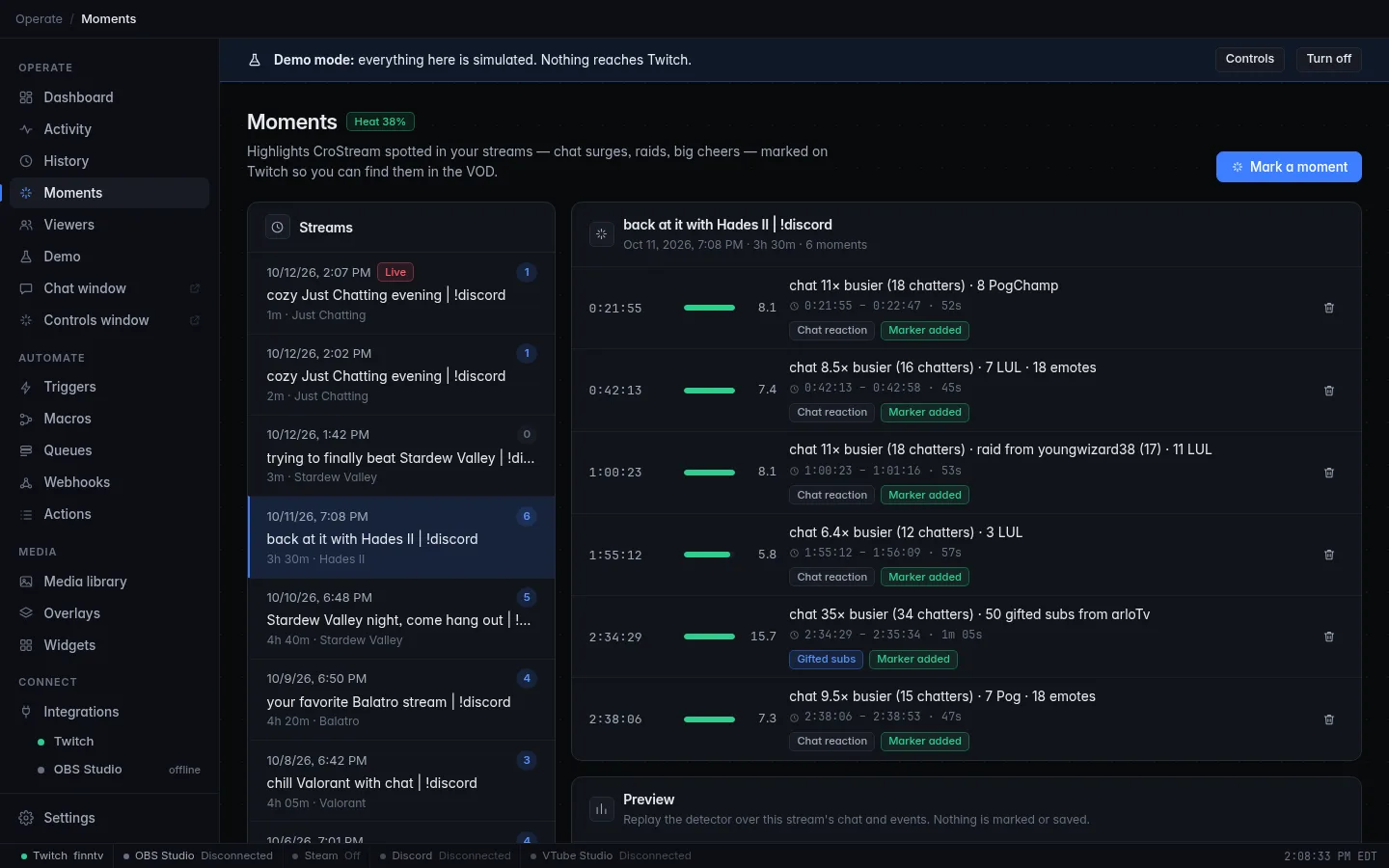
- Explore with demo data on a page that has nothing to show yet: the Dashboard, Activity, History, Viewers and Moments pages offer it.
CroStream asks you to confirm and lists what will be simulated and what will run for real.
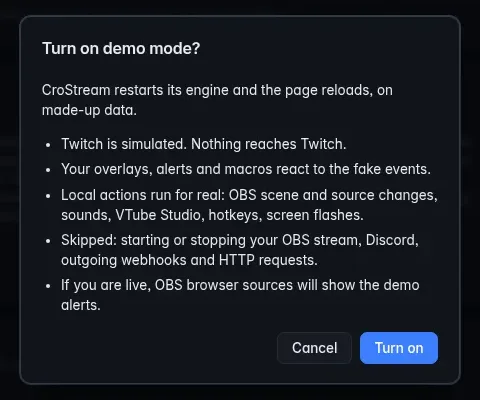
Choose Turn on. CroStream restarts its engine in place, which takes a few seconds, and the page reloads. The first time, it also makes up the channel's history, which takes about ten seconds more.
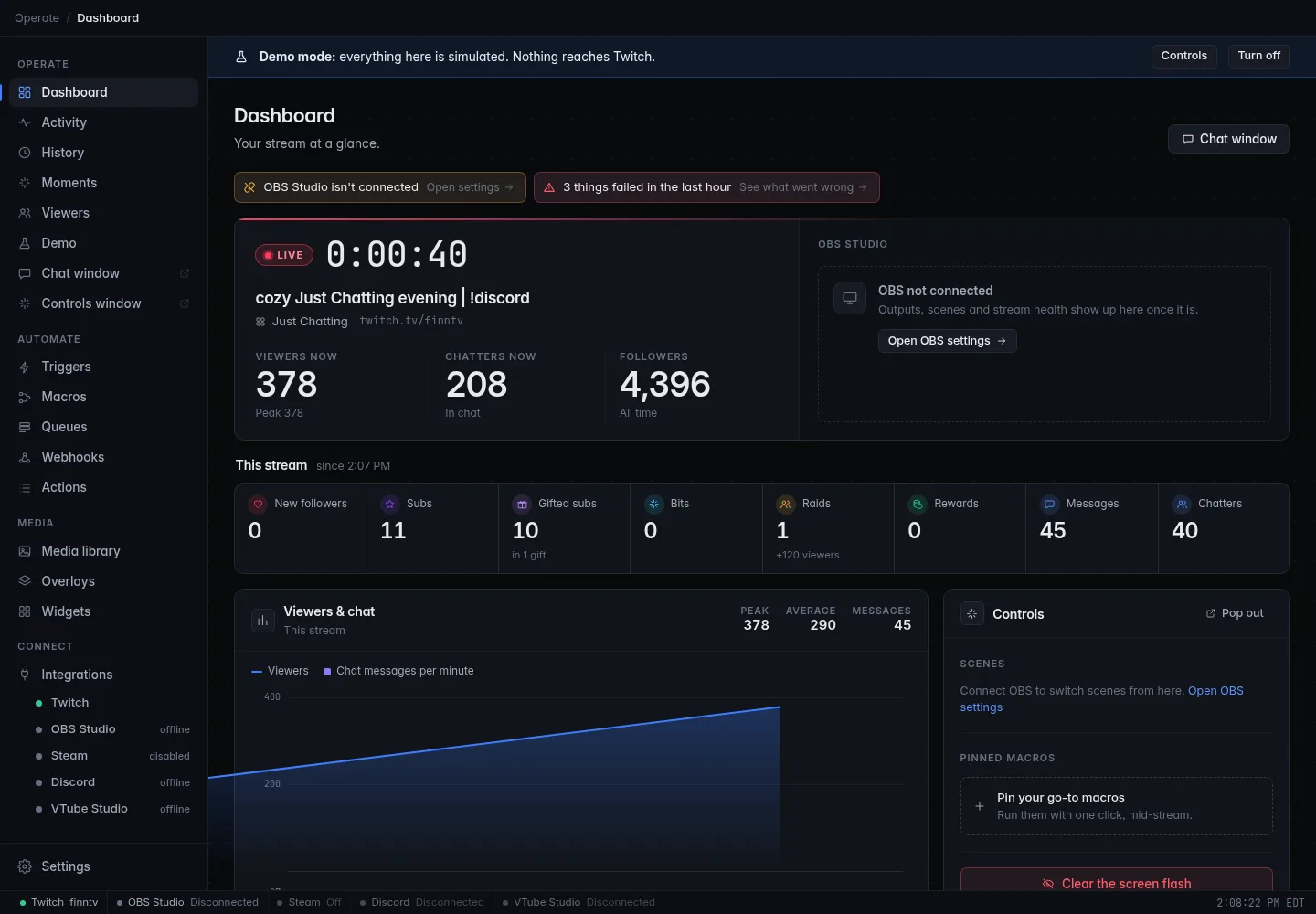
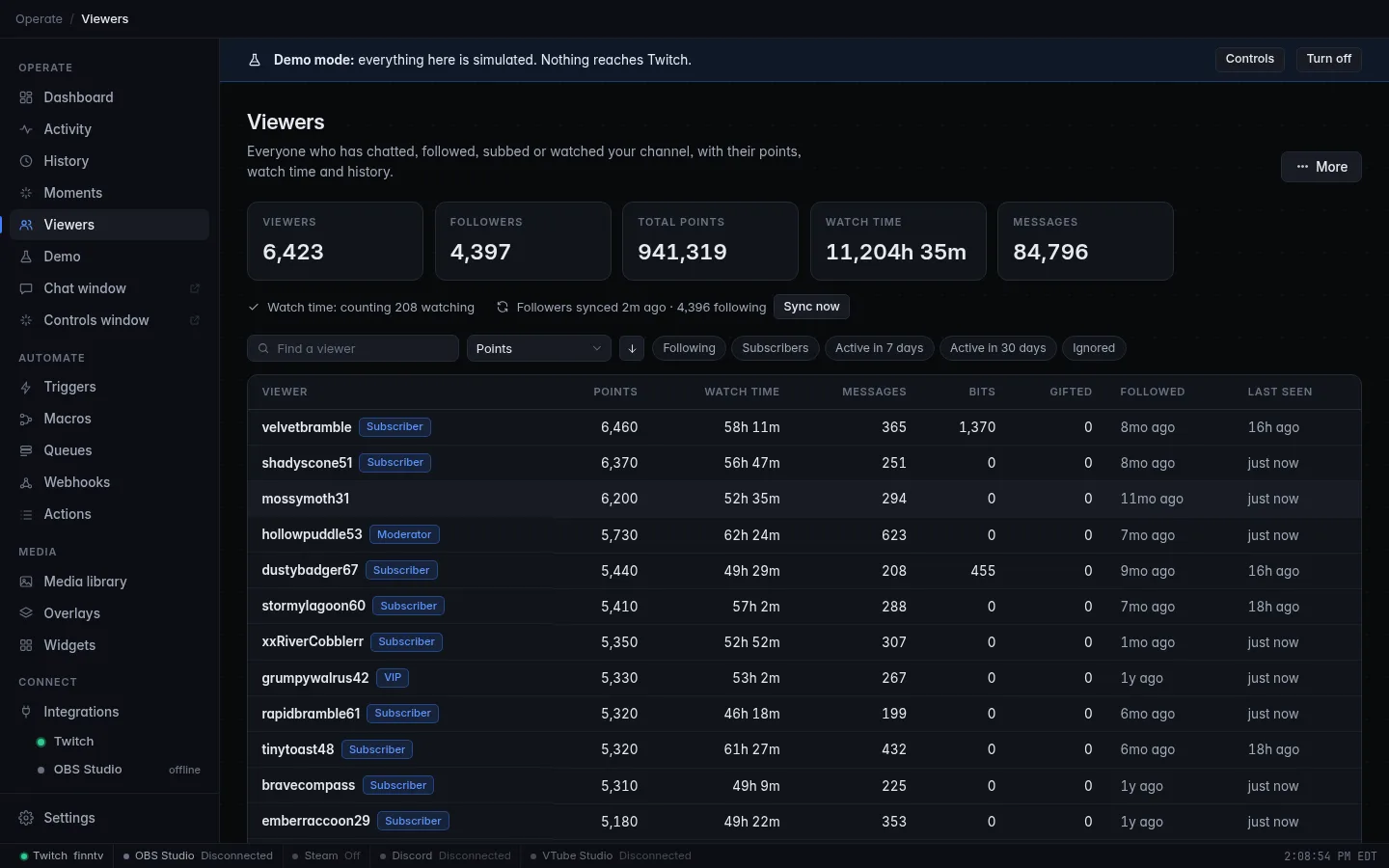
While demo mode is on, a banner runs across the top of the window with Controls (opens the Demo page) and Turn off. A Demo entry also appears in the sidebar.
What is real and what isn't
Twitch is simulated. Nothing reaches Twitch, and your real Twitch login is left alone. Everything on your own computer works normally.
| In demo mode | |
|---|---|
| Twitch | Simulated. Chat, follows, subs, raids, rewards and the rest are made up. Nothing is sent to Twitch. |
| Overlays, alerts, widgets | Real. They react to the demo events. |
| Triggers and macros | Real. They fire on demo events. |
| OBS scene and source changes | Run for real. |
| Sounds, VTube Studio, hotkeys, screen flashes | Run for real. |
| Starting or stopping your OBS stream | Skipped. |
| Discord posts and Rich Presence | Skipped. |
| Outgoing webhooks and HTTP requests | Skipped. |
| Moments | Add markers on the simulated Twitch. Local clips are not saved to your library. |
Skipped actions show as skipped in demo mode in the Activity feed, so you can see the macro reached them.
The Demo page
Click Controls on the banner, or Demo in the sidebar. This is where you run the channel.
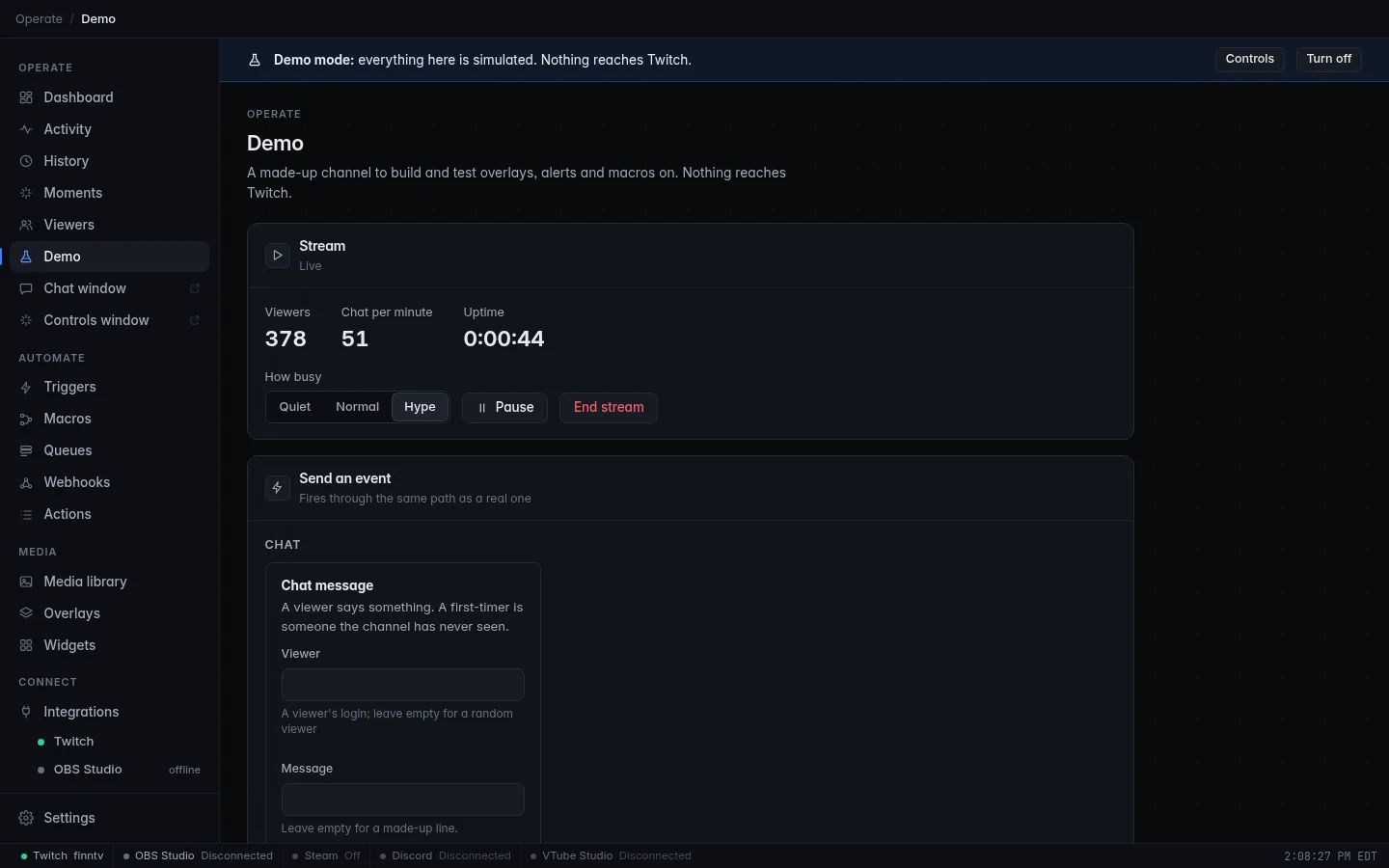
| Control | What it does |
|---|---|
| Go live | Starts the simulated stream. You can set a title and a category first; both are optional. |
| End stream | Ends it. |
| Quiet, Normal, Hype | How busy the channel is: how many people watch, how fast chat moves and how often events happen. |
| Pause | Holds chat and events until you resume. Useful while you tweak an overlay. |
| Send an event | Sends one event right now. See below. |
| Reset demo data | Wipes the demo data and starts over. You can ask for a brand-new channel instead of the same one. |
Send an event
Send an event fires any Twitch event on demand, through the same path a real one takes:
- a follow,
- a subscription or resub, and gifted subs, including a gift bomb,
- cheers,
- a raid,
- a channel point redemption, including your own rewards, or an automatic reward,
- a hype train, a poll or a prediction,
- an ad break,
- a title or category change,
- a chat message, from a viewer you name or a random one, or from a first-time chatter.
Fill in the fields you care about and leave the rest empty; the channel makes up the rest.
The channel reacts to you
Demo mode isn't a playback. Chat you send appears and viewers reply. Polls and predictions you start get votes. Ads, shoutouts, raids and bans get plausible reactions. Viewers sometimes type your chat commands and redeem your channel point rewards, so your triggers fire without you doing anything.
Test your triggers and overlays
A trigger's Test button runs its macro with a sample event, but the event never goes through Twitch, so overlays, history and viewers don't see it. In demo mode, Send through demo sits next to Test. It fires that trigger's own sample event through the simulated Twitch, end to end. Your overlays show the alert, the activity feed logs it, and the viewer records and history update like they would for a real event.

Send through demo works for Twitch triggers only. See Test and Run for Test.
To see an overlay with real-looking data, add it to OBS as a browser source as usual (see Overlays), go live in demo mode, and raise the intensity to Hype.
Your real data
Demo data lives in its own folder, apart from yours. Your real history, viewers, points and counters are never touched, and demo mode never mixes them in.
What you edit is different: overlays, widgets, alerts, triggers, macros and settings are the same ones you use normally. Changes you make in demo mode are real, and they are kept when you turn it off. That is the point: you design with demo data, then use the result on your real channel.
The demo channel looks after itself:
- After a week, its history is made up again so recent leaderboards and charts stay full.
- The same channel comes back each time, until you reset it.
Turn it off
Click Turn off on the banner, or Turn off demo mode in Settings → Demo mode. CroStream restarts its engine and the page reloads on your own data, exactly as you left it. Turning demo mode off doesn't delete the demo data; it waits for the next time you turn it on. Use Reset demo data on the Demo page to clear it.
Browser mode
Headless installs can start in demo mode:
Add -demo-seed N to get the same made-up channel every time. See
crostream serve.