Dashboard
The Dashboard is the first page CroStream opens. It answers three questions while you stream: is everything working, how is the stream going, and what just happened. It also holds the buttons you reach for mid-stream: scene switches, your favourite macros and a panic button for the screen flash.
Keep it on a second monitor while you are live. Everything on it updates by itself; you never need to refresh.
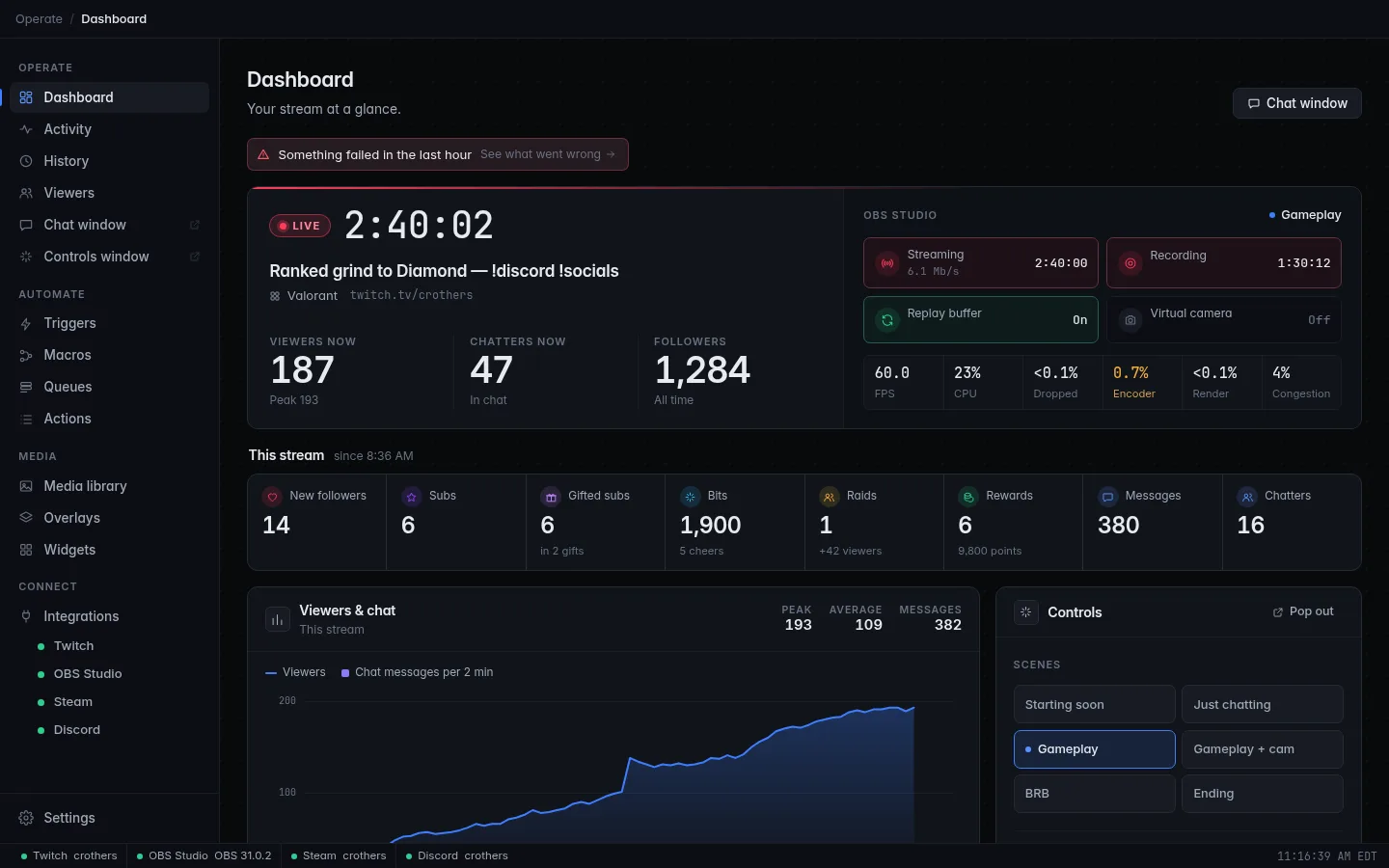
From top to bottom the page has:
- the attention strip, only when something needs you;
- the stream hero: live or offline, uptime, viewers, chatters, followers, and OBS on the right;
- This stream / Today: totals for the period;
- the Viewers & chat chart, with Controls beside it;
- Recent events, with Live now and Top this stream beside it.
The Chat window button at the top right opens your Twitch chat in its own window. See Pop-out windows.
The attention strip
A row of coloured notes under the page title. It only appears when something needs you, and each note links straight to the fix. Red notes are problems; amber notes are warnings.
| Note | Why it appears | Button | What to do |
|---|---|---|---|
| Twitch: … (or OBS, …) in red | That integration reported an error. The note shows the error. | Fix it | Opens the integration's page. Read the message there, then reconnect or log in again. |
| OBS isn't connected (or another integration) | An integration you use is disconnected. Steam and Discord are left out: it is normal for them not to be running. | Open settings | Check the program is running and the connection details are right. See Integrations. |
| Twitch is waiting for you to log in | A login was started but not finished. | Log in | Finish the Twitch login. See Logging in. |
| Something failed in the last hour / 3 things failed in the last hour | At least one action failed or an error was logged in the last 60 minutes. | See what went wrong | Opens History showing errors only. |
| A trigger has a problem / 2 triggers have a problem | A turned-on trigger can't work as it is set up. | Review | Opens Triggers, where the trigger shows what's wrong. |
| A trigger may not fire / 2 triggers may not fire | A turned-on trigger has a warning: its event may not be available right now. | Review | Same as above; the warning is shown on the trigger. |
No strip means all is well
When nothing needs you the strip disappears completely. If you see it before you go live, fix it first: a disconnected OBS or Twitch means triggers that depend on them won't fire.
The stream hero
The big panel at the top. The left half is about your stream, the right half is about OBS.
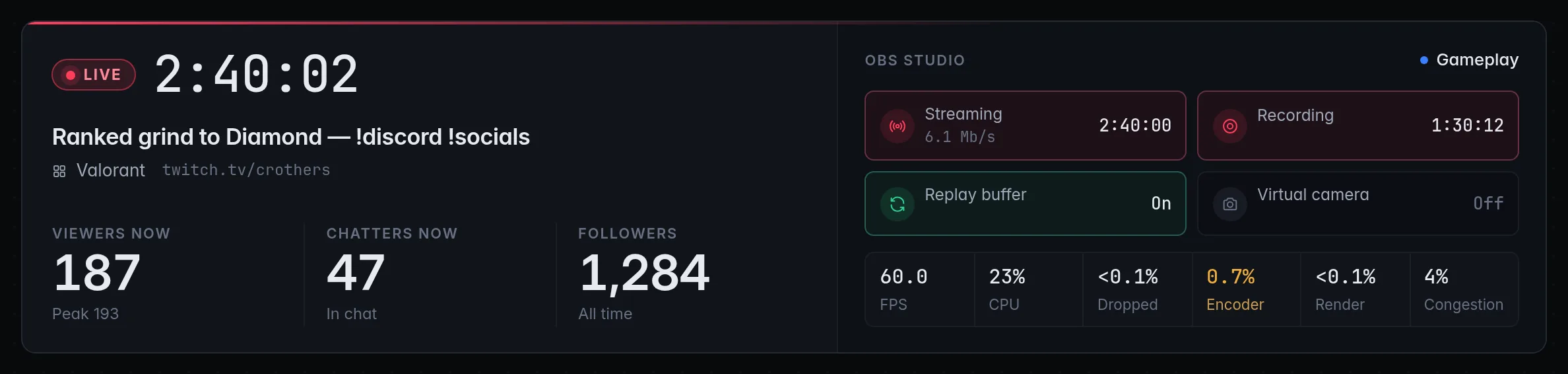
Live or offline
- LIVE with a pulsing red dot means Twitch says you are live. The large clock next to it is your uptime, counted from the moment Twitch says the stream started. Hover it to see the start time.
- OFFLINE means you aren't live. The text beside it says either You're not live right now or, if Twitch isn't connected, Twitch is not connected.
Under it are your stream title and category, and your channel
address (twitch.tv/yourname). Before you have ever gone live the panel
says Your stream info shows up here when you go live.
The three numbers
| Number | What it counts | Notes |
|---|---|---|
| Viewers now | The viewer count Twitch reports for your stream. | Under it, Peak is the highest count seen during this stream. Shows — and Not live while offline. |
| Chatters now | Everyone CroStream counted in your channel on its last check: Twitch's list of people in chat (lurkers included) plus anyone who wrote in the last 5 minutes. | Counted once a minute while you are live, by the viewer database. Shows — and Counted while live when offline or when the viewer database can't read the list. |
| Followers | Your total follower count, all time. | Comes from the viewer database's follower sync. See Viewers. |
Large numbers are shortened: 1,234 shows as 1.2K.
OBS Studio
The right half of the hero shows OBS. At the top is the scene that is on air (the program scene). In Studio Mode it also shows the scene in preview.
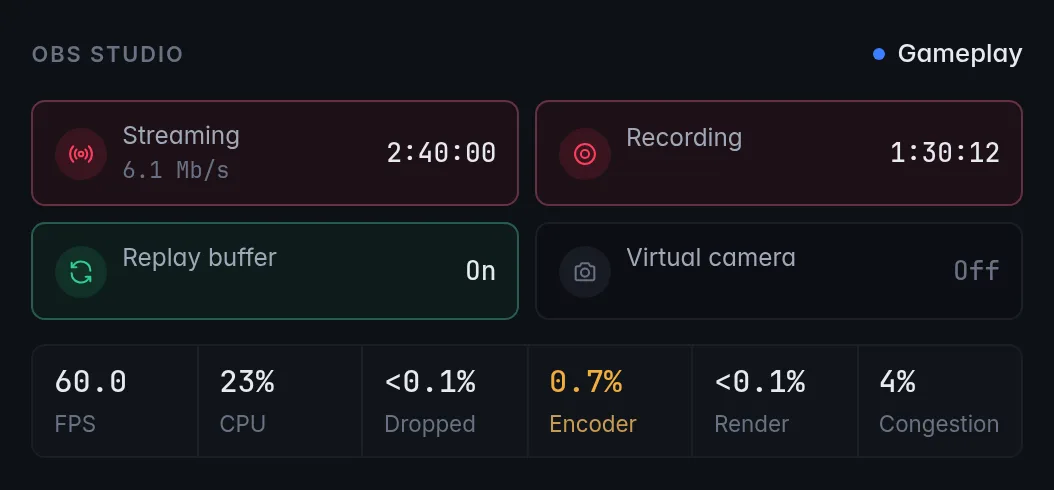
If OBS isn't connected you see OBS not connected, Connecting to OBS… or OBS is turned off, and an Open OBS settings button. See OBS to connect it.
Outputs
| Output | What it shows |
|---|---|
| Streaming | How long OBS has been streaming, and your upload rate in Mb/s. Shows Reconnecting… in amber when OBS lost the connection and is trying again. Off when not streaming. |
| Recording | How long the current recording is. Amber with Paused when the recording is paused. |
| Replay buffer | On or Off. It must be on for macros that save the replay buffer, such as the default !clip. |
| Virtual camera | On or Off. |
Streaming and Recording turn red while active, like the red "on air" lights in OBS.
Health readings
Six small readings tell you whether your computer and connection are keeping up. Each turns green when fine, amber when worth watching and red when viewers will notice. Hover any reading for the exact figures.
| Reading | What it means | Amber | Red |
|---|---|---|---|
| FPS | Frames per second OBS is actually rendering, against the frame rate set in OBS. | below 95% of your target (under 57 at 60 FPS) | below 80% of your target (under 48 at 60 FPS) |
| CPU | How much of your processor OBS itself is using. Hover to see its memory use too. | 70% or more | 90% or more |
| Dropped | Frames lost on the network while streaming: your upload couldn't keep up. Only while streaming. | 0.5% or more | 2% or more |
| Encoder | Frames skipped because the encoder fell behind (encoding lag). | 0.5% or more | 2% or more |
| Render | Frames missed because OBS couldn't draw the scene in time (rendering lag, usually the graphics card). | 0.5% or more | 2% or more |
| Congestion | How crowded your connection to Twitch is right now. Only while streaming. | 15% or more | 40% or more |
What to do when a reading goes red
- Dropped or Congestion red: your internet upload is struggling. Lower the bitrate in OBS, stop other uploads (cloud backups, game updates, other people's video calls), or use a wired connection instead of Wi‑Fi.
- Encoder red: your encoder can't keep up. In OBS, pick a faster encoder preset or switch to a hardware encoder (NVENC, AMF, Quick Sync, Apple VT), or lower the output resolution or frame rate.
- Render red, or FPS low: the graphics card is overloaded. Cap your game's frame rate, close browser sources you don't need, or lower the canvas resolution.
- CPU red: close programs you don't need while streaming, or move encoding to a hardware encoder.
Dropped, Encoder and Render are running totals, not live rates, so a short spike can keep a reading amber for a while after the cause is gone. Hover the reading: if the number of missed frames has stopped growing, the problem is over.
This stream and Today
A row of tiles with your totals. While you are live the heading says This stream (since the stream started); offline it says Today (since midnight).
| Tile | Counts | Small print |
|---|---|---|
| New followers | Follows | |
| Subs | New subs and resubs | |
| Gifted subs | Subs gifted | how many gifts they came in |
| Bits | Bits cheered | how many cheers |
| Raids | Raids received | how many viewers they brought |
| Rewards | Channel point rewards redeemed | the points spent |
| Messages | Chat messages | |
| Chatters | Different people who chatted |
Click a tile to see what's behind it: the event tiles open Activity filtered to that kind, and Messages and Chatters open the chat log in History.
Totals need History
The tiles read from History. If history is turned off they stay at —.
Viewers & chat
A chart of your audience. While live it covers This stream; offline it covers the Last 6 hours.
- The line is your viewer count.
- The bars are chat messages per minute (or per few minutes on a long stream; the legend says which).
- Above the chart: Peak and Average viewers, and the number of Messages in that time.
Hover the chart to read exact values for a moment. Viewer numbers appear a minute or two into the stream; the chart says so until then.
Read it after a stream
The chart is a quick post-mortem: a viewer drop after a long break, or a chat spike at a moment worth clipping. For the full timeline use History.
Controls
Buttons for the middle of a stream. Pop out in its corner opens them in a small window of their own that you can keep on top of your game. See Pop-out windows.
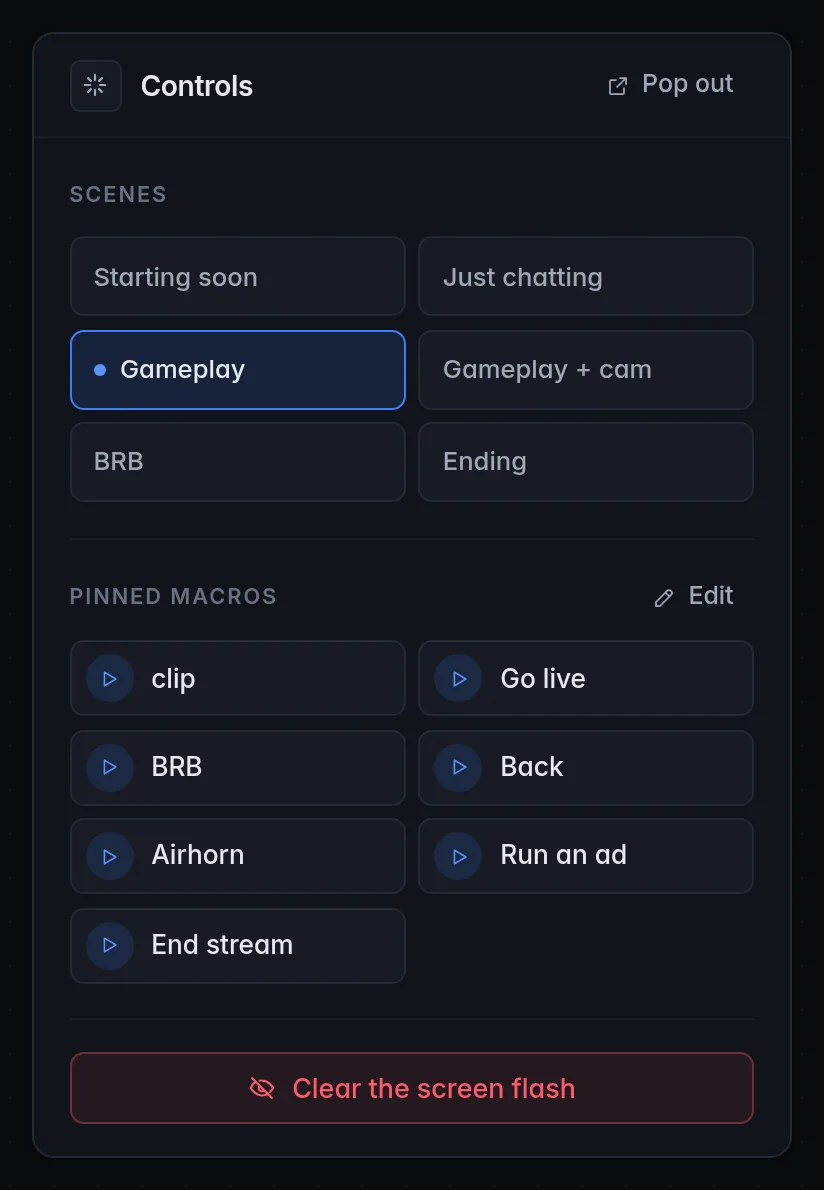
Scenes
One button per OBS scene. The scene on air has a red dot; hover any other to see Switch to …. Click a scene to switch OBS to it. In Studio Mode, the scene in preview is highlighted too.
If OBS isn't connected you see Connect OBS to switch scenes from here and a link to the OBS settings.
Pinned macros
Your go-to macros as one-click buttons. Click one to run it straight away: a spinner shows while it runs and a tick when it's done. If it fails, the error shows under the panel.
To pin macros:
- Click Pin your go-to macros (when nothing is pinned yet) or Edit (next to Pinned macros).
- Under Your macros, click a macro to add it. With more than six macros, use Find a macro… to search. Macros with a problem are tagged Has a problem.
- Under On the dashboard, use the up and down arrows to change the order, or × to unpin one.
- Click Save.
The buttons appear in that order, here and in the pop-out Controls window.
Good macros to pin
The things you do by hand during a stream: BRB scene + music, Starting soon, Hydrate reminder, Run an ad, Shout out the last raider. A macro started here runs for real, as you: no cooldowns or role checks apply, and its steps really happen.
Clear the screen flash
A button that takes down a screen flash at once. It's there for the moment a flash shows something it shouldn't. It says Screen cleared after it works. You only see it when your copy of CroStream supports the screen flash.
Recent events
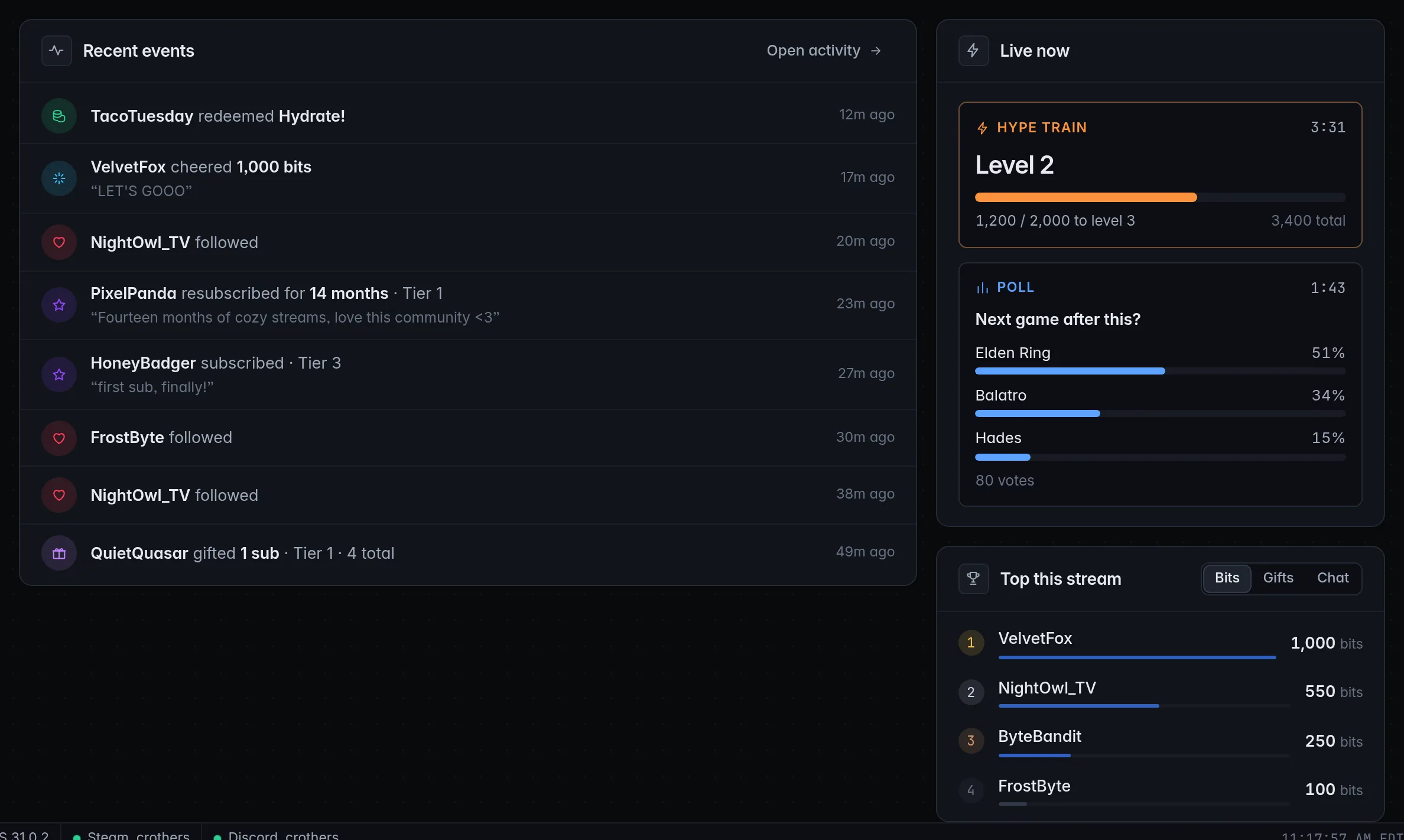
The last eight things that happened on your channel: follows, subs, gifts, cheers, raids, redemptions and the rest, worded the way the Activity page words them, with how long ago each was.
- Click a viewer's name to open their page in Viewers.
- A viewer's own words (a sub message, a cheer message, text typed into a reward) appear in quotes under the line.
- Test marks an event you sent yourself with a test button.
- Failed in red means a macro that event started hit a problem. Click it to open that run in History and see which step failed and why.
Open activity opens the full feed.
Live now
This panel only appears while something is running on your channel:
| Card | Shows |
|---|---|
| Hype train | The level, a progress bar to the next level (1,200 / 2,000 to level 3), the total so far and the time left. |
| Poll | The question, each choice's share of the votes, the vote count and the time left. |
| Prediction | The question, the channel points on each outcome, and the time left. Locked once Twitch stops taking predictions. |
Top this stream
Your top supporters, up to eight. Switch between Bits, Gifts (subs gifted) and Chat (messages). The first three places are highlighted.
While you are live it's Top this stream. Offline it's Top this session: everyone since CroStream started.
Troubleshooting
Viewers now and the chart stay empty while I'm live
Viewer numbers come from Twitch about once a minute, so the chart is empty for the first minute or two. If they never appear, check the attention strip and the Twitch page: Twitch must be connected.
Chatters now says Counted while live, even though I'm live
The count needs the viewer database and permission to read your chatter list. Open Viewers: the line under the totals says why watch time isn't being counted, and whether you need to log in to Twitch again.
The totals tiles all show —
They read from History. Turn it on in Settings → History (see History).
A pinned macro disappeared
Pins follow the macro. If you delete a macro, its button goes away. Renaming it is fine.
There is no Clear the screen flash button
The screen flash isn't available in your copy of CroStream. See Screen flash.