A channel point jump scare
Viewers love paying to scare the streamer. In this tutorial you build a Jump scare reward: when a viewer redeems it, a scary picture slams onto your monitor over your game, with a scream and a shake, then fades away a second and a half later. Your face cam catches the reaction. You'll also set up a panic button that takes the image down instantly, just in case.
Photosensitivity: please read
Flashing images can trigger seizures in people with photosensitive epilepsy, and that includes you, not only your viewers. Keep a flash short (this tutorial uses 1.5 seconds), never chain several flashes in a row, avoid strobing or rapidly flickering GIFs, and always put a cooldown on the reward and the trigger. If you or anyone in your home is sensitive to flashing light, don't use this feature.
What you'll build
- A Jump scare channel point reward with a 10 minute cooldown.
- A macro that flashes a scary image from your media library over your game, full screen, with a sound and a shake.
- A trigger that runs it for each redemption, with its own cooldown.
- Three panic buttons: a hotkey, the Dashboard and Controls window button, and the tray menu.
Time: about 15 minutes. Level: intermediate.
Before you start
- Your channel is Affiliate or Partner, so it has channel points.
- CroStream is logged in to Twitch.
- A scary image (PNG, JPEG, GIF or WebP) and a scream sound in your media library. Play a sound from the media library shows how to add files.
-
Your computer can show screen flashes:
Works fully. The flash shows over windowed and borderless games. A game in exclusive fullscreen hides it, so switch the game to borderless.
Works over windowed and borderless games. A game in exclusive fullscreen hides it.
Works on X11 and most desktops, but not on GNOME under Wayland. It also needs a CroStream build with screen flash support.
See Screen flash for details.
This is on your screen, not an overlay
The flash is a window drawn on top of your monitor, so you see it over your game. It never takes the keyboard focus, and every click goes straight through to the game. Whether your viewers see the image too depends on how OBS captures your screen: a Display Capture includes it, while a Game Capture of only the game does not. Viewers always see your reaction on your camera. Try it before you go live.
Step 1: Create the reward
Create the reward from CroStream, so a failed run refunds the viewer's points automatically.
- In the sidebar, under Automate, click Actions. Search for
rewardand click Create reward. - Under Try it, fill in:
- Title:
Jump scare - Cost:
2000 - Description:
Scare the streamer. Flashing image warning. - Cooldown:
10m, so the next viewer has to wait ten minutes.
- Title:
- Click Run now. When it says done, the reward is on your channel.
Step 2: Build the macro
- Click Macros, then New macro. Set Name to
Jump scare. - Filter the palette for
flashand click Flash an image on screen (under Screen). -
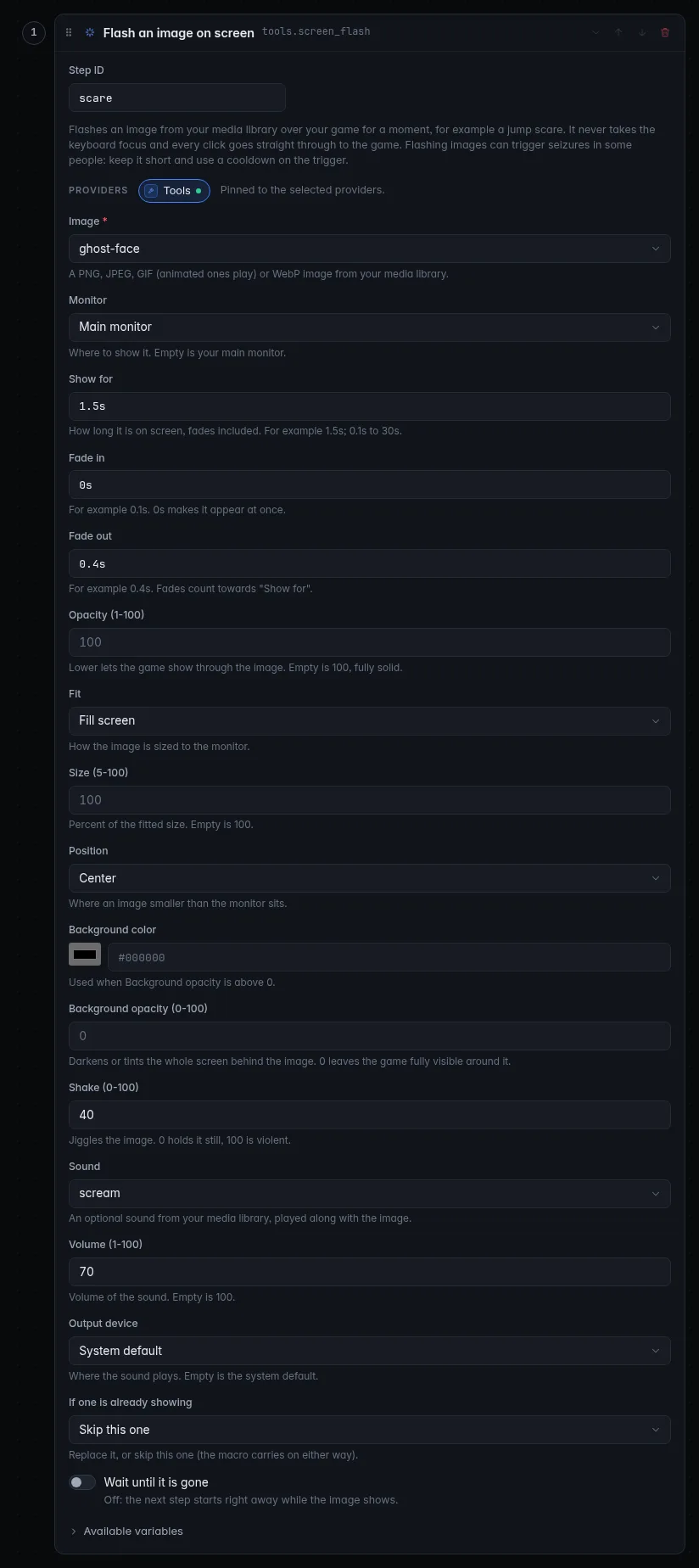
Fill in the step:
Field Value Why Image your scary image Only media library images are offered. Monitor Main monitor The screen your game is on. Show for 1.5sShort is scarier and safer. 0.1s to 30s, fades included. Fade in 0sIt appears at once. That's the scare. Fade out 0.4sA soft exit. Fit Fill screen Covers the whole monitor. Shake (0-100) 40A jolt without being unreadable. Sound your scream Plays along with the image. Volume (1-100) 70Protect your ears and your viewers'. If one is already showing Skip this one Two scares never stack. Leave the rest as it is.
-
Click Save.
Step 3: Add the trigger
- Click Triggers, then New trigger. Set Name to
Jump scare reward. - Under When, pick Channel point redemption and choose Jump scare · 2000 points in Reward.
- Under Who & how often, set Cooldown to
5m. This is a second safety net in case the reward's own cooldown is ever changed. - Under Then run, pick Jump scare, then click Save.
Step 4: Set up your panic buttons
A flash goes away by itself after 1.5 seconds, but if anything ever goes wrong you want it gone now. CroStream gives you three ways:
- Dashboard and Controls window. Both have a Clear the screen flash button. See Chat and controls on a second screen to keep the Controls window in view.
- Tray icon. Its menu has Clear screen flash.
- A hotkey, which works even while your game has the focus. Set it up
now:
- Make a macro called
Panic: clear flashwith one Clear the screen flash step. - Make a trigger called
Panic buttonwith the Hotkey event. Click Keys and press Ctrl+Shift+F12. Run Panic: clear flash and click Save.
- Make a macro called
Check it works
- Open the
Jump scare rewardtrigger and click Test. The image flashes on your main monitor with the sound. Test runs never spend or refund points. - Click Test again and, while the image is up, press Ctrl+Shift+F12. It disappears at once.
- Open History: the run says what was flashed, on which monitor and for how long.
- Start your game, then redeem the reward from your channel page with a second account, or ask a mod. If the flash works, the redemption is fulfilled; if it fails, the points go back.
Troubleshooting
| What you see | What to do |
|---|---|
| "Flashing the screen isn't available on this computer" | Your system can't show flashes, for example GNOME on Wayland, or a Linux build without screen flash support. |
| Nothing shows over the game | The game runs in exclusive fullscreen. Switch it to borderless or windowed. |
| It showed on the wrong screen | Set Monitor to the display your game is on; each monitor is listed by name and size. |
| "The fades are longer than the flash" | Fade in plus Fade out must fit inside Show for. |
| No sound | Check Output device (empty means your system default) and Volume. A sound that fails to play doesn't stop the image. |
| A second redemption did nothing | If one is already showing is Skip this one, so it was skipped while the first was up. The redemption still counts as done. |
| Redemptions aren't fulfilled or refunded | The reward was made on Twitch, not in CroStream. Create it as in step 1. |
Next steps
- Make it a reward everyone sees: add a full-screen alert to an overlay instead, so the image shows on stream. See Add an alerts overlay to OBS.
- Line up a flood of scares so they arrive one at a time: Run redemptions one at a time.
- All the flash settings, monitors and platform notes: Screen flash.