History
History is CroStream's full record. Where Activity shows what your viewers did, History shows everything CroStream saw and did: every channel event, every macro run, the result of every action, every notice from an integration, and your whole chat. It's kept across restarts for as long as you choose (90 days by default).
Open it when something didn't go as planned ("why didn't the raid alert play?"), when you want to find a moment from a past stream, or when you're looking for something a viewer said.
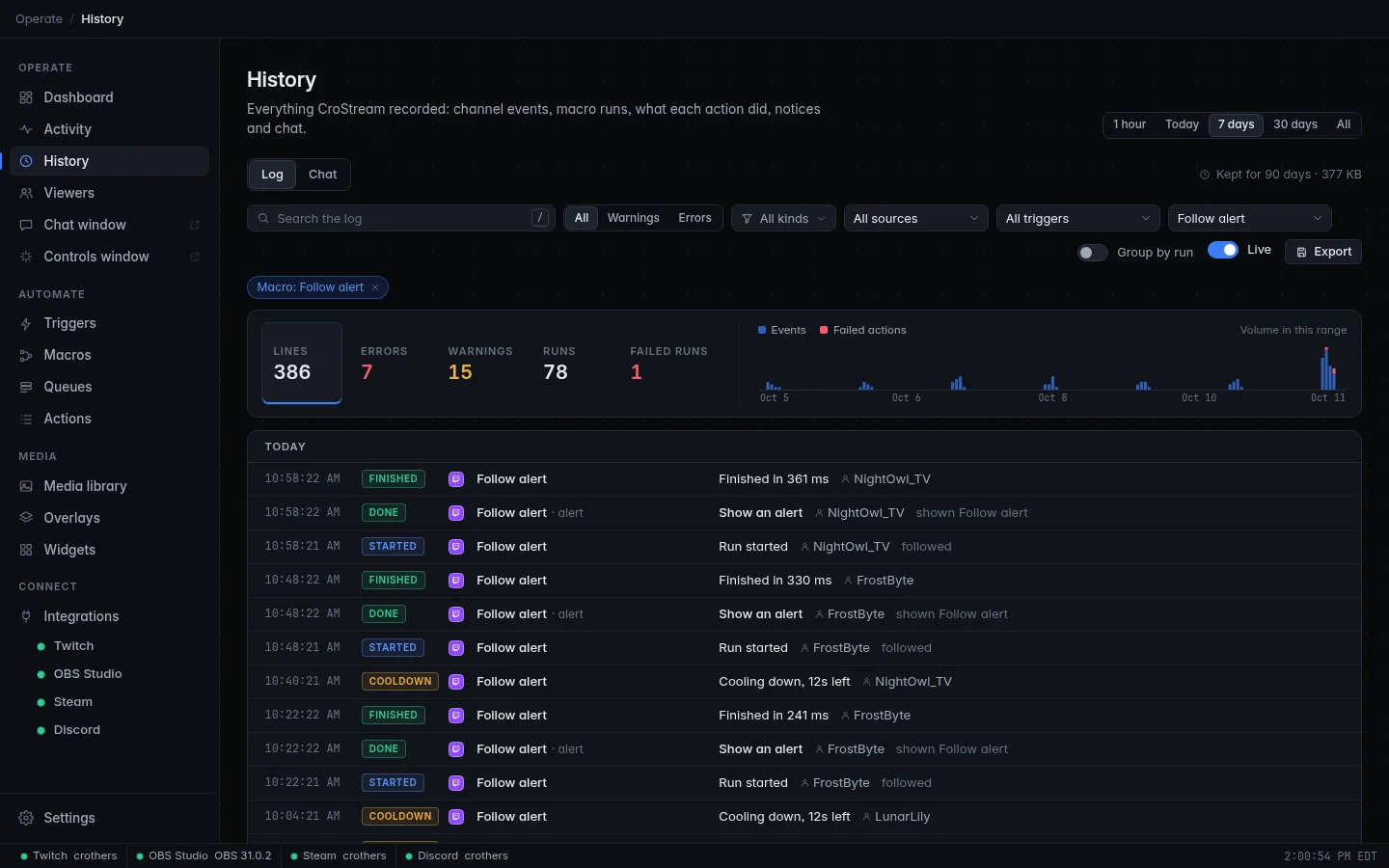
The page has two tabs:
- Log: events, macro runs, actions and notices.
- Chat: every chat message in your channel.
Next to the tabs, Kept for 90 days · 18.4 MB tells you the retention and how much space History uses.
Choose a time range
The buttons at the top right set how far back both tabs look: 1 hour, Today, 7 days, 30 days or All (everything kept). The page opens on Today.
You can also zoom into any stretch of time on the volume chart, or jump to a moment with Show around this time. A custom range shows as a chip like Oct 10, 2:46 PM – 2:56 PM; remove the chip to go back to Today.
The Log tab
Filters
The toolbar above the log narrows what's shown. Every filter you set appears as a chip under the toolbar; click a chip's × to remove it, or Clear all to remove them all.
| Filter | What it does |
|---|---|
| Search the log | Finds lines whose text, error, trigger, macro, action, step or viewer contains your words. Press / from anywhere on the page to jump to it. |
| All / Warnings / Errors | Errors shows failed actions, failed runs and error notices. Warnings shows warning notices, cooldowns, denied runs and skipped actions. |
| All kinds | A checklist of line kinds (below). Nothing ticked means every kind. Show all kinds clears it. |
| All sources | Only lines from one integration: Twitch, OBS, Steam, Discord, and so on. |
| All triggers | Only lines from one trigger's runs. Quick actions shows actions you started directly from the app, such as the scene buttons on the Dashboard. |
| All macros | Only lines from one macro's runs, whichever trigger started them (the chip reads Macro: Highlight). Use it when several triggers share a macro, or to follow one macro's failures. |
The kinds you can pick:
| Kind | Lines |
|---|---|
| Events | Something happened on your channel or in a connected program: a follow, a raid, a redemption, … |
| Runs | A trigger started a macro, and the macro finished. |
| Actions done | A step's action worked. |
| Actions failed | A step's action failed. |
| Skipped | A step was skipped. |
| Branches | An If step chose a branch. |
| Stops | A Stop step ended the macro. |
| Cooldowns | A trigger matched but was still cooling down. |
| Denied | A trigger matched but the viewer wasn't allowed to fire it. |
| Notices | Messages from CroStream and the integrations: connected, disconnected, errors. |
Links that open History filtered
Every filter is part of the page address, so other pages can send you straight to the right lines:
- the Dashboard's Something failed in the last hour opens Errors;
- a response chip on Activity opens that one run;
- a summed chip on a folded follow card opens that trigger's runs;
- the Messages and Chatters tiles open the Chat tab.
The browser back button returns you to where you were. In browser mode you
can bookmark a filtered view, or build one yourself: ?macro= followed by
a macro's name (for example #/history?macro=Highlight) opens History
filtered to that macro.
Summary tiles
Above the log, five tiles count what's in the range. They're also shortcuts:
| Tile | Click to |
|---|---|
| Lines | Show every line (clears the level filter and grouping). |
| Errors | Show errors only. Red when there are any. |
| Warnings | Show warnings only. Amber when there are any. |
| Runs | Turn on Group by run. |
| Failed runs | Group by run and show only the failed ones. Red when there are any. |
The volume chart
Beside the tiles, a bar chart shows how busy each stretch of the range was: Events and, stacked on top in red, Failed actions. A red bar is where to look when something went wrong during a stream. Quiet time before the first activity is left out, so the bars get the room.

- Hover a bar to read its time and counts.
- Click a bar to zoom into that stretch.
- Drag across bars to zoom into the stretch you drew.
Zooming sets a custom range, so the tiles and the log follow it.
Reading a line
The log is newest first, grouped by day. Each row shows:
- the time; hover for the full date;
- a badge saying what kind of line it is;
- the source: the integration's icon, or a dot for CroStream itself;
- where it came from: the event's kind, or Trigger › Macro · step for a line from a macro run;
- what happened: the action, its result, the viewer and the error, if any.
| Badge | Meaning |
|---|---|
| Event | An event happened, worded like on Activity (mossy_owl cheered 500 bits). |
| Started | A trigger started its macro (Run started). |
| Done | An action worked. |
| Failed (red) | An action failed, or a whole run finished with a failure. |
| Skipped | A step was skipped. |
| Branch | An If step chose which steps to run. |
| Stopped | A Stop step ended the run. |
| Cooldown | The trigger was still cooling down (Cooling down, 42s left). |
| Denied | The viewer wasn't allowed (Not allowed: needs moderator). |
| Finished | A run ended, with how long it took (Finished in 1.2 s). |
| Info, Warning, Error | A notice from CroStream or an integration. |
Failed lines have a red edge and a red tint so they stand out while scrolling.
Click a row to open it and see everything recorded about it:
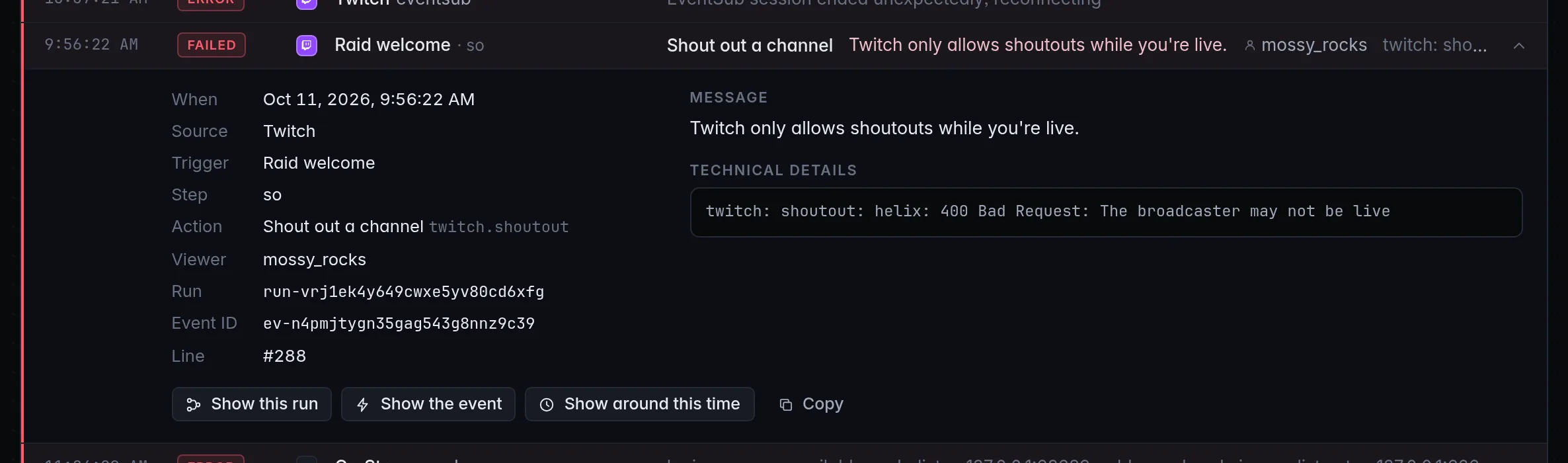
- When, Source, Trigger, Macro, Step;
- Action or Event, with its technical name (useful when asking for help);
- Ran on: which integration did the work, when it isn't the source;
- Viewer: click to open their page in Viewers;
- Amount, and Took for a finished run;
- Run, Event ID and Line numbers that identify it;
- Message: the error in plain words;
- Details or Technical details: the raw result;
- Event data: everything Twitch (or the program) sent with an event.
Line actions
An opened line has these buttons:
| Button | What it does |
|---|---|
| Show this run | Opens the whole run the line belongs to. |
| Show the event | Opens the event that started this run, and every run it started. |
| Show around this time | Opens everything from 5 minutes before to 5 minutes after this line, with the line marked. Great for "what else was going on?" |
| Copy | Copies the line as plain text, to paste into a bug report or a message. |
One run
When you open a run (from Show this run, an Activity chip or Failed on the Dashboard), a panel at the top sums it up:
- its outcome (Finished, Failed, Running, Cooldown or Denied) and Trigger › Macro;
- Started, Viewer, how many Actions, how long it Took, and how many Failed;
- the error message, if it failed;
- Show the event that started it and Back to the full log.
The lines below are listed oldest first, as it happened, so you can read the run step by step.
One event
When you open an event, the panel shows the event as a sentence, When it happened, the Runs it started, and the viewer's message if there was one. The log below lists the event and every line of every run it started.
Group by run
Turn on Group by run to fold each run into a single row: the time, the outcome, Trigger › Macro, the viewer, how many actions ran, how long it took, any error, and how many lines it has.
Click a run row to unfold its lines, oldest first. Open this run on its own opens it as described in One run.
Grouping is the easiest way to scan "did my alerts work tonight?".
Live tail
While Live is on and the range reaches the present, new lines appear at the top as they happen, with a short highlight. If you've scrolled down, they wait behind a 5 new lines pill instead of moving what you're reading. Click it, or scroll back up, to show them. Turn Live off to freeze the log.
Loading more
Older lines load as you scroll down, or with Load older. The page shows at most 3,000 lines at a time; past that it says so. Narrow the time range or export to see the rest.
Keyboard shortcuts
| Key | Does |
|---|---|
| / | Jump to the search box. |
| Esc (in search) | Leave the search box and go back to the list. |
| J / K | Move down / up through the rows (the arrow keys work too once a row is selected). |
| Enter or Space | Open or close the selected row. |
| Esc (on a row) | Close the open row. |
The shortcuts are listed under the log as a reminder.
Export
Export → Export as CSV or Export as JSON saves the lines that match
your current filters and range, newest first, up to 100,000 lines. The file
is named like crostream-log-2026-10-11.csv. CSV opens in any spreadsheet
program.
The Chat tab
The Chat tab is the log of your Twitch chat: every message in your channel while Twitch was connected, including the ones CroStream sent.
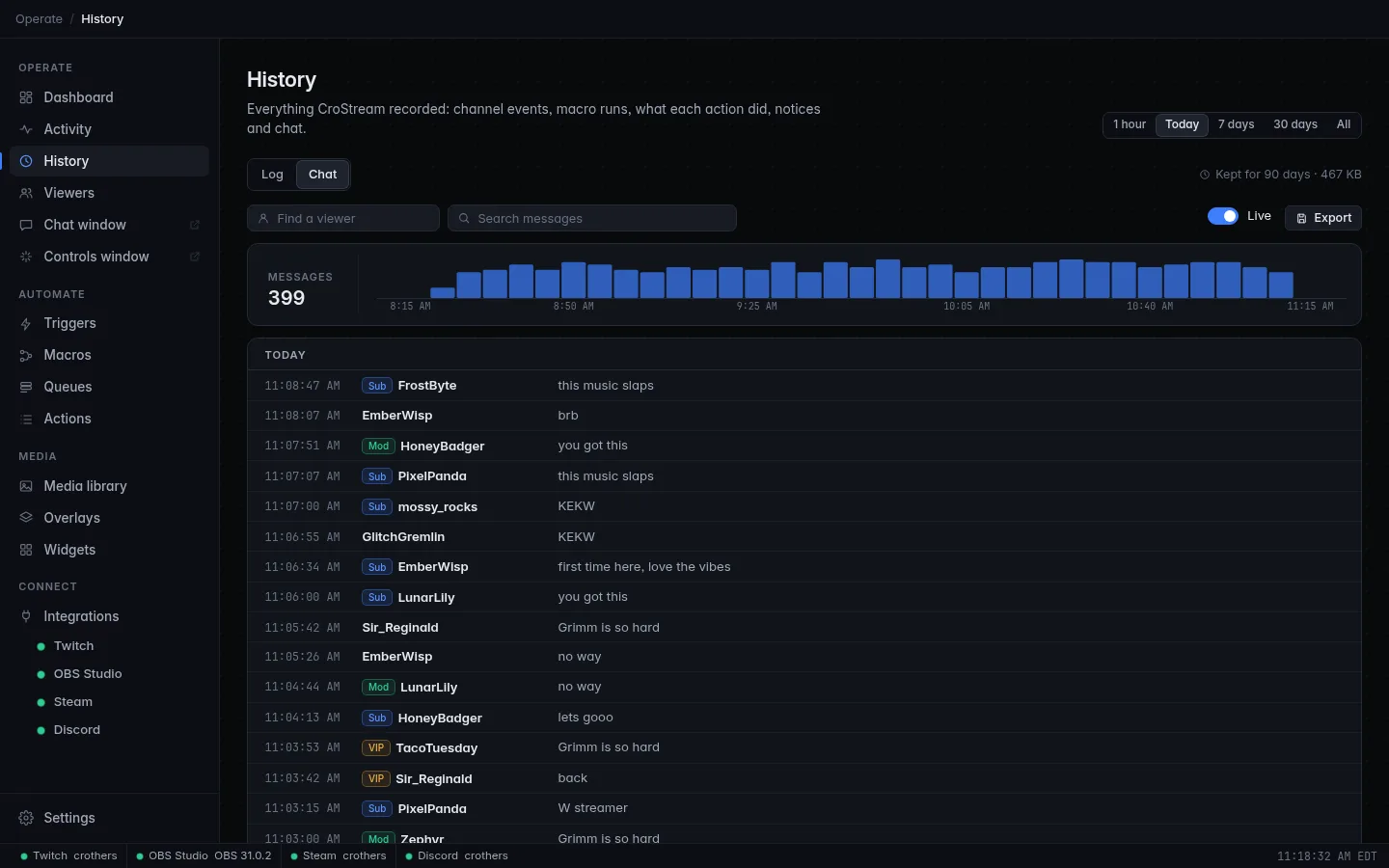
- Find a viewer: type a viewer's full name (login or display name, any capitals) to see only their messages. Or click any name in the list.
- Search messages: shows messages containing your words, with the words highlighted.
- The time range buttons at the top apply here too.
- Messages counts the messages in the range, and the chart beside it shows when people were chatting. Click or drag on it to zoom in, as on the Log tab.
- Badges show Streamer, Mod, VIP and Sub.
- Live checks for new messages every few seconds while the range reaches the present. It's greyed out for a range that has already ended.
- Export saves the matching messages as CSV or JSON, up to 100,000,
named like
crostream-chat-2026-10-11.csv.
The tab keeps up to 2,000 messages on screen; narrow the range or export for more.
Finding a moment
To find "that thing someone said about the boss fight", search the messages for a word, note the time, then switch to the Log tab and use the chart to zoom into that minute.
What is stored
- Events: when, what kind, the sentence you see, the viewer's name and Twitch ID, the number that goes with it (bits, raid viewers, gifted subs, reward cost) and everything else Twitch or the program sent with it.
- Runs and actions: every trigger that matched, every step a macro took, what each action did or why it failed, and how long runs took.
- Notices: what CroStream and the integrations reported, such as connecting, disconnecting and errors.
-
Chat: while Twitch is connected, every message in your channel with its time, the chatter's name, their role and the text.
-
Streams and moments: when each stream started and ended, its title and category, and the moments found in it, with their score, reason and how the marker and clip went.
All of it stays on your computer.
History settings
History is set up in Settings → History.
Retention
- Keep history must be on (it is by default).
- Set Keep for (days): from 1 to 3650. The default is 90.
- Click Save.
Entries older than that are removed automatically: when CroStream starts, when you save, and every 6 hours while it runs. The panel also says how much space History uses.
Turning it off
Turn off Keep history and click Save. Nothing new is recorded or read while it's off, and what's already stored is left alone. Turn it back on to pick up where you left off.
Clearing
Clear history deletes every stored event, log line and chat message. CroStream asks you to confirm, and it can't be undone. Your triggers, macros and settings aren't touched.
When History is off
- The Log tab shows only what happened since CroStream started, and a note says History is off, so only this session is shown and nothing is kept after CroStream closes.
- The Chat tab says Chat isn't being kept.
- Activity and the Dashboard totals also fall back to this session.
Where it lives
History is one file in CroStream's data folder (see Where files are kept). It's safe to lose, and it isn't part of backups or exports.
Per-viewer records and points are separate: they live in the viewer database, which isn't pruned by age.
Troubleshooting
Something failed in the last hour, but I don't know what
Click the note on the Dashboard, or click Errors here. Open the red line and read Message. Show this run shows the steps before it.
My trigger didn't fire at all
Search the log for the event (for example raid) in the right time
range. If the event is there with no runs after it, the trigger didn't
match: check it on Triggers. If the event isn't there,
CroStream never received it: check that Twitch was connected (look for
Notices around that time).
The log ends with 'Showing the newest 3,000 lines'
That's the most the page shows at once. Pick a shorter range, add a filter, or export.
Some lines from right after start-up are missing
Events that arrive in the first moments after CroStream starts, before History has opened, show in the live feed but aren't stored. If CroStream ever falls too far behind writing, Settings → History says how many entries were skipped.
A viewer's messages don't show when I search their name
Find a viewer on the Chat tab needs the whole name, not part of it. Click their name on any message to fill it in exactly.