Moments
While you stream, you can't also scrub back through four hours of VOD to find the good parts. Moments does it live. CroStream watches your chat and your channel events, notices when the energy jumps, and adds a Twitch stream marker at that point. After the stream, the markers are your list of highlights.
It needs no video and no setup beyond logging in to Twitch: it works from what CroStream already receives. It is on by default, and markers are private to you.
What you need
- Twitch connected, with the
channel:manage:broadcastpermission. Older logins may lack it; see Permissions. - History turned on (it is by default). Moments are saved there, and the detector learns what is normal for your chat from it.
- VODs enabled on Twitch (Twitch Settings → Stream → Store past broadcasts). A marker is a bookmark in the VOD, so without one Twitch refuses it.
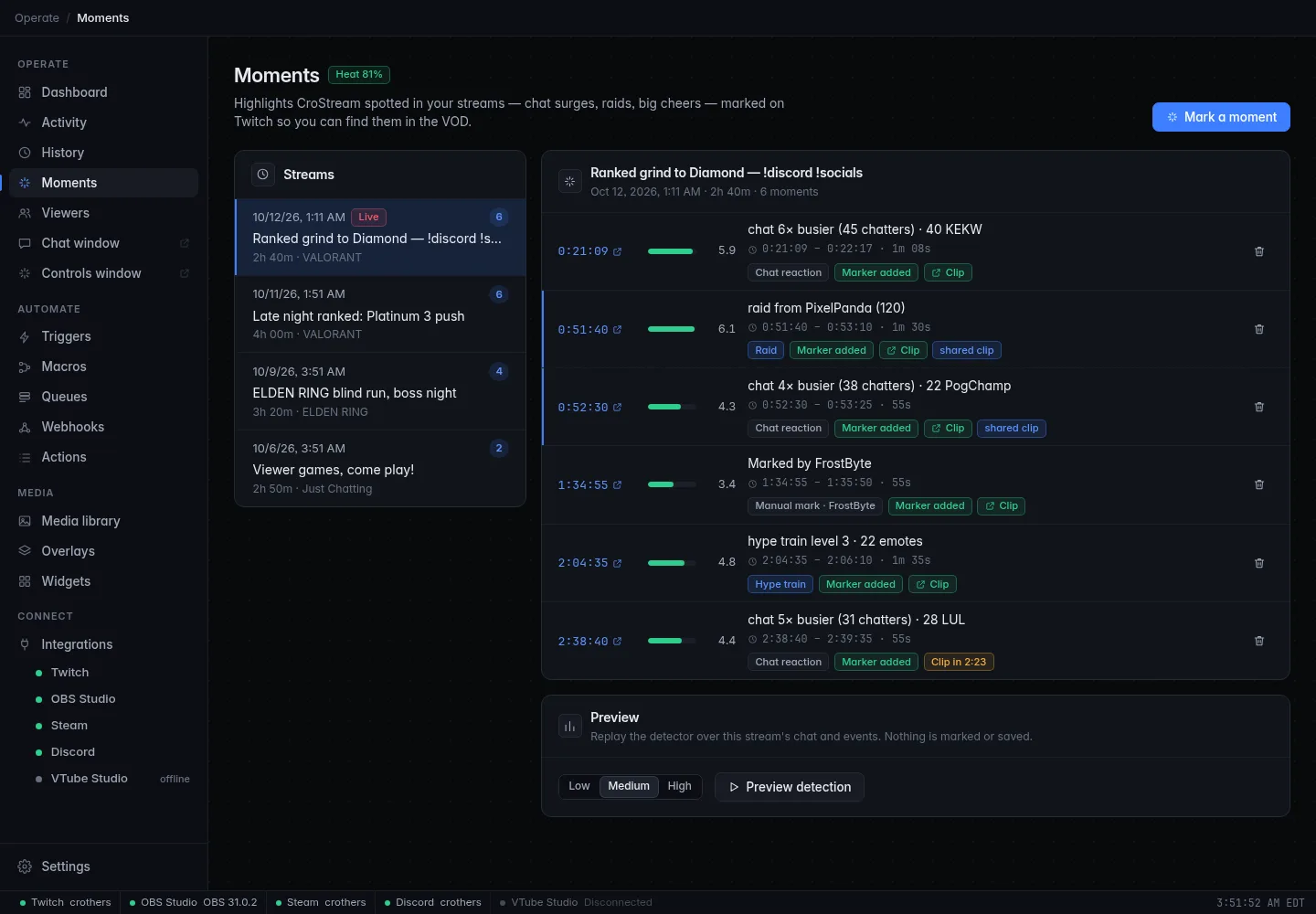
How a moment is found
CroStream measures your chat in one-second slices and compares what it sees now with what is normal for this stream. A busy chat that stays busy is not a moment; chat suddenly doubling is. It looks at:
- How fast chat is moving (messages) and how many different people are chatting. Ten people spamming is a bigger deal than one person sending ten messages.
- Reactions: how many people are typing things like
KEKW,LUL,W,Pog,monkaSor!!!. You can change the words, see Reaction words. - Emotes in general.
- People yelling: messages in capitals.
- Channel events: raids, bits, gifted subs, hype train levels, big channel point redemptions and the end of a poll or prediction. Each adds a burst to the score that fades over the next minute.
Those add up to one score. When the score climbs past the threshold and
peaks, that is a moment. The reason tells you why, in plain words, such
as chat 6× busier (45 chatters) · 40 KEKW · raid from Foo (120).
A few things keep it from being noisy:
| Rule | What it does |
|---|---|
| Warm-up | For the first 5 minutes of a stream CroStream only listens, so it can learn how busy your chat normally is. No moments are marked yet. If CroStream restarts mid-stream it reads the last ten minutes from History, so it neither marks old moments again nor starts from scratch. |
| Cooldown | After a moment, no new one for Time between moments (90 seconds by default). A hype stretch becomes one moment, not twelve. |
| Per-stream limit | Marking stops after Moments per stream (30 on Medium). Moments you mark by hand don't count toward it. |
| Small chats | A moment needs a minimum number of different chatters and messages, so a lone spammer in a quiet chat can't set one off. |
| Bots and you | Known bots, anyone on your Viewers ignore list, and your own messages never count. |
Because the score is measured against the stream's own normal, it works the same for a chat of 8 and a chat of 800.
Sensitivity
Sensitivity sets how big a reaction has to be.
| Sensitivity | Threshold | Limit per stream | Good for |
|---|---|---|---|
| Low | 4.5 | 15 | Big channels with constant chat noise, or if you only want the clear highlights. |
| Medium | 3.2 | 30 | Most channels. The default. |
| High | 2.3 | 60 | Small, quiet chats, where even a few people reacting is a highlight. |
Not sure? Don't guess: Preview each level on a stream you already did and see what it would have marked.
Stream markers
At each moment CroStream adds a Twitch stream marker, a bookmark at that point of the broadcast. It is private: only you (and your editors) see markers, never your viewers.
To find them after the stream, open the VOD in Twitch's Highlighter (or the VOD timeline) and look along it. Each marker is there with its text. By default the text is the reason, so a marker reads like chat 6× busier (45 chatters) · 40 KEKW. The Moments page also links straight to each point in the VOD.
The text is set by Marker text. It takes {reason}, {score} and
{uptime}, and Twitch keeps the first 140 characters.
Permissions
Markers need the channel:manage:broadcast permission. If your login lacks
it, moments are still detected and saved, but the marker shows Marker
failed with a message to log in again. Open the
Twitch page, press Log
in again and approve. No restart is needed.
Clips
Create clips is off by default. Turn it on and CroStream also
creates a Twitch clip for each moment (after its capture window), which needs the clips:edit
permission (already part of a current login).
Clips are public
Unlike markers, a clip is public as soon as it exists, and it appears on your channel's clips page. A clip is only made while you're live, isn't retried if it fails, and Twitch limits how often you can make them. Try it during a quiet stream first.
Capture windows
A marker is only a bookmark, so CroStream adds it the instant a moment is found. A clip is different: it has to hold the good part, and the good part is not always at the moment CroStream notices it.
- Chat reacts after the thing happened. When chat erupts, the funny or impressive thing is already a few seconds behind you.
- Some moments are all aftermath. The good part of a raid is the raid arriving and your reaction to it, not the second before.
So CroStream gives every moment a capture window, the stretch of the stream worth keeping, and waits for the window to end before making the clip. The marker is still immediate; only the clip waits.
The three kinds
CroStream sorts each moment into a kind, and each kind has its own window.
| Kind | What it is | Default window |
|---|---|---|
| Chat reaction | Chat surged by itself (reactions, emotes, many people at once). The thing worth keeping happened before the surge. | 30 s before the surge started to 10 s after its peak. |
| Event | A raid, hype train, gifted-sub bomb, big cheer or big redemption was most of the score. The thing worth keeping comes after it. | 5 s before the event to 60 s after. A raid gets 90 s after. |
| Manual mark | You used Mark a moment. | 45 s before you pressed it to 10 s after. |
A moment counts as an event when the event makes up at least half of its score; otherwise it is a chat reaction.
Stream delay
What your viewers see is a few seconds behind what you're doing, and chat reacts to what they see. So when you react to a moment, chat reacts a moment later still. Stream delay (5 seconds by default) is that lag. For chat reactions and manual marks, CroStream moves the window earlier by this much so the clip starts before the thing actually happened. Events don't need it: Twitch stamps them when they happen.
If your stream is delayed more than usual, raise it; Preview and a few real clips will tell you.
Merged windows
Moments that overlap, or are within Merge gap (10 seconds) of each other, are merged: one capture covers all of them. A raid, followed by chat going wild at the raiders, makes one clip, not two, and every moment in the group points at the same clip. Each moment still gets its own marker.
A group can keep growing while it waits, up to 3 minutes in total. After that, the next moment starts a new group.
When the clip is made
CroStream waits until the window ends, plus 3 seconds for Twitch to catch up, and then makes the clip. If you have Create clips on, the moment's clip chip says Clip pending until then.
Twitch decides what a clip can hold: 5 to 60 seconds, ending at the moment the clip is made. So what you get depends on the window:
| Window | The clip covers |
|---|---|
| 60 s or shorter | The whole window. |
| Longer than 60 s, event | The first 60 seconds of the window: the start of the aftermath, which matters most. |
| Longer than 60 s, chat reaction | The last 60 seconds of the window. |
Longer windows
A raid's default window is 95 s, so its clip shows the first 60 s. For the full window, save it from OBS. Your markers and VOD link always cover the whole window.
The clip's title is the moment's reason. If Twitch's AutoMod rejects it, CroStream tries once more without a title.
VOD links
A moment's VOD link now starts at the window start, so it opens a little
before the good part. The Moments page shows the window next to the time,
for example 0:51:40 – 0:53:10 · raid aftermath.
If the stream ends while a window is still open, CroStream captures right away when it still can. If Twitch has already ended the stream, the clip is skipped with stream ended before the moment finished. Closing CroStream mid-window skips it with CroStream was closing. The marker and the VOD link are still there.
Saving moments from OBS
A Twitch clip is capped at 60 seconds and at Twitch's quality. If you want the whole window, at the quality you record in, CroStream can take it from OBS's replay buffer instead. When a moment's window has played out, CroStream tells OBS to save the replay buffer, cuts exactly the window out of the saved file and puts the result in your media library, in a folder called Moments.
- Any length, up to what your replay buffer holds.
- Recording quality. The video is copied, not re-encoded, so nothing gets worse and it is fast. Cuts start at the nearest keyframe, so a clip can begin a moment before the window.
- Independent of the Twitch clip. You can have both, a Twitch clip to share and a full-quality file to edit.
- It is off by default: turn on Save moments from OBS.
Set it up
- Connect OBS on the OBS Studio page.
- Turn on OBS's replay buffer. In OBS, open Settings → Output → Replay Buffer and tick Enable Replay Buffer.
- Make the buffer long enough. Set Maximum Replay Time to at least your longest window. OBS's default is only 20 seconds. With the default windows, 3 to 5 minutes (180 to 300 s) is right: a raid's window is 95 seconds, and merged windows can reach 3 minutes. The Moments panel tells you the exact number it needs.
- Raise Maximum Memory to match. The buffer is kept in memory, and OBS stops filling it when it reaches Maximum Memory (512 MB by default), however much time you asked for. A rough guide is the bitrate you record at times the seconds you keep, so 5 minutes at 20 Mbps needs about 750 MB.
- In CroStream, turn on Save moments from OBS.
The buffer has to be running while you stream. The easy way is to leave OBS: start the replay buffer when you go live on (it is by default): if the buffer isn't running when your stream starts, CroStream starts it. You can also start it yourself in OBS, or with Start it on the Moments panel.
The OBS capture card on the Moments panel checks all of this for you: whether OBS is connected, whether the buffer is on and how much it keeps, with a warning such as OBS keeps only the last 20 s, but a moment can need up to 3m 20s and the setting to change.
FFmpeg
Cutting needs FFmpeg, a free video tool. CroStream doesn't include it.
- If it's installed, CroStream finds it by itself.
- Windows and Linux: press Download FFmpeg on the Moments panel. It fetches a pinned, checksum-verified LGPL build of about 170 MB, checks it and unpacks it for CroStream only.
- macOS: install it yourself with
brew install ffmpeg, then press Check again. - Your own copy: set OBS: FFmpeg program to the full path of
ffmpeg.exeorffmpeg. Leave it empty to find one automatically.
FFmpeg is free software under the LGPL v3, from ffmpeg.org,
built by BtbN. CroStream runs it as
a separate program. A downloaded copy lives in CroStream's tools/ffmpeg
folder in its state folder; delete that folder to remove it.
A downloaded copy shows up in Settings → About as a third-party
component.
What happens to OBS's full replay file
Saving the buffer makes a full replay file next to your recordings. Once the cut clip is safely in the media library, CroStream deletes that replay, but only if CroStream asked OBS for it, never any other file. Turn on OBS: keep the full replay files to keep them.
If anything goes wrong, the full replay is always kept, and its path is shown on the moment so you can cut it by hand.
Two computers
If OBS runs on another computer (a two-PC setup), CroStream can't read OBS's file. OBS still saves the replay there, and the moment shows Saved on the OBS computer with the path, but nothing is cut. To get cut clips, run CroStream on the computer that runs OBS.
What the moment shows
Each moment gets an OBS chip beside its Twitch clip chip:
| Chip | Meaning | What to do |
|---|---|---|
| Saving from OBS in 0:42 | Waiting for the window to finish, so the clip includes what came after. | Wait. |
| Cutting clip… | Saved from OBS, being cut. | Wait. |
| Saved · 1m 30s | The clip is in the media library's Moments folder. Click to play it. | Nothing. |
| Partial · 20s | Saved, but the buffer held less than the window. The message says how much. | Raise Maximum Replay Time in OBS. |
| Saved on the OBS computer | OBS is on another computer. | See Two computers. |
| FFmpeg needed | There's no FFmpeg to cut with. The full replay was kept. | Get FFmpeg on the Moments panel. |
| OBS clip failed | See the message. | See below. |
| OBS replay buffer was off | Nothing to save. | Leave OBS: start the replay buffer when you go live on, or press Start it. |
| No OBS clip | Skipped; the message says why. | See below. |
The messages, and what to do:
| Message | What to do |
|---|---|
| OBS isn't connected | Connect OBS on the OBS Studio page. |
| OBS's replay buffer was off | Turn on OBS: start the replay buffer when you go live, or start it. |
| The replay buffer is turned off in OBS's settings | OBS: Settings → Output → Replay Buffer → Enable Replay Buffer. |
| OBS's replay buffer didn't reach back to the moment: it held 20 s; the moment needed 1m 35s | Raise Maximum Replay Time in OBS (and Maximum Memory). |
| Partial: OBS's replay buffer held 20 s; this moment needed 1m 35s | The same; you got the part that was there. |
| FFmpeg is needed to cut the moment out. Get it on the Moments panel. | Download, choose or install FFmpeg. |
| OBS didn't say where it saved the replay | Check OBS's recording folder. The next moment tries again. |
| OBS saved \<path>, but CroStream can't find it | Check that CroStream can read that folder. |
| Not enough disk space to save the clip | Free some space. The full replay was kept. |
| FFmpeg couldn't read the replay or couldn't cut the replay | The full replay was kept at the path shown. |
| The media library couldn't take the clip | The full replay was kept at the path shown. |
| Too many clips at once | Raise Time between moments. |
| CroStream was closing | The moment was still pending when CroStream closed. |
| CroStream stopped before the clip was saved | CroStream quit unexpectedly. |
On the card, FFmpeg problems read The FFmpeg at \<path> can't be used, FFmpeg \<version> is too old; CroStream needs 4.0 or newer, or The downloaded FFmpeg changed on disk, so it isn't used. Download it again. Download problems (network, damaged or full disk) say what happened and can be retried.
The Moments page
Open Moments in the sidebar, under Operate, between History and Viewers.
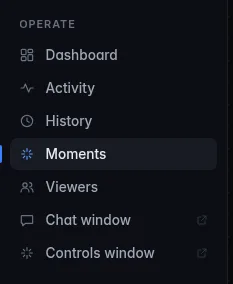
On the left is the list of your streams, newest first, with the time and length, the title and category, and how many moments each has. A stream that is live now has a Live tag. Load more goes further back.
Select a stream to see its moments. For each one:
| Column | Meaning |
|---|---|
| Time | How far into the stream the moment is, such as 1:02:03, with its capture window and kind. When the VOD is known this is a link that opens the VOD at the start of the window. |
| Score | A bar and number for how big it was. Past the threshold is a moment. Hover for the exact value. |
| Reason | Why it was marked, in words. Moments you marked by hand say Marked by and your name, or your description. |
| Status | Chips for the marker and the clip; see below. |
Watch VOD at the top of the stream opens the whole VOD. The trash icon deletes a moment from CroStream (Delete this moment?). The marker stays on Twitch.
At the top, Mark a moment marks the current second by hand (it needs you to be live) and, while live, a Heat chip shows how close chat is to a moment right now.
Statuses
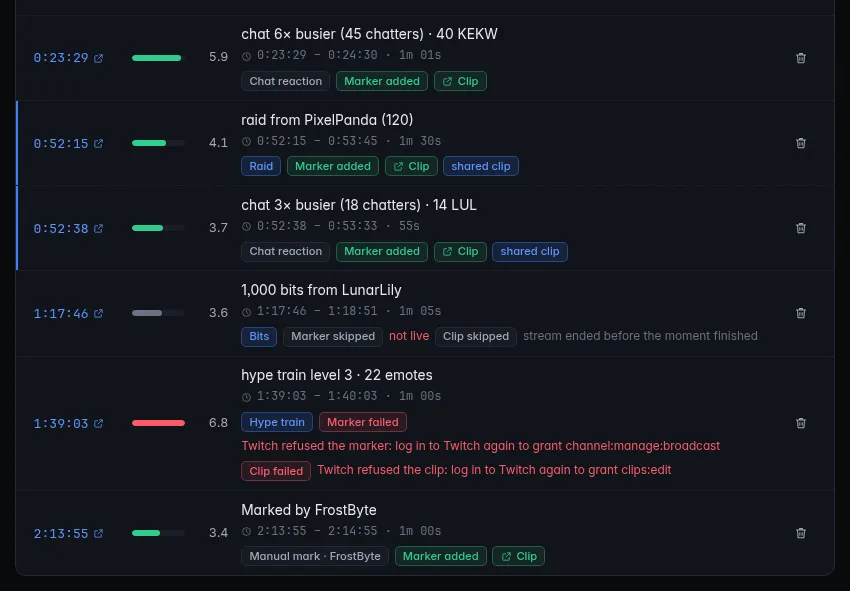
| Chip | Meaning | What to do |
|---|---|---|
| Marker added | The Twitch marker exists. Hover to see where it is in the VOD. | Nothing; find it on Twitch. |
| Clip pending | The clip waits for the capture window to end. | Wait; it is made a few seconds after the window closes. |
| Marker pending | CroStream is still creating it. | Wait a few seconds. |
| Marker failed | Twitch refused it. Hover for the reason. | See Troubleshooting. The moment is still saved and listed. |
| Marker skipped | CroStream didn't try, for example Twitch isn't connected, not live, or too many moments at once. | Connect Twitch; nothing else needed for a skipped moment. |
| Clip (link) | The clip was created. Click to open it. | |
| Clip failed, Clip skipped | Same as the marker's, for the clip. A clip skipped with stream ended before the moment finished or CroStream was closing never had a chance to be made. | The marker and VOD link still work. |
| (no chip) | That step is off: markers or clips are turned off in settings. |
If the VOD isn't known yet, Time isn't a link. CroStream looks for it again every few minutes, usually after the stream ends and Twitch has made the VOD.
If the page is empty
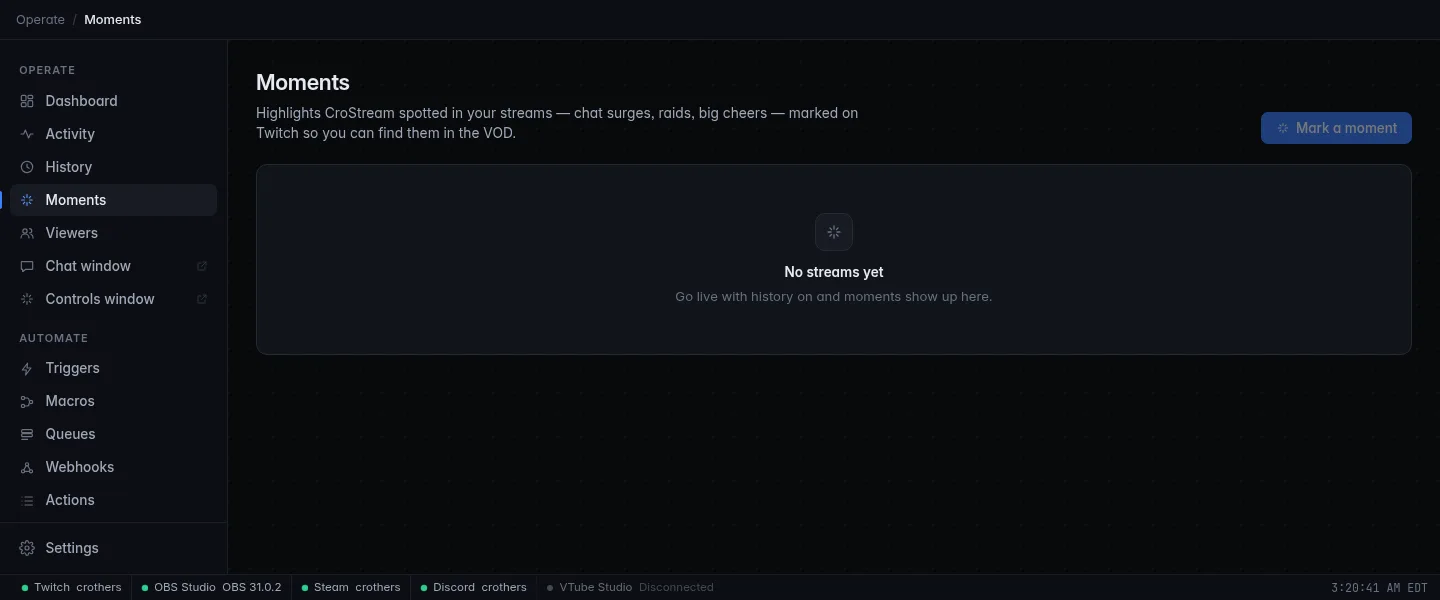
Streams appear once you've been live with History on, and are added to the list as you stream. You will also see these notices at the top:
| Message | Meaning |
|---|---|
| History is off, so moments aren't kept. Turn it on in Settings. | Press Open Settings and turn History on. Nothing is detected or saved without it. |
| Moment detection is turned off. | Find moments is off. Press Open settings to turn it on. |
Preview a past stream
Preview replays the detector over a stream you have already done, using the chat and events saved in History. Use it to choose a sensitivity, or to see what Moments would have found before you trust it live.
- Select a stream on the Moments page.
- In the Preview panel, choose Low, Medium or High.
- Press Preview detection.
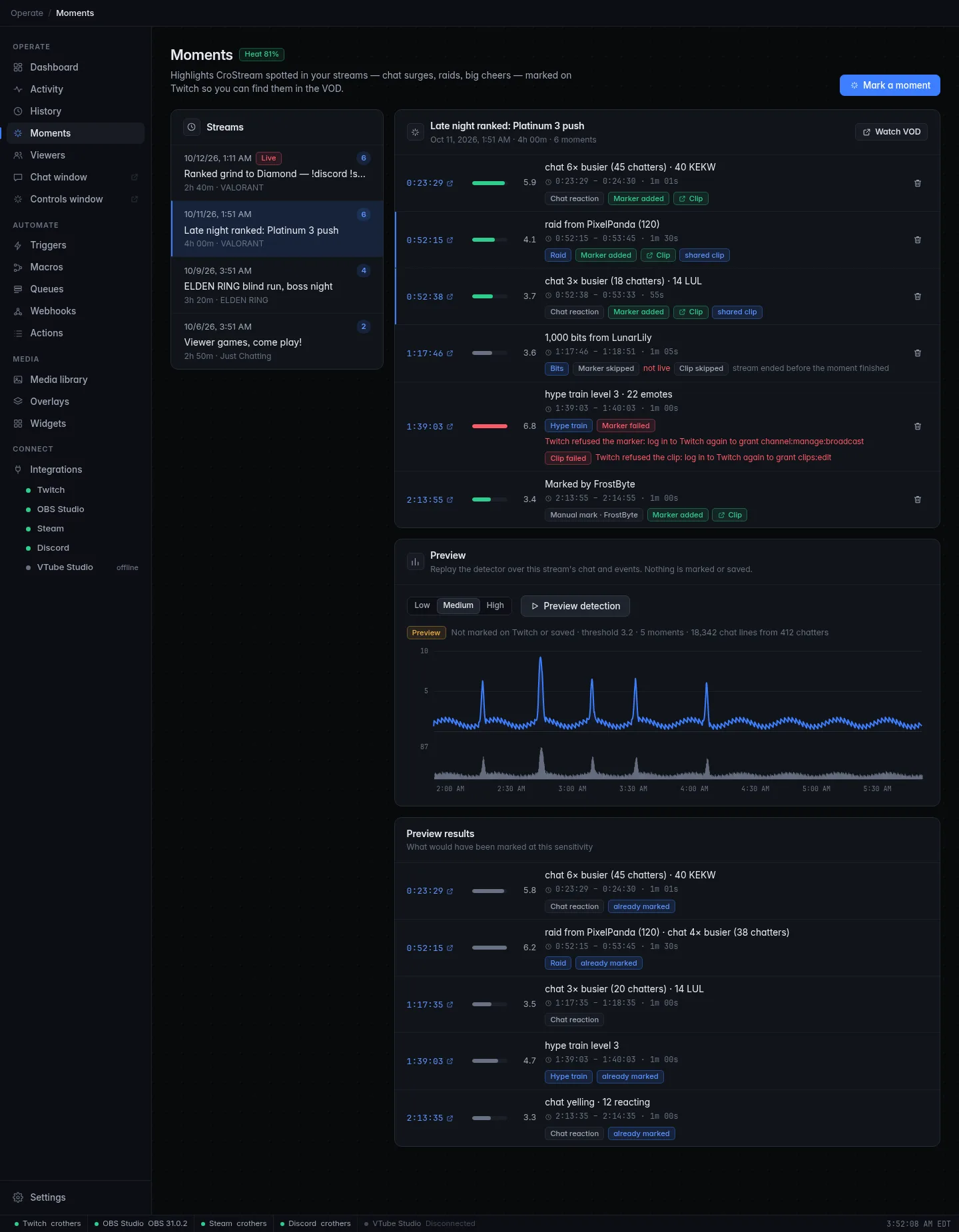
You get a chart of the score over the stream with the chat volume behind it, and Preview results listing each moment that would have been marked. Nothing is marked on Twitch and nothing is saved; the results are tagged Preview. One that is within 30 seconds of a moment you already have shows already marked. Preview shows the line's threshold, how many chat lines and chatters it read, and Nothing would have been marked with a hint to try a higher sensitivity when a level finds none. Only the first 24 hours of a stream are replayed.
Streams you did before Moments existed work too. CroStream rebuilds them from the viewer counts it recorded and marks them approx: their start and end are estimates, and they have no VOD link. Preview uses the chat saved in History, so it can only be as good as what you kept; if you pruned old chat it has nothing to replay.
The Moments panel
Integrations → Moments has the settings and a live panel for use while you stream.
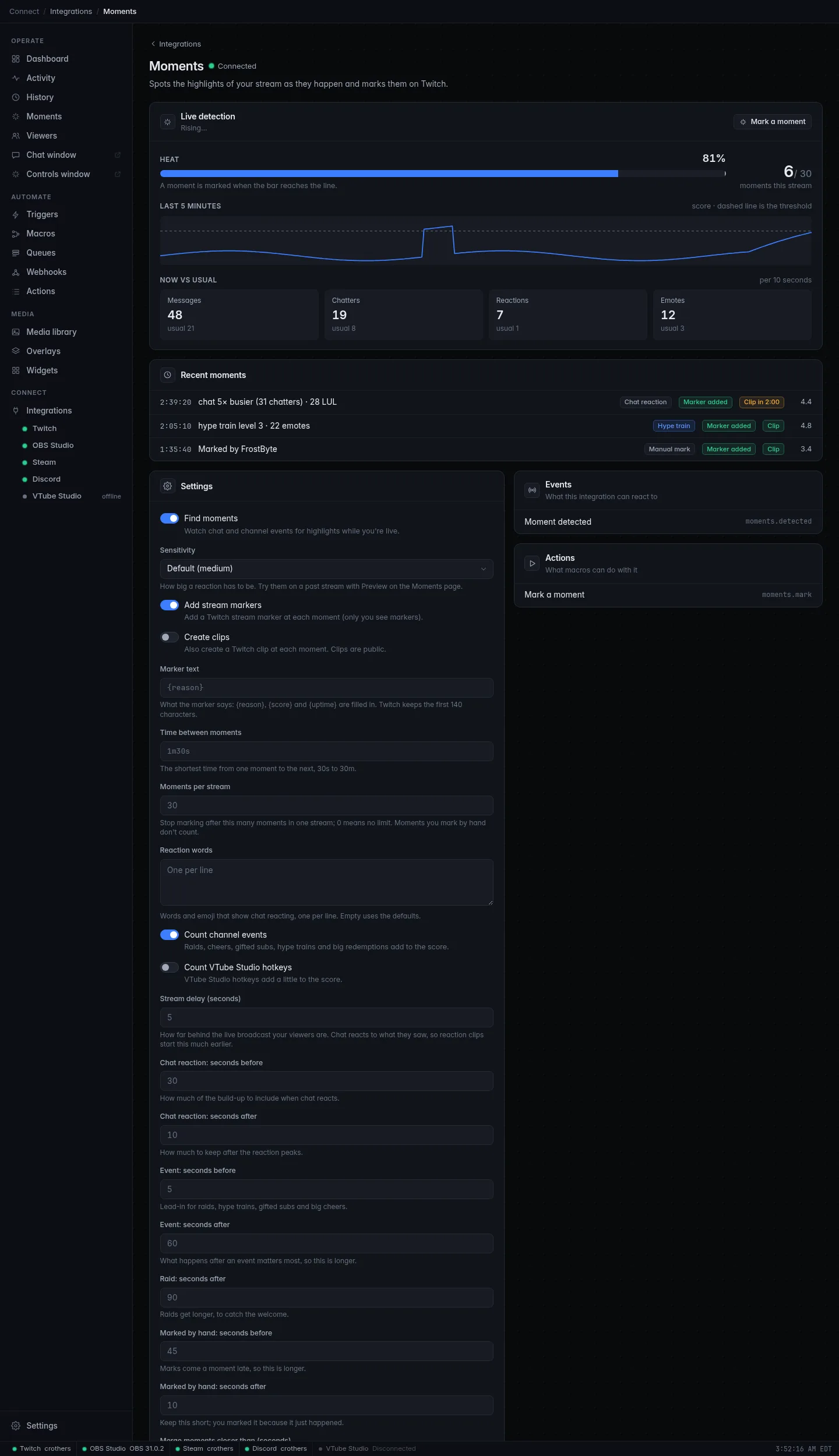
Live detection shows what it is doing: Watching, Rising…, Warming up with the time left, Cooldown with the time left, Limit reached, Offline or Off. The Heat meter fills as chat heats up and a moment is marked when it reaches the line. Beneath it are the count (such as 4 / 30), the score over the last five minutes, Now vs usual (your chat per 10 seconds against its usual level), Recent moments and the same Mark a moment button.
It also warns you about problems, such as a missing permission or History is off, so moments aren't saved.
Settings
| Setting | Default | What it does |
|---|---|---|
| Find moments | On | Watch chat and channel events for highlights while you're live. |
| Sensitivity | Medium | How big a reaction has to be. |
| Add stream markers | On | Add a Twitch stream marker at each moment. |
| Create clips | Off | Also create a Twitch clip for each moment, after its capture window. Clips are public. |
| Marker text | {reason} |
What the marker says. {reason}, {score} and {uptime} are filled in. |
| Time between moments | 90s | The shortest time from one moment to the next, 30s to 30m. |
| Moments per stream | Empty (follows Sensitivity: 15 on Low, 30 on Medium, 60 on High) | Stop after this many in one stream; 0 means no limit. Moments you mark by hand don't count. |
| Reaction words | KEKW, LUL, W, Pog, !!! and others |
Words and emoji that show chat reacting, one per line. Empty uses the defaults. |
| Count channel events | On | Raids, cheers, gifted subs, hype trains and big redemptions add to the score. |
| Count VTube Studio hotkeys | Off | VTube Studio hotkeys add a little to the score. |
Save moments from OBS
| Setting | Default | What it does |
|---|---|---|
| Save moments from OBS | Off | When a moment has played out, save OBS's replay buffer and cut the moment out of it, in your recording's quality. Clips go to the Moments folder of the media library. |
| OBS: start the replay buffer when you go live | On | If OBS's replay buffer isn't running when your stream starts, start it. Only with Save moments from OBS on. |
| OBS: keep the full replay files | Off | Off: once a moment is cut out and saved, CroStream deletes the full replay it asked OBS for (never any other file). On: keep them next to your recordings. |
| OBS: FFmpeg program | (empty) | Leave empty to find FFmpeg on its own. Or enter the full path to ffmpeg.exe (Windows) or ffmpeg. |
Capture
The settings whose names start with Capture: set the windows. Times are in seconds.
| Setting | Default | What it does |
|---|---|---|
| Capture: stream delay (s) | 5 | How far chat and your viewers lag the broadcast, 0 to 30. Chat reactions and manual marks start this much earlier. |
| Capture: chat reaction, before (s) | 30 | Seconds kept before the surge started, 0 to 120. |
| Capture: chat reaction, after (s) | 10 | Seconds kept after its peak, 5 to 180. |
| Capture: events, before (s) | 5 | Seconds kept before a raid, hype train, gift bomb or big cheer, 0 to 120. |
| Capture: events, after (s) | 60 | Seconds kept after it, 5 to 180. |
| Capture: raids, after (s) | 90 | Seconds kept after a raid, 5 to 180. |
| Capture: manual marks, before (s) | 45 | Seconds kept before you pressed Mark a moment, 0 to 120. |
| Capture: manual marks, after (s) | 10 | Seconds kept after, 5 to 180. |
| Capture: merge gap (s) | 10 | Windows closer than this merge into one capture, 0 to 60. |
Windows are never longer than 3 minutes, and never start before the stream. Settings that can't work, such as an after under 5 seconds, are refused with a message.
React to a moment
Moments is also a source of automations.
The Moment detected trigger
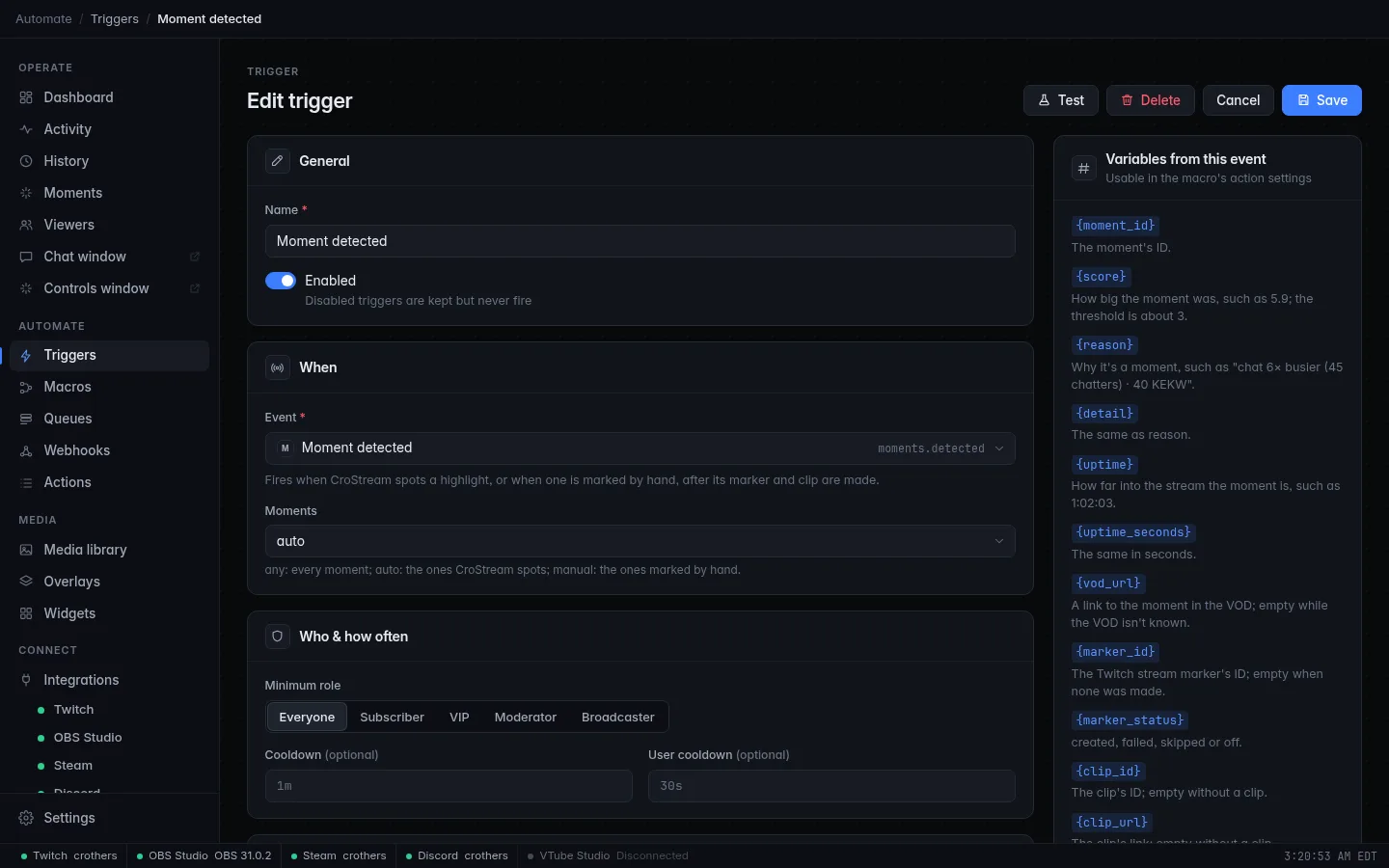
Add a trigger of type Moment detected to run a macro when a moment is found or marked. It fires after the marker is made, so the marker and VOD link are ready. The clip usually isn't yet, because it waits for the window to end: use Moment captured for that. Moments chooses which: any, auto (the ones CroStream spots) or manual (the ones marked by hand).
| Variable | Meaning |
|---|---|
{moment_id} |
The moment's ID. |
{score} |
How big the moment was, such as 5.9; the threshold is about 3. |
{reason} |
Why it's a moment. {detail} is the same. |
{uptime} |
How far into the stream, such as 1:02:03. |
{uptime_seconds} |
The same in seconds. |
{vod_url} |
A link to the moment in the VOD; empty while the VOD isn't known. |
{marker_id} |
The Twitch stream marker's ID; empty when none was made. |
{marker_status} |
created, failed, skipped or off. |
{clip_id} |
The clip's ID; empty without a clip. |
{clip_url} |
The clip's link; empty without a clip. |
{clip_status} |
created, failed, skipped or off. |
{kind} |
reaction, event or manual. |
{local_status} |
pending when an OBS clip will be saved, else off or skipped. |
{window_start} |
Where the capture window starts, such as 0:51:40. |
{window_end} |
Where it ends, such as 0:53:10. |
{window_seconds} |
The window's length in seconds. |
{event_type} |
For an event moment, what set it off (such as twitch.raid); empty otherwise. |
{source} |
auto when CroStream spotted it, manual when marked by hand. |
{marked_by} |
Who marked it by hand; empty for auto moments. |
Ideas: use {vod_url} in a chat message; to post {clip_url} in Discord, use Moment captured instead, send a chat message "That was a good
one", flash the screen, or play a sound.
The Moment captured trigger
Moment captured fires once the delayed capture has run, after the window ends, with the clip's result. This is where to react to a clip: "Clip saved!" in chat, or the link in Discord.
Clip from chooses which clip to react to: twitch (the default, so existing triggers behave as before), obs (clips saved from OBS's replay buffer) or any. With any and both on, it fires once for each.
Fire for chooses when it fires: saved (the default) only when the
clip was made, or any to also fire when it couldn't be (then
{clip_status} is skipped or failed and {clip_error} says why). It has
the same variables as Moment detected, with the clip's final {clip_url},
{clip_id} and {clip_status}, plus the window ({window_start},
{window_end}, {window_seconds}) and {kind}. When several moments were
merged into one clip, it fires once, for that clip.
For an OBS clip, {target} is obs and {local_path} is the file in the
media library, {local_seconds} its length and {local_status} how it went.
The other OBS variables are {local_code}, {local_error}, {media_id} and
{replay_path} (the full replay, when it was kept).
Example: a macro on Moment captured that sends the chat message
Clip saved! {clip_url}. With Fire for left on saved, it only runs
when there is a clip to share.
The Mark a moment action
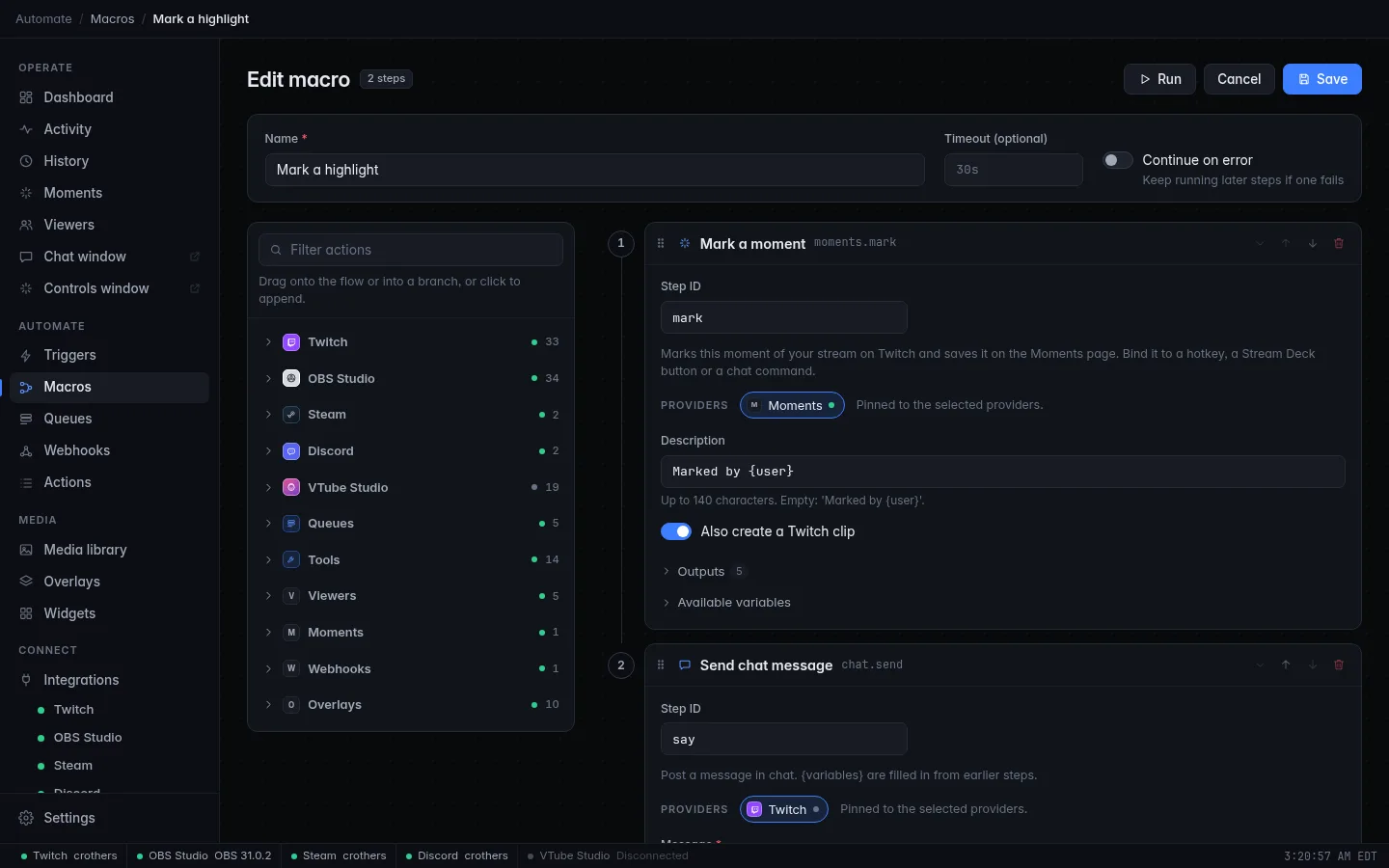
The Mark a moment action (in the Moments group) marks the current
moment of your stream and saves it on the Moments page. Put it on a
hotkey, a Stream Deck button or a chat command such as !mark
(set to moderators) so you can bookmark things the detector wouldn't, like a
quiet, funny moment.
| Setting | Details |
|---|---|
| Description | Up to 140 characters. Empty: Marked by and the name of whoever pressed it. |
| Also create a Twitch clip | Also make a clip. |
It gives later steps {moment_id}, {marker_id}, {vod_url}, {clip_url}
and {uptime}. Two safeguards:
- It can't loop. Used in a macro that a Moment detected trigger started, it stops with an error, so a moment can never mark another.
- A second press within 10 seconds is ignored and returns the first moment, so a double press on a Stream Deck makes one marker.
You must be live. Its clip covers 45 seconds before to 10 seconds after your press (plus stream delay) unless you change the Manual mark windows. After a hand mark the detector also holds off for the cooldown, so you don't get a second, automatic one for the same beat. Test on the action marks nothing.
Troubleshooting
| What you see | Why | What to do |
|---|---|---|
| No moments in a stream | Warm-up (the first 5 minutes), a quiet chat, sensitivity too low, or History or Find moments is off. | Check the Moments panel for the phase, then Preview the stream at High. |
| Marker failed: Twitch refused the marker: VODs may be turned off (Twitch: Settings → Stream → Store past broadcasts) | Twitch only allows markers when it is saving a VOD. | Turn on Store past broadcasts in Twitch settings. |
| Marker failed and log in to Twitch again to grant channel:manage:broadcast | Your login lacks the permission. | Log in again. |
| Marker skipped: Twitch isn't connected | You were logged out of Twitch. | Log in on the Twitch page. |
| Marker skipped: too many moments at once | A burst of moments arrived faster than they can be made. | Raise Time between moments. |
| Time isn't a link / no Watch VOD | The VOD isn't known yet, or the stream was rebuilt (approx). | Wait; CroStream checks again every few minutes. |
| The panel warns that chat or channel events were missed | They arrived faster than they could be read, so moments may be rated low. | Rare, in huge chats. Raise sensitivity. |
| Too many moments | Sensitivity too high or a short cooldown. | Choose Low or Medium, raise Time between moments, lower Moments per stream. |
| Moments are marked for the wrong things | The reaction words don't fit your chat. | Edit Reaction words, or turn Count channel events off. |
| The clip is missing, Clip skipped | The stream ended before the moment finished, or CroStream closed first. | Markers still exist. See When the clip is made. |
| No OBS clip, FFmpeg needed, Partial | The buffer is off, too short, or FFmpeg is missing. | See Saving moments from OBS. |
| The clip misses the start of a raid | Twitch clips are 60 seconds at most. | See the table in When the clip is made. |
| Mark a moment says you're not live | It marks a live stream only. | Start the stream first. |
| Mark a moment fails with a moment's own macro can't mark another moment | It was used in a macro started by Moment detected. | Start it from a hotkey, chat command or button instead. |
Related
- History: where moments are stored, and the chat Preview replays.
- Twitch: the
channel:manage:broadcastpermission and logging in again. - Triggers and Macros: react to a moment.
- Media library: where saved OBS clips go, in the Moments folder.
- Hotkeys: mark a moment from the keyboard.
- Events and Actions: every variable.
- Viewers: the ignore list that Moments follows.