Set up VTube Studio
CroStream talks to VTube Studio through VTube Studio's plugin API, the same way other VTube Studio plugins do. You turn the API on, click Connect in CroStream, and click Allow in VTube Studio. That's a one-time job: after that, CroStream connects by itself whenever both are running.
Time: about 2 minutes.
1. Turn on the API in VTube Studio
- Start VTube Studio and load your model.
- In VTube Studio's settings, turn on Start API (VTube Studio's own docs call it Allow Plugin API access).
- Note the API's port. It's 8001 unless you changed it.
The API stays on the next time you start VTube Studio, so you only do this once.
2. Connect CroStream
-
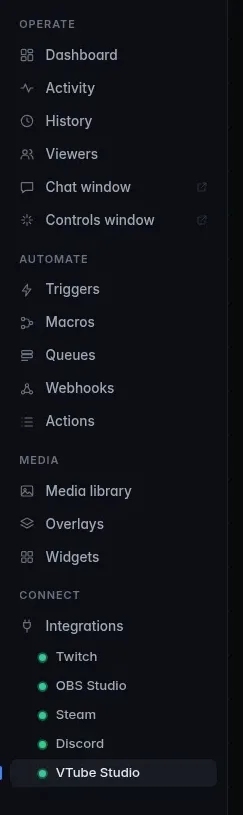
In CroStream, open Integrations → VTube Studio. It's also in the sidebar under Integrations, with a status dot.
-
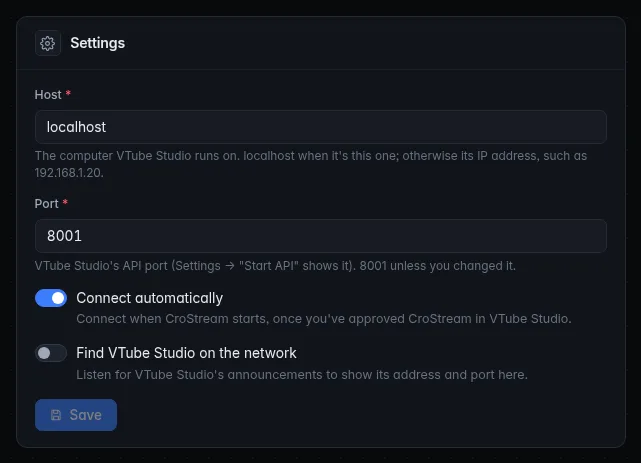
Check the Settings card at the bottom of the page:
Setting What to put Host localhostwhen VTube Studio runs on this computer. Otherwise its IP address, such as192.168.1.20(see VTube Studio on another PC).Port The port from step 1. 8001unless you changed it.Connect automatically On (the default): connect when CroStream starts, once you've approved it. Find VTube Studio on the network Off by default. Turn it on to find VTube Studio on another PC (see Find it on your network). Click Save if you changed anything.
-
In the Connection card at the top, click Connect.
3. Allow CroStream in VTube Studio
The Connection card now says Waiting for your approval, with a reminder to switch to VTube Studio and click Allow for CroStream.
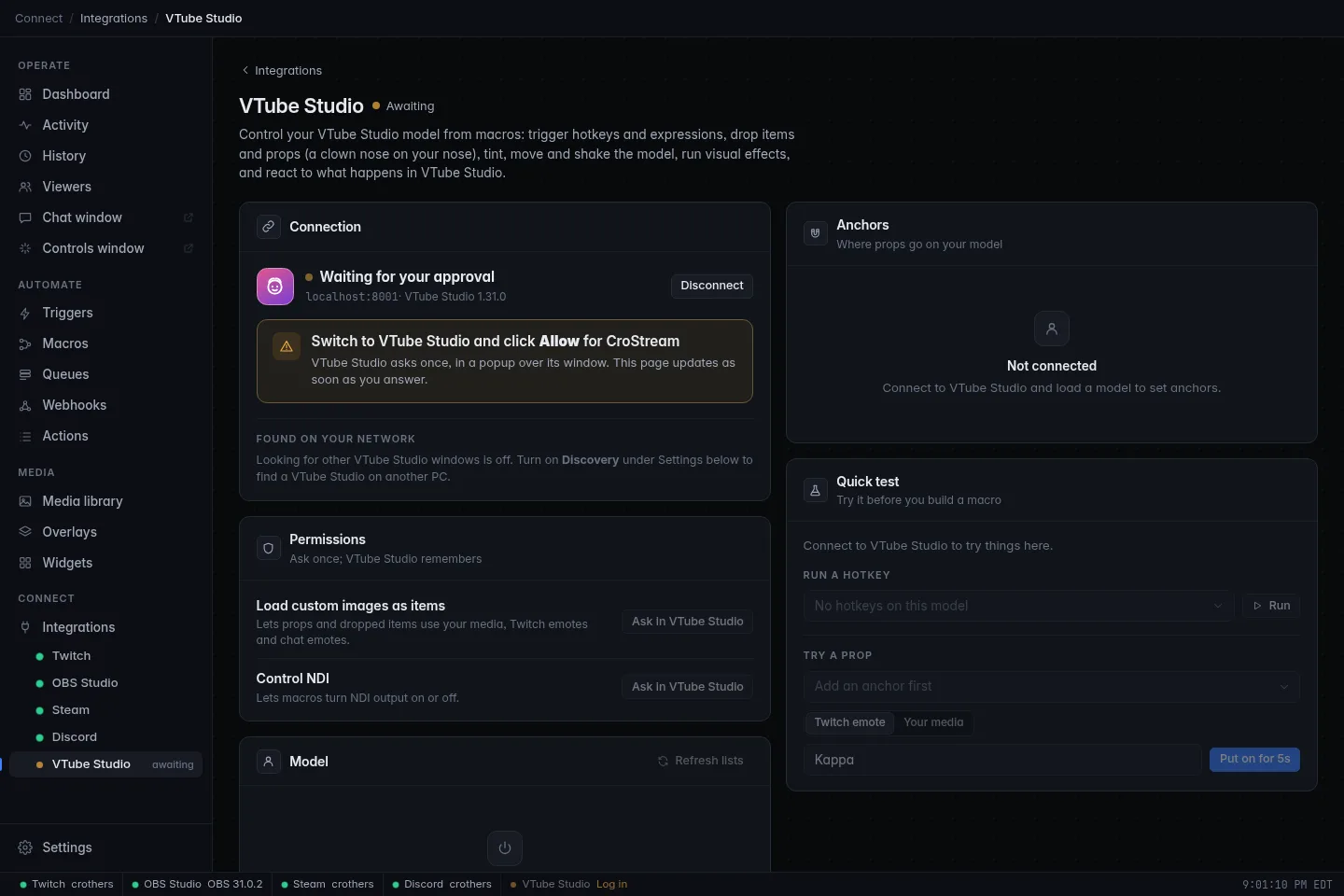
Switch to VTube Studio. A popup asks whether to allow the plugin CroStream (by CroStream, with CroStream's logo) to control VTube Studio. Click Allow. The CroStream page updates on its own and says Connected to VTube Studio, with VTube Studio's version next to the address.
- The popup only appears when you click Connect. CroStream never pops it up on its own at startup.
- It waits about 5 minutes for an answer. If nobody answers, the page says VTube Studio didn't get an answer to the approval window; click Connect to ask again.
- If you clicked Deny by mistake, the page says VTube Studio said no to CroStream. Click Ask again and then Allow.
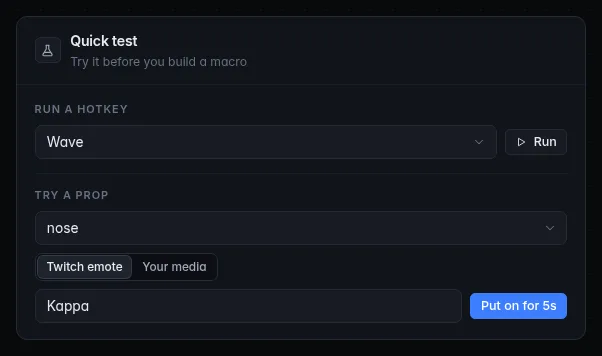
Once allowed, the Connection card says CroStream is approved in VTube Studio. and you're done. Try it straight away with the Quick test card: pick a hotkey and click Run, and your model should react.
The two optional permissions
VTube Studio makes plugins ask separately for two things it considers sensitive. Each is a second popup in VTube Studio, asked once and then remembered. The Permissions card shows both, with Allowed next to the ones you've granted.
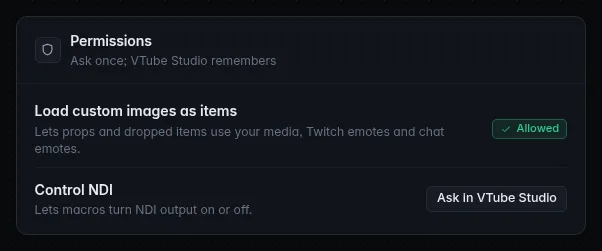
| Permission | What it unlocks | Do you need it? |
|---|---|---|
| Load custom images as items | Props and dropped items that show your media library images, Twitch emotes and emotes from chat. | Yes, for almost every prop. Without it, props can only use items already in VTube Studio's Items folder. |
| Control NDI | The Change VTube Studio's NDI output action. | Only if you use NDI and want macros to change it. Needs VTube Studio's public beta for now. |
To grant one:
- Make sure the Connection card says Connected to VTube Studio.
- Click Ask in VTube Studio next to the permission. The card says Waiting for you to answer in VTube Studio…
- Switch to VTube Studio and allow it in the popup.
If a macro needs a permission you haven't granted, its step fails with a message that says exactly which button to click, for example VTube Studio hasn't allowed CroStream to load images. On CroStream's VTube Studio page, click "Ask in VTube Studio" next to Load custom images, then Allow in VTube Studio.
VTube Studio on another PC
Running VTube Studio on a second computer (a streaming PC and a gaming PC, say) works the same way, as long as both are on the same network:
- On the VTube Studio PC, turn on the API (step 1).
- Find that PC's local IP address, such as
192.168.1.20, or let CroStream find it for you. - In CroStream, set Host to that address and Port to VTube Studio's port, click Save, then Connect.
- Click Allow in VTube Studio, on the other PC.
Firewalls
The VTube Studio PC must let other computers reach its API port (8001
by default). If CroStream says VTube Studio isn't running at
192.168.1.20:8001, or its API is off while VTube Studio is clearly
running, allow that port in the other PC's firewall. The Connection
card's checklist reminds you of this whenever the host isn't this
computer.
Find it on your network
VTube Studio announces itself on your local network every couple of seconds. Turn on Find VTube Studio on the network under Settings and click Save, and the Connection card lists every VTube Studio it hears under Found on your network, with its address, port, and whether its API is on.
- Use points CroStream at that VTube Studio (it saves the new host and port for you). The one you're using is tagged In use.
- If VTube Studio announces a different port from the one in your settings, CroStream says so, such as VTube Studio announces port 8002; set Port to 8002.
Discovery is off by default because most people run VTube Studio on the
same computer, where localhost just works.
Staying connected
- With Connect automatically on, CroStream connects at startup once you've approved it. If VTube Studio isn't running yet, CroStream keeps trying quietly and connects as soon as it starts. VTube Studio is a companion app: while it's closed, nothing nags you.
- If the connection drops (VTube Studio closes or restarts, the network hiccups), CroStream says Lost the connection to VTube Studio; reconnecting and tries again, waiting a little longer each time, up to 30 seconds between tries.
- Disconnect stops it until you click Connect again.
When CroStream disconnects or quits, its props come off, its tints reset and held tracking parameters go back to your face tracking. Changes waiting to be put back after a while (an expression to turn off, effects to restore, the model to move back) are put back when CroStream quits. If the connection only dropped, they're put back once it reconnects, unless that takes more than about 10 minutes. The Model card lists them under Putting back, and Reset everything CroStream changed puts it all back at once.
What's stored where
| What | Where | Notes |
|---|---|---|
| Host, port and the two switches | Your CroStream settings, like any integration's. | Shown in the Settings card. |
| VTube Studio's approval for CroStream | CroStream's secrets, never in config.json. |
It's a token VTube Studio issues when you click Allow. CroStream never shows it, and it's never part of backups or exports. |
| Your anchors | CroStream's state folder, per model. | Kept for every model you've set anchors on. |
| Permissions | VTube Studio itself. | VTube Studio remembers what it allowed CroStream. |
Forget or revoke the approval
There are two ends to the approval, and you can cut either:
- In CroStream: on the VTube Studio page, click Forget approval. CroStream disconnects and deletes its stored approval. The next Connect shows VTube Studio's popup again.
- In VTube Studio: VTube Studio's API settings list the plugins you've allowed; you can revoke CroStream's access, or one of its permissions, there at any time. CroStream then says VTube Studio's approval for CroStream was revoked. Click Connect to approve it again.
Moving to a new PC
Approval belongs to one VTube Studio and one CroStream. After moving either to a new computer, just click Connect and Allow again.
Related
- Props and anchors: set up your model for props
- Troubleshooting: when it won't connect
- VTube Studio integration in the main docs
- Files and folders: where CroStream keeps things