Media library
The media library is where CroStream keeps the files you use on stream: alert pictures and GIFs, sound effects, videos, jump scare images and fonts. Add a file once, then pick it anywhere: in overlays, alerts, widgets and the screen flash.
Open Media library in the sidebar, under Media.
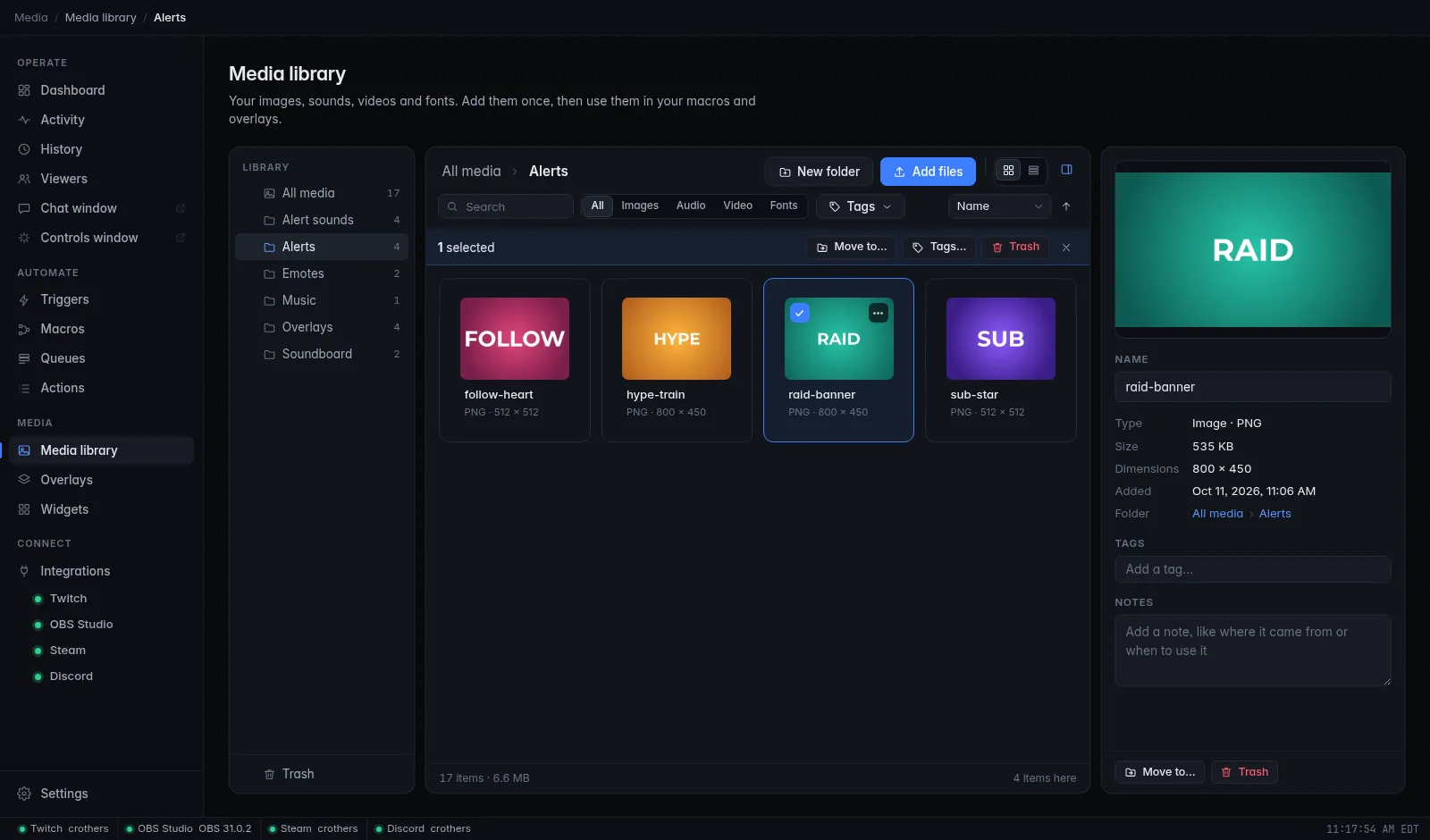
The page has three parts:
- Folders (left): All media, your folders, and the Trash.
- The browser (middle): the files and folders where you are, with the toolbar above them and the totals below.
- Details (right): a preview and the details of what's selected. Hide or show it with the panel button at the top right.
What you can add
| Kind | File types |
|---|---|
| Images | PNG, JPG/JPEG, GIF, WebP, BMP |
| Audio | MP3, WAV, OGG, Opus, FLAC, M4A, AAC |
| Video | MP4, M4V, WebM, MOV, MKV |
| Fonts | TTF, OTF, WOFF, WOFF2 |
- Each file can be up to 4 GB.
- CroStream checks that a file really is what its name says. A renamed file of another type is refused.
- SVG images aren't accepted, for safety: an SVG can carry code.
- Animated GIFs play wherever you use them.
Video formats
A video plays in the app's preview only if your system's web view can play its format. If a preview says This video can't be played here, the file is still in your library. WebM plays almost everywhere; if a video won't play in OBS either, convert it to WebM.
Add files
- Open the folder you want the files in (or stay in All media).
- Click Add files and choose one or more files.
Or drag files from your file manager onto the page. Drop them on a folder (in the folder list or the browser) to put them straight into that folder.
A progress note shows while files are added, then a summary: Added 3 files. Files that can't be added are listed with the reason.
Good to know:
- Files are copied into the library. Moving, renaming or deleting the original afterwards changes nothing in CroStream.
- Adding a file that's already in the library (the exact same contents, whatever its name) doesn't store it twice. The note says it was already in your library.
- You can't add files while you're looking at the Trash.
- In the browser UI, files are uploaded to the PC running CroStream.
Folders
Folders keep things tidy: one for alerts, one for sound effects, one for your "Be right back" slideshow.
- New folder (toolbar) makes a folder where you are. Right-click a folder → New subfolder to nest one inside it.
- Click a folder in the list, or double-click it in the browser, to open it. The path at the top (All media › Alerts › …) takes you back up.
- Rename a folder from its right-click menu, with F2, or in the details panel.
- Move files and folders by dragging them onto a folder (in the browser or the folder list), or with Move to….
- All media shows everything outside any folder, plus your folders.
The Slideshow widget shows one folder's pictures and videos on an overlay, so a folder is also a playlist. A custom widget with a Media folder setting gets the folder's images, videos and sounds, so a folder of sounds can be a playlist too.
Tags
Tags are colored labels you can put on any file, such as hype, scary, funny or sub alert. A file can have many tags, and a tag works across all folders.
- To tag one file, select it and type in Tags in the details panel. You can make a new tag right there.
- To tag many files at once, select them and click Tags….
- Manage tags… (in the tag filter) renames, recolors and deletes tags. Renaming or recoloring a tag changes it everywhere.
Find files
The second toolbar row filters what you see:
- Search looks in names and notes. Inside a folder, it searches that folder and its subfolders.
- All, Images, Audio, Video, Fonts show one kind.
- The tag filter shows items that have all of the tags you pick.
- Sort by Name, Date added, Size, Type or Length; the arrow next to it flips the order.
- The view buttons switch between a grid of thumbnails and a list.
If nothing matches, click Clear search and filters.
Select and work with files
- Click to select. Ctrl-click adds or removes one; Shift-click selects a range; Ctrl+A selects everything shown.
- With several selected, a bar shows Move to…, Tags… and Trash.
- Right-click (or the ⋯ button) for View / Play / Preview, Rename, Move to…, Tags… and Move to Trash.
| Keys | What they do |
|---|---|
| Arrow keys, Home, End | Move between items (with Shift, extend the selection) |
| Enter | Open: view an image, play a sound or video, open a folder |
| Space | Play or pause the selected sound or video |
| F2 | Rename |
| Del | Move to Trash (in the Trash: delete forever) |
| Ctrl+A | Select all |
| Esc | Clear the selection |
Preview and details
Select a file to see it in the details panel:
- Images: a preview. Click it (View) to open the full-size viewer. In the viewer, the arrow keys step through the images, Z (or 1) switches between fit and actual size, and Esc closes it.
- Sounds and videos: a player with play, pause, stop, seek and volume. Only one thing plays at a time.
- Fonts: an Aa sample; type your own text to try it. The panel shows the font's family, weight, style and whether it came from Google Fonts or was uploaded.
Below the preview:
| Field | What it is |
|---|---|
| Name | What CroStream calls the file. Change it freely; it doesn't touch the file. |
| Type, Size, Dimensions, Length | About the file. |
| Added | When you added it. |
| Folder | Where it is. Click a folder to go there. |
| Tags | Its tags. |
| Notes | Anything you want to remember: where it came from, when to use it. Search finds notes too. |
The buttons at the bottom move the file (Move to…) or put it in the Trash.
Thumbnails for images are made when you add them. A video's thumbnail and length are captured by the app itself, once it has been able to play the video (right after you add it, or the first time it's shown).
Trash
Deleting never erases straight away: Trash moves files and folders (with everything inside) to the Trash.
- Right after, the note offers Undo.
- In the Trash, select items and click Restore to put them back.
- Delete forever erases selected items for good; Empty Trash erases everything in it. Both ask first and can't be undone.
- Items left in the Trash are removed automatically after 30 days.
Check before you trash
Actions that play a file on your PC can't use a file that's in the Trash: a screen flash, or an alert sound set to play On this PC, fails until you restore the file.
Use your media
| Where | How |
|---|---|
| Overlays | Image, Video, Sound and Slideshow elements, the picture and sound of an Alert, image fills in text effects and frames. Click the media field to open the picker. |
| Alerts | The wizard's Picture and Sound. |
| Screen flash | The Image and Sound of Flash an image on screen. |
| Macros | Set overlay media swaps an element's file from a macro. |
| Fonts | Font files show under My fonts in the font picker. Google fonts you pick are downloaded into a Fonts folder here. |
| Your widgets | Media fields in custom widgets. |
The media picker shows the same library, filtered to the kinds that fit (only images for an image, only sounds for a sound).
Play a sound uses a file on your PC
The Play a sound action takes a path to a sound file on your PC
(such as C:\Sounds\airhorn.mp3), not a media library item. To play a
library sound, use an overlay Sound element with
Play media or fire an effect, an alert, or a
screen flash with a sound.
Where the files are stored
The library lives in the library folder of CroStream's state folder
(see Where files are kept):
library.db: the list of folders, files, tags and notes;files/: the copied files, named by ID rather than by your names;thumbs/: the thumbnails.
Rename and organize files in CroStream, not in that folder.
Back it up
The media library is not part of CroStream's
config backups. To keep your files safe, or
to move to another PC, copy the whole library folder too.
Troubleshooting
| Problem | What to do |
|---|---|
| That file type isn't supported. | Use one of the types in What you can add. Convert SVGs to PNG. |
| A file is refused though its type is listed. | Its contents don't match its name (for example a WebP renamed to .png). Save it again in the right format. |
| was already in your library | The same file is already there, maybe under another name or in another folder. Search for it. |
| A video shows no thumbnail or length. | Select it once so the app can play it, or convert it to WebM. |
| A video won't play in the preview. | The system's web view can't play that format. Try it in OBS, or convert it to WebM. |
| A screen flash or an alert sound on this PC fails. | Check the file isn't in the Trash. |
Related
- Overlays and Widgets
- Alerts
- Screen flash
- Tutorial: Sounds from the media library