Desktop behaviour
CroStream is meant to run all through your stream, usually in the background. This page covers how it lives on your computer: its icon in the system tray (or the macOS menu bar), what closing the window does, starting by itself when you log in, and the system notifications it can show. You set all of it in Settings → Desktop app.
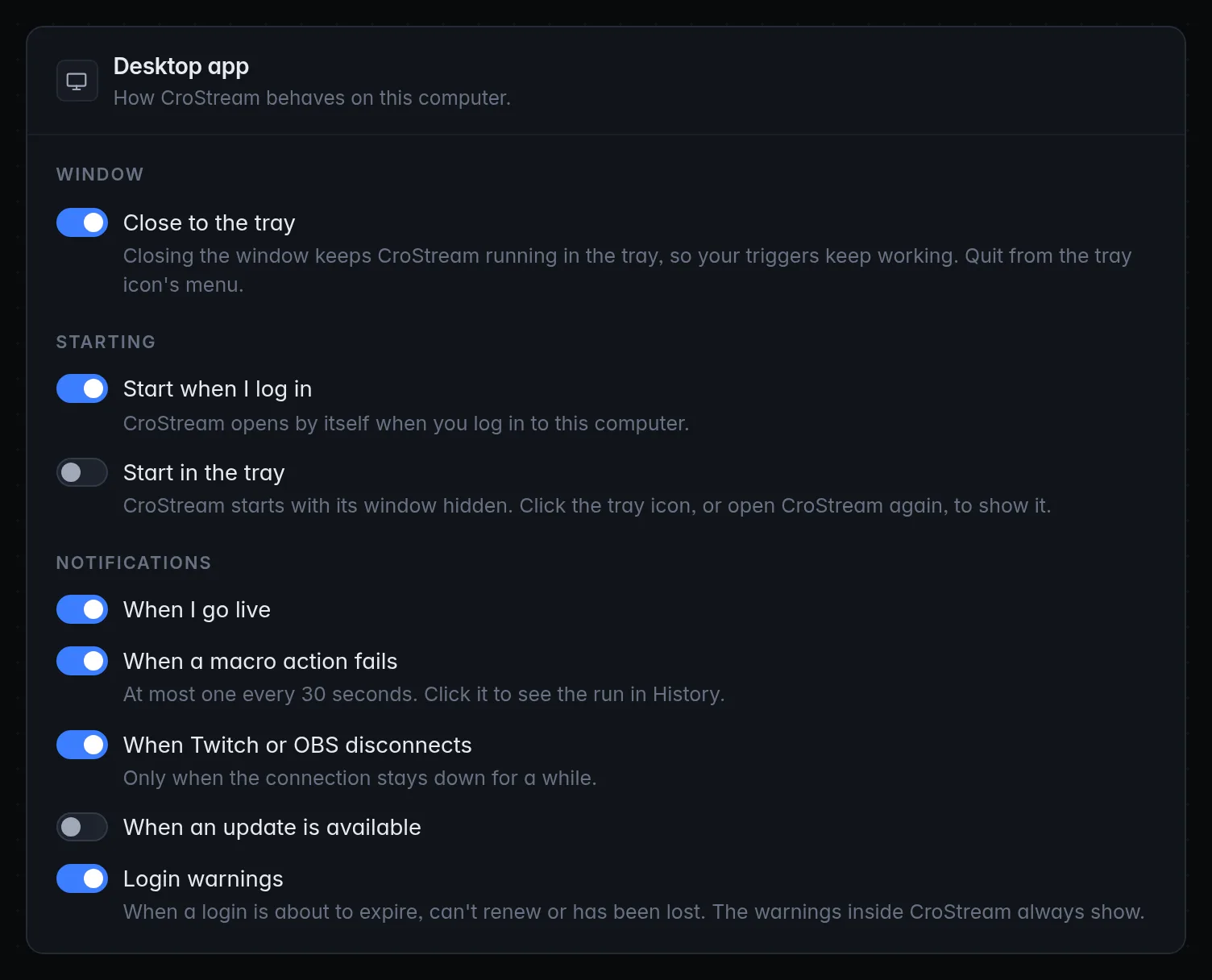
Each switch takes effect as soon as you flip it and shows Saved. No restart needed. On macOS the panel says menu bar where the others say tray.
Tray icon
While CroStream runs, its icon sits in the system tray (the notification area at the bottom right on Windows, the top bar on most Linux desktops) or in the menu bar at the top of the screen on macOS.
- Click the icon to show the window, or to hide it when it's already showing.
- Right-click it for the menu.
- Click the menu bar icon for the menu. Use Show CroStream in the menu to bring the window forward.
Hover over the icon to see your stream at a glance:
| Tooltip | Meaning |
|---|---|
| CroStream — Offline | You're not live. |
| CroStream — Live · 128 viewers | You're live, with that many watching. |
| CroStream — ⚠ Twitch login expires in 6 days | A login warning needs you. It outranks everything else. |
The tray menu
| Item | What it does |
|---|---|
| status line | Not clickable. Your stream and OBS at a glance, for example LIVE · 128 viewers · OBS connected, Offline · OBS not connected or Twitch not connected · OBS connected. While a login warning is up it shows that instead, starting with ⚠. |
| Show CroStream | Shows the window and brings it to the front. |
| Chat window | Opens the Chat window, or brings it forward. |
| Controls window | Opens the Controls window, or brings it forward. |
| Clear screen flash | Removes a screen flash that's showing. Only there on computers where screen flashes work. |
| Settings… | Shows the window at Settings. |
| Report a problem… | Shows the window with the Report a problem box open. |
| Quit CroStream | Quits CroStream completely, closing every CroStream window. |
Linux with GNOME: no tray
Stock GNOME has no system tray, so the icon has nowhere to show. Install the AppIndicator and KStatusNotifierItem Support extension (Ubuntu already has it). Until you do, leave Close to the tray and Start in the tray off, or the window can hide with no icon to bring it back. If that happens, open CroStream again from your app launcher: the running copy comes back to the front.
Close to the tray
Close to the tray (Close to the menu bar on macOS) decides what the window's close button does.
- On: closing the window hides it, and CroStream keeps running in the tray. Your triggers, chat commands, overlays and alerts keep working. Click the tray icon (or Show CroStream in its menu) to bring the window back.
- Off (the default): closing the window quits CroStream. Your triggers stop until you start it again, and any open Chat or Controls window closes with it.
Either way, closing a Chat or Controls window only closes that window. It never quits CroStream.
Turn this on if you stream with CroStream in the background
Quitting by accident mid-stream means !clip, redemptions and alerts
stop. With Close to the tray on, the close button can't do that;
you quit on purpose, from the tray.
On macOS, Report a problem… is also in the Help menu of the menu bar at the top of the screen.
Quitting
To quit CroStream with Close to the tray on:
- click Quit CroStream in the tray icon's menu, or
- on macOS, press ⌘Q or choose CroStream → Quit CroStream.
Quitting remembers where your Chat and Controls windows were, so they open in the same place next time.
Starting
Start when I log in
Start when I log in opens CroStream by itself when you log in to this computer, so it's already listening by the time you open OBS. Your operating system keeps this setting, so if you remove CroStream from the system's own list of startup apps, this switch shows as off too.
The switch only appears on systems where CroStream can do this. If it can't change the setting, the panel says CroStream couldn't change whether it starts when you log in.
Start in the tray
Start in the tray (Start in the menu bar on macOS) starts CroStream with its window hidden. Everything runs as normal; click the tray icon, or open CroStream again, to show the window. It pairs well with Start when I log in: CroStream starts quietly every time you log in.
Opening CroStream again
Only one CroStream runs at a time. Opening it again, from the Start menu, the Dock, a desktop shortcut or your app launcher, doesn't start a second copy: it brings the running window to the front, even when it was hidden in the tray.
Notifications
CroStream can show system notifications, the pop-ups your operating system shows in its corner and keeps in its notification center. They're useful when CroStream's window is hidden or behind your game. Clicking a notification brings CroStream's window forward on the page that explains it.
Each kind has its own switch under Notifications. All are off until you turn them on, except Login warnings, which are on until you turn them off.
| Switch | When it shows | What it says | Clicking it opens |
|---|---|---|---|
| When I go live | Your stream goes live on Twitch. | You're live, with your stream title. | the window |
| When a macro action fails | A step of a macro fails. At most one every 30 seconds. | Macro “clip” failed, with the reason in plain words. | History, showing that run |
| When Twitch or OBS disconnects | Twitch or OBS loses its connection and is still down 20 seconds later. A quick reconnect doesn't notify. At most one a minute for each. | Twitch disconnected: CroStream is trying to reconnect. OBS disconnected: check that OBS is running. | that connection's page |
| When an update is available | A new version is found. Once per version. | CroStream version is available: open Settings to update. | Settings |
| Login warnings | A login is about to expire, can't renew or has been lost. Once each time a warning appears or gets more urgent. | ⚠ Twitch login expires in 6 days, with your account and the reason. | that connection's page |
Turning Login warnings off only stops the system notification. The warnings inside CroStream always show.
Notifications appear at the bottom right and stay in the notification center. If none appear, check Settings → System → Notifications in Windows, and that Do not disturb or focus isn't on.
The first time you turn on a notification, macOS asks whether CroStream may send notifications. Click Allow. If you clicked Don't Allow, CroStream says Saved, but the system isn't letting CroStream show notifications. Allow them in the system's notification settings. Open System Settings → Notifications → CroStream and turn on Allow notifications.
Notifications need a notification service, which every mainstream desktop has. Without one, the panel says System notifications aren't available on this computer. and the switches are greyed out.
Troubleshooting
| Problem | What to do |
|---|---|
| I closed the window and my commands stopped | Close to the tray was off, so closing quit CroStream. Start it again and turn the switch on. |
| The window hid and there's no tray icon | Your desktop has no tray (stock GNOME). Open CroStream again from the app launcher to bring the window back, then install the AppIndicator extension or turn Close to the tray and Start in the tray off. |
| Start when I log in is missing | Your system doesn't let CroStream add itself to the startup apps. Use your system's own startup settings instead. |
| No notifications at all | Check the switch for that kind is on, then the system's notification settings (above). On Linux, a notification service must be running. |
| Too many notifications | Failures are limited to one every 30 seconds and disconnects to one a minute per connection. To stop a kind, turn its switch off. |
| Notifications are greyed out | The system doesn't support them here: see the Linux tab above. |