Write your own widgets
A custom widget is an overlay element you write yourself, in HTML, CSS and (optionally) JavaScript. Once saved, it sits in the overlay editor's Add menu next to the built-in elements, gets its own settings in the inspector, and receives live data from your channel: chat, events, counters, timers, leaderboards, the hype train, polls and more. Use one when no built-in element does what you want, or when you want a built-in to look completely different.
This page is the complete reference. It starts with how widgets work, then walks through building a real one (a sub goal bar), then gives a cookbook of working widgets you can paste in. For placing, cloning and sharing widgets without code, see Widgets in the Guide.
Widget code doesn't run inside the Linux desktop app
On Linux, the desktop app's web view can't keep a widget's code away
from the app, so CroStream doesn't run it there: the element shows a
note instead. Widgets run normally in OBS, in the Windows and macOS
apps, and in browser mode. On Linux, run
crostream serve and edit widgets in a browser.
How a widget works
flowchart LR
    D[Widget definition<br/>HTML, CSS, JS, fields, data keys] --> H
    L[Live data<br/>chat, events, counters…] --> H
    F[Element settings<br/>from the inspector] --> H
    H[Overlay page] -- postMessage --> W[Sandboxed frame<br/>widget runtime + your code]
A widget is a definition in your widget library: its template, styles, script, the settings it offers (its fields), the live data it reads (its data keys), and sample data for previews. An overlay places it as an element, which stores only the field values you chose in the inspector.
Widgets are linked: an overlay always draws the widget's current saved version. Saving the widget updates every overlay that uses it, live, in OBS too. If you change a widget's fields, elements already placed keep their values where those still fit, and fall back to the field's default where they don't, so editing a widget never breaks an overlay.
On the overlay page, each widget element runs in its own sandboxed frame: a separate, locked-down document with the widget runtime in it. The page sends the frame your code once, then sends it updates as they happen: new field values, changed data, size, theme, visibility and play cues. The runtime renders your HTML template into the element's box after every change, and runs your JavaScript once, after the first render.
The sandbox, and why
A widget can't harm your stream, your setup or your accounts, even if you paste code you didn't write. That's deliberate: widgets are shared as files, and the overlay page runs next to an app that can post to your chat, ban viewers and switch OBS scenes.
| A widget can | A widget can't |
|---|---|
| Run JavaScript, including timers, animations and canvas drawing | Reach the app, its settings or your logins |
| Show images, video and sound from your media library | Load anything from the internet: no fetch, no WebSocket, no remote images or fonts |
| Show Twitch emotes | Open pop-ups or dialogs, submit forms or navigate the page |
Use data: and blob: URLs it makes itself |
Read cookies or browser storage of the page |
| Use library fonts and fonts installed on the computer | Read live data it didn't declare |
How it's enforced:
- The frame is sandboxed with
sandbox="allow-scripts"only, so its document has an opaque origin. It can talk to the page bypostMessageand nothing else. - A Content-Security-Policy on the frame blocks all network access
(
connect-src 'none'), allows images only from the overlay server's/media/and/emote/paths (plusdata:andblob:), video and sound only from/media/(plusdata:andblob:), and fonts only as data the page hands over. The runtime repeats the same policy as a<meta>tag, and a widget can't loosen either. - Messages carry a per-frame secret (a random nonce), so nothing else can talk to the frame or impersonate it.
- A frame that navigates away is stopped. The page reports "the widget navigated away from its page and was stopped".
What a widget could reveal, at worst, is what it was given: its field values and the data keys it declared.
The widget editor
Open Media → Widgets in the sidebar. The library lists Your widgets and the Built in elements. From here you can:
- click New widget, give it a name and click Create to start from a small blank template;
- click Clone on a built-in to get its full source as a widget of your own (most built-ins can be cloned: chat, alerts, goal, leaderboard, emotes, timer and more). This is the fastest way to learn the API: every clonable built-in is written with the same template, runtime and building blocks you use;
- click Import to add widgets from
.slwidgetfiles; - open a widget's menu for Edit, Duplicate, Export and Delete.
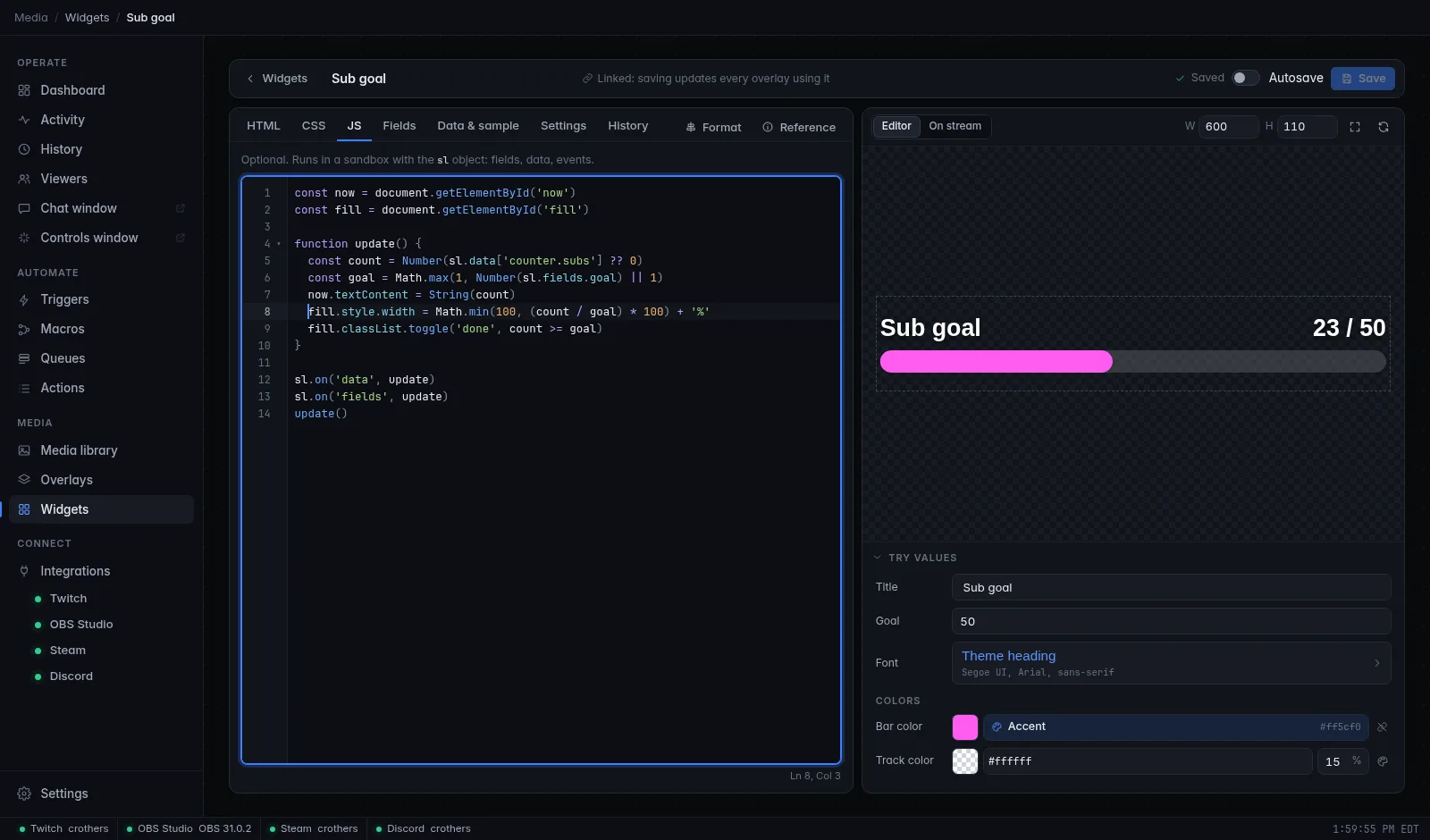
Opening a widget shows the editor. The top bar has the widget's name, a reminder that it's linked ("Linked: saving updates every overlay using it"), the save status, an Autosave switch and Save.
The left pane has these tabs:
| Tab | What it holds |
|---|---|
| HTML | The template: HTML with {{…}} placeholders. See The template language. |
| CSS | Styles for the template. They apply inside this widget only. |
| JS | Optional script, run in the sandbox with the sl object. |
| Fields | The settings the element shows in the overlay inspector. See Fields. |
| Data & sample | The live data the widget reads, and sample data for previews. See Live data. |
| Settings | Name, Description, Icon, Tags, Size of a new element and Keep proportions. |
| History | The last 20 saved versions. Restoring one saves it again as the newest version. |
The HTML, CSS and JS tabs are a full
code editor: colours, completion that knows the sl
API and your fields, checks as you type, and a Format button (in the
tab bar while a code tab is open). The Reference button opens a cheat
sheet of the template syntax, the sl API, the building blocks and the
CSS hooks; on a code tab, click any example in it to insert it at the
cursor. Format and Reference stay pinned at the right end of the
tab bar; when the pane is narrow they shrink to icons, and the tabs
scroll sideways, with faded edges showing there are more.
The right pane is the preview:
- Preview as switches between Editor (how the element looks in the overlay editor) and On stream (how it looks in OBS). Both use your sample data, not live data.
- W and H set the preview size. The expand button goes back to the widget's default size, and the refresh button starts the preview over, which reruns your script from scratch.
- Errors the preview hits while running your widget (a template that doesn't compile, a script that throws) appear under the preview, as a count on the tab they came from, and in that tab's editor: marked on their line and listed under the code with a Line link that jumps there. See Checks as you type.
- Try values shows the widget's fields so you can try settings without changing the defaults. Use defaults puts them back.
Press Ctrl+S (or Cmd+S) to save. With Autosave on, CroStream saves 1.5 seconds after you stop typing; the switch is remembered in this browser. If the widget was saved somewhere else meanwhile (another window, another browser), your save is refused and a banner offers Reload; copy any code you want to keep first.
The code editor
The HTML, CSS and JS tabs, the sample data boxes on
Data & sample, and the CSS box in the overlay
inspector all use the same code editor. It colours your code and numbers
its lines, folds blocks, supports several cursors, finds and replaces,
matches and closes brackets, and toggles comments. On top of that it
knows CroStream: it completes the sl API, event names, your fields and
data keys, checks your code as you type, explains what's under the mouse,
and tidies your code with Format.
Everything here works offline and costs nothing until you use it: the editor loads the first time you open one, the TypeScript checker the first time you open a JS tab, and the formatter the first time you format.
Checks as you type
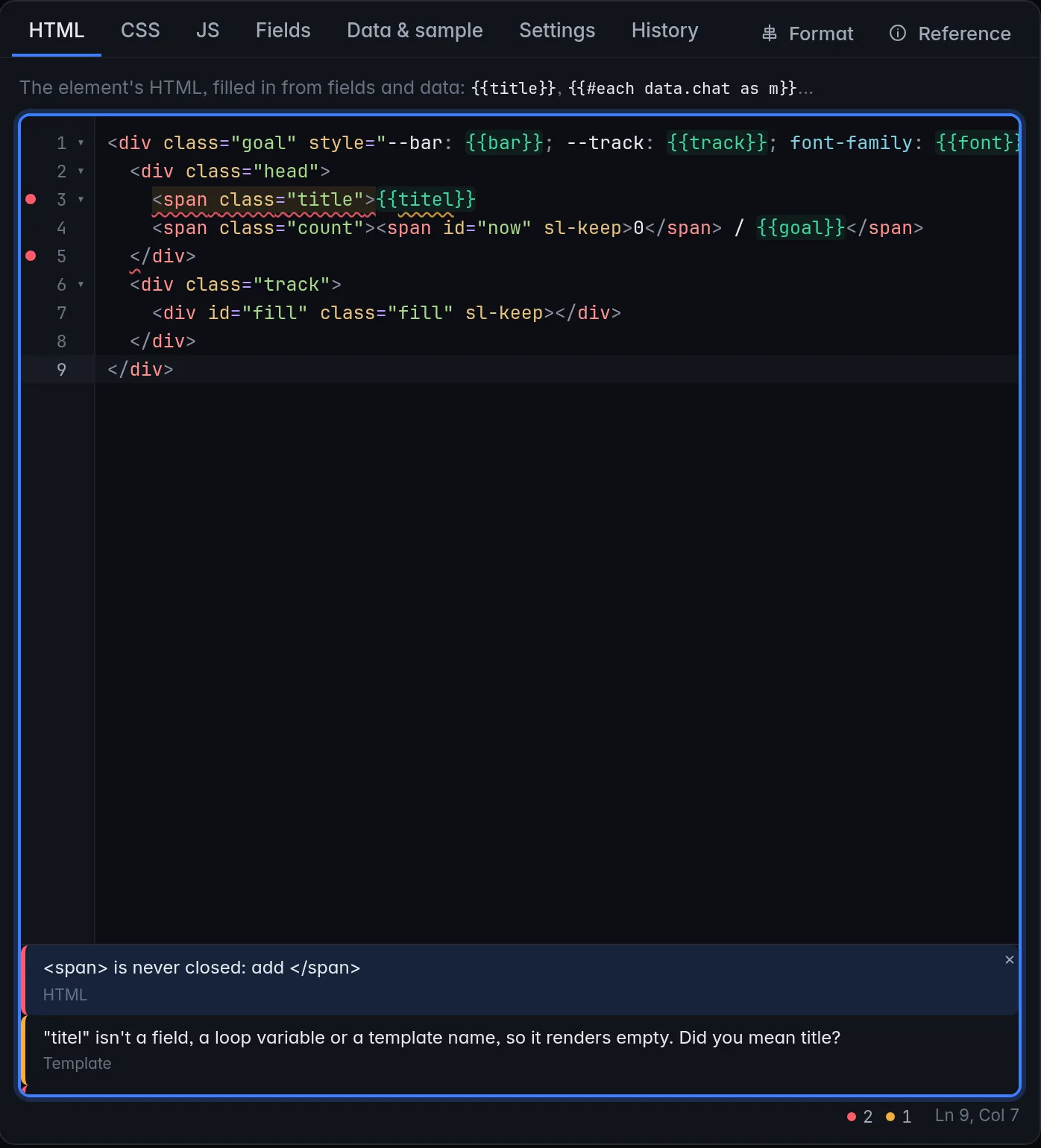
About a third of a second after you stop typing, the editor checks the code and marks every problem it finds:
- a squiggle under the code: red for an error, amber for a warning;
- a dot in the gutter next to the line number; hover it to read the line's messages;
- the message on hover: point at the underlined code to see what's
wrong and which check found it (
Syntax,TypeScript 2551,CSS,HTML,Template,JSON,Widget APIorPreview); - a counter under the editor, next to the cursor position
(
Ln 6, Col 45): the number of errors after a red dot, of warnings after an amber one. Click it to open the problems panel.
Errors are code that is broken or will fail when it runs. Warnings are code that runs but probably doesn't do what you meant. Neither stops you from saving: the checks are there to help, and the preview has the final word. (Sample data is the one exception: a sample that isn't valid JSON blocks saving, as Sample data explains.)
What each tab checks:
| Tab | It catches | For example |
|---|---|---|
| HTML | Tags left open, close tags that don't match, tags without their > |
<span>{{title}} without </span>: "<span> is never closed: add </span>" (error) |
| HTML | Template blocks that don't fit together | "{{#if}} is never closed: add {{/if}}", "{{/if}} closes {{#unless}}", "Unknown block {{#with}}: use #if, #unless or #each", "{{else}} outside a block" (errors) |
| HTML | Paths that aren't paths | {{foo bar}}: "Bad path "foo bar": use names and dots, like data.stream.title" (error) |
| HTML | Names that would render empty | {{titel}}: ""titel" isn't a field, a loop variable or a template name, so it renders empty. Did you mean title?" (warning) |
| HTML | Fields and data the widget doesn't have | {{fields.gaol}}: "No field "gaol". Did you mean goal?"; {{data.chat}} without declaring chat: "This widget doesn't read data "chat". Add the key on the Data & sample tab." (warnings) |
| HTML | Loop names outside a loop | {{@index}} outside {{#each}}: "@index only has a value inside {{#each}}" (warning) |
| CSS | Syntax errors | A missing ; or }: "CSS syntax error near …", "The CSS ends early: a "}" or ";" may be missing" (errors) |
| CSS | Unknown properties | colr: gold: "Unknown property "colr". Did you mean color?" (warning) |
| JS | Syntax errors, at the exact spot | "Unexpected ")" here", "This string never ends: add the closing quote", "Unexpected end of the code: a bracket or quote may be missing" (errors) |
| JS | Mistakes against the sl API and this widget |
See The TypeScript check |
| Sample data | Invalid JSON | "Expected ',' or '}' after property value" (error) |
The template checks know this widget: a name counts as known when it's
one of its fields, a loop variable in scope, a declared data key, or one
of the template's own names (theme, size, mode, visible, this,
fields, data and the @ names). Custom properties (--my-gap) and
vendor-prefixed properties (-webkit-text-stroke) are never flagged as
unknown. The list of known properties comes from the web view CroStream
runs in, so a property newer than it may be flagged although OBS
supports it; it's only a warning, and the CSS still works.
Errors from the preview join the editor's own checks. When the
preview hits an error while running your widget (a template that doesn't
compile, a script that throws), the error is marked on its line with the
source Preview, and listed under the editor (up to five, then
"and … more"); click Line on one to jump to it. They clear when the
preview runs your changed code.
The TypeScript check
The JS tab also runs your script through TypeScript's checker, in the
background, so checking never slows down typing. It treats your code as
plain JavaScript (you don't write types) and checks it against a full
description of the sl API and of this widget: sl.fields has
exactly your fields, and sl.data exactly the keys you declared on
Data & sample. Add a field or a key and the checker knows about it at
once.
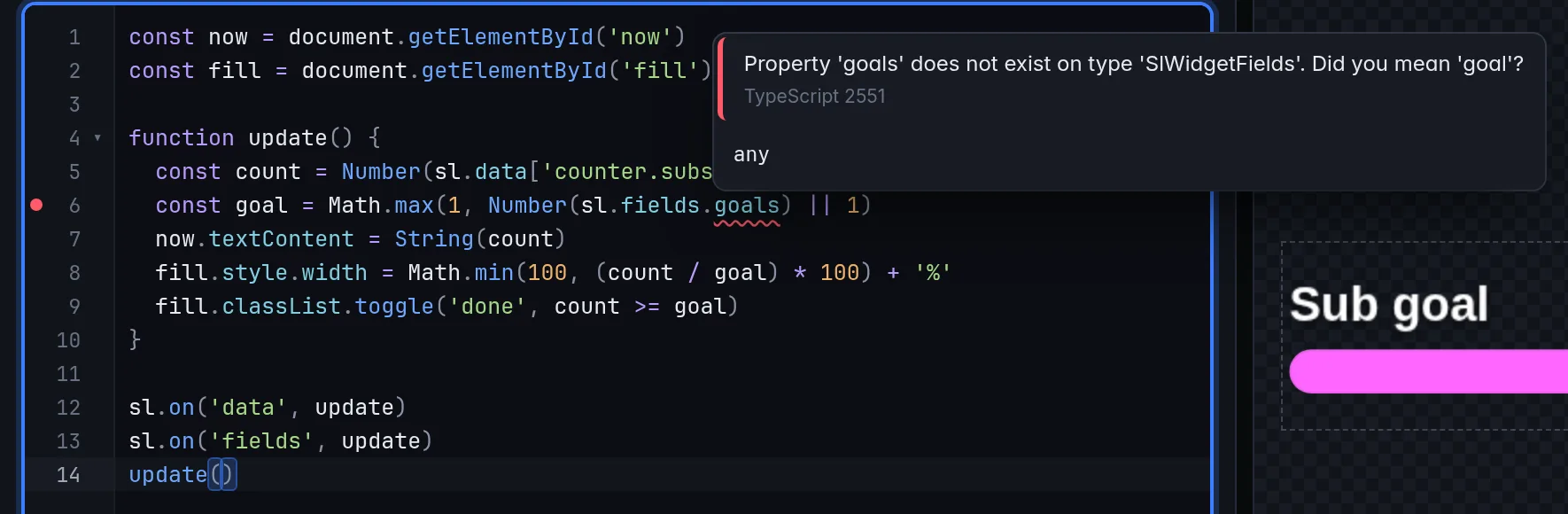
Errors are mistakes that fail when the script runs:
| Code | Message |
|---|---|
sl.onn('data', update) |
Property 'onn' does not exist on type 'Sl'. |
sl.fields.goals (the field is goal) |
Property 'goals' does not exist on type 'SlWidgetFields'. Did you mean 'goal'? |
sl.theme.colors.primry |
Property 'primry' does not exist on type 'SlThemeColors'. Did you mean 'primary'? |
sl.data.chat without declaring chat |
Property 'chat' does not exist on type 'SlWidgetData'. |
updat() |
Cannot find name 'updat'. Did you mean 'update'? |
sl.media() |
Expected 1 arguments, but got 0. |
sl.on('cue2', play) |
Unknown event "cue2": it never fires. sl.on takes data, fields, cue, size, theme, show, hide or muted. Did you mean 'cue'? |
sl.data['counter.sbus'] (the key is counter.subs) |
This widget doesn't read data "counter.sbus", so sl.data['counter.sbus'] is always undefined. Add the key on the Data & sample tab, or did you mean 'counter.subs'? |
Calling something that isn't a function and assigning to a const are
errors too. The last two come from CroStream's own widget check, so their
hover names the source Widget API rather than a TypeScript number.
Keys in brackets are checked like keys after a dot. A string in
sl.data['…'] (or sl.data["…"]) must be a key you declared on
Data & sample, a key a declared pattern covers (timer.break when
you declared timer.*), the first word of a declared key (sl.data['latest']
when you declared latest.twitch.follow), or folders.<field key> of a
Media folder field when folder.* is declared. Keys built while the
script runs, like sl.data['timer.' + sl.fields.timer], can't be known
in advance and aren't checked.
Warnings are type mismatches that plain JavaScript usually gets away with, because it converts the value for you:
| Code | Message |
|---|---|
now.textContent = count (a number) |
Type 'number' is not assignable to type 'string'. |
sl.media(42) |
Argument of type 'number' is not assignable to parameter of type 'string'. |
Fix a warning by making the conversion explicit
(now.textContent = String(count)), or ignore it if you're sure.
The checker knows the browser's DOM and modern JavaScript, including
iterating DOM lists: for (const el of document.querySelectorAll('li')),
spreading a NodeList and Array.from(…) all check cleanly.
While the script has a syntax error, only the syntax error is shown: TypeScript waits until the code parses again.
Completion
Suggestions open as you type; press Ctrl+Space to open them anywhere (on macOS also Option+I). Move with Up and Down, accept with Enter, close with Esc. The panel beside the list explains the highlighted entry: its signature, what it does, its parameters, what it returns and an example.
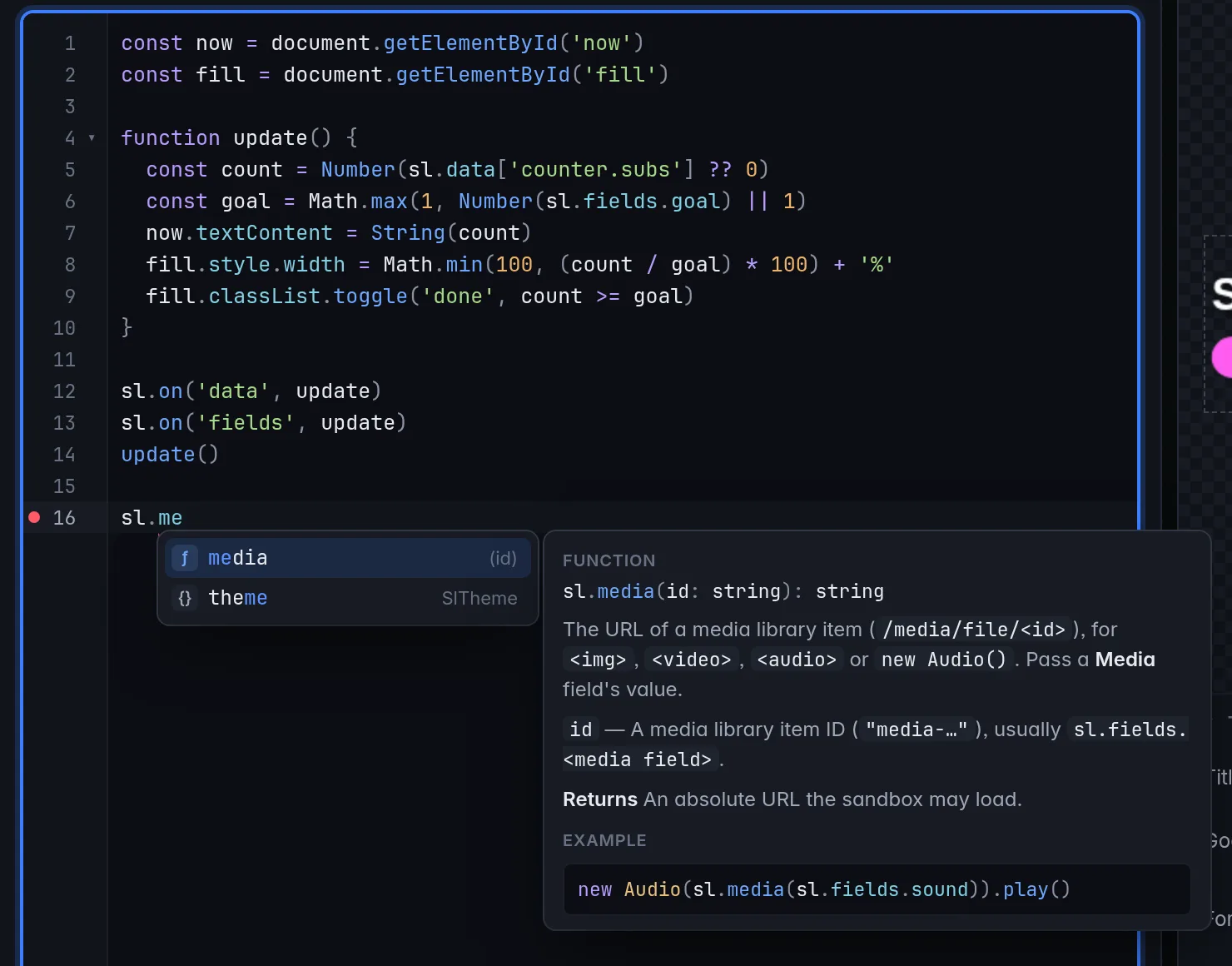
What's offered depends on where you are:
| Where | Suggestions |
|---|---|
JS, after sl. (and deeper, like sl.theme.colors.) |
Every member of the sl API, with its docs |
JS, inside sl.on(' |
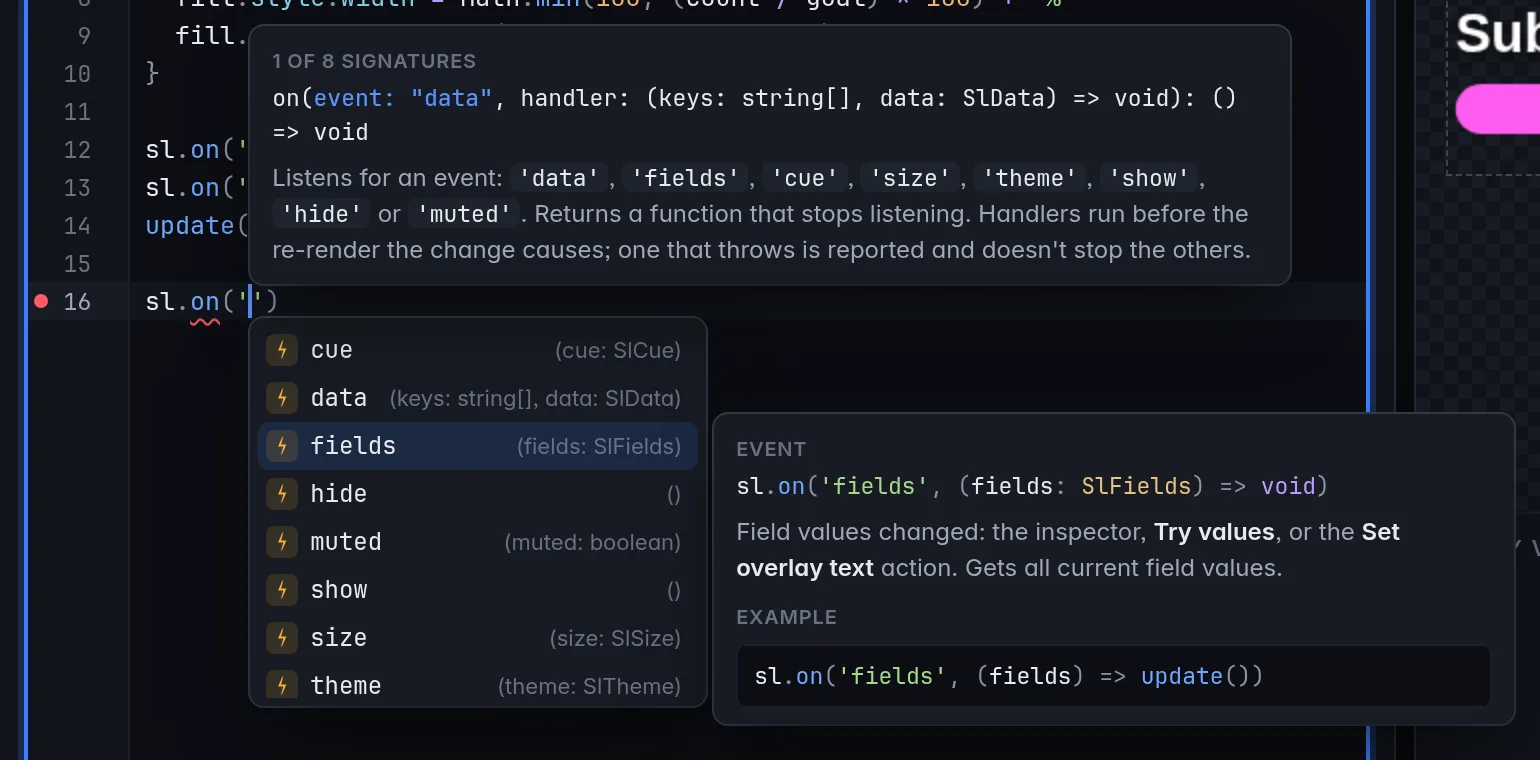
The event names, with each event's payload and an example |
JS, after sl.fields. |
This widget's fields |
| JS, anywhere else | Your own variables and functions, the browser's DOM and JavaScript, from TypeScript; plus the JS snippets |
HTML, inside {{ |
This widget's fields (with their label and kind), the loop variables in scope, data, theme, size, mode, visible, this, fields, the @ names, else and the blocks |
HTML, after {{data. |
The keys you declared, then the keys inside their sample data: with stream declared, {{data.stream. offers title, category, viewers … |
HTML, after a loop variable, like {{m. in {{#each data.chat as m}} |
The keys of one entry of the sample data |
HTML, after {{# |
#each, #if and #unless, which insert the opening and the closing tag |
HTML, after {{/ |
The block that's open, to close it |
| HTML, tags and attributes | HTML tags, and the building blocks <sl-text>, <sl-frame>, <sl-media> and <sl-icon> with their attributes and values. Typing a tag's > adds its closing tag. |
CSS, inside var( |
The widget's variables: --sl-w, --sl-h, the theme colors (--sl-primary …) and fonts (--sl-font-heading, --sl-font-body) |
CSS, after -- |
The same variables, inserted as var(--sl-…) |
| CSS, properties and values | Every CSS property and its keywords |
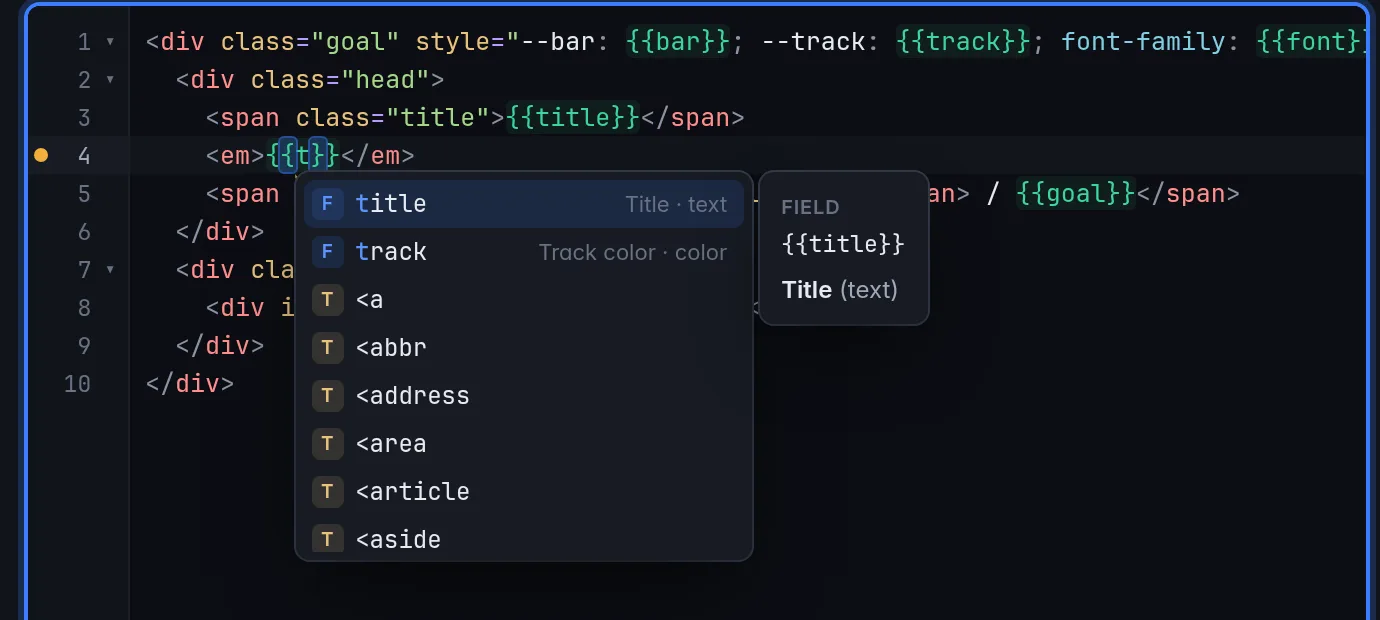
Until the TypeScript checker has loaded (a moment after you first open
the JS tab), JS completion offers the sl API, the names in your
code and the browser's globals.
Snippets
Completion also offers 34 ready-made snippets from the
cookbook: type a word from a snippet's name where it fits
(chat, goal, ticker) and pick it. After inserting, Tab jumps to
the next placeholder and Shift+Tab back; Esc leaves them.
| Tab | Snippets |
|---|---|
HTML (in text, not inside a tag or {{…}}) |
each, if, unless, sl-text, sl-frame, sl-media, sl-icon, chat list, latest follower, events ticker, sub goal, leaderboard, stream card, folder gallery, script-owned |
| CSS (where a rule can start) | widget box, theme heading, slide in, goal bar, ticker scroll, per mode, size from element |
| JS | sl.on('data'), sl.on('fields'), cue sound, sub goal, countdown, new chat lines, chat with emotes, emote rain, uptime, canvas loop, show/hide, media url |
A snippet that reads live data says so in its description, such as "(declare chat)": add that key on Data & sample.
Hover docs and signature help
Rest the mouse on code for a moment to see its docs:
- JS: any
slmember, and an event name insidesl.on('…'), shows the CroStream reference: signature, description, parameters, return value and example. Anything else shows TypeScript's view of it: the type of your variable, the DOM method's signature and docs. - HTML: a field shows its label and kind; a data key shows what it
holds and a piece of its sample data; a loop variable shows the list it
walks;
theme,size, the@names and the blocks (#each,else…) explain themselves; building-block tags and their attributes show their docs and allowed values. - CSS: a
--sl-…variable shows what it holds.
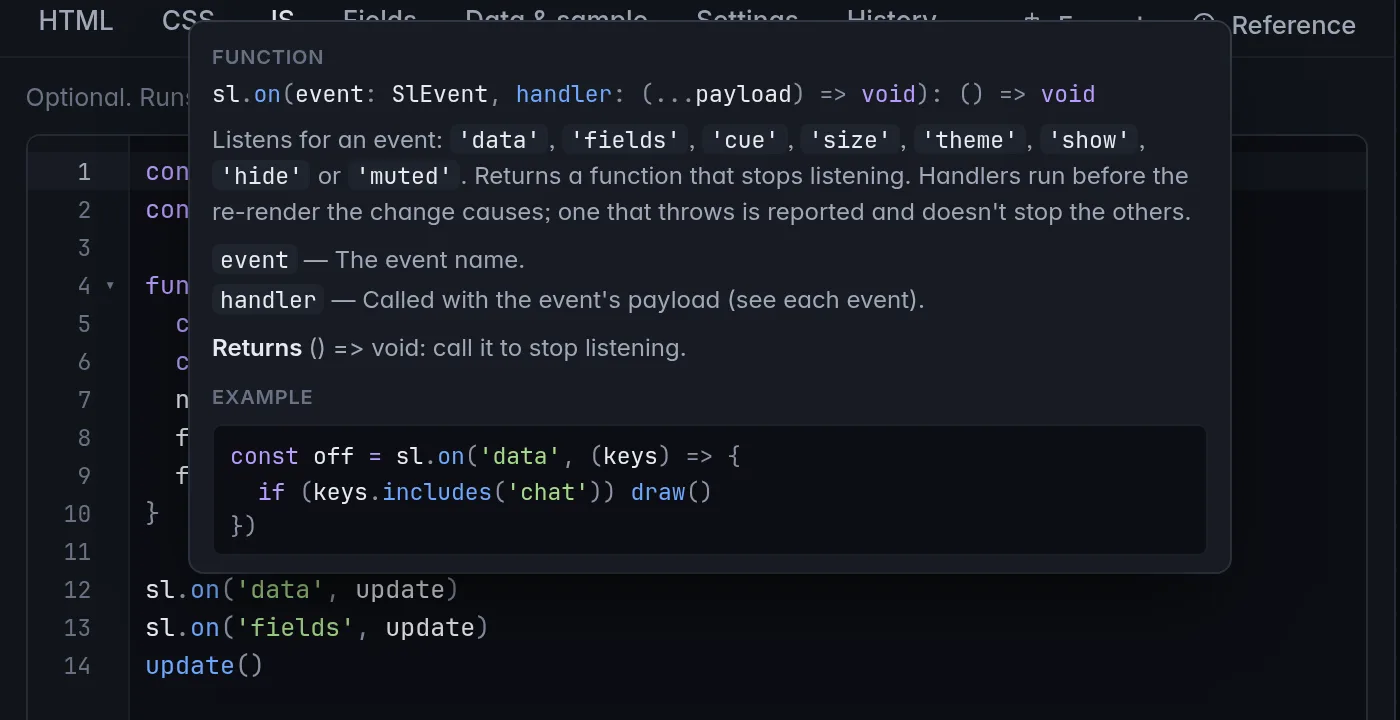
Signature help appears when you type ( or , inside a call in the
JS tab: the function's parameters, with the one you're typing in
highlighted, and its description. A function with several forms shows
which one matches ("1 of 8 signatures"). It follows the cursor while it
stays inside the call; Esc closes it.
The problems panel
Click the counter under the editor (or press Ctrl+Shift+M, Cmd+Shift+M on macOS) to list every problem in that editor, with the check that found it. Click one, or move with the arrow keys, to select its code; Enter goes back to the editor, Esc or the × closes the panel. F8 jumps straight to the next problem without opening it.
Format
Format tidies the code in the open tab: indentation, spacing, line breaks and quotes, using Prettier. Click Format in the tab bar, or press Shift+Alt+F (Shift+Option+F on macOS) in any editor that formats: the HTML, CSS and JS tabs, the sample data boxes, and the CSS box in the overlay inspector (which has its own Format button).
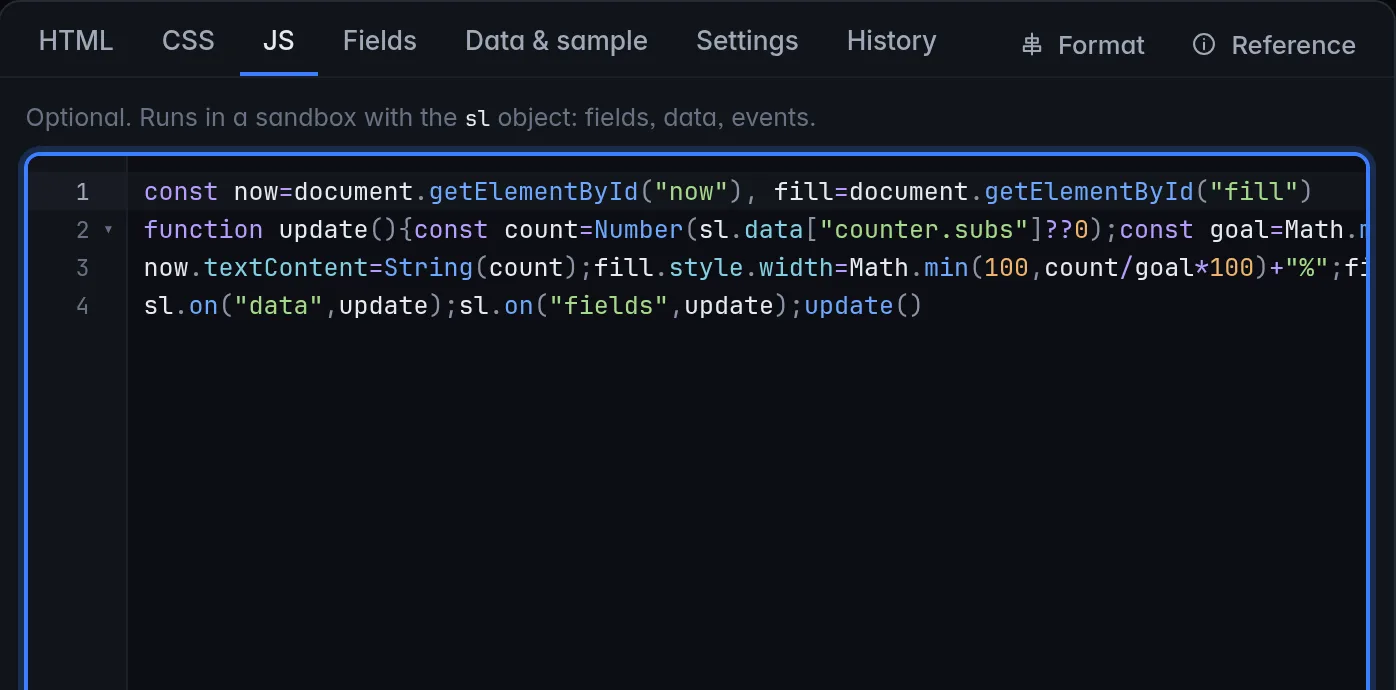
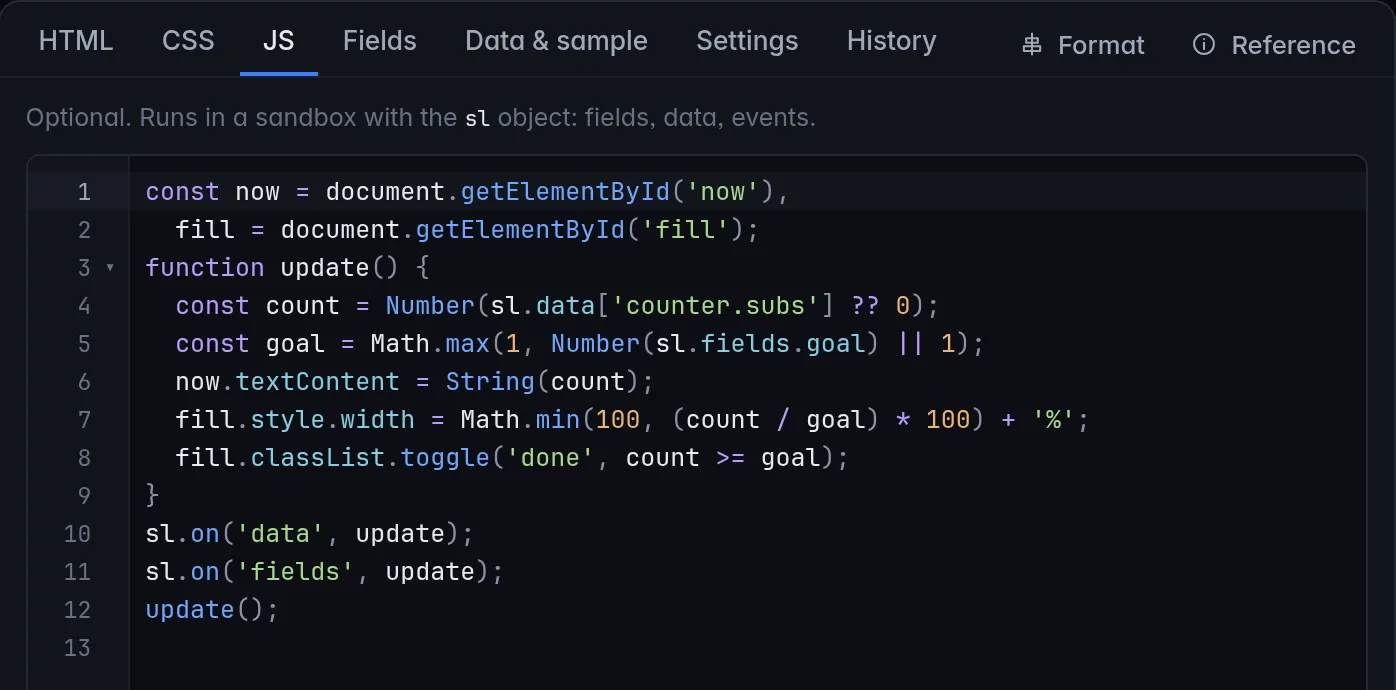
The style is Prettier's own, with lines up to 100 characters and single quotes: two-space indentation, a semicolon after each statement, and a trailing comma in lists that span several lines. Format doesn't change what the code does, and Ctrl+Z (Cmd+Z) undoes it.
What it won't do:
- Change your template tags.
{{…}}tags come back exactly as you wrote them, never split across lines or respaced. If formatting would have changed one, it changes nothing and says "Formatting would have changed the template's {{…}} tags, so nothing was changed." - Format code that doesn't parse. It explains why and where, under the editor: "Couldn't format: the JavaScript has a syntax error on line 1 (Unexpected token). Fix it and try again." Fix the error (the squiggle marks it) and format again.
- Fight your typing. If you type while it works, it leaves your text alone.
- Fix mistakes. It only changes layout; the checks still apply.
Keyboard shortcuts
| Action | Windows and Linux | macOS |
|---|---|---|
| Save the widget | Ctrl+S | Cmd+S |
| Format | Shift+Alt+F | Shift+Option+F |
| Open completion | Ctrl+Space | Ctrl+Space or Option+I |
| Accept a suggestion / close the list | Enter / Esc | Enter / Esc |
| Next / previous snippet placeholder | Tab / Shift+Tab | Tab / Shift+Tab |
| Show all problems | Ctrl+Shift+M | Cmd+Shift+M |
| Go to the next problem | F8 | F8 |
| Find | Ctrl+F | Cmd+F |
| Next / previous match | F3 / Shift+F3, or Ctrl+G / Ctrl+Shift+G | Cmd+G / Cmd+Shift+G |
| Select every match of the selection | Ctrl+Shift+L | Cmd+Shift+L |
| Add the next match of the selection | Ctrl+D | Cmd+D |
| Go to line | Ctrl+Alt+G | Cmd+Option+G |
| Add a cursor | Ctrl + click | Cmd + click |
| Add a cursor above / below | Ctrl+Alt+Up / Ctrl+Alt+Down | Cmd+Option+Up / Cmd+Option+Down |
| Rectangular selection | Alt + drag | Option + drag |
| Back to one cursor | Esc | Esc |
| Toggle a line comment | Ctrl+/ | Cmd+/ |
| Toggle a block comment | Shift+Alt+A | Ctrl+Shift+A |
| Indent / outdent | Tab / Shift+Tab, or Ctrl+] / Ctrl+[ | Tab / Shift+Tab, or Cmd+] / Cmd+[ |
| Move the line up / down | Alt+Up / Alt+Down | Option+Up / Option+Down |
| Copy the line up / down | Shift+Alt+Up / Shift+Alt+Down | Shift+Option+Up / Shift+Option+Down |
| Delete the line | Ctrl+Shift+K | Cmd+Shift+K |
| Select the line | Alt+L | Ctrl+L |
| Jump to the matching bracket | Ctrl+Shift+\ | Cmd+Shift+\ |
| Fold / unfold the block | Ctrl+Shift+[ / Ctrl+Shift+] | Cmd+Option+[ / Cmd+Option+] |
| Fold / unfold everything | Ctrl+Alt+[ / Ctrl+Alt+] | Ctrl+Option+[ / Ctrl+Option+] |
| Undo / redo | Ctrl+Z / Ctrl+Y (or Ctrl+Shift+Z on Linux) | Cmd+Z / Cmd+Shift+Z |
| Leave the editor with the keyboard | Esc, then Tab | Esc, then Tab |
You can also fold a block with the arrow next to its line number, and open the search bar's options (match case, regexp, by word, replace, replace all) once it's open. In the editor, Tab indents; to move focus on with the keyboard, press Esc first, then Tab within two seconds.
Tips
- Start from a snippet or a clone. Type
chat,goalorcountdownin the right tab and pick the snippet, or clone a built-in from the library, then change what you need. It's quicker than a blank page and shows the API in use. - Read the squiggle before the preview. A misspelt field or an undeclared data key shows up in the editor at once, with a suggestion, long before you'd notice the empty space in the preview.
- Declare data first. Add the keys on Data & sample before writing code that reads them: completion then offers them and their sample's shape, and the checks stop warning.
- Hover instead of looking it up. Every
slmember, event, field and data key explains itself on hover, with an example you can copy. - Format after pasting. Code pasted from elsewhere often arrives with
odd indentation; Shift+Alt+F straightens it without touching your
{{…}}tags. - Use the problems panel on long code. The counter tells you there are problems; Ctrl+Shift+M shows where.
The template language
The HTML tab is a template: plain HTML plus a small Handlebars-like language. CroStream renders it into the element's box at start and again after every change (field values, data, size, theme, visibility). Renders are batched, so a burst of changes is one render.
| Syntax | What it does |
|---|---|
{{path}} |
Inserts the value, HTML-escaped. Objects and arrays are inserted as JSON; null and missing values as nothing. |
{{{path}}} |
Inserts the value without escaping. Never use it for text viewers wrote. |
{{! comment }} |
A comment; produces nothing. |
{{#if path}} … {{else if path}} … {{else}} … {{/if}} |
Shows the first branch whose value is truthy. |
{{#unless path}} … {{else}} … {{/unless}} |
Shows the block when the value is falsy. |
{{#each path as item}} … {{else}} … {{/each}} |
Repeats for every entry of a list (or every property of an object). {{else}} shows when it's empty. |
Inside {{#each}}:
| Path | Value |
|---|---|
item, item.x |
The current entry (named after as) |
{{this}} |
The innermost entry (also when you leave out as name) |
{{@index}} |
Its position, from 0 |
{{@key}} |
Its index, or its property name when looping over an object |
{{@first}}, {{@last}} |
true for the first or last entry |
A loop renders at most 5,000 entries.
Falsy values are false, 0, "", null, missing values and empty
lists. Everything else, including "0" and empty objects, is truthy.
Paths
A path is dot-separated: data.stream.title, item.user. The first
segment decides where it reads from:
- a loop variable in scope (
min{{#each data.chat as m}}), innermost first; data.…: live data, read exactly assl.datareads it in a script: keys nest by their dots.data.counter.subsis the keycounter.subs;data.counteris an object of every declaredcounter.…key;data.latest.twitch.cheer.vars.userreads.vars.userinside the keylatest.twitch.cheer. Where nesting can't reach a key (because a key with a value sits on its way), the longest whole key wins. So{{data.counter.subs}}andsl.get('data.counter.subs')give the same value assl.data.counter.subsin a script;fields.…: a field, explicitly;- a field of that name:
{{title}}reads the fieldtitle; theme.…,size.…,mode,visible: the environment.
A field named size, theme, mode or visible hides the environment
value of that name. @size, @theme, @mode and @visible always mean
the environment: {{@size.w}}.
Path segments may contain letters, digits, _, $ and -. A data key
with a space in it (a counter called death count) can't be written as a
path; read it from your script as sl.data['counter.death count'].
Because keys nest, a template can loop over a whole family. With
counter.* declared, this lists every counter by name:
How re-renders keep your page alive
Each render is merged into the live page rather than replacing it, so elements that didn't change are kept, along with their animations, focus and scroll position. Two attributes control this:
sl-key="…"- Put it on the rows of a list, with a unique value per row (a chat
message's
id, a user name). A keyed row is matched by its key wherever it moves, so a list that gains a row at the top keeps its other rows, and their animations, instead of rebuilding them. sl-keep- Hands the element to your script. Renders leave its children alone, and any attributes the template doesn't set. Use it for any element your script fills or changes (a list it manages, a number it animates, a canvas). Without it, the next render resets your script's changes.
<ul class="chat">
  {{#each data.chat as m}}
    <li sl-key="{{m.id}}"><b>{{m.user}}</b> {{m.text}}</li>
  {{/each}}
</ul>
<div id="meter" sl-keep></div>
Fields
Fields are the widget's settings. Each one becomes a control in the
overlay inspector when the element is selected, and your code reads its
value as {{key}} in the template or sl.fields.key in the script.
To add one, open Fields, pick a kind in Kind of field to add and click Add field. Each field has:
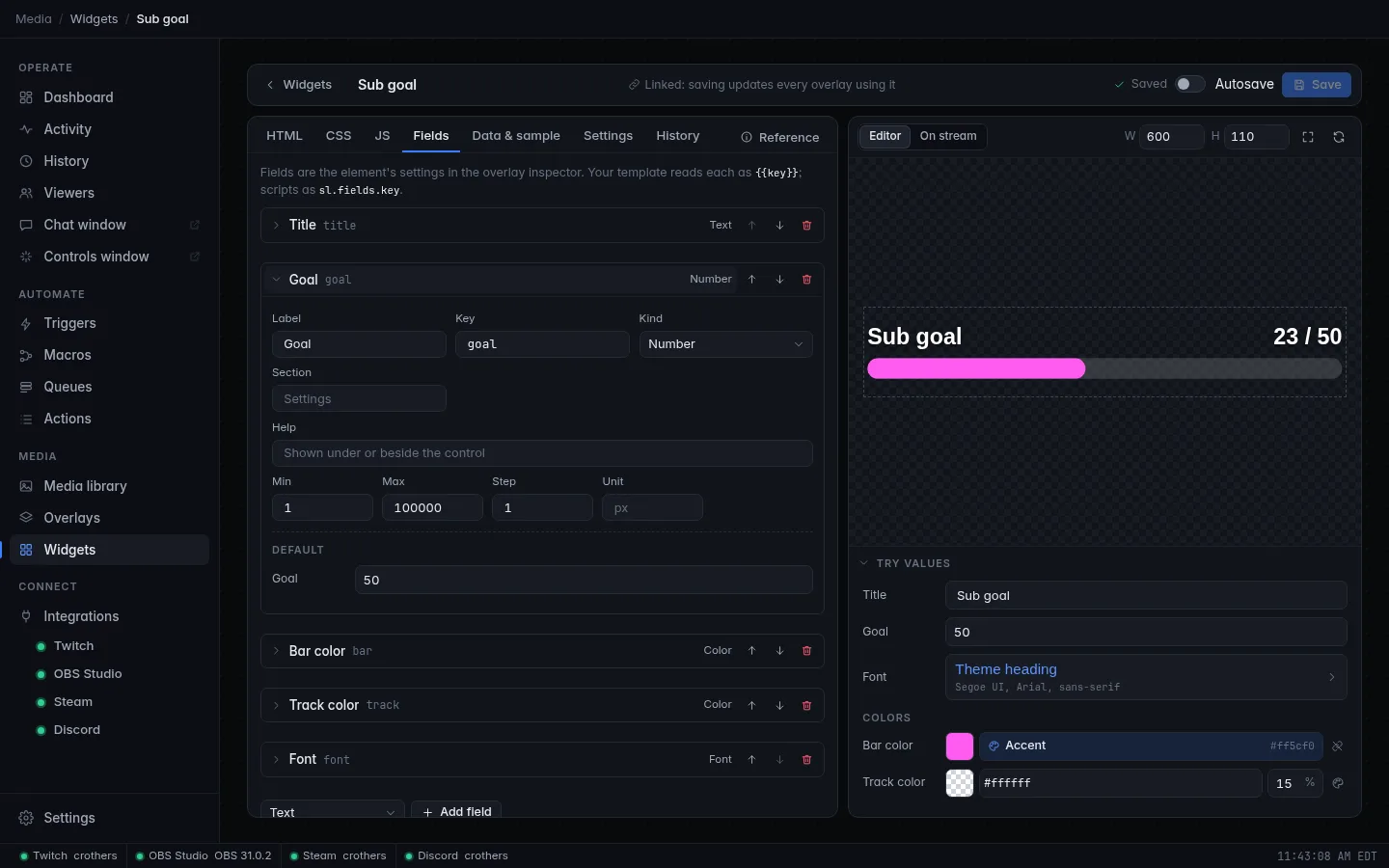
| Setting | Meaning |
|---|---|
| Label | What the inspector shows. |
| Key | The name your code uses. Starts with a lowercase letter; then letters, digits and _ (no hyphens or spaces); up to 40 characters. Unique. A key that breaks these rules is explained under the box as you type ("Start with a lowercase letter, then use only letters, digits and _ (40 at most), like title or barColor."), and the widget isn't saved, by Save or autosave, until you fix it: the save status reads Fix the key to save. |
| Kind | The kind of value (table below). Changing it resets the default. |
| Section | Groups fields under a heading in the inspector, such as Colors. |
| Help | A hint shown with the control. |
| Default | The value of a new element. |
| Kind | In the file | Value your code gets | Options |
|---|---|---|---|
| Text | text |
string | Longest text (new fields: 200); May be left empty |
| Long text | textarea |
string, may contain line breaks | Longest text (new fields: 2,000) |
| Number | number |
number | Min, Max, Step, Unit |
| On / off | bool |
true or false |
|
| Color | color |
"#rrggbb" or "#rrggbbaa" |
May be left empty (then "") |
| Choice | enum |
the chosen option's value | Choices: value and label pairs, 1 to 64 |
| Media | media |
a media library item ID ("media-…") or "" |
Accepts: image, video, audio; May be left empty |
| Font | font |
a CSS font-family list |
|
| Text effects | effects |
an object for <sl-text effects> |
|
| Frame | frame |
an object for <sl-frame frame> |
|
| List | items |
an array of objects | Fewest, Most (up to 1,000), Fields of each item (up to 32; a list can't hold a list) |
| Media folder | folder |
a media library folder ID ("folder-…") or "" |
Its files arrive as data, see Media folders |
A few rules worth knowing:
- Numbers must stay within Min and Max. A value outside the range is
refused when you save the widget, and an element whose value no longer
fits falls back to the default. A Max at or below Min (for
example both left at
0) means no slider and no upper limit: only Min applies, and saving accepts any larger value. - Colors can follow the overlay's theme. A color or font default such
as
theme:accentortheme:headingfollows the overlay's theme. Your code always receives the resolved value (#ff5cf0ff), never the reference. - A field keyed
text(of kind Text or Long text) can be changed live by the Set overlay text action, like the built-in text elements.
Live data
A widget receives only the live data it declares. Open Data & sample and, under Live data it reads, type a key and click Add (or click one of the suggestions under the box).
| Declared key | Gets |
|---|---|
chat |
exactly that key |
latest.* |
every key that starts with latest. |
counter.subs |
exactly the counter subs |
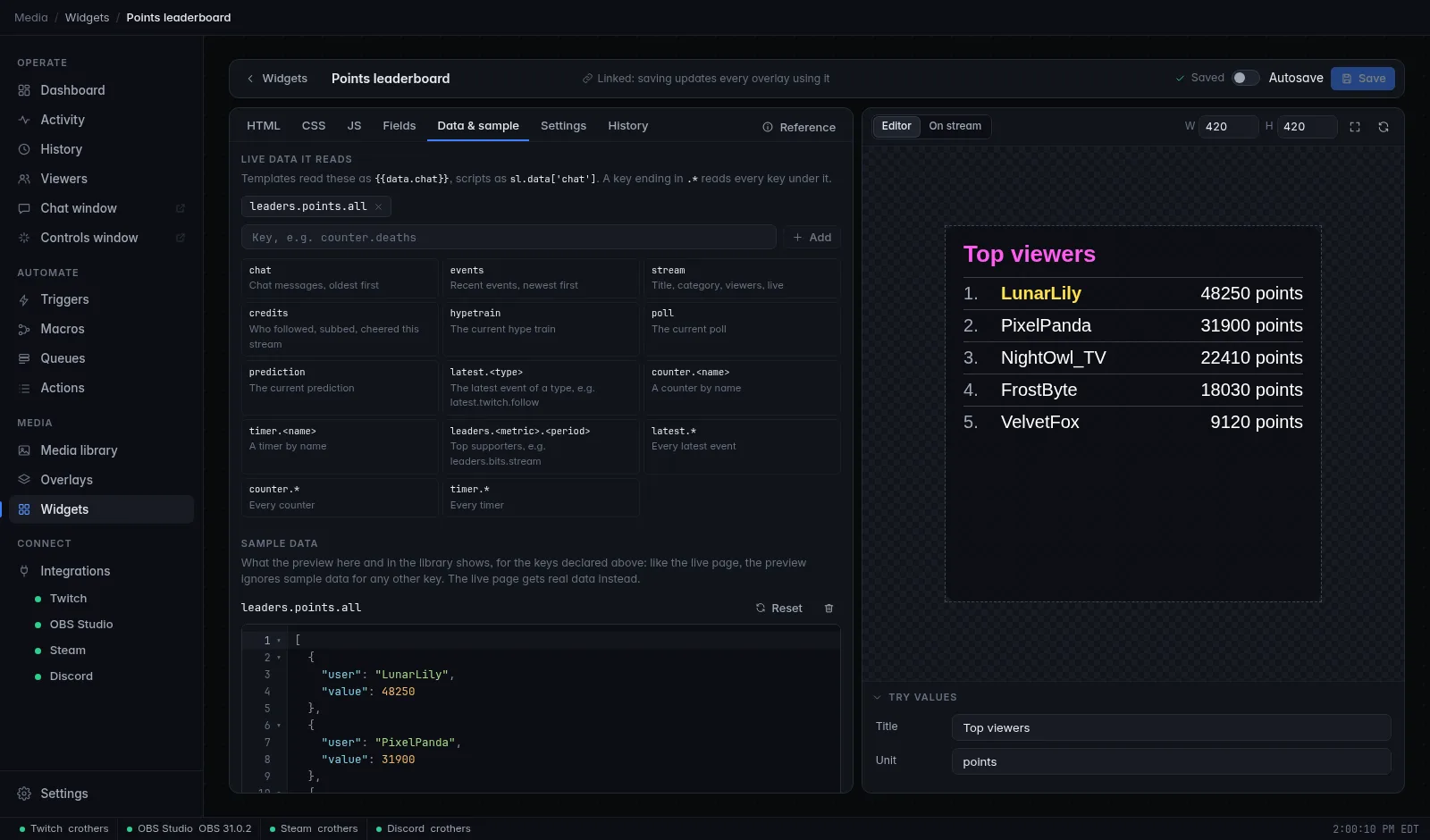
Keys are lowercase words joined by dots, optionally ending in .*: a
lowercase letter first, then lowercase letters, digits, _ and dots (no
capitals or hyphens), up to 100 characters. A key that doesn't fit can't
be added; the box explains: "Use lowercase letters, digits, _ and dots,
starting with a letter and optionally ending in .* (like chat,
counter.deaths or latest.*)." A widget can declare up to 32. Counters are
always lowercase, but timer names may have capitals or spaces: declare
timer.* and read the one you want from your script.
Every key, its exact JSON shape and when it updates is listed in the Overlay data reference. The common ones:
| Key | Shape |
|---|---|
chat |
The last 50 chat lines, oldest first: [{id, user, text, time, emotes}] |
events |
The last 30 events, newest first: [{type, user, amount, summary, time}] |
latest.<event type> |
The newest event of a type: {vars: {user, …}, time} |
counter.<name> |
A counter's value: a number |
timer.<name> |
A timer's state: {mode, running, endsAt, remainingMs, …} |
stream |
{live, title, category, viewers, startedAt} |
leaders.<metric>.<period> |
Top 10: [{user, value}] |
credits, hypetrain, poll, prediction |
See the reference |
Sample data
Under Sample data, each key has a JSON editor. The preview in the editor and the library thumbnail use these samples; the live overlay page uses real data instead. Adding a key fills in a starter sample, and Reset puts it back.
The preview gets exactly what the live overlay would: only samples for
keys the widget declares under Live data it reads reach sl.data
and {{data…}}. A sample whose key the widget doesn't read is tagged
not read: ignored, so a widget that works in the preview also gets
its data live; add the key above to use it.
Invalid JSON is underlined where it breaks, counted on the
Data & sample tab, and keeps the widget from being saved until you
fix it (Save takes you to the tab). Shift+Alt+F formats a
sample. The samples also feed the code editor:
completion after {{data. and hover on a data key show their shape.
On the overlay editor's canvas, a widget shows real data where there is some and the sample where there isn't. In OBS it only ever gets real data, so write your template to handle missing data:
{{#if data.latest.twitch.follow}}
  Latest follower: {{data.latest.twitch.follow.vars.user}}
{{else}}
  Be the first to follow!
{{/if}}
Media folders
Widgets can't list folders themselves (they have no network), so the page
does it for them. Give the widget a Media folder field and declare
folder.*. When a folder is chosen, its files arrive as data under two
keys: folders.<field key> and folder.<folder id>, each a list of the
folder's images, videos and sounds (not fonts, and nothing in the Trash),
in name order. Each item has at least id, kind (image, video or
audio), width and height (0 for a sound). The page lists the
folder again every 3 minutes, so new files join on their own.
{{#each data.folders.pics as m}}
  <sl-media media="{{m.id}}" type="{{m.kind}}" fit="cover"></sl-media>
{{/each}}
A folder of sounds works the same way: pick one in your script and play
it with new Audio(sl.media(m.id)). To show only pictures from a mixed
folder, skip the items whose kind is audio.
The sl runtime API
Your JS runs once, after the first render, inside a function that
receives the runtime as sl (it's also window.sl). It's ordinary
browser JavaScript in a modern Chromium-based engine: timers,
requestAnimationFrame, the Web Animations API, canvas and <audio> all
work. sl is frozen; its properties are live getters, so always read
sl.fields.x and sl.data.x when you need them rather than copying them
once.
Properties
| Property | Value |
|---|---|
sl.fields |
The field values, with theme references resolved |
sl.data |
The declared live data, both by full key (sl.data['latest.twitch.cheer']) and nested by dots (sl.data.latest.twitch.cheer) |
sl.size |
{w, h}: the element's size in canvas pixels |
sl.theme |
{colors: {primary, secondary, accent, text, muted, panel, border, highlight}, fonts: {heading, body}} |
sl.mode |
'output' on the overlay page (OBS) and in On stream preview; 'editor' on the editor canvas and Editor preview; 'thumb' in thumbnails |
sl.visible |
Whether the element is shown right now (actions and alerts can hide it) |
sl.muted |
Whether the element's sound should stay silent (an alert plays it through the PC instead) |
sl.root |
The element the template renders into (#sl-root) |
sl.manual |
Set to true to stop automatic re-renders; see Rendering yourself |
Methods
| Method | What it does |
|---|---|
sl.on(event, callback) |
Listens for an event (table below). Returns a function that stops listening. |
sl.get(path) |
Reads a template path, e.g. sl.get('data.latest.twitch.cheer.vars.user'). Data paths resolve exactly like sl.data, by whole key or by dots. Returns undefined when it doesn't resolve. |
sl.render() |
Renders the template now, even when nothing changed. |
sl.media(id) |
The URL of a media library item, for <img>, <video>, <audio> or new Audio(). |
sl.emote(id) |
The URL of a Twitch emote image, by emote ID (chat lines carry them). |
Events
| Event | Callback gets | When |
|---|---|---|
'data' |
(keys, data): the changed or removed keys, and sl.data |
Declared data changed |
'fields' |
(fields) |
Field values changed (the inspector, Try values, the Set overlay text action) |
'cue' |
(cue): {n, at} |
The element was told to play: the Play media or fire an effect action, or an alert that includes it |
'size' |
(size): {w, h} |
The element was resized |
'theme' |
(theme) |
The overlay's theme changed |
'show', 'hide' |
nothing | The element's live visibility changed |
'muted' |
(muted) |
sl.muted changed |
Callbacks run before the re-render the change causes. A callback that throws is reported as an error and doesn't stop the others.
These eight are the only events. sl.on with any other name (a typo like
'cue2' or 'feilds') never fires. The editor marks it as an error, and
when the script runs it's reported in the widget's error list, once per
name, like any other script error: js:4 sl.on: unknown event "cue2" (it
never fires). Events: fields, data, cue, size, theme, show, hide, muted.
// React to new chat only, not to every data change.
sl.on('data', (keys) => {
  if (!keys.includes('chat')) return
  const last = sl.data.chat?.at(-1)
  if (last) console.log(last.user, 'said', last.text)
})
Environment
| Template | Script | CSS | |
|---|---|---|---|
| Size | {{size.w}}, {{@size.h}} |
sl.size.w |
var(--sl-w), var(--sl-h) |
| Theme colors | {{theme.colors.accent}} |
sl.theme.colors.accent |
var(--sl-accent), var(--sl-primary), … |
| Theme fonts | {{theme.fonts.heading}} |
sl.theme.fonts.body |
var(--sl-font-heading), var(--sl-font-body) |
| Mode | {{mode}} |
sl.mode |
html[data-mode="editor"] |
| Visibility | {{visible}} |
sl.visible |
The frame reaches 96 px past the element on every side, so shadows and
glows aren't cut off. Size and position your layout with #sl-root (or a
wrapper inside it set to width: 100%; height: 100%), never with body
or html, which are larger than the element.
Rendering yourself
Set sl.manual = true to stop the automatic renders, then call
sl.render() when you want one. Use it when your script drives the page
on its own (a canvas animation, a game) and re-rendering on every data
change would get in the way.
Building blocks
Four custom elements draw exactly like CroStream's built-in elements, so a widget can match the rest of your overlay. Set them with attributes, usually from fields:
<sl-text>- Text drawn by the built-in text renderer, with fonts and text effects
(gradients, outlines, shadows, glow). Attributes:
text(or put the text inside the tag),font,size(px, default 32),weight,italic,color(default white),align(left,center,right),valign,line-height,letter-spacing,transform,layout(blockdefault,boxto fill its parent,inline),one-line, andeffects(the JSON of a Text effects field:effects="{{fx}}"). <sl-frame>- A frame (panel, border, badge shape, pattern, animated border) around
its content. Attributes:
frame(the JSON of a Frame field) andlayout:fill(default, fills its parent) orwrap(as tall as its content, for list rows). <sl-icon>- An icon from the built-in set, as the Icon element draws it. Attributes:
icon(defaultheart),color,size(px). <sl-media>- An image, video or sound from the media library. Attributes:
media(an item ID, usually a Media field) orsrc(a/media/…URL or adata:URL),type(image,video,audio; without it, an image is tried first),fit(containdefault,cover, …),radius,autoplay,loop,muted,volume(0 to 100). Video and sound start over on every play cue, like the built-in Image and Video elements.
<sl-frame frame="{{panel}}" layout="fill">
  <sl-text text="{{title}}" font="{{font}}" size="48" effects="{{fx}}" align="center"></sl-text>
</sl-frame>
Boolean attributes count as on when present, unless written "false" or
"0". A frame or effects attribute that isn't valid JSON is reported
and ignored.
Fonts, media, emotes and sound
- Fonts. A font from your media library works when its family name appears anywhere in the widget's code, fields, the overlay theme or the element's CSS: the page loads it into the frame for you. Fonts installed on the computer running OBS work by name too. Web fonts from the internet don't.
- Media. Use a Media field and
<sl-media media="{{pic}}">, orsl.media(sl.fields.pic)for your own<img>,<video>or<audio>. CSSurl()works for/media/…paths too. - Emotes. Chat lines carry their emotes as
{id, name}, in order.sl.emote(id)is the image URL. - Sound.
new Audio(sl.media(id)).play()plays a library sound in the overlay page, which OBS mixes into its own audio (enable Control audio via OBS on the browser source to route it). Respectsl.mutedand stay silent whensl.mode !== 'output'.
Tutorial: a sub goal bar
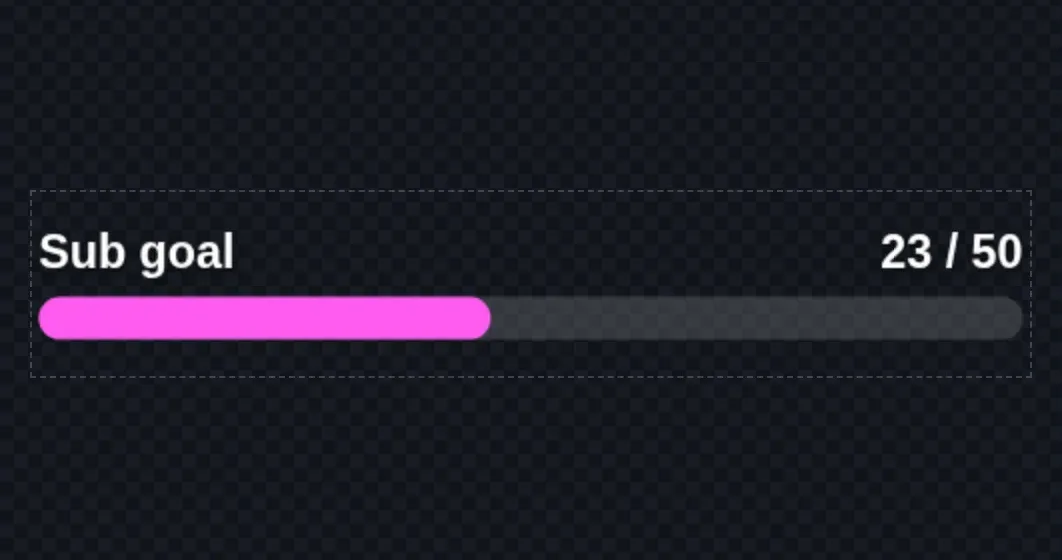
You'll build a goal bar that fills as subs come in: a title, a count like
23 / 50, a bar that glides to its new width and glows when the goal is
reached. It shows every part of the API: fields, live data, sample data,
template, CSS fed by fields, a script that owns part of the page, and the
macro that drives it.
What you need
- A browser on the CroStream UI, or the Windows or macOS app. On Linux, use browser mode.
- An overlay to place it on. See Overlays.
1. Create the widget
- Open Media → Widgets and click New widget.
- Name it
Sub goaland click Create. The editor opens with a small starter template.
2. Add the fields
Open Fields. The starter already has a Text field keyed text;
remove it with its trash button. Then add these, choosing the kind in
Kind of field to add and clicking Add field each time:
| Kind | Label | Key | Settings | Default |
|---|---|---|---|---|
| Text | Title | title |
Sub goal |
|
| Number | Goal | goal |
Min 1, Max 100000, Step 1 | 50 |
| Color | Bar color | bar |
Section Colors |
the theme's accent |
| Color | Track color | track |
Section Colors |
#ffffff26 |
| Font | Font | font |
the theme's heading font |
3. Declare the data
Your subs will be counted by a counter named subs (step 7 sets that up),
so the widget reads the key counter.subs.
- Open Data & sample.
- Type
counter.subsunder Live data it reads and click Add. CroStream adds a starter sample,12. - Change the sample to
23so the preview shows a partly filled bar.
4. Write the template
Open HTML and replace everything with:
<div class="goal" style="--bar: {{bar}}; --track: {{track}}; font-family: {{font}};">
  <div class="head">
    <span class="title">{{title}}</span>
    <span class="count"><span id="now" sl-keep>0</span> / {{goal}}</span>
  </div>
  <div class="track">
    <div id="fill" class="fill" sl-keep></div>
  </div>
</div>
Two things to notice:
- Fields feed the CSS through custom properties in a
styleattribute (--bar: {{bar}}), because a stylesheet can't read fields directly. - The count and the bar have
sl-keep: the script owns them, so renders (when you change the title, say) leave them alone.
5. Style it
Open CSS and replace everything with:
.goal {
  width: 100%;
  height: 100%;
  box-sizing: border-box;
  display: flex;
  flex-direction: column;
  justify-content: center;
  gap: 10px;
  padding: 0 4px;
  color: #fff;
  text-shadow: 0 2px 6px rgb(0 0 0 / 0.6);
}
.head {
  display: flex;
  justify-content: space-between;
  align-items: baseline;
  font-size: 28px;
  font-weight: 700;
}
.count {
  font-variant-numeric: tabular-nums;
}
.track {
  height: 26px;
  border-radius: 13px;
  background: var(--track);
  overflow: hidden;
}
.fill {
  width: 0;
  height: 100%;
  border-radius: inherit;
  background: var(--bar);
  transition: width 0.8s cubic-bezier(0.22, 1, 0.36, 1);
}
.fill.done {
  box-shadow: 0 0 18px var(--bar);
  animation: pulse 1.2s ease-in-out infinite alternate;
}
@keyframes pulse {
  to { filter: brightness(1.35); }
}
6. Script the bar
Open JS and paste:
const now = document.getElementById('now')
const fill = document.getElementById('fill')

function update() {
  const count = Number(sl.data['counter.subs'] ?? 0)
  const goal = Math.max(1, Number(sl.fields.goal) || 1)
  now.textContent = String(count)
  fill.style.width = Math.min(100, (count / goal) * 100) + '%'
  fill.classList.toggle('done', count >= goal)
}

sl.on('data', update)
sl.on('fields', update)
update()
The preview now shows 23 / 50 with the bar a little under half full.
Change Goal under Try values and the bar glides to its new width.
Press Ctrl+S to save.
The editor shows no problems for this script. Misspell something to see
the checks at work: change sl.fields.goal to sl.fields.goals and the
JS tab underlines it in red with "Did you mean 'goal'?". String(count)
is there because textContent takes text; with a bare count the code
still works, but the TypeScript check warns
about the number.
7. Count the subs
The widget shows the counter; a macro keeps it up to date.
- Create a macro named
Count a subwith one Change a counter action: Counter namesubs, Changeadd, Amount1. - Create a trigger for Subscription
with Gifted subs set to include them, running
Count a sub. Every gifted sub also arrives as a subscription, so a gift of five counts five. - Optional: a second macro that runs Change a counter with Change
reset, on a Stream online/offline trigger set to online, so each stream starts at zero.
8. Place and test it
- Open your overlay, click Add, and pick Sub goal under your widgets. Size it to about 600 × 110.
- In OBS (or a browser) open the overlay's URL.
-
Bump the counter without waiting for a sub. On the Actions page, run Change a counter with
subsandadd, or, in browser mode, from a terminal with the HTTP API:curl -X POST http://127.0.0.1:8080/api/RunAction \ -H 'Content-Type: application/json' \ -d '["tools.counter", {"name": "subs", "change": "add", "amount": 1}]'The bar moves within a moment. Test buttons on triggers don't change live data (they never touch counters, events or chat on the overlay), so use a real action like this one.
Going further
- Make the counter name a field: declare
counter.*, add a Text fieldcounter, and readsl.data['counter.' + sl.fields.counter]. - Use
<sl-text>for the title with a Text effects field, to match your other text. - Fire confetti when the goal is reached: put a Particles element on the overlay and run Play media or fire an effect on it from the same macro, behind a condition on the counter.
Cookbook
Each recipe is a complete widget: create a blank widget, then paste the parts into their tabs, add the fields from the table, declare the data keys and save. Field defaults are suggestions.
Chat box with emotes
Shows the newest chat lines with Twitch emotes inline, sliding new lines in. Rows are built by the script so emote names can become images.
Data: chat.
Fields:
| Kind | Key | Default |
|---|---|---|
| Number (Min 1, Max 50) | count |
8 |
| Number (Min 10, Max 80) | size |
24 |
| Color | name |
the theme's accent |
.chat {
  width: 100%;
  height: 100%;
  display: flex;
  flex-direction: column;
  justify-content: flex-end;
  gap: 6px;
  overflow: hidden;
  font-family: var(--sl-font-body);
  color: #fff;
}
.row {
  padding: 6px 12px;
  border-radius: 10px;
  background: rgb(0 0 0 / 0.55);
  line-height: 1.35;
  overflow-wrap: anywhere;
  animation: in 0.3s ease-out both;
}
.row b {
  color: var(--name);
  margin-right: 0.4em;
}
.row img {
  height: 1.4em;
  vertical-align: middle;
}
@keyframes in {
  from { opacity: 0; transform: translateX(-20px); }
}
const box = sl.root.querySelector('.chat')
const shown = new Map() // message id -> row

function row(m) {
  const el = document.createElement('div')
  el.className = 'row'
  const who = document.createElement('b')
  who.textContent = m.user
  el.append(who)
  // Swap each word that is one of the message's emotes for its image.
  const emotes = new Map((m.emotes || []).map((e) => [e.name, e.id]))
  for (const word of String(m.text).split(/(\s+)/)) {
    if (emotes.has(word)) {
      const img = document.createElement('img')
      img.src = sl.emote(emotes.get(word))
      img.alt = word
      el.append(img)
    } else {
      el.append(document.createTextNode(word))
    }
  }
  return el
}

function draw() {
  const lines = (sl.data.chat || []).slice(-Math.max(1, sl.fields.count || 1))
  const keep = new Set(lines.map((m) => m.id))
  for (const [id, el] of shown) if (!keep.has(id)) (el.remove(), shown.delete(id))
  for (const m of lines) {
    if (shown.has(m.id)) continue
    const el = row(m)
    box.append(el)
    shown.set(m.id, el)
  }
}

sl.on('data', (keys) => keys.includes('chat') && draw())
sl.on('fields', draw)
draw()
No script needed for plain text
Without emote images, a template does it all:
{{#each data.chat as m}}<div class="row" sl-key="{{m.id}}"><b>{{m.user}}</b>{{m.text}}</div>{{/each}}
inside a box with justify-content: flex-end; overflow: hidden, so the
newest lines sit at the bottom and old ones scroll off the top.
Latest events ticker
A strip that scrolls your latest follower, sub, cheer and raid, with no script at all.
Data: latest.*.
Fields: Number speed (Min 5, Max 120, Unit s), default 30.
<div class="ticker">
  <div class="track" style="animation-duration: {{speed}}s;">
    <span class="lane">
      {{#if data.latest.twitch.follow}}<span><i>Follower</i> {{data.latest.twitch.follow.vars.user}}</span>{{/if}}
      {{#if data.latest.twitch.sub}}<span><i>Sub</i> {{data.latest.twitch.sub.vars.user}}</span>{{/if}}
      {{#if data.latest.twitch.cheer}}<span><i>Cheer</i> {{data.latest.twitch.cheer.vars.user}} ({{data.latest.twitch.cheer.vars.bits}})</span>{{/if}}
      {{#if data.latest.twitch.raid}}<span><i>Raid</i> {{data.latest.twitch.raid.vars.user}} ({{data.latest.twitch.raid.vars.viewers}})</span>{{/if}}
    </span>
    <span class="lane" aria-hidden="true">
      {{#if data.latest.twitch.follow}}<span><i>Follower</i> {{data.latest.twitch.follow.vars.user}}</span>{{/if}}
      {{#if data.latest.twitch.sub}}<span><i>Sub</i> {{data.latest.twitch.sub.vars.user}}</span>{{/if}}
      {{#if data.latest.twitch.cheer}}<span><i>Cheer</i> {{data.latest.twitch.cheer.vars.user}} ({{data.latest.twitch.cheer.vars.bits}})</span>{{/if}}
      {{#if data.latest.twitch.raid}}<span><i>Raid</i> {{data.latest.twitch.raid.vars.user}} ({{data.latest.twitch.raid.vars.viewers}})</span>{{/if}}
    </span>
  </div>
</div>
.ticker {
  width: 100%;
  height: 100%;
  display: flex;
  align-items: center;
  overflow: hidden;
  background: var(--sl-panel);
  border-radius: 8px;
  font: 600 22px var(--sl-font-body);
  color: var(--sl-text);
}
.track {
  display: flex;
  white-space: nowrap;
  animation: scroll linear infinite;
}
.lane span {
  margin-right: 48px;
}
.lane i {
  font-style: normal;
  color: var(--sl-accent);
  margin-right: 6px;
}
@keyframes scroll {
  to { transform: translateX(-50%); }
}
The two identical lanes make the loop seamless: the strip moves left by
half its width (one lane) and starts over. Each {{#if}} leaves out an
event type that hasn't happened yet.
Emote rain
Every new chat message throws its emotes down the screen. Lines already in chat when the page loads are skipped.
Data: chat.
Fields: Number size (Min 16, Max 256, Unit px), default 64;
Number fall (Min 1, Max 20, Unit s), default 6.
const sky = sl.root.querySelector('.sky')
let seen = null // ids already handled; null until the first list

function drop(id) {
  const s = sl.fields.size
  const img = document.createElement('img')
  img.src = sl.emote(id)
  img.style.width = img.style.height = s + 'px'
  sky.append(img)
  const x = Math.random() * Math.max(1, sl.size.w - s)
  const spin = (Math.random() - 0.5) * 360
  const fall = img.animate(
    [
      { transform: `translate(${x}px, ${-s}px) rotate(0deg)` },
      { transform: `translate(${x}px, ${sl.size.h + s}px) rotate(${spin}deg)` },
    ],
    { duration: sl.fields.fall * 1000 * (0.8 + Math.random() * 0.4), easing: 'ease-in' },
  )
  fall.onfinish = () => img.remove()
  img.onerror = () => img.remove()
}

function onChat() {
  const lines = sl.data.chat || []
  const before = seen
  seen = new Set(lines.map((m) => m.id))
  if (before === null || sl.mode !== 'output') return
  for (const m of lines) {
    if (before.has(m.id)) continue
    ;(m.emotes || []).slice(0, 10).forEach((e, i) => setTimeout(() => drop(e.id), i * 120))
  }
}

sl.on('data', (keys) => keys.includes('chat') && onChat())
onChat()
For more motions (float, bounce, burst) and emoji support, clone the built-in Chat emotes element instead.
Countdown
Shows a timer driven by the Control a timer action (start, pause, add time for every sub…). The name of the timer is a field, so one widget works for any timer.
Data: timer.*.
Fields: Text timer, default break; Text done, default
Starting soon!.
Sample: add a sample for timer.break. The starter sample is a
countdown that ends five minutes after you add it; after that the preview
shows the done text, so set its endsAt later to watch it run again.
const out = document.getElementById('time')

// Milliseconds shown by a timer state right now; null without a usable
// time (no state yet, or no end to count down to).
function ms(t) {
  if (!t) return null
  let n
  if (t.mode === 'stopwatch') {
    n = t.elapsedMs + (t.running && t.startedAt ? Date.now() - Date.parse(t.startedAt) : 0)
  } else {
    n = t.running && t.endsAt ? Math.max(0, Date.parse(t.endsAt) - Date.now()) : t.remainingMs
  }
  return Number.isFinite(n) ? n : null
}

// m:ss, h:mm:ss, and from a day on "3d 04:12:09".
function fmt(n) {
  const s = Math.ceil(n / 1000)
  const d = Math.floor(s / 86400)
  const h = Math.floor(s / 3600) % 24
  const two = (x) => String(x).padStart(2, '0')
  const mm = String(Math.floor((s % 3600) / 60)).padStart(h || d ? 2 : 1, '0')
  const ss = two(s % 60)
  if (d) return d.toLocaleString('en-US') + 'd ' + two(h) + ':' + mm + ':' + ss
  return (h ? h + ':' : '') + mm + ':' + ss
}

function tick() {
  const t = sl.data['timer.' + sl.fields.timer]
  const n = ms(t)
  const text = n === null ? '--:--' : n === 0 && t.mode !== 'stopwatch' ? sl.fields.done : fmt(n)
  if (out.textContent !== text) out.textContent = text
}

setInterval(tick, 250)
sl.on('data', tick)
sl.on('fields', tick)
tick()
The server never sends ticks: a running timer's state says when it ends
(endsAt), and the page counts down by itself. Start it from a macro, the
Actions page or the API:
curl -X POST http://127.0.0.1:8080/api/RunAction -H 'Content-Type: application/json' \
  -d '["overlay.timer", {"timer": "break", "do": "start", "amount": "5m"}]'
Points leaderboard
Your top viewers by points, from the viewer database. No script: CSS counters number the rows.
Data: leaders.points.all.
Fields: Text title, default Top viewers; Text unit, default
points.
.board {
  width: 100%;
  height: 100%;
  box-sizing: border-box;
  padding: 16px 20px;
  border-radius: 14px;
  background: var(--sl-panel);
  color: var(--sl-text);
  font-family: var(--sl-font-body);
  overflow: hidden;
}
h2 {
  margin: 0 0 10px;
  font: 800 26px var(--sl-font-heading);
  color: var(--sl-accent);
}
ol {
  margin: 0;
  padding: 0;
  list-style: none;
  counter-reset: rank;
}
li {
  display: flex;
  gap: 10px;
  padding: 6px 0;
  font-size: 20px;
  counter-increment: rank;
  border-top: 1px solid var(--sl-border);
}
li::before {
  content: counter(rank) '.';
  width: 1.6em;
  color: var(--sl-muted);
}
li.empty::before {
  content: none;
}
.who {
  flex: 1;
  overflow: hidden;
  text-overflow: ellipsis;
  white-space: nowrap;
}
.val {
  font-variant-numeric: tabular-nums;
}
.gold .who {
  color: var(--sl-highlight);
  font-weight: 700;
}
Swap the key for any other board: leaders.bits.stream (top cheerers this
stream), leaders.gifts.week, leaders.chat.stream,
leaders.watch.all (minutes watched). See
Leaderboards.
Stream status card
A live badge, title, category, viewer count and an uptime clock.
Data: stream.
<div class="card {{#if data.stream.live}}live{{/if}}">
  <div class="top">
    <span class="badge">{{#if data.stream.live}}LIVE{{else}}OFFLINE{{/if}}</span>
    {{#if data.stream.live}}
      <span class="viewers">{{data.stream.viewers}} watching</span>
      <span id="uptime" class="uptime" sl-keep></span>
    {{/if}}
  </div>
  <div class="title">{{data.stream.title}}</div>
  <div class="cat">{{data.stream.category}}</div>
</div>
.card {
  width: 100%;
  height: 100%;
  box-sizing: border-box;
  padding: 14px 18px;
  border-radius: 12px;
  background: var(--sl-panel);
  color: var(--sl-text);
  font-family: var(--sl-font-body);
}
.top {
  display: flex;
  gap: 12px;
  align-items: center;
  font-size: 16px;
  color: var(--sl-muted);
}
.badge {
  padding: 2px 8px;
  border-radius: 6px;
  font-weight: 800;
  background: #444;
  color: #fff;
}
.live .badge {
  background: #e91916;
}
.uptime {
  margin-left: auto;
  font-variant-numeric: tabular-nums;
}
.title {
  margin-top: 8px;
  font: 700 22px var(--sl-font-heading);
  white-space: nowrap;
  overflow: hidden;
  text-overflow: ellipsis;
}
.cat {
  color: var(--sl-accent);
}
function tick() {
  const el = document.getElementById('uptime')
  const since = sl.data.stream?.startedAt
  if (!el || !since) return
  const s = Math.max(0, Math.floor((Date.now() - Date.parse(since)) / 1000))
  const text = `${Math.floor(s / 3600)}:${String(Math.floor((s % 3600) / 60)).padStart(2, '0')}:${String(s % 60).padStart(2, '0')}`
  if (el.textContent !== text) el.textContent = text
}
setInterval(tick, 1000)
sl.on('data', tick)
tick()
The uptime element is looked up on every tick because the template removes it while you're offline and creates it again when you go live.
A sound on cue
Plays a sound from your media library whenever the element is cued: by a Play media or fire an effect step in a macro, or as part of an alert. Pair it with any visual you like.
Fields: Media sound (Accepts audio); Number volume (Min 0,
Max 100), default 80.
The sound plays in the overlay page, so OBS hears it. A widget's sound plays only where the page is open; it doesn't play on your PC's speakers through CroStream.
Debugging
- Fix what the editor marks first. Squiggles and the problem counter under each code tab catch typos, undeclared data keys and broken tags before the code runs. See Checks as you type.
- Read the error list. Template errors, script errors and bad JSON in
building-block attributes show under the preview with their source and
line (
html:3,js:12), as a count on the HTML and JS tabs, and on their line in the editor, where Line under the code jumps to them. Script line numbers count from your code's first line. Each distinct error is reported once per frame. - Use
console.log. In browser mode, open your browser's developer tools. Each widget runs in its own frame (widget-frame.html); its logs appear in the console, and its errors are logged there too, aswidget js:12: …. - Start over. The refresh button in the preview reloads the frame and reruns your script, which is useful after changing a setup step.
- Check what data you get. Temporarily add
<pre>{{data}}</pre>(or{{data.chat}}) to the template to print what the widget receives. - Check the declared keys. If
sl.data.xisundefined, in the preview or live, the key is probably in Sample data but not under Live data it reads (the sample is tagged not read: ignored, and the preview ignores it, as the live overlay does). - Produce real data. Test on a trigger never feeds overlays. Use
real events, or actions that change data: Change a counter,
Control a timer, or the HTTP API. Look at what's live with
the
OverlayDataAPI method orhttp://<host>/overlay/<overlay id>/state. - "Widget frame didn't start" means the frame page couldn't load or was blocked; it's reported after a few seconds. Check that the overlay URL in OBS points at a running CroStream.
- On the editor canvas the widget can't be clicked. That's on purpose: clicks go to the canvas so you can select and move it.
Limits
| What | Limit |
|---|---|
| HTML, CSS and JS | 256 KB each (the editor stops taking text at the limit) |
| Fields | 64 per widget; 32 item fields in a list; lists hold up to 1,000 items |
| Field key | 40 characters |
| Choices | 64 per Choice field |
| Data keys | 32 per widget |
| Sample data | 256 KB in all |
| Name | 1 to 60 characters, unique (ignoring case) |
| Description | 500 characters (the editor box takes 300) |
| Tags | 10, each up to 30 characters |
| Size of a new element | 1 to 16,384 px each way |
| History | the last 20 saves |
| A loop | renders up to 5,000 entries |
| Element CSS (inspector) | 64 KB |
| Widget file import | 4 MB |
Files and sharing
- Export writes a
.slwidgetfile: JSON{"format": 1, "widget": {…}}with the whole definition (name, description, icon, tags, size, fields, defaults, HTML, CSS, JS, data keys and samples) but not its ID, version or dates. Import reads one and adds it as a new widget; a name that's taken gets a number added. - Widgets are stored in the
widgetsfolder of the config folder, onewidget-….jsonper widget, with earlier versions inwidgets/history/and deleted widgets inwidgets/trash/. Delete moves a widget to the trash; overlays that still place it show nothing there until you restore the file. See Where files are kept. - The same operations are available over the HTTP API:
WidgetLibrary,WidgetGet,WidgetSave,WidgetExport,WidgetImportand more.
Related
- Widgets: place, clone and share widgets without code.
- Overlay data reference: every live data key.
- Custom CSS: restyle built-in elements and the element box of a widget.
- Overlays: the overlay editor and OBS.
- Browser mode: edit widgets on Linux.