Switch scenes with a channel point reward
Channel point rewards are the easiest way to let viewers play with your stream. In this tutorial a viewer spends points on a "Cat cam" reward, CroStream switches OBS to your cat camera scene, waits 30 seconds, and switches back. If something goes wrong, the viewer gets their points back automatically.
What you'll build
- A Cat cam reward on your channel, made by CroStream, costing 500 points.
- A macro that switches to the Cat Cam scene, waits 30 seconds and switches back to Gameplay.
- A trigger that runs the macro whenever someone redeems the reward.
Time: about 10 minutes. Level: beginner.
flowchart LR
    R[Viewer redeems Cat cam] --> S1[Switch to Cat Cam]
    S1 --> D[Wait 30s]
    D --> S2[Switch to Gameplay]
    S2 --> F[Redemption fulfilled]
Before you start
- Your channel is Affiliate or Partner. Twitch only has channel points on those channels.
- CroStream is logged in to Twitch and connected to OBS. See Getting started.
- OBS has two scenes: the one you normally stream (here Gameplay) and the one to switch to (here Cat Cam). Use your own scene names throughout.
- You have built one trigger and macro before, or have read Your first chat command.
Step 1: Create the reward in CroStream
Twitch only lets an app finish (fulfill) or refund a redemption of a reward that the same app created. So create the reward from CroStream, not from the Twitch dashboard: then a failed run refunds the viewer.
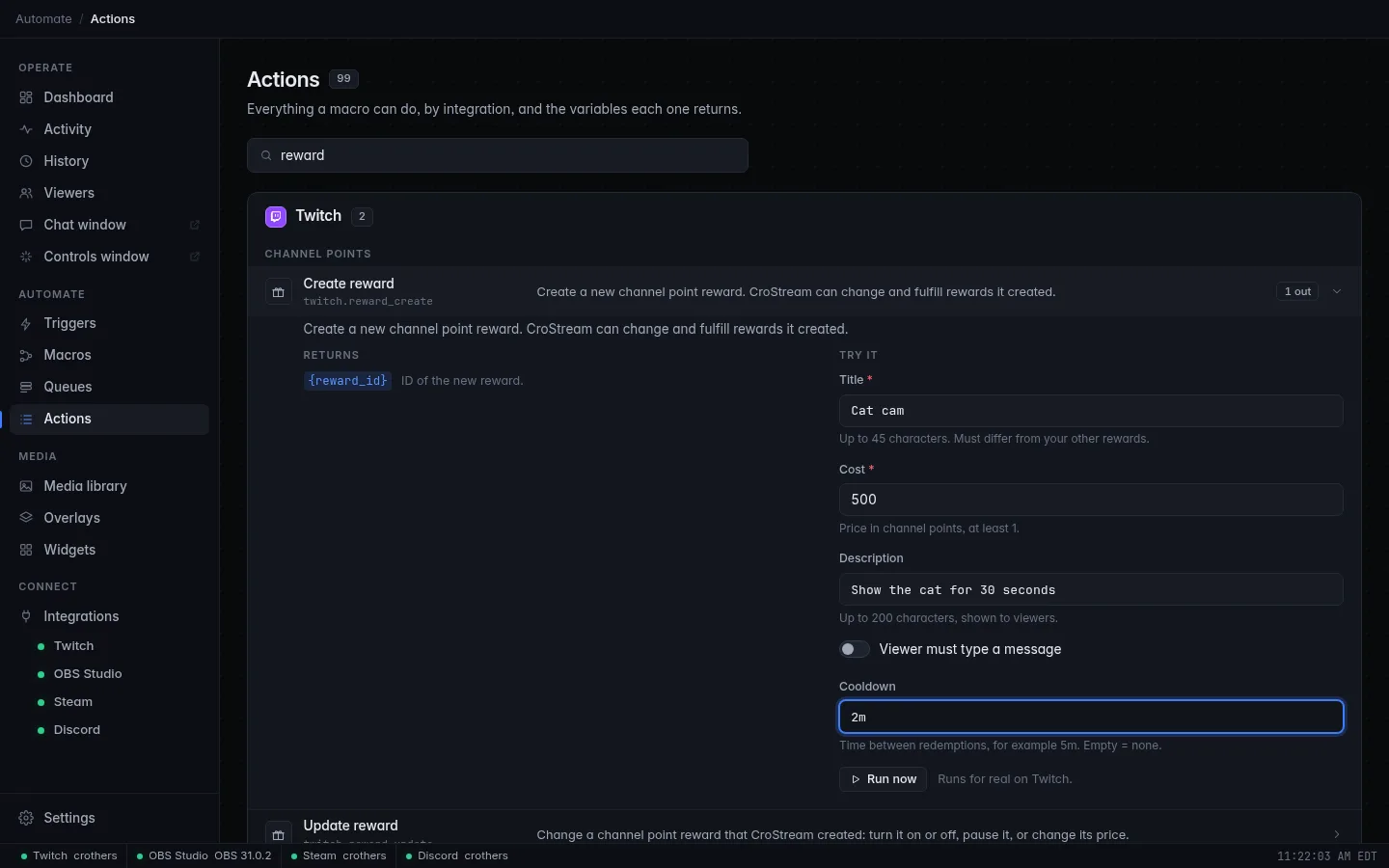
- In the sidebar, under Automate, click Actions. This page lists everything a macro can do, and lets you run any action once by hand.
- Type
rewardinto the search box and click Create reward to open it. - Under Try it, fill in:
- Title:
Cat cam - Cost:
500 - Description:
Show the cat for 30 seconds - Cooldown:
2m. This is Twitch's own wait between redemptions, so the scene cannot be switched twice at once.
- Title:
- Click Run now. When it says done, the reward is live on your channel.
Already made the reward on Twitch?
You can still pick it in the trigger, and the scene switch works. But CroStream cannot settle redemptions of a reward it did not create: they stay in your Twitch redemption queue, and a failed run is not refunded. CroStream logs a notice in History saying so the first time it happens.
Step 2: Build the macro
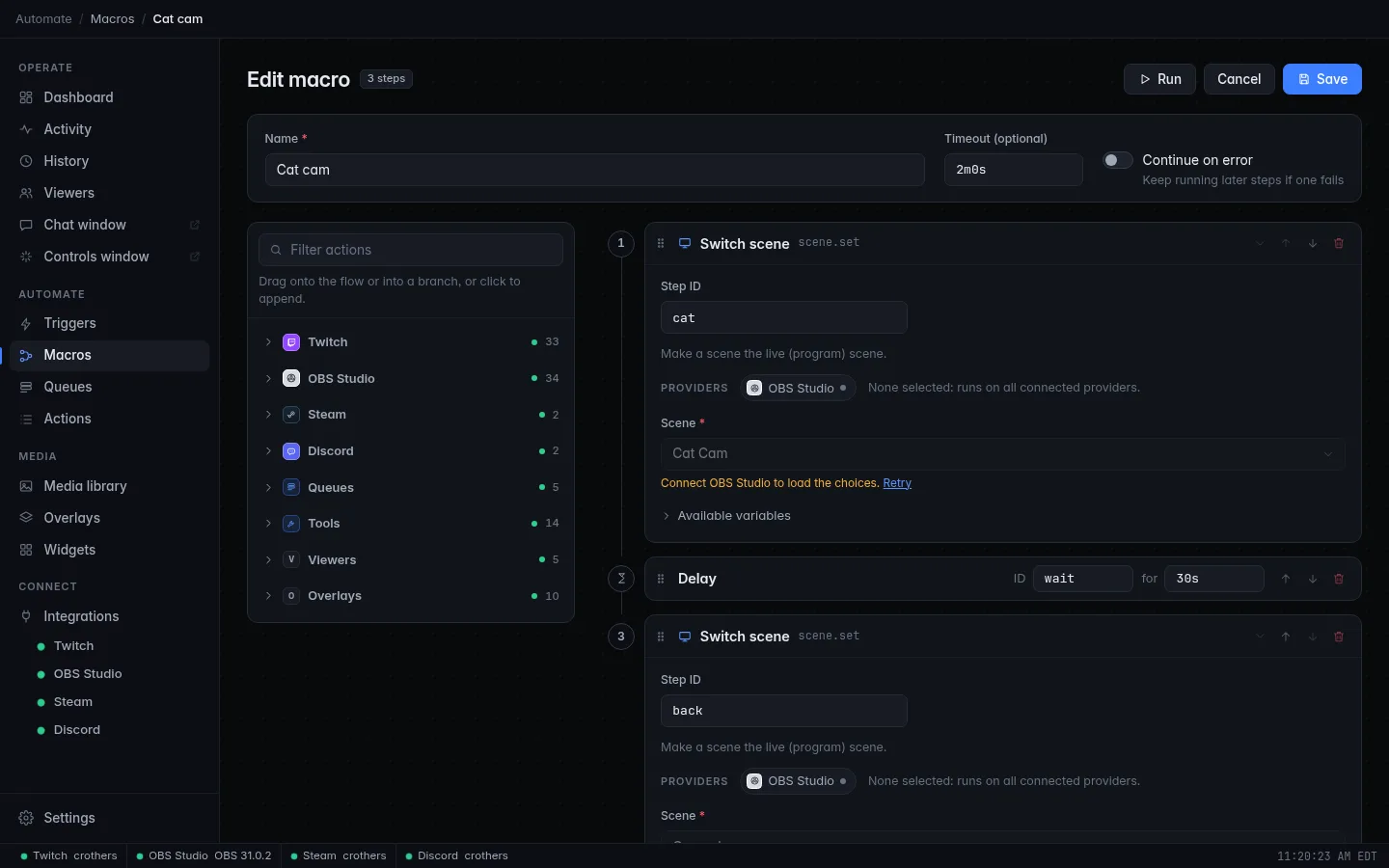
- Click Macros in the sidebar, then New macro. Set Name to
Cat cam. - Filter the palette for
sceneand click Switch scene. Set Scene toCat Cam. - Filter for
delayand click Delay (in the Tools section, under Timing). In the step's for box, type30s. - Add a second Switch scene step and set Scene to
Gameplay. -
At the top, set Timeout (optional) to
2m.The timeout includes the delay
A macro stops after 30 seconds unless you set a longer timeout, and a delay counts toward it. Without the
2mtimeout the 30 second wait would be cut off before the switch back. Always set the timeout longer than all the delays added together. The longest allowed delay and timeout are 10 minutes each. -
Click Save.
Step 3: Add the trigger
- Click Triggers, then New trigger. Set Name to
Cat cam reward. - Under When, pick Channel point redemption as the Event.
- In Reward, pick Cat cam · 500 points. (Any reward would react to every redemption on your channel.)
- Under Then run, pick the Cat cam macro.
- Click Save.
Check it works
- Click Test. CroStream runs the macro with a sample redemption. Test runs never fulfill or refund anything.
- Watch OBS go to Cat Cam, wait 30 seconds, and come back to Gameplay.
- Redeem the reward yourself from your channel page. This time the redemption is marked fulfilled when the macro finishes, or refunded if a step fails. Activity shows the redemption with a chip for the trigger that ran; click the chip to see the run in History.
Troubleshooting
| What you see | What to do |
|---|---|
| Create reward fails | Your channel needs Affiliate or Partner. The title must also be different from your other rewards and at most 45 characters. |
| The reward is not in the Reward list | Rewards load from Twitch when you open the list. Close and reopen the trigger editor, and check Twitch is connected. |
| OBS does not switch | The scene name must match OBS exactly. Pick it from the Scene list rather than typing it. |
| It switches but never comes back | The timeout is shorter than the delay. Set Timeout (optional) to 2m. |
| Redemptions stay in the Twitch queue | The reward was made on Twitch, not by CroStream. Make it with Create reward as in step 1. |
Next steps
- Two viewers redeeming at once fight over the scene. Line them up with a queue: Run redemptions one at a time.
- Refund on purpose when the reward can't work, for example when you are offline, using an If step and a Stop step set to Fail and refund: Add logic to a macro.
- Pause or hide the reward from a macro with Update reward. See Actions.
- How fulfilling and refunding work in detail: Triggers.