Play a sound from the media library
Sound effects make chat feel heard. In this tutorial you add an airhorn
sound to CroStream's media library and play it on stream whenever a viewer
types !airhorn. Because the sound plays through OBS, your viewers hear it,
and it shows up on your OBS audio mixer like any other source.
What you'll build
- An airhorn sound in your media library, the place where CroStream keeps your images, sounds, videos and fonts.
- A small Sounds overlay in OBS that holds the sound. An overlay is a page that CroStream draws and OBS shows as a browser source.
- An
!airhorncommand, for subscribers only, with a cooldown.
NightOwl_TV !airhorn
Time: about 15 minutes. Level: beginner.
flowchart LR
    C["!airhorn in chat"] --> T[Trigger] --> M[Macro: Play media]
    M --> E[Sound element on the Sounds overlay] --> O[OBS plays it on stream]
Before you start
- CroStream is connected to OBS. See Connect OBS.
- You have a sound file: MP3, WAV, OGG or Opus, FLAC, or M4A/AAC, up to 4 GB.
- You have built a trigger and macro before, or have read Your first chat command.
Step 1: Import the sound
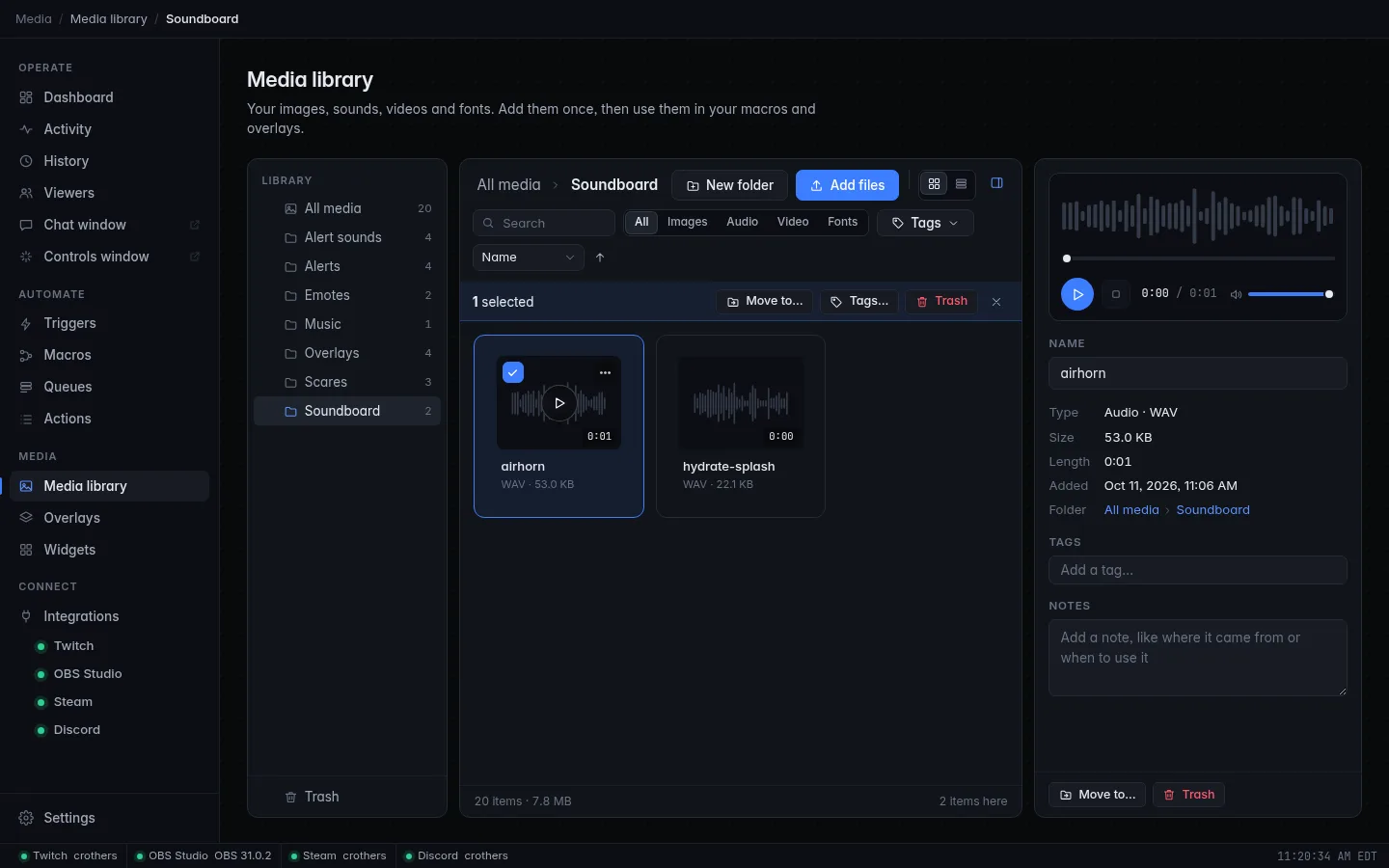
- In the sidebar, under Media, click Media library.
- Click Add files and pick your sound, or drag the file onto the window. The file is copied into the library, so you can move or delete the original afterwards.
- Optional: click New folder, name it
Sounds, and drag the file into it. Folders and colored tags keep a big library tidy. - Click the file. The details panel opens on the right; play the sound there to check it.
Step 2: Put the sound on an overlay
OBS can only play a library sound through an overlay, so the sound needs a small overlay to live on. It is invisible on stream.
- Under Media, click Overlays, then New overlay. Set Name to
Sounds, leave the rest, and click Create. The overlay editor opens. - Click Add in the toolbar and pick Sound under Basics. Click the new element to select it.
- In the inspector on the right, choose your airhorn as the Sound.
- Turn off Play when shown. Otherwise the sound plays every time OBS loads the overlay. Lower Volume if the clip is loud.
- Go back to Overlays. Open the menu on the Sounds card (or right-click the card) and choose Add to OBS.
- Pick a Scene you always have on screen. Switch on Control audio via OBS, so the sound goes through OBS's audio mixer, and click Add source.
Use one overlay in every scene
If you switch scenes a lot, add the Sounds overlay to each scene (run Add to OBS once per scene), or put it in a group or nested scene that every scene includes. A sound only plays where the overlay is shown.
Step 3: Build the macro
- Click Macros, then New macro. Set Name to
Airhorn sound. - Filter the palette for
playand click Play media or fire an effect. - In Element, pick the sound element on your Sounds overlay.
- Click Save.
Step 4: Add the trigger
- Click Triggers, then New trigger. Set Name to
Airhorn command. - Pick Chat command as the Event and type
!airhornas the Command. - Under Who & how often, set Minimum role to Subscriber to make
it a sub perk, and Cooldown to
30sso it cannot be spammed. - Under Then run, pick Airhorn sound, then click Save.
Check it works
- Click Test. The airhorn plays through OBS: watch the Sounds source's meter move in the OBS audio mixer.
- Type
!airhornin your chat for the real thing.
Troubleshooting
| What you see | What to do |
|---|---|
| The meter moves but you hear nothing | OBS sends overlay audio to the stream, not to your headphones. Turn on monitoring for the source in OBS (Advanced Audio Properties → Audio Monitoring). |
| The meter does not move | The source was added without Control audio via OBS, or the source is muted in OBS. Remove the source and use Add to OBS again with the switch on. |
| The sound plays when you switch scenes | Play when shown is still on. Turn it off on the Sound element. |
| Element does not list the sound | The overlay editor saves by itself a moment after each change. Make sure the Sound element is on the overlay, then reopen the macro so the list reloads. |
| Viewers can't use it | Minimum role is Subscriber. Set it to Everyone to open it up. |
Next steps
- Play a sound together with a picture by making it part of an alert: Add an alerts overlay to OBS.
- To play a sound only on your own speakers or headset, use Play a sound: it plays a file on your computer and lets you pick the output device. See Actions.
- Flash a picture over your game with a sound: A channel point jump scare.
- Space sounds out so viewers can't stack them: Run redemptions one at a time.
- Remember the library is not part of CroStream's automatic config backups: Back up and move your setup.