VTube Studio actions
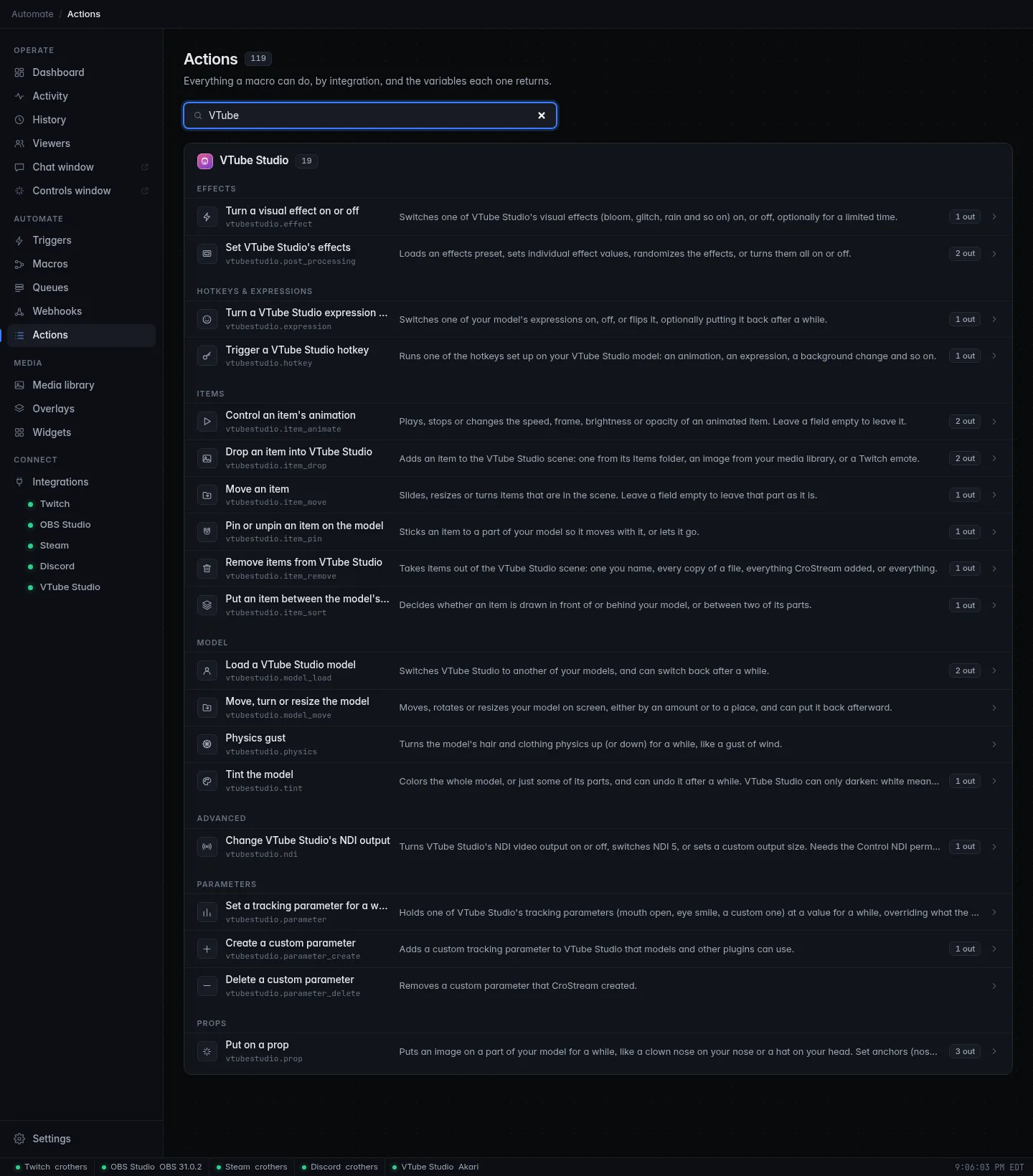
CroStream can do nineteen things in VTube Studio: run a hotkey, put a clown nose on your model, tint it red, drop a viewer's emote into the scene, turn on a glitch effect and more. Each one is an action you add as a step in a macro; the Actions page lists them under VTube Studio in seven groups and lets you try each one with Run now.
New here? Set up the connection first. Props need anchors. For ready-made macros, see Recipes.
Before you start
- CroStream must be connected to VTube Studio, with a model loaded for anything that touches the model. Without a connection every action fails with CroStream isn't connected to VTube Studio. See Troubleshooting.
- Settings take
{variables}in Text and Pick fields (not in the media library image field). A number field can be{amount}or a literal0.5. A value that can't be checked until the macro runs (it holds a{variable}) is checked at that moment instead of when you save. - Leave a number empty where the details say so, and that part is left as it is.
- Two permissions are separate from the connection: loading custom images (item drops and props that use your media library or an emote) and controlling NDI. You grant each once in VTube Studio; see Permissions.
- Timed changes: many actions can undo themselves after a while. See Undoing after a while.
All actions
| Action | ID | What it does |
|---|---|---|
| Trigger a VTube Studio hotkey | vtubestudio.hotkey |
Runs a hotkey of your model or of a Live2D item. |
| Turn a VTube Studio expression on or off | vtubestudio.expression |
Switches an expression on, off or flips it. |
| Move, turn or resize the model | vtubestudio.model_move |
Moves, rotates or scales your model. |
| Load a VTube Studio model | vtubestudio.model_load |
Switches to another model. |
| Physics gust | vtubestudio.physics |
Turns hair and clothing physics up for a moment. |
| Tint the model | vtubestudio.tint |
Colors the whole model or some of its parts. |
| Drop an item into VTube Studio | vtubestudio.item_drop |
Adds an item, image or emote to the scene. |
| Remove items from VTube Studio | vtubestudio.item_remove |
Takes items out of the scene. |
| Move an item | vtubestudio.item_move |
Slides, resizes or turns items. |
| Control an item's animation | vtubestudio.item_animate |
Plays, stops or changes an animated item. |
| Pin or unpin an item on the model | vtubestudio.item_pin |
Sticks an item to your model. |
| Put an item between the model's layers | vtubestudio.item_sort |
Draws an item in front of, behind or inside your model. |
| Put on a prop | vtubestudio.prop |
Puts an image on a named part of your model for a while. |
| Turn a visual effect on or off | vtubestudio.effect |
Switches one effect (bloom, glitch, rain). |
| Set VTube Studio's effects | vtubestudio.post_processing |
Loads a preset, sets values, randomizes or turns all effects on or off. |
| Set a tracking parameter for a while | vtubestudio.parameter |
Holds a tracking parameter at a value for a while. |
| Create a custom parameter | vtubestudio.parameter_create |
Adds a custom tracking parameter. |
| Delete a custom parameter | vtubestudio.parameter_delete |
Removes one CroStream created. |
| Change VTube Studio's NDI output | vtubestudio.ndi |
Turns NDI on or off, or sets its size. |
How to read the tables: Type is the kind of field (Text takes
{variables}, Pick is a list CroStream fills from VTube Studio, Choice is
a fixed list, Duration is written like 10s or 2m, On/off is a switch,
List takes one entry per line). Default is
what the editor starts with. Outputs are
variables later steps
can use, such as {item_id}.
Hotkeys and expressions
Trigger a VTube Studio hotkey
ID vtubestudio.hotkey
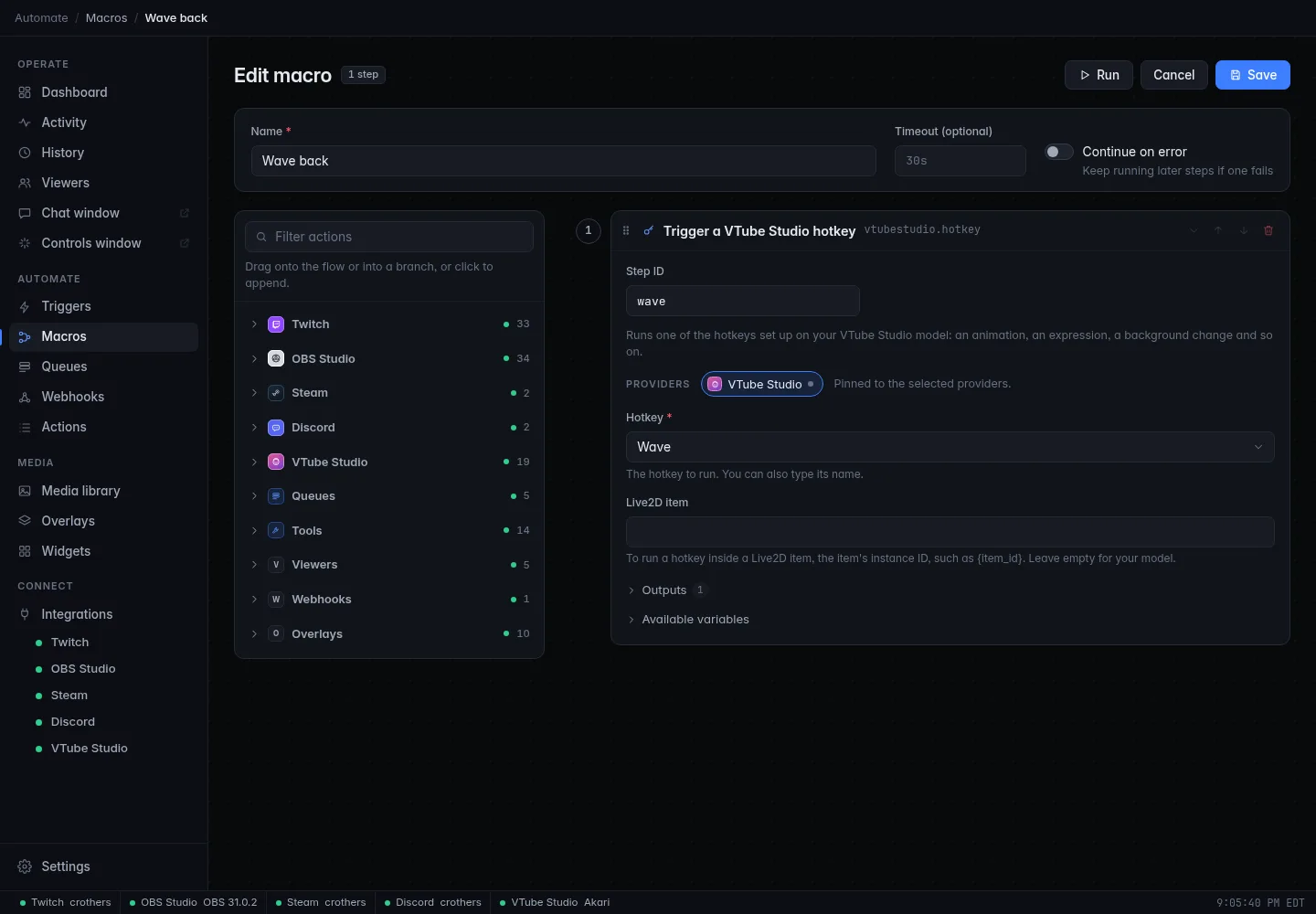
Runs one of the hotkeys set up on your VTube Studio model: an animation, an expression, a background change, a screenshot and so on. This is the most direct way to reuse everything you already built in VTube Studio.
| Setting | Type | Details |
|---|---|---|
| Hotkey required | Pick | The hotkey to run, from the loaded model's list. You can also type its name or ID, or a {variable}. |
| Live2D item | Text | To run a hotkey that belongs to a Live2D item, the item's instance ID, such as {item_id}. Empty runs a hotkey of your model. |
| Output | Meaning |
|---|---|
{hotkey_id} |
The ID of the hotkey that ran. |
Limits. VTube Studio runs one specific hotkey at most once every five frames, and keeps a queue of 32 for different hotkeys sent in quick succession. If it answers wait or queue full, CroStream waits a moment and tries again, up to four more times, before it gives up with VTube Studio asked to wait a moment or VTube Studio's hotkey queue is full. A hotkey needs a loaded model.
Hotkeys that run hotkeys
A hotkey you run from a macro also fires the A VTube Studio hotkey runs trigger, but only for triggers set to Run by api or any. The default trigger only reacts to hotkeys you press yourself, so a macro cannot start itself this way by accident.
Example: a channel point reward runs the hotkey Wave.
Turn a VTube Studio expression on or off
ID vtubestudio.expression
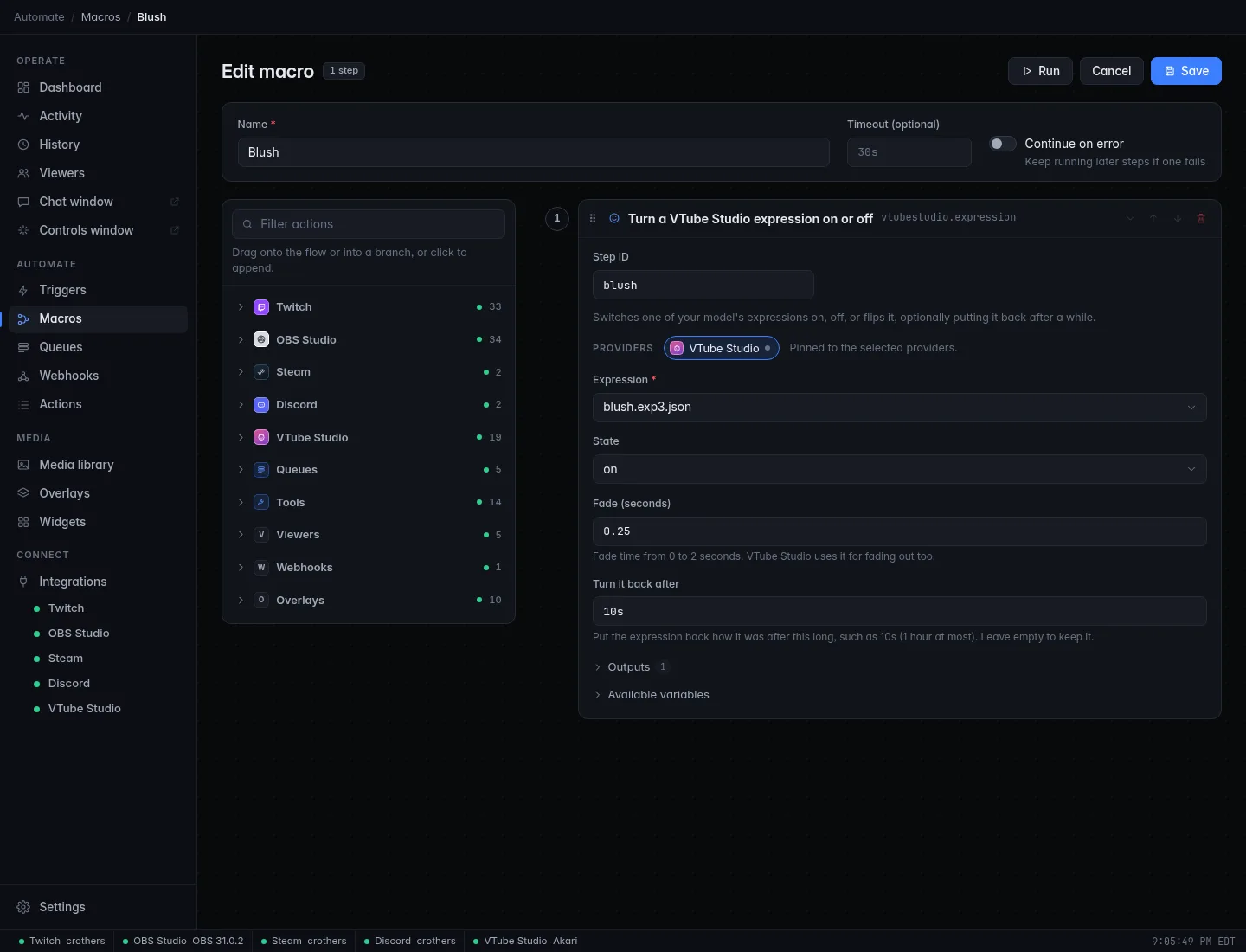
Switches one of your model's expressions on, off, or flips it, and can put it back after a while.
| Setting | Type | Details |
|---|---|---|
| Expression required | Pick | The expression, from the loaded model's list. You can type its file name; .exp3.json is added when you leave it off. |
| State | Choice | Default on One of on, off, toggle. |
| Fade (seconds) | Text | Default 0.25 From 0 to 2. VTube Studio uses the same time for fading out. |
| Turn it back after | Duration | Put the expression back how it was after this long, such as 10s; up to 1 hour. Empty keeps it. |
| Output | Meaning |
|---|---|
{expression_active} |
true or false: whether the expression is on afterward. |
CroStream asks VTube Studio whether the expression is on right now, so
toggle and Turn it back after act on the real state. If the
expression is already how you asked, nothing is scheduled to undo. The
model must have the expression; otherwise the step fails with No
expression name on model.
Model
Move, turn or resize the model
ID vtubestudio.model_move
Moves, rotates or resizes your model on screen, either by an amount or to a place, and can put it back afterward.
| Setting | Type | Details |
|---|---|---|
| Mode | Choice | Default relative relative moves by the amounts below; absolute puts the model at them. |
| Across | Text | Left and right, from -1000 to 1000. -1 and 1 are the screen edges. Empty leaves it. |
| Up and down | Text | Same range. Empty leaves it. |
| Rotation | Text | Degrees from -360 to 360, clockwise is positive. Empty leaves it. |
| Size | Text | From -100 to 100. Empty leaves it. |
| Time (seconds) | Text | Default 0.5 How long the move takes, from 0 to 2. |
| Move back after | Duration | Put the model where it was after this long, such as 5s; up to 1 hour. Empty leaves it there. |
At least one of Across, Up and down, Rotation or Size must be set. With Move back after, CroStream reads the model's position first and returns it to exactly that, taking the same move time. A move back is cancelled if you load a different model in the meantime.
Example: relative, Rotation 20, Move back after 3s tilts the
model for three seconds.
Load a VTube Studio model
ID vtubestudio.model_load
Switches VTube Studio to another of your models, and can switch back after a while.
| Setting | Type | Details |
|---|---|---|
| Model required | Pick | The model to load. You can also type its name (any capitals) or ID. |
| Switch back after | Duration | Load the earlier model again after this long, such as 30s; up to 1 hour. Empty keeps the new one. |
| Output | Meaning |
|---|---|
{model_id} |
The ID of the model that is loaded afterward. |
{model_name} |
Its name. |
Limits. VTube Studio allows one model load every two seconds and refuses while a settings window is open or another load is running. CroStream spaces its own loads and, if VTube Studio still asks to wait, waits two seconds and tries once more. If the model is already loaded the step succeeds and does nothing, and no switch back is scheduled.
Physics gust
ID vtubestudio.physics
Turns the model's hair and clothing physics up (or down) for a while, like a gust of wind.
| Setting | Type | Details |
|---|---|---|
| Strength | Text | Physics strength from 0 to 100; from 0 to 2 as a multiplier when a group is chosen. Empty leaves it. |
| Wind | Text | Wind from 0 to 100; from 0 to 2 as a multiplier when a group is chosen. Empty leaves it. |
| Physics group | Pick | Limit the change to one physics group. The values then multiply that group's own physics. |
| For how long required | Duration | Default 3s From 500ms to 1 minute. |
Set the strength, the wind, or both. VTube Studio lets one override last only 0.5 to 5 seconds, so for longer gusts CroStream sends it again every four seconds until the time is up. A newer gust ends an older one. Only one plugin can control physics at a time; if another one does, the step fails with Another plugin is controlling VTube Studio's physics (name). A model without physics fails with This model has no physics. When the time is up, VTube Studio returns to normal by itself.
Tint the model
ID vtubestudio.tint
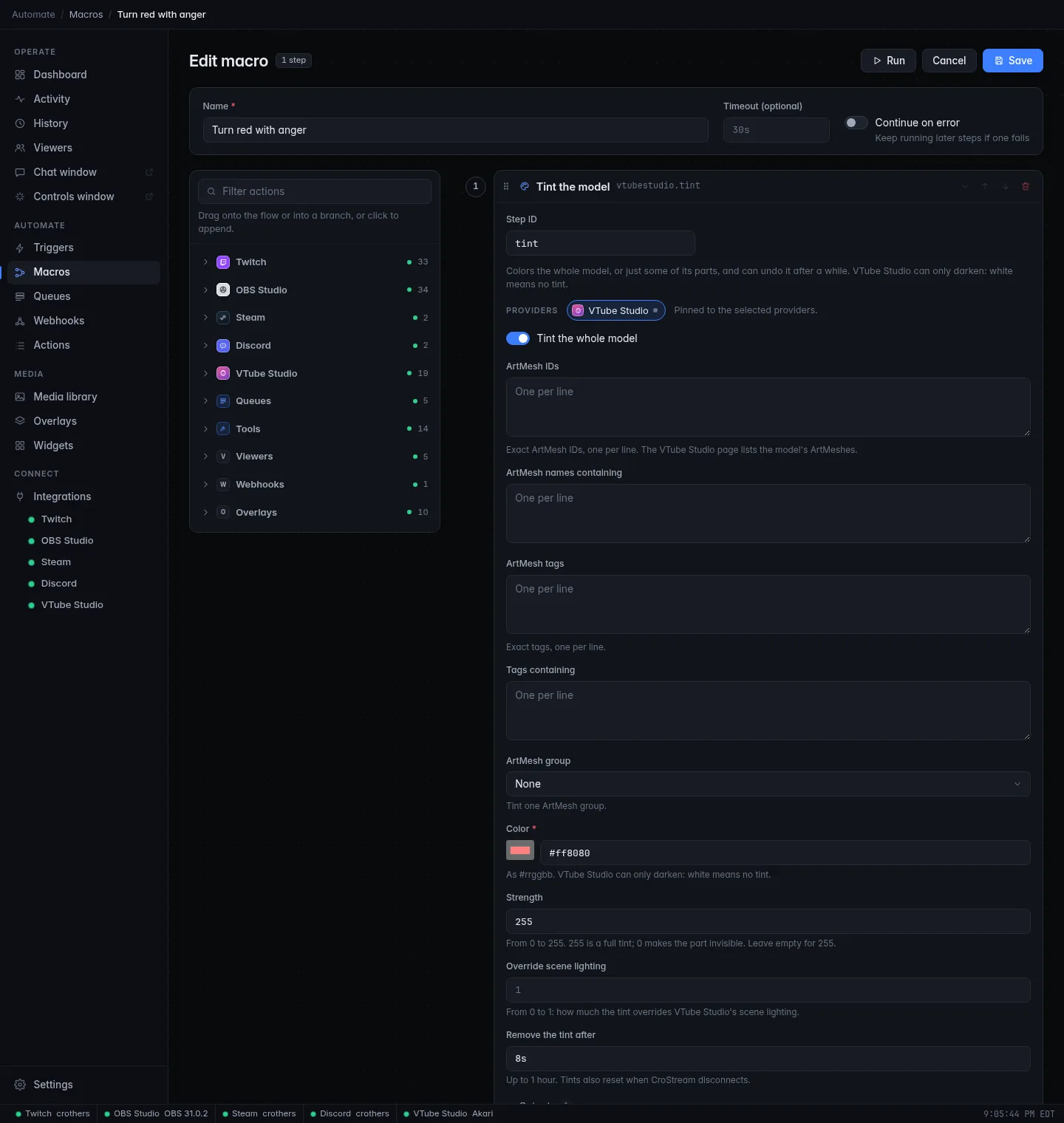
Colors the whole model, or just some of its parts, and can undo it after a while.
| Setting | Type | Details |
|---|---|---|
| Tint the whole model | On/off | Tints every part. |
| ArtMesh IDs | List | Exact ArtMesh IDs, one per line. Pick them from the ArtMesh list in the field. |
| ArtMesh names containing | List | Parts whose name contains any of these. |
| ArtMesh tags | List | Exact tags, one per line. |
| Tags containing | List | Parts with a tag containing any of these. |
| ArtMesh group | Pick | Tint one ArtMesh group. |
| Color required | Color | Default #ff8080 As #rrggbb. |
| Strength | Text | Default 255 From 0 to 255. 255 is a full tint; 0 makes the part invisible. Empty means 255. |
| Override scene lighting | Text | Default 1 From 0 to 1: how much the tint overrides VTube Studio's scene lighting. |
| Remove the tint after | Duration | Up to 1 hour. Empty keeps it. Tints also reset when CroStream disconnects. |
| Output | Meaning |
|---|---|
{matched_art_meshes} |
How many ArtMeshes the tint matched. |
Choose the whole model, or at least one ArtMesh, tag or group. Any part that matches any of the lists is tinted.
VTube Studio can only darken
A tint multiplies the part's colors, so it can only make them darker or shift them toward the tint. White means no tint (white is how CroStream removes one), and a pale color changes little. To make a white shirt look red, a saturated red works; lighter than the original isn't possible. Strength 0 hides the part completely, handy for making a part vanish, a surprise if you only meant "no color".
If no ArtMesh matches, the step fails with No ArtMesh matched. A running tint is reset when CroStream disconnects or when you use Reset everything CroStream changed on the VTube Studio page. When several plugins tint the same part, the most recent request wins.
Items
Items are the extra things in VTube Studio's scene: pictures, GIFs, Live2D
items and props. These actions add, move, animate, pin, sort and remove
them. Item actions take an item's instance ID, which the action that
created it reports ({item_id}), so chain them in one macro.
Where an item's picture comes from
Drop an item and Put on a prop share the same image settings. See Image sources below.
Drop an item into VTube Studio
ID vtubestudio.item_drop
Adds an item to the VTube Studio scene: one from its Items folder, an image from your media library, or a Twitch emote.
| Setting | Type | Details |
|---|---|---|
| Image from | Choice | Default vts_file One of vts_file, media, emote, chat_emote. See Image sources. |
| VTube Studio item | Pick | For vts_file: an item from VTube Studio's Items folder. |
| Media library image | Pick | For media: an image from your media library. |
| Twitch emote | Text | For emote: an emote name as chatters type it, or its emote ID. |
| Which chat emote | Choice | Default first For chat_emote: one of first, last, random, most. |
| Ask in VTube Studio first | On/off | Custom images only: VTube Studio asks you before showing it. |
| Across | Text | Default 0 -1 to 1 across the screen (-1000 to 1000 allowed), or random. |
| Up and down | Text | Default 0 Same range, or random. |
| Size | Text | Default 0.32 From 0 to 1; 0.32 is about VTube Studio's default. |
| Rotation | Text | Default 0 Degrees, or random. |
| Fade in (seconds) | Text | Default 0.5 From 0 to 2. |
| Layer order | Text | Usually -30 to 30 (-1000 to 1000 accepted). Empty lets VTube Studio choose. |
| Flip | On/off | Mirror the image. |
| Smoothing | Text | Default 0 From 0 to 1. |
| Locked | On/off | Nobody can drag the item. |
| Remove after | Duration | Take the item away after this long, such as 30s; up to 24 hours. Empty keeps it. |
| Remove when CroStream disconnects | On/off | Default on VTube Studio removes the item itself when CroStream disconnects. |
random for a position picks a spot between -0.9 and 0.9 (for rotation, 0
to 360) so the item lands on screen.
| Output | Meaning |
|---|---|
{item_id} |
The instance ID of the item that was dropped. |
{item_file} |
The VTube Studio file name of the item. |
Limits. VTube Studio's scene can hold only so many items; when it is full the step fails with VTube Studio's scene is full of items. Remove some first. If you turn off Remove when CroStream disconnects, the item stays after CroStream disconnects, and a Remove after timer is kept and carried out when CroStream reconnects.
Example: when a viewer redeems Confetti, drop confetti.png at
Across random for 5s.
Remove items from VTube Studio
ID vtubestudio.item_remove
Takes items out of the VTube Studio scene: one you name, every copy of a file, everything CroStream added, or everything.
| Setting | Type | Details |
|---|---|---|
| Remove | Choice | Default this this: the item below. file: every copy of a file. ours: everything CroStream added. all: every item in the scene, yours too. |
| Item | Text | Default {item_id} For this: the item's instance ID. Several can be separated by commas. |
| File | Pick | For file: the item file whose copies go. |
| Also copies added by someone else | On/off | For file: also remove copies you or other plugins added. |
| Output | Meaning |
|---|---|
{removed_count} |
How many items were removed. |
all removes items you added by hand in VTube Studio too. There is also a
Remove CroStream's items button on the VTube Studio page.
Move an item
ID vtubestudio.item_move
Slides, resizes or turns items that are in the scene. Leave a field empty to leave that part as it is.
| Setting | Type | Details |
|---|---|---|
| Item required | Text | Default {item_id} Instance ID. Up to 64 items, separated by commas. |
| Across | Text | -1 to 1 across the screen, or random. Empty leaves it. |
| Up and down | Text | -1 to 1 up the screen, or random. Empty leaves it. |
| Size | Text | From 0 to 1. Empty leaves it. |
| Rotation | Text | Degrees, or random. Empty leaves it. |
| Time (seconds) | Text | Default 1 How long the move takes, from 0 to 30. |
| Motion | Choice | Default easeOut How the move accelerates: linear, easeIn, easeOut, easeBoth, overshoot or zip. |
| Flip | Choice | Default unchanged unchanged, flip or unflip. |
| Layer order | Text | Empty leaves it. |
| Streamer can stop it | On/off | Grabbing the item in VTube Studio stops the move. |
| Output | Meaning |
|---|---|
{moved_count} |
How many items were moved. |
If some of several items can't be moved (gone from the scene), the step fails and lists which ones, noting how many did move.
Control an item's animation
ID vtubestudio.item_animate
Plays, stops or changes the speed, frame, brightness or opacity of an animated item (a GIF, for example). Leave a field empty to leave it.
| Setting | Type | Details |
|---|---|---|
| Item required | Text | Default {item_id} The item's instance ID. |
| Playback | Choice | Default unchanged unchanged, play or stop. |
| Frame | Text | Frame number, counting from 0. |
| Frames per second | Text | From 0.1 to 120. |
| Brightness | Text | From 0 (black) to 1. |
| Opacity | Text | From 0 to 1. |
| Stop at frames | Text | Frame numbers separated by commas where the animation stops itself, or none to clear them. |
| Output | Meaning |
|---|---|
{item_frame} |
The item's frame afterward. |
{item_playing} |
true or false: whether the animation is playing afterward. |
Live2D items can't be animated this way (Use their hotkeys; see Trigger a hotkey). A still image fails with This image isn't animated if you set playback or frames; only brightness and opacity apply.
Pin or unpin an item on the model
ID vtubestudio.item_pin
Sticks an item to a part of your model so it moves with it, or lets it go.
| Setting | Type | Details |
|---|---|---|
| Item required | Text | Default {item_id} The item's instance ID. |
| Action | Choice | Default pin pin or unpin. |
| Pin to | Choice | Default anchor anchor: a named part you set up on the VTube Studio page. art_mesh: a part by its ID. random: anywhere on the model. |
| Anchor | Pick | For anchor. See Props & anchors. |
| ArtMesh | Pick | For art_mesh. |
| Position | Choice | Default center center, random or exact (the spot you clicked when setting the anchor). |
| Angle | Text | Default 0 Degrees. |
| Angle relative to | Choice | Default model model, world, item (its current rotation) or pin (the pin position). |
| Size | Text | From 0 to 1. Empty keeps the item's size. |
| Output | Meaning |
|---|---|
{item_id} |
The instance ID of the item. |
Use it right after Drop an item, passing {item_id}, to put a viewer's
emote on your head. For a quick temporary picture on a named part,
Put on a prop does the drop, pin, sort and removal in one step.
If the anchor's part is no longer on the model (you changed models or
rigs), the step fails with a message naming the ArtMesh and the anchor, telling
you to set that anchor again.
Put an item between the model's layers
ID vtubestudio.item_sort
Decides whether an item is drawn in front of or behind your model, or between two of its parts.
| Setting | Type | Details |
|---|---|---|
| Item required | Text | Default {item_id} The item's instance ID. |
| Front part | Choice | Default in_front in_front: in front of the whole model. behind: behind it. art_mesh: just in front of the ArtMesh below. off: leave it. |
| Front ArtMesh | Pick | For art_mesh. |
| Back part | Choice | Default off Live2D items only: where the back part of the item goes. off, behind or art_mesh. |
| Back ArtMesh | Pick | For back part art_mesh. |
| Split at | Text | Live2D items: the item's own ArtMesh where it splits into a front and a back part. Empty leaves it. |
| Output | Meaning |
|---|---|
{front_found} |
true or false: whether the model had the layer the item was put at. |
Props
Put on a prop
ID vtubestudio.prop
Puts an image on a part of your model for a while, like a clown nose on your nose or a hat on your head, then takes it off. This one step loads the image, pins it to a named anchor, draws it in front of the model and removes it after the time you set.
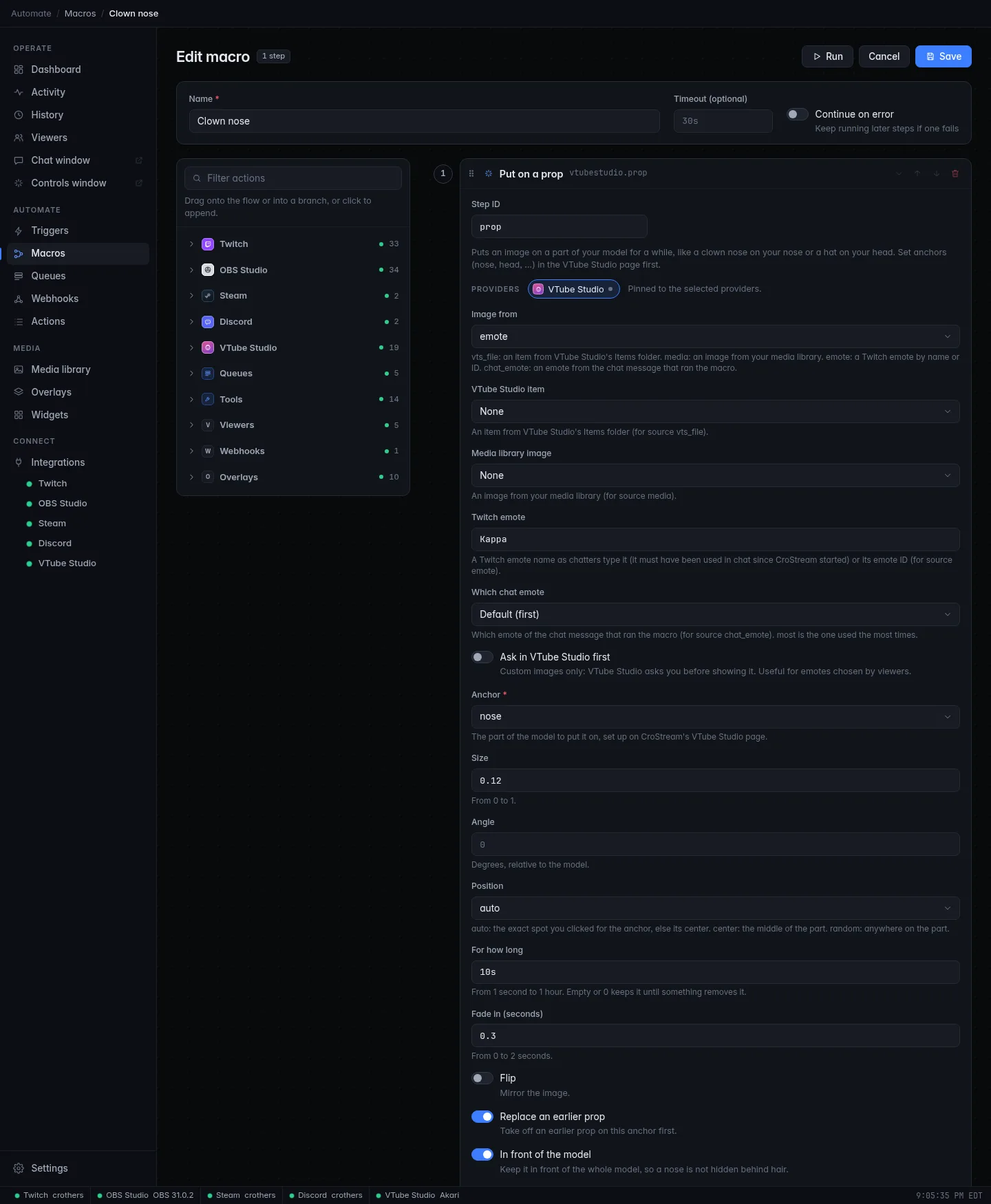
| Setting | Type | Details |
|---|---|---|
| Image from | Choice | Default chat_emote One of vts_file, media, emote, chat_emote. See Image sources. |
| VTube Studio item | Pick | For vts_file. |
| Media library image | Pick | For media. |
| Twitch emote | Text | For emote. |
| Which chat emote | Choice | Default first For chat_emote: first, last, random or most. |
| Ask in VTube Studio first | On/off | Custom images only: VTube Studio asks you first. |
| Anchor required | Pick | The part of the model to put it on, set up on CroStream's VTube Studio page. You can type an anchor name or use a {variable}. |
| Size | Text | Default 0.12 From 0 to 1. |
| Angle | Text | Default 0 Degrees, relative to the model. |
| Position | Choice | Default auto auto: the exact spot you clicked for the anchor, else its center. center: the middle of the part. random: anywhere on the part. |
| For how long | Duration | Default 10s From 1 second to 1 hour. Empty or 0 keeps it until something removes it. |
| Fade in (seconds) | Text | Default 0.3 From 0 to 2. |
| Flip | On/off | Mirror the image. |
| Replace an earlier prop | On/off | Default on Take off an earlier prop on this anchor first. |
| In front of the model | On/off | Default on Keep it in front of the whole model, so a nose is not hidden behind hair. |
| Output | Meaning |
|---|---|
{item_id} |
The instance ID of the prop. |
{item_file} |
The VTube Studio file name of the prop. |
{anchor_art_mesh} |
The ArtMesh the anchor sits on. |
How it behaves.
- The anchor is looked up for the model that is loaded. An anchor named
noseset for one model does not exist for another, and the step fails with No "nose" anchor for model Akari. On CroStream's VTube Studio page, add it and pick the part. This is checked before any image work. - Replace is per anchor: a new prop on
noseremoves the old one onnose, but only after the new one loaded, so a failed load leaves the old prop on. Props on different anchors stay together. - Props use Remove when CroStream disconnects, so VTube Studio clears them if the connection drops.
- If putting the prop in front fails, you get a note in the feed and the prop stays where VTube Studio placed it.
Example: Image from chat_emote, Anchor nose, For how long 8s,
on a Chat command event, turns
a viewer's emote into a nose for eight seconds.
Effects
Turn a visual effect on or off
ID vtubestudio.effect
Switches one of VTube Studio's visual effects (bloom, glitch, rain and so on) on, or off, optionally for a limited time.
| Setting | Type | Details |
|---|---|---|
| Effect required | Pick | The effect, from VTube Studio's list. |
| Strength | Text | Default 1 From 0 to 1. 0 turns the effect off. |
| Fade (seconds) | Text | Default 0.5 From 0 to 2. |
| For how long | Duration | Put the effects back as they were after this long, such as 10s; up to 1 hour. Empty keeps the effect. |
| Restricted effect | On/off | Needed for restricted effects. Allow them in VTube Studio's VFX (effects) settings first. |
| Output | Meaning |
|---|---|
{effects_active} |
How many effects are on afterward. |
If VTube Studio doesn't know the effect the step fails with No effect
named name in VTube Studio. Restricted effects fail with That effect is
restricted until you allow them in VTube Studio and turn on Restricted
effect. With For how long, CroStream saves the current effects
(including a loaded preset) and restores them afterward, not just this one
effect.
Set VTube Studio's effects
ID vtubestudio.post_processing
Loads an effects preset, sets individual effect values, randomizes the effects, or turns them all on or off. VTube Studio calls this post-processing.
| Setting | Type | Details |
|---|---|---|
| Mode | Choice | Default preset One of preset, values, randomize, on, off. |
| Preset | Pick | For preset: the effects preset to load. |
| Values | Values | For values: effect setting IDs such as Bloom_Strength with values such as 0.8, true or 220308FF (colors are RRGGBB or RRGGBBAA). Numbers, true/false (or 1/0) and colors are checked against the setting's type. |
| Fade every other effect off | On/off | For values: every setting you didn't list goes back to its default. |
| Chaos | Text | Default 0.45 For randomize: from 0 to 1. |
| Fade (seconds) | Text | Default 1 From 0 to 2. |
| Restricted effects | On/off | Needed for restricted effects. Allow them in VTube Studio's VFX (effects) settings first. |
| Put back after | Duration | Put the effects back as they were after this long, such as 30s; up to 1 hour. Empty keeps them. |
| Output | Meaning |
|---|---|
{effects_active} |
How many effects are on afterward. |
{effects_preset} |
The name of the active effects preset, empty when none. |
on and off switch effects as a whole without changing their settings.
VTube Studio takes effect updates one at a time, so CroStream spaces them
by a third of a second. An unknown preset fails with No effects preset
named name, and a setting ID or value VTube Studio rejects with VTube
Studio doesn't know one of those effect settings, or a value doesn't fit
it.
Parameters
Tracking parameters are the numbers that drive your model: mouth open, eye smile, head angle, plus custom ones that models and other plugins define.
Set a tracking parameter for a while
ID vtubestudio.parameter
Holds one of VTube Studio's tracking parameters at a value for a while, overriding what the camera sees.
| Setting | Type | Details |
|---|---|---|
| Parameter required | Pick | The parameter, from the loaded model's list. |
| Value required | Text | From -1000000 to 1000000. Most parameters run from 0 to 1. |
| Weight | Text | Default 1 From 0 to 1: how much of this value is mixed with face tracking (mode set). |
| Mode | Choice | Default set set takes over the parameter. add adds the value to it and works alongside other plugins. |
| For how long required | Duration | Default 3s From 1 second to 10 minutes. |
| Face found | On/off | Tell VTube Studio the face is found while holding. |
CroStream keeps sending the value until the time is up. When it ends,
tracking takes over again. If another plugin already controls the
parameter, the step fails with Another plugin is already setting name.
Use mode add, or stop the other plugin. A name VTube Studio doesn't know
fails with No parameter name in VTube Studio. Face found helps if
you want a model to keep animating while your camera sees no face.
Create a custom parameter
ID vtubestudio.parameter_create
Adds a custom tracking parameter to VTube Studio that models and other plugins can use.
| Setting | Type | Details |
|---|---|---|
| Name required | Text | 4 to 32 letters and digits, no spaces. |
| Explanation | Text | What it is for, under 256 characters. |
| Minimum | Text | Default 0 |
| Maximum | Text | Default 1 Must be above the minimum. |
| Default | Text | Default 0 Between the minimum and maximum. |
| Output | Meaning |
|---|---|
{parameter} |
The name of the parameter that was created. |
The parameter is yours until deleted. A name that another plugin owns, or that is one of VTube Studio's own, is refused with a message saying so.
Delete a custom parameter
ID vtubestudio.parameter_delete
Removes a custom parameter that CroStream created.
| Setting | Type | Details |
|---|---|---|
| Name required | Pick | One of CroStream's custom parameters. |
Deleting one that is already gone succeeds (already gone). One that belongs to another plugin fails with That parameter belongs to another plugin.
Advanced
Change VTube Studio's NDI output
ID vtubestudio.ndi
Turns VTube Studio's NDI video output on or off, switches NDI 5, or sets a custom output size. Needs the Control NDI permission.
Beta feature
VTube Studio's NDI request, and the permission it needs, are currently only in VTube Studio's public beta. On the regular version this action fails.
| Setting | Type | Details |
|---|---|---|
| NDI output | Choice | Default unchanged unchanged, on or off. |
| Use NDI 5 | Choice | Default unchanged unchanged, on or off. |
| Custom resolution | Choice | Default unchanged unchanged, on or off. |
| Width | Text | 256 to 8192, a multiple of 16. Empty leaves it. |
| Height | Text | 256 to 8192, a multiple of 8. Empty leaves it. |
| Output | Meaning |
|---|---|
{ndi_active} |
true or false: whether NDI output is on afterward. |
Change at least one setting. VTube Studio only allows an NDI change every three seconds; if it says wait, CroStream waits and tries once more. A bad size fails with Width must be a multiple of 16 and height of 8, from 256 to 8192.
Image sources
Drop an item and Put on a prop show an image chosen by Image from:
| Value | Picture | Notes |
|---|---|---|
vts_file |
An item from VTube Studio's own Items folder. | Nothing is uploaded; no permission needed. Default for Drop an item. |
media |
An image from your media library. | Needs the Load custom images as items permission. |
emote |
A Twitch emote by name or ID. | The name must have appeared in chat since CroStream started, or give its numeric ID (or emotesv2_…). |
chat_emote |
An emote in the chat message that started the macro. | Default for Put on a prop. Which chat emote picks first, last, random or most (the one used the most times; ties go to the first). Fails with The chat message that ran this macro has no emotes when the message has none. A macro's Test button uses Kappa. |
Custom images (media, emote, chat_emote) are sent to VTube
Studio as data. CroStream prepares them first:
- PNG, JPG, GIF and WebP (and BMP) are accepted. Anything else fails with This image type isn't supported; use PNG, JPG, GIF or WebP.
- Input up to 20 MB is read; VTube Studio accepts up to 5 MB, 64 to 2048 pixels on a side. CroStream resizes and re-encodes stills and GIFs as needed. An image that is still too big afterward fails with This image is too large for VTube Studio (5 MB max), and a GIF that is still too big, or has more than 1024 frames, with This GIF is too large for VTube Studio (5 MB max).
- A very thin image fails with This image is too thin to show. A huge one fails with has too many pixels to read.
- The same picture is only sent once per VTube Studio session.
- Ask in VTube Studio first makes VTube Studio show a window asking you to allow a custom image. It asks the first time only: VTube Studio remembers images you allowed (by their content), so the same picture is not asked about again. VTube Studio shows at most six such questions at once; more fail until you answer. Declining fails with The image was declined in VTube Studio. The question waits up to 30 seconds. If the macro step has less than about 8 seconds left, the step fails with There is not enough time left to ask in VTube Studio.
Permissions
Two things need a permission you grant once in VTube Studio:
| Permission | Needed by |
|---|---|
| Load custom images as items | media, emote and chat_emote images in Drop an item and Put on a prop. |
| Control NDI | Change VTube Studio's NDI output. |
On CroStream's VTube Studio page, click Ask in VTube Studio next to the permission, then Allow in VTube Studio. Until then those actions fail with a message naming the exact button. Everything else needs no extra permission.
Undoing after a while
Actions with a timer (Turn it back after, Move back after, Switch back after, Put back after, Remove after, Remove the tint after, For how long) put things back by themselves.
- Changes VTube Studio undoes itself when CroStream disconnects (items loaded with remove on disconnect, tints, held parameters, props) are simply dropped from CroStream's timers on disconnect.
- Changes VTube Studio would not undo (expression, model position, model load, effects, and items with remove on disconnect off) are kept. If the timer ends while you are disconnected, CroStream puts things back as soon as it reconnects, unless it was disconnected too long, in which case it skips the undo and tells you in the Activity feed. When CroStream quits, pending undos are run first.
- If you load a different model before the timer ends, undos tied to the old model (an expression, a model move, a tint) are dropped.
- Starting the same kind of change again (the same expression, a second move back) keeps the first undo with the new deadline.
- Reset everything CroStream changed on the VTube Studio page runs all pending undos now, stops held parameters, removes CroStream's items and clears tints.
Related
- Triggers: the events VTube Studio sends
- Props & anchors
- Recipes
- Troubleshooting
- Actions reference: all settings in the standard format