Your first chat command
In this tutorial you build a !highlight chat command from scratch. It is
the quickest way to learn the two building blocks of CroStream: a
macro, which is a list of things to do, and a trigger, which says
when to do them. Everything else in CroStream is made of these two.
What you'll build
When anyone in chat types !highlight, CroStream will:
- save your OBS replay buffer, so you keep a high-quality copy of the last moments on your computer;
- create a Twitch clip at the same time;
- post the clip link in chat.
NightOwl_TV !highlight
CroStream @NightOwl_TV grabbed a highlight! https://clips.twitch.tv/…
Time: about 10 minutes. Level: beginner.
CroStream already has a !clip
A fresh CroStream comes with a !clip command that does the same job.
You are building your own here to learn how the parts fit together.
Leave !clip alone; the two do not get in each other's way.
Before you start
- CroStream is logged in to Twitch. See Logging in to Twitch.
- CroStream is connected to OBS, and the OBS replay buffer is running. See Connect OBS.
- You know where the sidebar is: Triggers and Macros are under Automate. See The CroStream window.
Step 1: Build the macro
The macro is the "what to do" half.
- In the sidebar, under Automate, click Macros, then click New macro at the top right.
- In Name, type
Highlight. -
On the left is the action palette, a list of everything a macro can do, sorted by the app or service that does it. Type
clipinto Filter actions. Clip shows up twice, under Twitch and under OBS Studio, because both can do it. Click either one. It becomes step 1 on the right.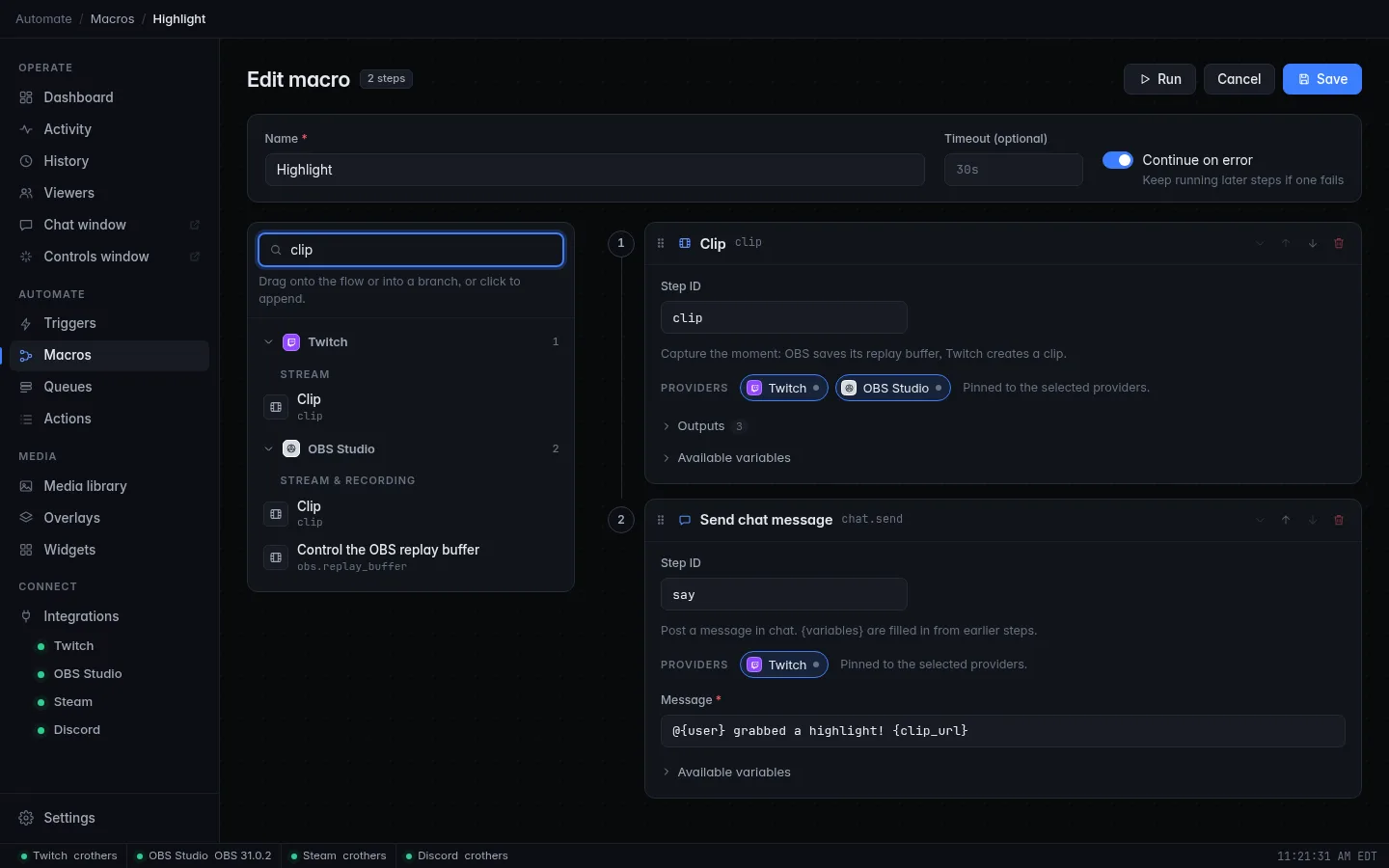
-
Look at the step's Providers row. Only the one you clicked under is selected. Click the other one too, so both Twitch and OBS Studio are selected: OBS then saves the replay and Twitch makes the clip at the same moment. (With none selected, a step runs on every connected provider, which here does the same.)
- In the step's Step ID box, type
clip. A step ID is a short name for the step, so later steps can use what it produced. -
Filter the palette for
chatand click Send chat message. It becomes step 2. In its Message box, type:The parts in curly brackets are variables: placeholders that CroStream fills in when the macro runs.
{user}becomes the name of whoever typed the command, and{clip_url}becomes the link from the Clip step. Open Available variables under any step to see every variable you can use there, and click one to insert it. See Variables. -
At the top, switch on Continue on error. If the replay buffer is not running, the OBS half of the Clip step fails; with this on, the macro still goes on to post in chat.
- Click Save.
If the Twitch clip fails, chat sees {clip_url} as written
With Continue on error on, a failed Twitch clip still reaches the chat step, and the empty placeholder is posted as plain text. Leave Continue on error off if you would rather the macro stop at the first failure.
Step 2: Add the trigger
The trigger is the "when" half: it waits for the chat command and runs the macro.
- In the sidebar click Triggers, then New trigger.
- In the General panel, set Name to
Highlight command. Leave Enabled on. - In the When panel, open Event and pick Chat command (under
Twitch). Type
!highlightinto Command. Capital letters do not matter:!Highlightworks too. - In the Who & how often panel, leave Minimum role on
Everyone, and type
1minto Cooldown. That allows one highlight a minute, so a busy chat cannot flood you with clips. You, the broadcaster, always skip cooldowns. - In the Then run panel, pick Highlight from Macro.
- Click Save.
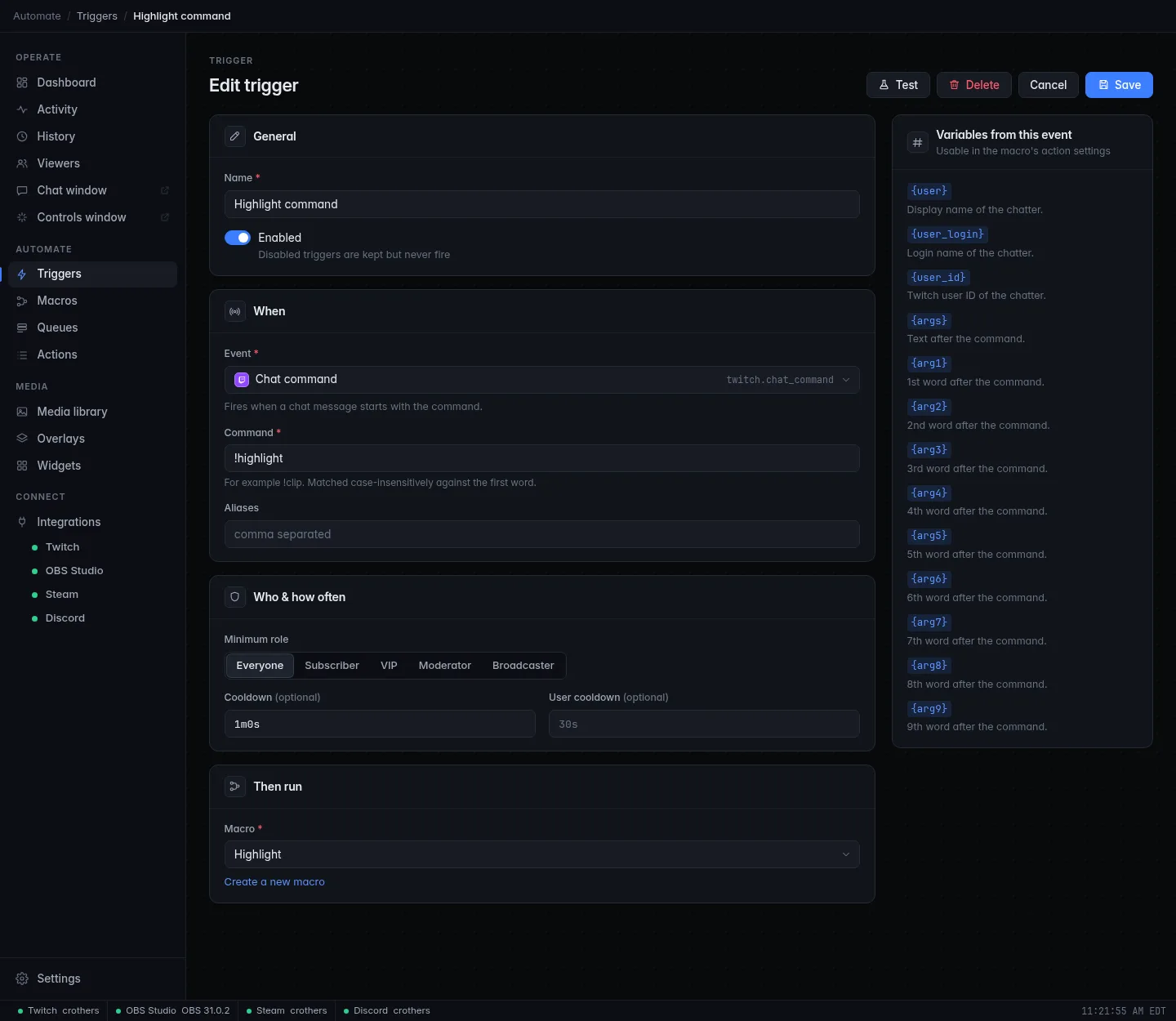
The panel on the right, Variables from this event, lists what this
event gives your macro: {user}, {args} (the words after the command)
and more.
Check it works
- On the saved trigger, click Test at the top. Test runs the macro with a sample event, as you, ignoring roles and cooldowns. It is greyed out while you have unsaved changes, because it always runs the saved version.
- Look at your Twitch chat: the highlight message with a clip link appears.
- In OBS, check that a new replay file was saved.
- Open History in the sidebar. The newest run is at the top: it shows the trigger, each step, and what each step did.
- For the real thing, type
!highlightin your own chat.
Troubleshooting
| What you see | What to do |
|---|---|
| The Clip step fails on OBS | The replay buffer is not running. In OBS, start it with Start Replay Buffer (enable it first under Settings → Output → Replay Buffer). |
| The Clip step fails on Twitch | Twitch only makes clips while you are live. Test again while live. |
| A step says it needs a permission or says "re-login" | Your Twitch login is missing a permission. Log in again from the Twitch page; see Logging in to Twitch. |
Typing !highlight does nothing |
Check that the trigger is Enabled, that the cooldown has passed, and that the Twitch dot in the status bar at the bottom of the window is green. |
| Save shows a red list of problems | Each line names what is missing, such as "Choose a macro". Fix those and save again. |
More fixes: Troubleshooting.
Next steps
- Add a Marker step so the moment is also marked in your VOD. Browse every action on the Actions page.
- Let only subscribers clip by setting Minimum role to Subscriber. See Triggers.
- Learn every part of the macro editor in Macros.
- Next tutorial: Switch scenes with a channel point reward.