Settings
The Settings page holds CroStream's own settings: where it keeps its files, how it behaves on your computer, how much history it keeps, your backups, sharing macros as files, updates, and crash reporting. Open it from the bottom of the sidebar, or with Settings… in the tray icon's menu.
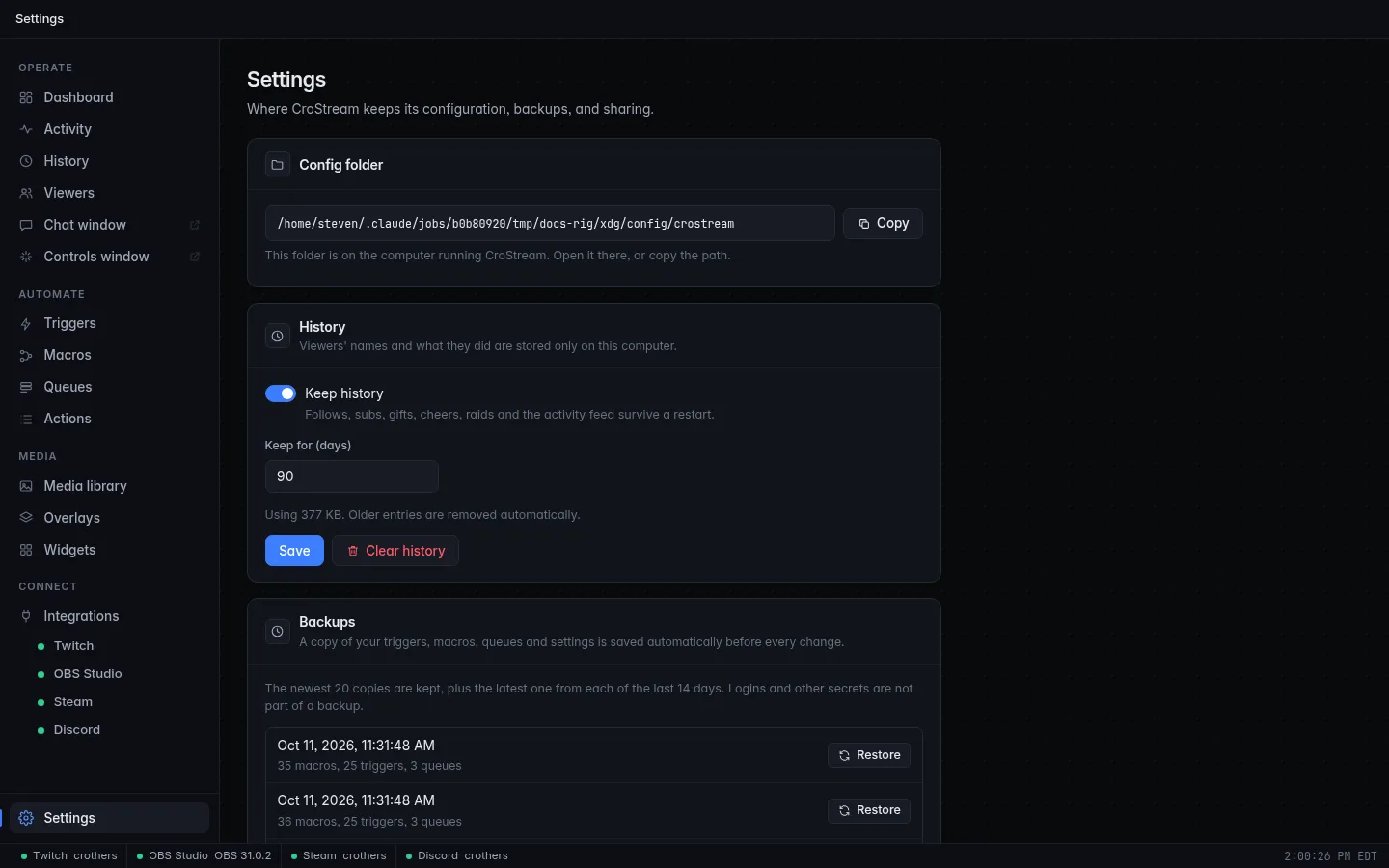
The panels, from top to bottom:
| Panel | In short |
|---|---|
| Config folder | Where your settings are stored: the path to copy, and a button to open the folder. |
| Desktop app | Tray, starting at login, and notifications. |
| History | Whether to keep a history, for how long, and clearing it. |
| Backups | Automatic copies of your setup, and restoring one. |
| Export & import | Sharing macros, triggers, queues and webhooks as a file. |
| Updates | Your version, the update channel, and installing updates. |
| Crash reporting | Whether to send the developer crash reports, and reporting a problem. |
| About | What CroStream is. |
Most switches save the moment you change them. The History panel has its own Save button.
Config folder
Shows the folder where CroStream keeps your settings, triggers, macros, queues, overlays, logins and passwords. The panel shows the folder's full path: select it, or click Copy to put it on the clipboard (the button says Copied). Open config folder opens it in your file manager (Explorer, Finder or your Linux file manager).
In browser mode the folder is on the computer running CroStream, not the one your browser runs on, so there is no Open config folder button. The panel says This folder is on the computer running CroStream. Open it there, or copy the path.
You don't need to touch anything in it: CroStream saves every change as you make it. It's useful when you want to make your own copy of everything, or move to a new computer. Where CroStream keeps its files lists what's inside and where the folder is on each system.
Desktop app
How CroStream behaves on this computer. Every switch takes effect at once. This panel is only in the desktop app, not in browser mode.
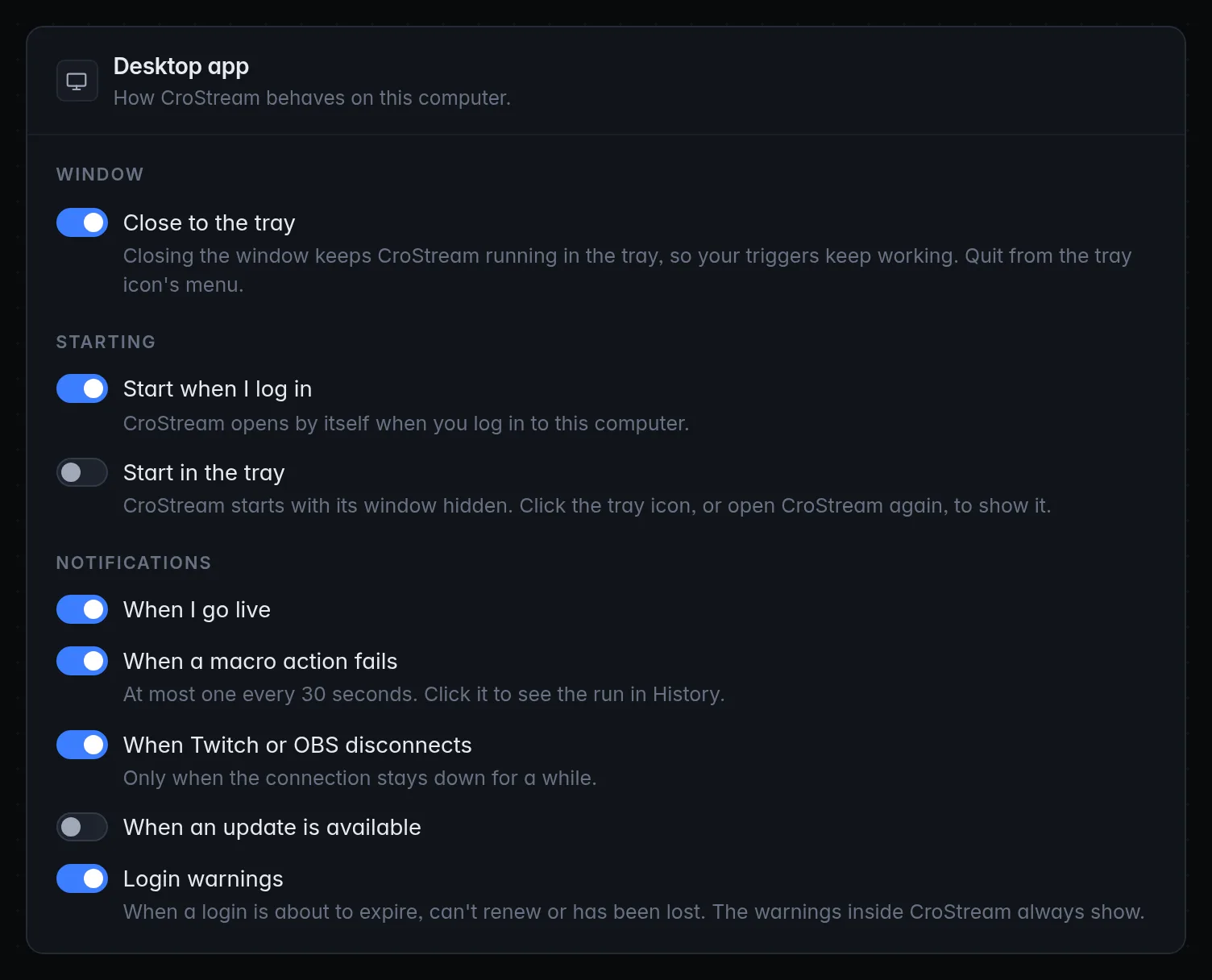
| Group | Switch | What it does |
|---|---|---|
| Window | Close to the tray | Closing the window keeps CroStream running in the tray, so your triggers keep working. Off: closing quits. |
| Starting | Start when I log in | CroStream opens by itself when you log in to this computer. Only shown where the system supports it. |
| Start in the tray | CroStream starts with its window hidden. | |
| Notifications | When I go live | A system notification when your stream goes live. |
| When a macro action fails | At most one every 30 seconds. Click it to see the run in History. | |
| When Twitch or OBS disconnects | Only when the connection stays down for a while. | |
| When an update is available | Once per new version. | |
| Login warnings | When a login is about to expire, can't renew or has been lost. On unless you turn it off. |
On macOS these say menu bar instead of tray. The whole panel is explained in Desktop behaviour.
History
CroStream can keep a history of your channel: follows, subs, gifts, cheers, raids, and the activity feed. It's what the History page and the totals and top supporters are built from, and it's how the Activity page shows the last session's lines after a restart. Viewers' names and what they did are stored only on this computer.
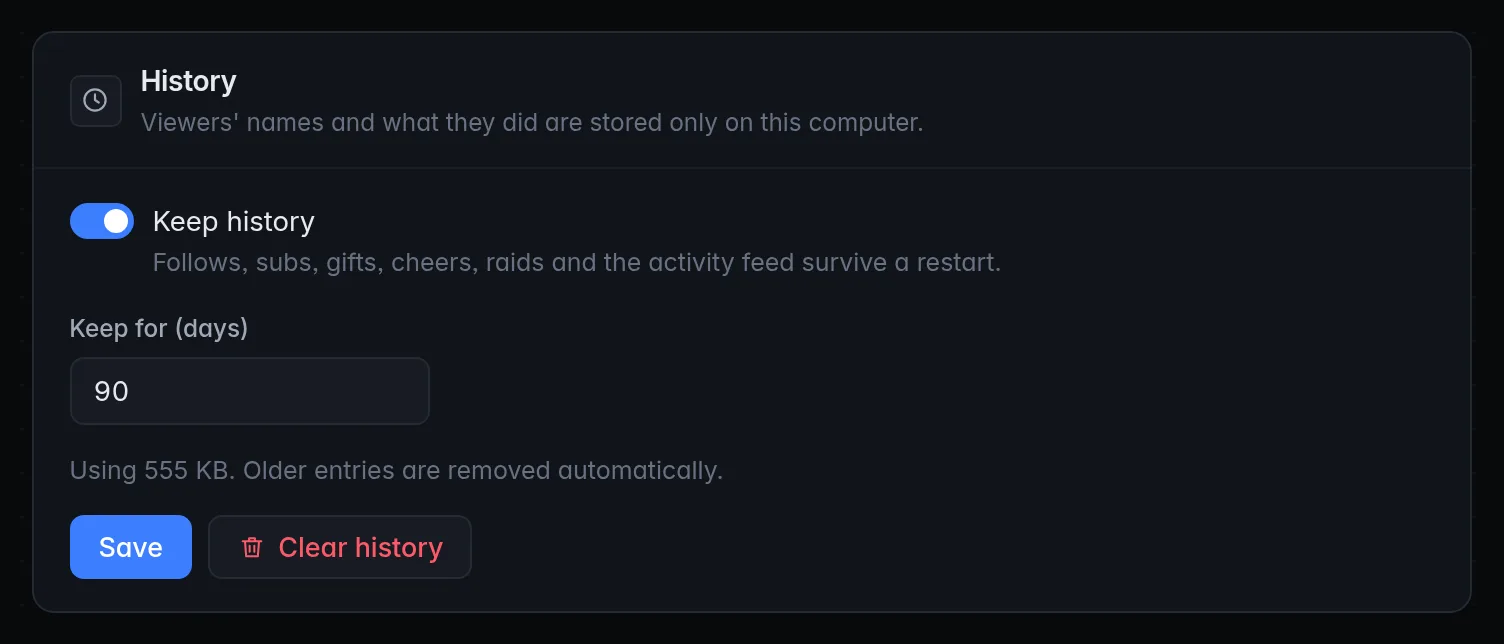
- Keep history: on by default. Turn it off to stop recording.
- Keep for (days): how long entries are kept, from 1 to 3650 days. The default is 90. Older entries are removed automatically.
- Below that, how much space the history uses, for example Using 2.1 MB.
- Save applies your changes.
- Clear history deletes every stored event and activity line, after asking Clear all history? It can't be undone. Your triggers, macros, settings and viewer database aren't affected.
Backups
Before every change to your triggers, macros, queues or settings, CroStream saves a copy of them automatically. The panel lists the copies, newest first, each with its date and what it holds (for example 1 macro, 1 trigger, 0 queues).
CroStream keeps the newest 20 copies, plus the latest one from each of the last 14 days. Logins and passwords are never part of a backup.
To go back to an earlier setup:
- Find the copy from before things went wrong.
- Click Restore, then Restore again in Restore this backup?
Your current setup is backed up first, so you can undo a restore the same way. Backups, export and import has the details.
Export & import
Share macros, triggers, queues and webhooks as a file, or bring in ones someone else made.
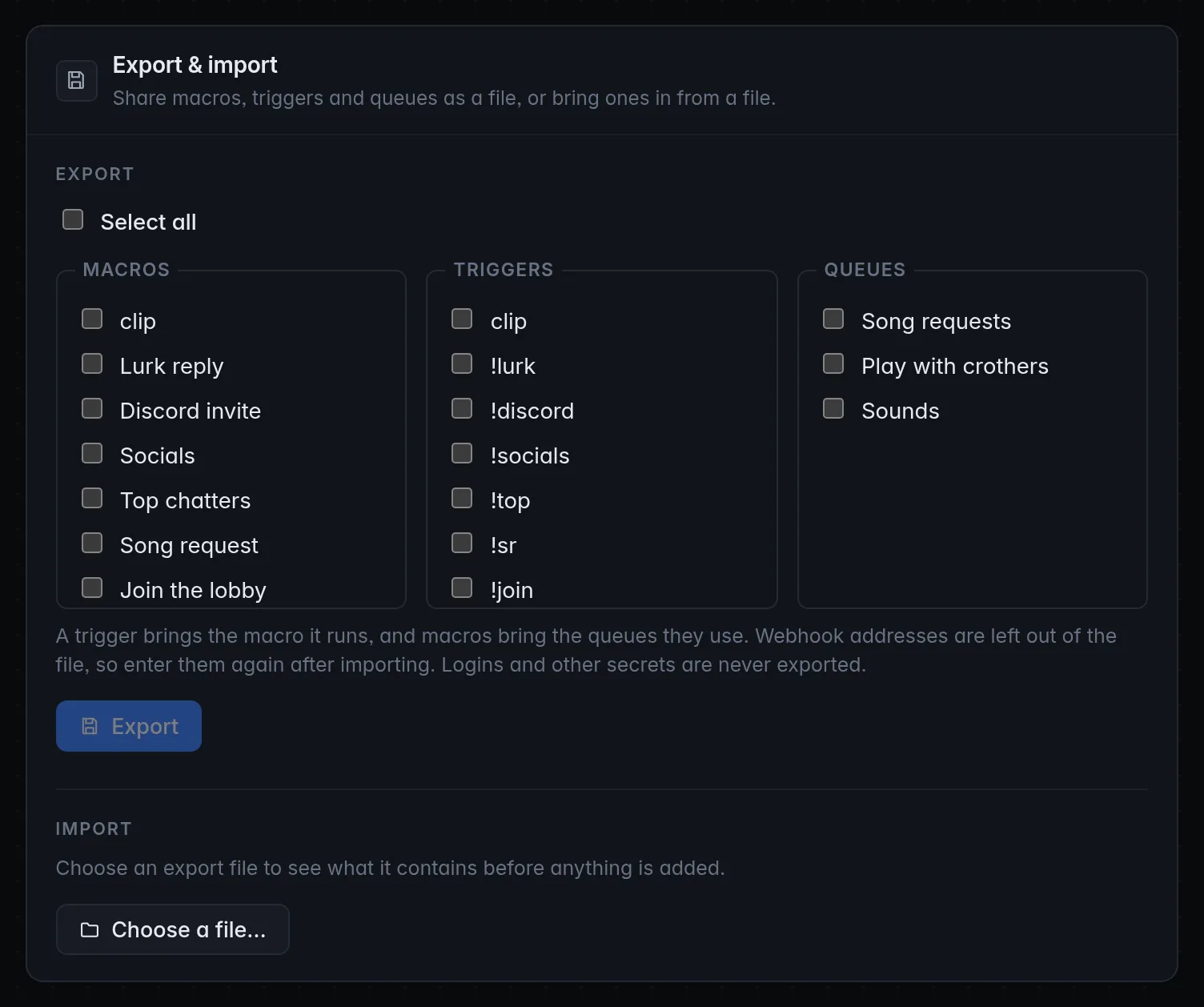
To export:
- Tick what to share under Macros, Triggers, Queues, Incoming webhooks and Webhook destinations, or Select all. Webhook listener settings adds who may reach incoming webhooks, and the port.
- Click Export (it shows the count, such as Export 3 items) and choose where to save the file.
A trigger brings the macro it runs and the incoming webhook it listens to, and a macro brings the queues and webhook destinations it uses. Discord webhook addresses are left out of the file (enter them again after importing). Logins, webhook tokens, signing keys and destination secrets are never exported.
To import:
- Click Choose a file… and pick an export file.
- Import from file lists everything in it, each marked New, Added as a copy, Replaces yours or Name in use, gets a number, plus any warnings.
- Under When something already exists, choose Add as copies (keeps what you have) or Replace matching items.
- Click Import.
Imported triggers and incoming webhooks start turned off, so nothing fires until you turn them on in Triggers and Webhooks. Imported webhooks get new tokens. A Do this now box under the panel lists what to redo, such as copying a new token or entering a destination's secret. An import never makes the webhook listener reachable from more places than it is. A backup of your current setup is saved first.
Updates
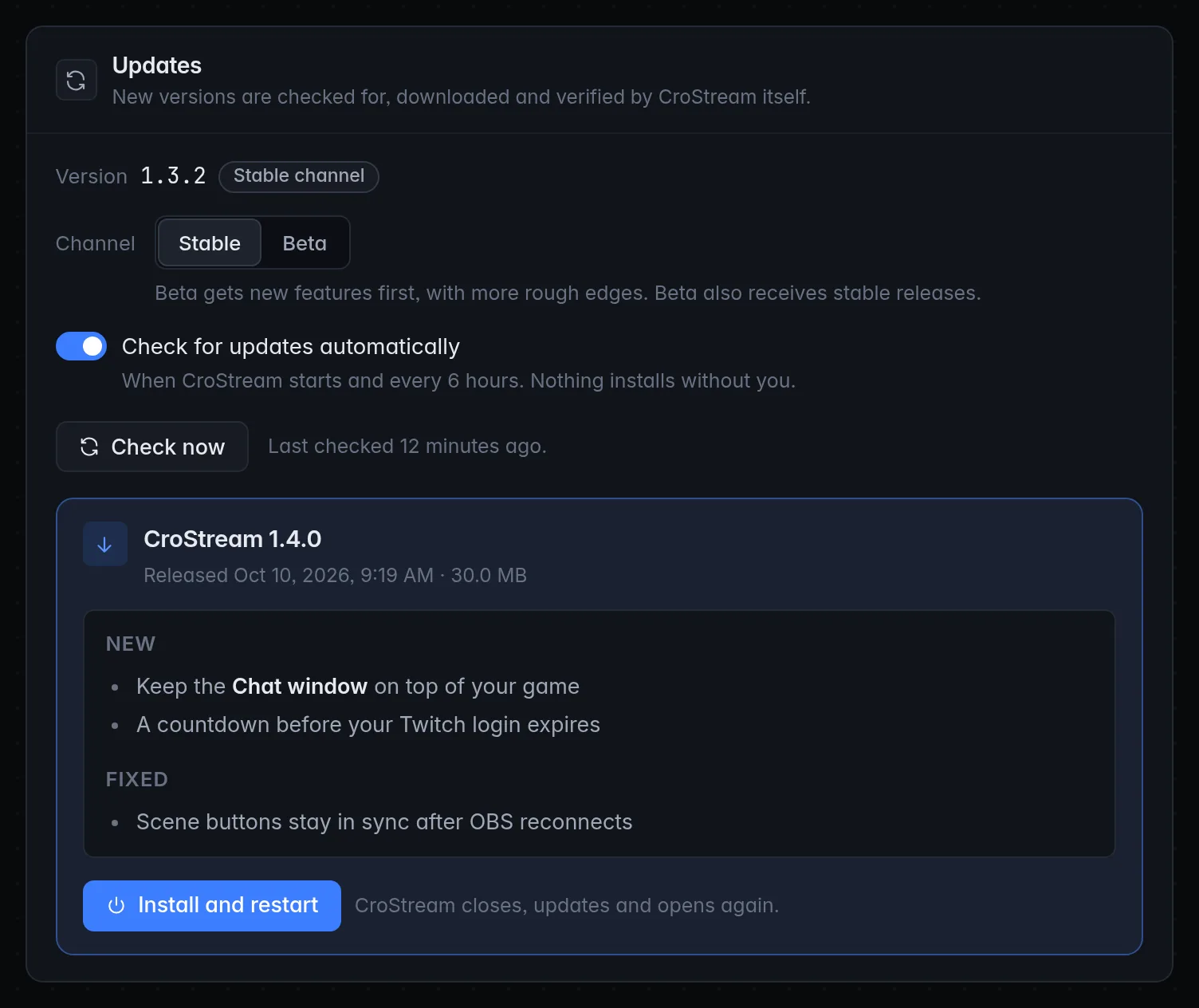
Shows your Version and channel, and lets you choose Stable or Beta, turn Check for updates automatically on or off, Check now, and install an update with Install and restart. See Updates.
Crash reporting
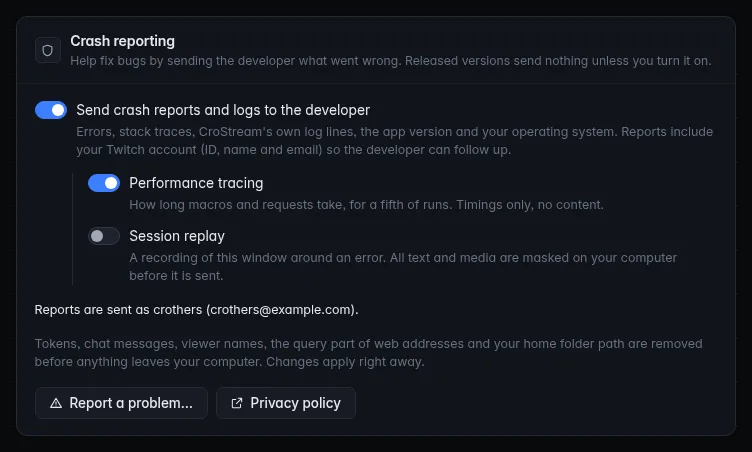
Whether CroStream sends the developer what went wrong when it hits an error. In a released version it is off until you turn it on, with Send crash reports and logs to the developer and two extra opt-ins, Performance tracing and Session replay. Report a problem… opens a box to describe a problem yourself. A development build always reports, and the switch shows locked on. Every option, and exactly what is and isn't sent, is in Crash reporting.
About
A short description of CroStream, and a reminder that your triggers and macros are saved to the config file as you edit them.
Settings that live elsewhere
Not everything is on this page. Settings that belong to one feature live next to it:
| Setting | Where |
|---|---|
| Twitch login, OBS address and password, Steam, Discord | Each connection's page under Connect in the sidebar. See Integrations. |
| Viewer points, watch time and the viewer database | Viewer settings on the Viewers page. |
| Pinned macros on the Dashboard and Controls window | Edit on the Dashboard's Controls panel. See Dashboard. |
| Chat window text size and timestamps | In the Chat window itself. |
| Hotkeys | A Hotkey trigger on the Triggers page. See Hotkeys. |
| Who can reach incoming webhooks, and the webhook port | The Listener panel on the Incoming tab of the Webhooks page. |